Change Cost Center
FUNCTION: CHANGE COST CENTER
GENERAL DESCRIPTION
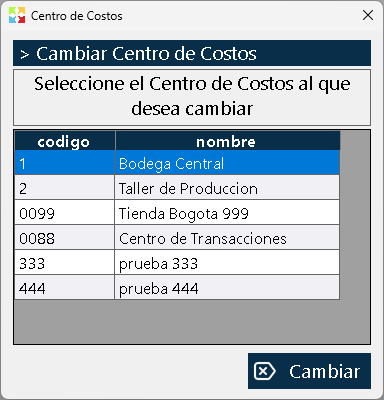
The function Change cost center allows authorized users to move between the different warehouses or branches configured in the company without needing to log out and log in again. When performing the change, the system immediately updates the interface to show the inventory and the documents of the new selected location.
⚠️ SECURITY RESTRICTION (PERMISSION)
Access to this function is strictly controlled by the special permission "Change cost center".
- If the user DOES have the assigned permission: The button will be visible and functional in the interface.
- If the user does NOT have the assigned permission: The button is completely invisible. The system hides it so that the user does not even know that the option exists, guaranteeing that only supervision or management staff can jump between warehouses.
LOCATION AND ACCESS
The button is located in the left side panel of the program's main window, located right below the name of the user who has logged in.
CHANGE PROCESS
The procedure to change warehouse or branch is extremely simple and fast:
- Open the selector: Click the button "Change cost center".
- Select destination: A small pop-up window will open automatically showing the list with all the cost centers available in the system.
- Confirm: Click on the cost center to which you want to move and press the button "Accept".
EFFECT ON THE SYSTEM
Immediately after clicking "Accept", the system reloads the work context. All the inventory, sales, purchases and report windows will begin to operate and show only the information corresponding to the new cost center selected.
Note: By default, when logging in, the system will always load the main cost center to which the user is assigned in their profile. This function is for changing it manually during the session.
Created with HelpNDoc's Personal Edition: Save time and frustration with HelpNDoc's WinHelp HLP to CHM conversion feature