Change Password
CHANGE PASSWORD WINDOW
GENERAL DESCRIPTION
The window Change Password is the security tool that allows each user to modify their own access password to the Kardex Tauro system. This functionality guarantees that each person can maintain the confidentiality of their account, update their credentials periodically or reset their password in case of suspected compromise.
The system offers two ways to change passwords:
- Self-management: Each user can change their own password from the main window.
- Administrative management: The administrator can change the password of any user from the Configuration window.
LOCATION AND ACCESS FROM THE MAIN WINDOW
In the left side panel of the Kardex Tauro main window, below the navigation menus (Warehouse, Inbound, Outbound, Accounting, Configuration), there is an informative area with the following elements organized vertically:
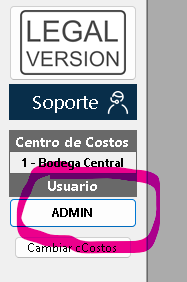
Active User Information
Below the support button, two important pieces of data about the current session are shown:
- Cost Center Name: It indicates the warehouse or branch where the user is operating at this moment.
- User Name: Appears as an interactive button with the name of the user who has logged in.
Access to the Change Password Window
To open the password change window:
- Locate the button with your user name in the left side panel.
- Click on your name.
- The pop-up window will open automatically Change Password.
WINDOW STRUCTURE
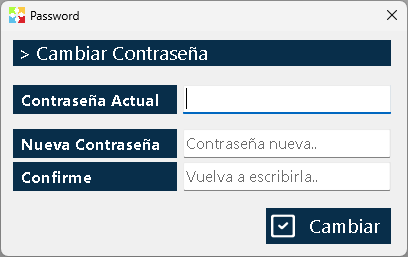
The Change Password window is a simple and direct form that contains three text fields and a confirmation button:
|
Field |
Description |
Requirement |
|
Current password |
You must enter the password you are currently using to log in. |
Mandatory. The system validates that it matches the registered one. |
|
New password |
Type the new password you want to use from now on. |
Mandatory. It must comply with the security policies. |
|
Confirm new password |
Retype the new password to confirm that there were no typing errors. |
Mandatory. It must be identical to the previous field. |
|
Accept Button |
It executes the password change after validating all the fields. |
— |
PASSWORD CHANGE BY THE ADMINISTRATOR
In addition to self-management, the system administrator has the ability to reset the password of any user. This function is useful in cases such as:
- A user forgot their password and cannot access the system.
- It is suspected that a password was compromised.
- Credentials need to be reset due to periodic security policies.
Procedure for the Administrator:
- Log in with credentials of Administrator.
- Open the window Configuration from the side menu.
- Go to the Users Tab.
- Select the user whose password you want to change.
- From the user's editing options, access the function of password change.
- Enter the new password (the administrator does not need to know the current password of the user).
- Confirm and save the changes.
- Communicate the new password to the affected user through a secure channel.
⚠️ Important note: When the administrator changes a user's password, it is recommended that the user change it again by themselves as soon as possible, to guarantee that only they know the final password.
SECURITY RECOMMENDATIONS
For users:
- Change your password periodically: It is recommended to do it every 90 days as a good security practice.
- Use strong passwords: Combine uppercase, lowercase, numbers and symbols. Avoid personal information such as birth dates, names of relatives or obvious sequences (123456, password, etc.).
- Do not share your password: Not with coworkers, nor with supervisors, nor with the support team. The administrator can reset it if necessary, but never needs you to tell it to them.
- Do not write down your password in visible places: Avoid post-its on the monitor, unencrypted text files on the desktop or messages in chat applications.
- Log out when finished: If you share a work computer, always log out before stepping away from the computer.
For administrators:
- Communicate the new passwords securely: Do not send them by email in plain text. Use secure channels or communicate them verbally.
- Request the immediate change: When you reset a user's password, tell them to change it for one of their own as soon as they log in.
- Document the resets: Keep a record of when and why passwords were reset, as part of good auditing practices.
- Review the default passwords: When creating a new user, assign them a strong temporary password and force them to change it on their first login.
SYSTEM VALIDATIONS
The window implements the following validations to guarantee the integrity of the process:

|
Validation |
Behavior |
|
Incorrect current password |
The system displays an error message and does not allow you to continue. |
|
New password fields do not match |
The system indicates that the passwords are not identical and asks you to correct them. |
|
New password too weak |
The system may reject passwords that do not meet the minimum length or complexity requirements. |
|
Empty fields |
The system does not allow you to save if any of the three fields is empty. |
|
New password same as current |
The system may warn that the new password is the same as the previous one and suggest choosing a different one. |
FREQUENTLY ASKED QUESTIONS
Q: What happens if I do not remember my current password?
A: You will not be able to use the self-management window, since it requires knowing the current password. In this case, you must ask the system administrator to reset your password from the Configuration window.
Q: Can the administrator see my current password?
A: No. For security reasons, passwords are stored encrypted in the database. Neither the administrator nor the support team can see your current password; they can only reset it to a new one.
Q: What happens if I type the new password incorrectly in both fields?
A: There is no problem. The system validates that both fields match exactly. If there is any difference (even a capital letter or a space), the system will ask you to correct it before saving.
Q: Do password changes affect my current session?
A: No. If you are already connected to the system, you can continue working normally with your current session. The new password will apply from the next time you log in.
Q: Can I use a previous password again?
A: It depends on the system configuration. Some organizations set up a password history to prevent the recent reuse of passwords.
Q: What should I do if I suspect that someone knows my password?
A: Change it immediately using the Change Password window. If you cannot access the system, ask the administrator to reset it for you.
Q: Can the "Support" button help me if I forget my password?
A: The support button is for reporting errors or requesting general technical help. To reset passwords, you must contact your system administrator directly or your company's IT manager.
Q: Can each user change their own password?
A: Yes. Any user who has logged in successfully can click their name in the side panel and change their password, as long as they know the current password.
EXECUTIVE SUMMARY
The window Change Password is an essential security tool that empowers each user to maintain the protection of their account. Accessing it is simple: just click the user name located in the left side panel of the main window, below the support button and the name of the cost center.
Key points to remember:
- ✅ Each user can change their own password from the main window.
- ✅ The administrator can reset passwords from the Configuration window.
- ✅ For self-management, knowing the current password is required.
- ✅ The new password must be typed twice for confirmation.
- ✅ Use strong passwords and change them periodically.
- ✅ Never share your password with other people.
Proper password management is the first line of defense to protect your company's inventory information, commercial operations and financial data.
Created with HelpNDoc's Personal Edition: Transform your documentation process with HelpNDoc's Project Analyzer