Loans and Consignments
Window LIST OF LOANS AND CONSIGNMENTS
General Description
The window Loan and Consignment List is the module where all records of products that have left inventory temporarily are managed, delivered to third parties (employees, salespeople, customers, workshops) with the obligation to be returned later. It works as a master-detail form that presents in a consolidated way all the consignments made, allowing you to view both the headers (general information for each loan) and the details (loaned products and their reinstatement status).
This window is the control point from which all the business's consignments are created, consulted, reinstated and managed. It is a fundamental tool for controlling assets held by third parties, since it allows you to monitor who has the company's products, how much product remains to be returned, and to manage the complete loan cycle from delivery to total reinstatement.
What is a Loan or Consignment?
A Loan or Consignment is the document that formalizes the temporary delivery of inventory products to a third party, keeping the company's ownership of those products. Unlike a sale or a consumption, the merchandise is not lost or definitively consumed; it is delivered with the commitment that it will be returned (reinstated) in the future.
Key features:
- It deducts the stock on hand from inventory when the loan document is finalized.
- It generates a record in the Kardex as a temporary issue due to consignment.
- Products can be reinstated partially or totally.
- As products are reinstated, the stock on hand gradually returns to the inventory.
- When all the loaned product has been reinstated, the document moves to FINISHED status.
- If the products use serial numbers, these are linked to the consignment and must match when reinstating.
- The third party involved can be an employee, external salesperson, customer, repair workshop, etc.
- This window controls who owes product to the company.
Types of loans or consignments that are recorded here:
- Tools or equipment delivered to employees for their work
- Products delivered to external salespeople so that they offer them to their customers
- Machinery or equipment sent to workshops for repair
- Products in the possession of customers for testing or demonstration
- Merchandise sent to fairs or events for exhibition
- Products delivered to distributors under a sale-with-return agreement
- Commercial samples delivered temporarily
Window Structure
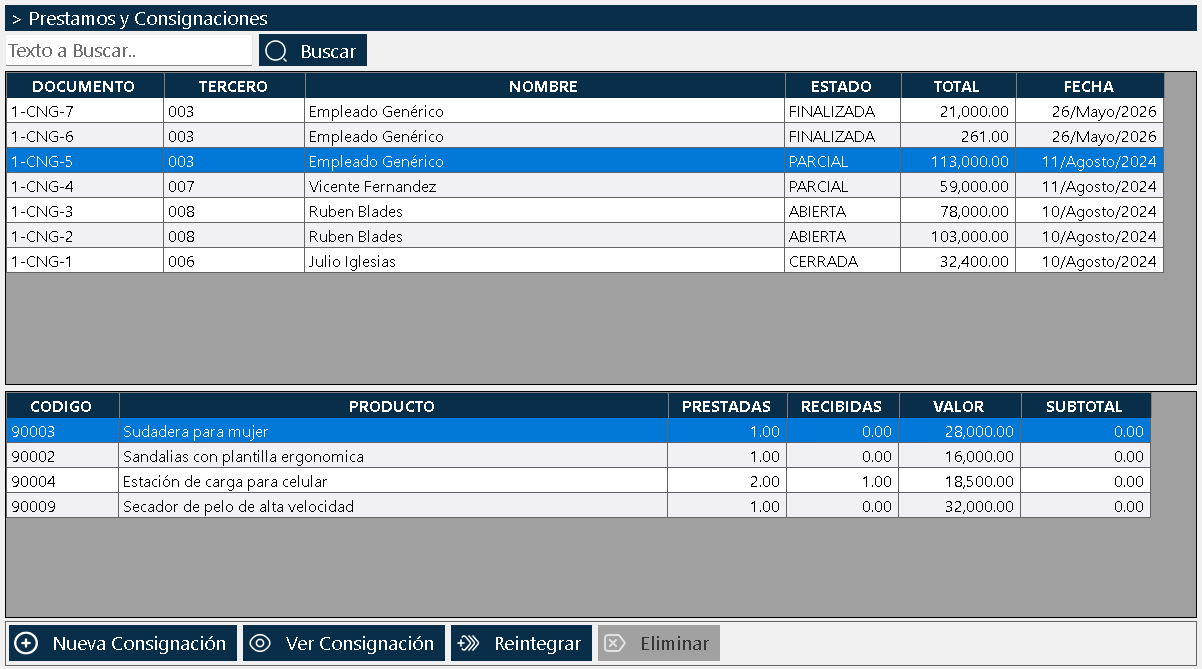
The window is organized into three clearly differentiated areas, following the master-detail pattern:
Top Area - Global Search Box
At the very top there is a real-time search text box. It allows you to type any data (document number, third party name, status, or any text contained in the consignments) and the system automatically filters, showing only the matching items. When you delete the text from the search box, all the items are shown again.
Upper Central Area - Master Grid (Headers)
Below the search box there is a grid with the headers of all the consignments. The main columns include:
- Document: Consecutive consignment number.
- Third Party: Name of the person, employee, salesperson or workshop that received the products.
- Status: Current status of the document (open, closed, partial, finalized, deleted).
- Total: Total value of the loaned products.
- Date: Document creation date.
When you click on a row, the consignment is selected and its details are shown in the lower area.
Lower Central Area - Detail Grid (Items)
In the lower part, the detail of the consignment selected in the upper list is shown. Here the loaned products appear with a special format designed for reinstatement control. The columns are:
- Code: Unique identifier of the product.
- Product: Name or description of the product.
- Loaned: Total quantity of units that were originally delivered to the third party.
- Received: Quantity of units that have been reinstated so far.
- Amount: Unit value of the product.
- Subtotal: Total value of the loaned product.
Importance of the Loaned and Received columns:
This is the distinguishing feature of this window. By comparing the "Loaned" column with the "Received" column, you can immediately know how much product remains to be reinstated. If a product has 10 units loaned and 6 received, it means that 4 units still remain to be returned. This information is crucial for controlling assets held by third parties.
Bottom Area - Action Buttons
Four main buttons that control the operations on consignments:
New Consignment: Creates a new loan or consignment document from scratch.
View Consignment: Opens the selected consignment. The behavior depends on the status:
- If the consignment is open, it allows editing it.
- If the consignment is closed, partial or finished, it opens only to be viewed or printed, with no possibility of editing.
Reinstate: This is the special button of this window. It allows you to record the return of loaned products, making them return to the warehouse inventory. When clicked, a window opens where you specify which products and in what quantities are being reinstated. The system automatically updates the "Received" columns of the detail grid and the stock on hand in inventory.
Delete: Removes the consignment from the system. This button is automatically enabled and disabled depending on the status of the selected consignment. It is not possible to delete consignments that already have reinstated products or that are in advanced statuses, thus protecting the historical integrity of the operations.
The Reinstate Button: Return Control
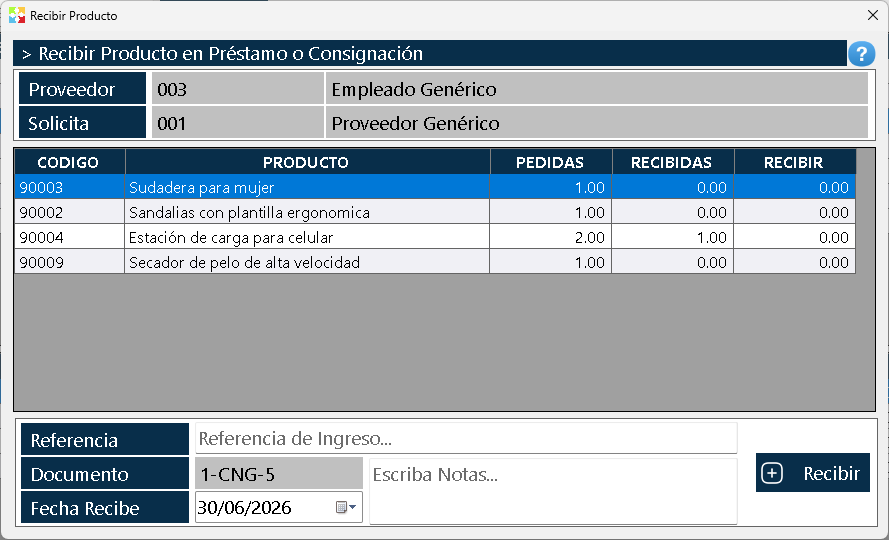
The button Reinstate is the core functionality that differentiates this window from the others. It allows you to manage the return cycle of the loaned products.
Operation:
- A consignment in CLOSED or PARTIAL status is selected.
- The "Reinstate" button is clicked.
- A window opens where the loaned products and their quantities pending reinstatement are shown.
- You specify which products and in what quantities are being returned at this moment.
- The reinstatement is confirmed.
- The system automatically updates:
- The "Received" column in the detail grid.
- The stock on hand in inventory (the products return to the warehouse).
- The status of the document (changes from CLOSED to PARTIAL, or from PARTIAL to FINALIZED).
- The Kardex with the inbound movement.
Partial reinstatements:
It is not necessary to return all the loaned product at once. Partial reinstatements can be made as the third party returns the products. For example, if 10 tools were loaned and the employee returns 3 today and 7 next week, two separate reinstatements can be recorded.
System validations:
- More units cannot be reinstated than were originally loaned.
- If the product uses serial numbers, the reinstated serial numbers must match the loaned serial numbers.
- The system validates that the consignment is in a status that allows reinstatements (CLOSED or PARTIAL).
Document Statuses
Consignments go through five different statuses throughout their life cycle, reflecting the progress of the loan and the reinstatements:
OPEN:
- The document is in the process of being edited.
- Loaned products can be added, modified or deleted.
- It cannot be printed.
- It cannot be reinstated.
- It is the initial status when the document is being created.
CLOSED:
- The document has been finalized and the products have been delivered to the third party.
- It can no longer be edited.
- It can be printed.
- It can be reinstated (it is the status where the third party is expected to return the products).
- The stock on hand is deducted from the inventory.
- It is the status where the document remains while the reinstatement is awaited.
PARTIAL:
- One or more reinstatements have been made, but there is still product left to return.
- It cannot be edited.
- It can be printed.
- You can continue reinstating the pending product.
- The "Received" column shows quantities lower than "Loaned".
- It is an intermediate status where the return process is in progress.
FINISHED:
- All the loaned product has been completely reinstated.
- It cannot be edited.
- It can be printed.
- It can no longer be reinstated (there is no pending product).
- The "Received" column is equal to the "Loaned" column for all products.
- The stock on hand has completely returned to the inventory.
- The loan cycle has been completed successfully.
DELETED:
- The document has been voided and removed from the system.
- It can only be consulted as a historical record.
- It cannot be edited, printed, or reinstated.
Context Menu - Upper List (Headers)
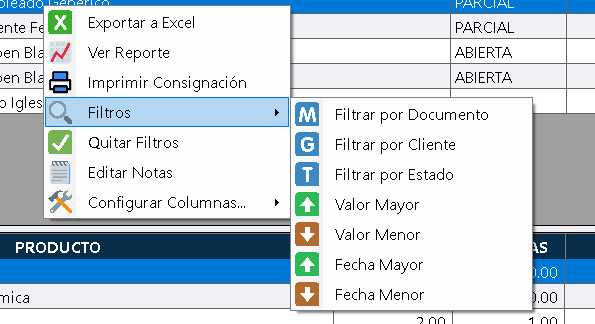
When you right-click on any consignment in the upper list, a menu with the following options is displayed:
Export to Excel
Generates an Excel file with the consignments currently visible in the list. If filters are applied, only the consignments that meet those criteria are exported.
View Report
Shows a printable report with the consignments that appear in the list. If the list has filters applied, the report will reflect exactly those same criteria. This is a very powerful tool for generating reports of products held by third parties.
Generates the formal consignment document in standard format, ready to accompany the physical delivery of the products to the third party. This document serves as proof of delivery and commitment to return.
Important about printing: The print button is only visible when the consignment is closed or in later statuses. It is not possible to print consignments that are open or in the process of being edited.
Filters
Allows you to apply advanced filtering criteria to the consignment list:
- By document
- By third party (employee, salesperson, workshop, etc.)
- By status (open, closed, partial, finalized)
- By amount greater than
- By amount less than
- By date greater than
- By date less than
The filters are stackable, which means that several can be combined simultaneously. For example, you can request to show all the consignments in PARTIAL status for the employee Juan Pérez.
Remove Filters
Restores the full view by removing all applied filters, showing all the system's consignments again.
Convert Document
Opens a window that allows you to transform the selected consignment into another type of document, keeping all the information. The conversion options are:
- Supplier quotation
- Customer quotation
- Sales Invoice
- Purchase Order
- Warehouse consumption
- Consignment (to duplicate the current document)
Edit Notes
Allows you to open a window to edit the general notes of the selected consignment.
Configure Columns
Allows showing or hiding columns in the upper list of headers. It also allows modifying the width of the columns. The system remembers this configuration when closing and reopening the window.
Context Menu - Lower List (Items)

When you right-click on the products in the lower detail grid, a menu is displayed with three options specific to that item:
View Notes
Allows you to view and edit the specific notes for that single consignment item. Item notes are independent of the document's general notes.
View Serial Numbers
If the loaned product had the use of serial numbers configured, this option shows which specific serial numbers were the ones loaned and which have been reinstated. It is essential for traceability of serialized equipment or tools held by third parties.
Configure Columns
Allows adding or removing columns from the lower grid, modifying the width and customizing the visualization. As in the upper list, this configuration is remembered when closing the window.
The Power of the Filter System
The filter menu at the top is an extremely powerful tool for controlling assets held by third parties. Everything shown in the upper list after applying filters becomes directly a report when the "View Report" option is used.
Examples of practical use:
Report of products pending reinstatement:
Apply the "PARTIAL" status filter to see all the consignments where product is still pending return. This allows you to quickly identify which third parties have the company's products and must return them.
Analysis of consignments by employee:
Apply the third-party filter (select a specific employee) to see all the tools or equipment they have on loan, including those they already returned and those they still have.
Old consignments without reinstatement:
Combine the "CLOSED" status filter with a less-than date filter (an old date) to identify consignments that have gone a long time without being reinstated and require follow-up.
Report of active consignments:
Apply a filter to exclude the "FINALIZED" and "DELETED" statuses, thus obtaining all the consignments that still have product held by third parties.
Analysis of the value of loaned products:
Use value filters to identify the consignments with the greatest economic value and prioritize their follow-up.
This functionality turns the window into an ad-hoc asset control tool without the need for additional modules.
Differences from Other Document Windows
Although the structure is similar to other document list windows, there are fundamental differences:
Document type:
- Consignments: Temporary loan documents with an obligation to return.
- Sales Invoices: Final sale documents.
- Consumptions: Final internal use documents.
- Shrinkages: Definitive loss documents.
- Returns: Documents of return to suppliers.
Inventory impact:
- Consignments: They deduct stock on hand temporarily, but it returns upon reinstatement.
- Invoices, Consumptions, Shrinkages, Returns: They permanently deduct stock on hand.
Life cycle:
- Consignments: They have a complete delivery and reinstatement cycle, with intermediate statuses.
- Other documents: They are generally single-stage (they are created and finalized).
Special button:
- Consignments: They have the "Reinstate" button to manage partial returns.
- Other documents: They do not have this button.
Detail grid columns:
- Consignments: They show "Loaned" and "Received" columns for reinstatement control.
- Other documents: They show only quantities and values of the transaction.
Third-party control:
- Consignments: They actively control who owes product to the company.
- Other documents: They record transactions with third parties, but do not control product debts.
Record Limit and Performance
The number of items that appear in this window is limited by default to the last two years, just like all the document list windows in Kardex Tauro. This configuration is implemented to guarantee:
- Greater agility in navigation
- Less data load in memory
- Lower RAM consumption
- Faster system responses
Limit configuration:
This parameter is fully modifiable from the Configuration window, where you can specify the number of years of records to display (two, three, five years, etc.).
Important consideration:
The more information loaded in the windows, the greater the consumption of system resources. For this reason, it is not advisable to have a lot of historical information visible in the windows by default. It is recommended to keep the limit in a reasonable range (2-3 years) and to query older periods using specific filters or reports when necessary.
Relationship with Other Windows
Create Consignment Window:
It is the operational window where individual consignments are created and edited. From the list you access it through the "New Consignment" or "View Consignment" buttons.
Reinstate Consignment Window:
It is the window that opens when you click the "Reinstate" button. It allows you to specify which products and quantities are being returned.
Inventory Window:
Consignments deduct stock on hand when they are closed. Reinstatements increase stock on hand as the products return. The inventory reflects in real time the products that are in the warehouse versus those that are loaned.
Kardex Window:
Each closed consignment generates an issue movement in the Kardex. Each reinstatement generates a receipt movement. Complete traceability of the loan and return cycle is maintained.
Third Parties List Window:
It provides the information of the employees, salespeople, customers or workshops that appear as receivers of the consignments.
Serial Numbers List Window:
It allows you to consult the specific serial numbers loaned and reinstated in each consignment, useful for tracking serialized tools or equipment held by third parties.
Usage Recommendations
Use the search box for quick location:
The real-time search box is the most efficient way to find specific consignments when some reference data is known, such as the third party's name.
Take advantage of the stackable filters:
Combine multiple filters to generate specific consignment reports by third party, status, period or value. Filters are the key to controlling loaned assets.
Use "View Report" for tracking:
After applying filters, use "View Report" to generate printable documents that reflect exactly the selected criteria. Ideal for follow-up meetings with employees or third parties.
Monitor consignments in PARTIAL status:
Use the "PARTIAL" status filter to quickly identify all the consignments where product is still pending reinstatement. This allows you to prioritize follow-up.
Review old consignments in CLOSED status:
Consignments that have been in CLOSED status for a long time without reinstatements can indicate problems or oversights. Use date filters to identify them and follow up.
Finalize the consignments before delivering:
Remember that only closed consignments can be printed and are ready for delivery. Finalize the document before physically delivering the products to the third party.
Document the expected return date:
Use the document notes to record when the third party is expected to return the products. This facilitates follow-up.
Customize the columns:
Configure the visible columns according to your role and work needs. The system remembers your preferences.
Compare Loaned vs Received:
Regularly review the detail grid to identify products where the "Received" column is significantly lower than "Loaned". These require priority attention.
Keep the record limit reasonable:
Do not excessively increase the record display period from the Configuration, since it will affect the system's performance.
Respect the status of the consignments:
Remember that consignments in CLOSED, PARTIAL or FINALIZED status cannot be edited. If you need to modify a consignment, you must create a new one.
Delete only consignments in the appropriate status:
The Delete button only works for consignments that have not been closed or that have no reinstatements. Respect this restriction to maintain historical integrity.
Make timely reinstatements:
As the third party returns products, record the reinstatements immediately to keep the control updated.
Print delivery and reinstatement receipts:
Give the third party a printed copy of the consignment at the time of delivery. When you make reinstatements, print proof of return to maintain documentary control.
Track serialized products carefully:
If you loan tools or equipment with serial numbers, verify that the reinstated serial numbers match exactly the loaned serial numbers. This is crucial for asset control.
Train staff in the use of filters:
Filters are a powerful tool for asset control. Make sure that all the staff who need to follow up know how to use them correctly.
Establish reinstatement policies:
Define maximum deadlines for the return of loaned products and actively follow up on consignments that exceed those deadlines.
Reconcile periodically:
Compare active consignments with the physical inventory held by third parties to detect discrepancies or unreported products.
Analyze loan patterns:
Use the reports to identify which third parties request the most loans, which products are loaned most frequently, and optimize the loan and reinstatement processes.
Document the reason for the loan:
Use the notes to record why the products are being loaned (repair, external sale, demonstration, etc.). This information is valuable for analysis.
Integrate consignments with audits:
Consignments are an important component in fixed asset and inventory audits. Keep clear and up-to-date records to facilitate the audit process.
Kardex Tauro - Professional Inventory Management System
Created with HelpNDoc's Personal Edition: Effortlessly back up your Windows applications with HelpNDoc's CHM Generation