Cash
CASH Window
General Description
The window Cash is the module where all the cash money movements that enter and leave the business are viewed and managed. It works as a book of movements that chronologically records every transaction that affects the cash balance, allowing complete control of the available cash at all times.
This window is essential for the treasury management of the business, since it allows you to monitor how much cash there is, where it comes from and what it has been spent on.
What is Cash?
The Cash is the centralized record of all the cash movements of the business. It represents the control of the physical money that is available for daily operations.
Key features:
- It shows all the cash movements chronologically.
- The movements can be generated automatically or manually.
- It allows you to create manual cash receipts and payments.
- It does not allow deleting movements (for security and traceability).
- Each movement is registered with its source document.
- It generates cash receipts that can be printed.
Origin of cash movements:
Automatic Movements:
- Cash sales: When a sales invoice with cash payment is finalized, the system automatically registers a cash receipt for the amount received.
- Payments to accounts receivable: When a customer pays an account receivable in full or in part, the money automatically enters the cash.
- Payments to accounts payable: When an account payable is paid to a supplier in full or in part, the money automatically leaves the cash.
- Other processes: Any operation of the system that involves cash movement automatically generates its record in the cash.
Manual Movements:
- Cash receipts: Money that enters the cash for concepts not derived from sales or collections (loans received, partner contributions, etc.).
- Cash payments: Money that leaves the cash for concepts not derived from payments to suppliers (operating expenses, service payments, withdrawals, etc.).
Window Structure
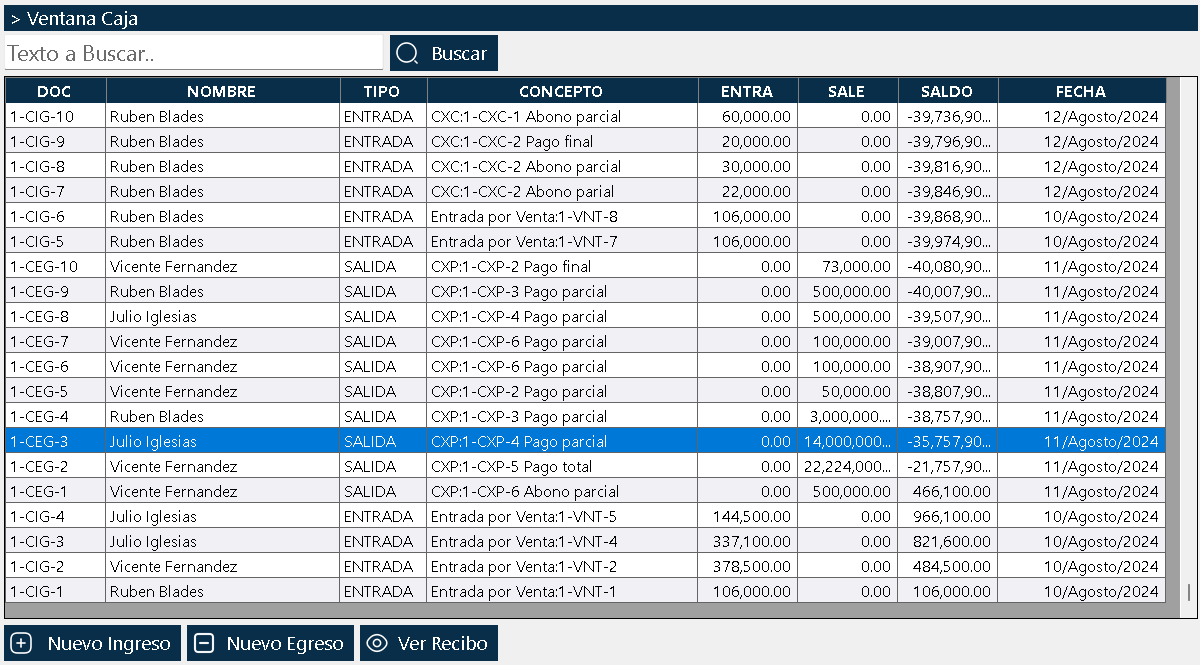
The window is organized into three clearly differentiated areas:
Top Area - Global Search Box
At the very top there is a real-time search text box. It allows you to type any data related to the cash movements:
- Name of the third party involved
- Movement type (receipt or payment)
- Movement concept
- Movement amount
- Any text contained in the movements
The system filters automatically, showing only the elements that match the searched text. When you delete the text from the search box, all the movements are shown again.
Middle Area - Movements Grid
In the center of the window there is a grid with all the cash movements registered in the system. The main columns include:
- Date: Date on which the movement was made.
- Type: Indicates whether it is a receipt or a payment.
- Concept: Description of the reason for the movement.
- Third Party: Name of the person or entity involved (customer, supplier, etc.).
- Amount: Amount of the movement.
- Balance: Cash balance after performing the movement.
- Source Document: Number of the document that generated the movement (invoice, receipt, etc.).
Bottom Area - Action Buttons
Three main buttons that control the operations on the cash:
New Receipt: Creates a new cash receipt movement manually. This button is used when money enters the cash for concepts not derived from sales or automatic collections. When you create a receipt, the cash balance increases.
New Payment: Creates a new cash payment movement manually. This button is used when money leaves the cash for concepts not derived from automatic payments to suppliers. When you create a payment, the cash balance decreases.
View Receipt: Opens the cash voucher of the selected movement, allowing you to view and print it. This receipt serves as proof of the movement performed.
IMPORTANT - No delete button:
Unlike other document windows, in the Cash window there is no button to delete movements. This is a security feature designed to maintain the integrity and traceability of all the cash movements. Once a movement is registered in the cash, it cannot be deleted. If an error is made, it must be corrected by means of an opposite movement (a payment to correct an erroneous receipt, or a receipt to correct an erroneous payment).
Context Menu of the Movements Grid
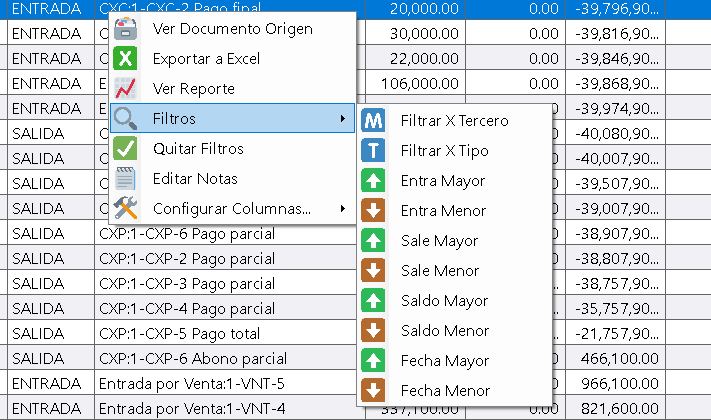
When you right-click on any movement in the central grid, a menu unfolds with the following options:
View Source Document
Opens the document that automatically generated this cash movement. For example, if the movement was generated from a sale, it opens the original sales invoice. If it was a payment toward an account receivable, it opens the payment document. This option allows you to trace the origin of each movement.
Export to Excel
Generates an Excel file with the cash movements currently visible in the list. If there are filters applied, only the movements that meet those criteria are exported.
View Report
Shows a printable report with the cash movements that appear in the list. If the list has filters applied, the report will reflect exactly those same criteria. This is a very powerful tool for generating cash movement reports by period, type or concept.
Filters
It allows you to apply advanced filtering criteria on the cash movements list:
- By movement type (receipt or payment)
- By third party involved
- By concept
- By amount greater than
- By amount less than
- By date greater than
- By date less than
The filters are stackable, which means that several can be combined simultaneously. For example, you can request to show all the cash payments for the concept "services" greater than one hundred thousand made in the month of January.
Remove Filters
Restores the complete view by removing all the applied filters, showing again all the cash movements of the system.
Edit Notes
It allows you to open a window to edit the notes of the selected cash movement.
Configure Columns
It allows you to show or hide columns in the movements list. It also allows you to modify the width of the columns. The system remembers this configuration when closing and reopening the window.
The Power of the Filter System
The filters menu is an extremely powerful tool for the analysis of cash movements. Everything that is shown in the list after applying filters becomes directly a report when the option "View Report" is used.
Examples of practical use:
Income report for the period:
Apply a filter by type "Receipt" and a date filter for the desired period, then click "View Report". The result is a complete report of all the cash receipts in that period.
Analysis of expenses by concept:
Apply a filter by type "Payment" and a filter by specific concept to see all the expenses of a particular type (services, payroll, etc.).
Movements of a specific third party:
Apply a filter by third party to see all the movements related to a specific customer or supplier.
High-value movements:
Apply a filter of value greater than to identify the most significant movements.
Cash reconciliation:
Combine date filters to generate movement reports for a specific day, useful for daily cash counts.
This functionality turns the window into an ad-hoc cash report generation tool without the need for additional modules.
Typical Workflow
Scenario 1: Automatic movements from sales
- A sales invoice for an amount of $500.000 in cash is finalized.
- The system automatically:
- Deducts the stock on hand from inventory.
- It generates a cash receipt movement for $500.000.
- Updates the cash balance.
- The movement appears in the Cash window with:
- Type: Receipt
- Concept: Cash sale
- Third Party: Customer name
- Value: $500.000
- Source Document: Number of the sales invoice
Scenario 2: Manual cash receipt
- A cash loan of $2.000.000 is received from a partner.
- Go to the Cash window.
- Click the "New Receipt" button.
- The receipt creation window opens.
- The concept, amount and third party involved are typed.
- The receipt is saved.
- The movement appears in the list with:
- Type: Receipt
- Concept: Partner loan
- Value: $2.000.000
- The cash balance increases by $2.000.000
Scenario 3: Manual cash payment
- The electricity service is paid for an amount of $150.000 in cash.
- Go to the Cash window.
- Click the "New Payment" button.
- The payment creation window opens.
- The concept, amount and third party (service company) are typed.
- The payment is saved.
- The movement appears in the list with:
- Type: Payment
- Concept: Electricity service payment
- Value: $150.000
- The cash balance decreases by $150.000
Scenario 4: Correction of a cash error
- A receipt of $100.000 that should not have been registered was registered by mistake.
- Since the movement cannot be deleted, it must be corrected with an opposite movement.
- Click "New Payment".
- A payment of $100.000 is created with the concept "Receipt error correction".
- The cash balance is adjusted correctly.
- Both movements remain registered (the error and its correction), maintaining complete traceability.
Scenario 5: View and print cash receipt
- A movement is selected in the cash list.
- Click the "View Receipt" button.
- The cash voucher opens with all the details of the movement.
- The receipt can be printed as proof of the movement.
Relationship with Other Windows
Sales Invoices List Window:
Cash sales automatically generate cash receipt movements. From the invoices window you can see the source document of each movement.
Accounts Receivable List Window:
Payments toward accounts receivable automatically generate cash receipt movements. The money received from customers enters the cash.
Accounts Payable List Window:
Payments toward accounts payable automatically generate cash payment movements. The money paid to suppliers leaves the cash.
Third Parties List Window:
It provides the information of customers, suppliers and other third parties that appear in the cash movements.
Warehouse Consumptions List Window:
If a consumption is paid in cash, it generates a cash payment movement.
Usage Recommendations
Use the search box for quick location:
The real-time search box is the most efficient way to find specific movements when some reference data is known, such as the name of the third party or the concept.
Take advantage of the stackable filters:
Combine multiple filters to generate specific movement reports by type, concept, third party, period or amount. The filters are the key to accurate cash analyses.
Use "View Report" for treasury analysis:
After applying filters, use "View Report" to generate printable documents that reflect exactly the selected criteria. Ideal for cash counts and financial review meetings.
Perform daily cash counts:
At the end of each day, compare the cash balance in the system with the physical money in the cash. Use date filters to see only the movements of the day and reconcile.
Register the manual movements in a timely manner:
Do not accumulate unregistered manual receipts or payments. Make the records at the moment in which the movement occurs to keep the balance updated.
Document the concepts clearly:
Use descriptive and clear concepts for each manual movement. This makes the later identification and analysis of the movements easier.
Use "View Source Document" for traceability:
When you need to verify the origin of an automatic movement, use this option to open the document that generated it and review all the details.
Customize the columns:
Configure the visible columns according to your role and work needs. The system remembers your preferences.
Do not try to delete movements:
Remember that there is no delete button. If you make a mistake, correct it with an opposite movement. This maintains complete traceability of all the operations.
Keep the record limit reasonable:
Do not excessively increase the record display period from the Configuration, since it will affect the system's performance.
Print receipts when necessary:
Use the "View Receipt" button to print vouchers of important movements, especially for high-value manual receipts or payments.
Reconcile periodically:
Regularly compare the cash movements with the bank statements (if applicable) and with the physical money in the cash to detect discrepancies.
Analyze income and expense patterns:
Use the filters and reports to identify patterns in the cash movements, allowing better financial planning.
Train staff in the use of filters:
The filters are a powerful tool for cash analysis. Make sure that all the staff who need to generate reports know how to use them correctly.
Control access to cash:
Not all users should be able to create manual receipts or payments. Configure the permissions appropriately to maintain control of the cash.
Document manual movements with notes:
Use the notes to register additional information about manual movements, especially when the concept is not descriptive enough.
Monitor the cash balance:
Periodically review the cash balance to ensure that there is enough cash for the daily operations and to detect unusual movements.
Implement cash handling policies:
Establish maximum cash limits in the cash, procedures for counts, and clear responsibilities about who can create manual movements.
Integrate cash with accounting:
If you have an external accounting system, periodically export the cash movement information so that it is incorporated into the formal accounting of the company.
Review old movements:
Periodically review old movements to identify patterns, uncorrected errors, or movements that require follow-up.
Use cash for petty expense control:
The cash is ideal for controlling minor operating expenses and day-to-day cash payments.
Keep cash secure:
The Cash window is a control tool, but you must also implement physical security measures for handling the real cash.
Kardex Tauro - Professional Inventory Management System
Created with HelpNDoc's Personal Edition: From Word to ePub or Kindle eBook: a complete guide