Create Cash Receipt
Window NEW CASH RECEIPT
General Description
The window New Cash Receipt is the module where cash inflows to the business that do not come from automatic sales or collections of accounts receivable are manually recorded. This window allows increasing the cash balance by recording receipts under various concepts such as partner contributions, loans received, expense recoveries, sale of assets, or any other cash receipt that is not automatically generated from other modules of the system.
This window is the counterpart of the New Cash Payment window, sharing the same interface and field layout, but with the title "New Cash Receipt" and operating in receipt mode.
When Is This Window Used?
The New Cash Receipt window is used to record cash inflows that are not automatically generated from other processes of the system. Typical examples:
Capital contributions:
- Contributions from partners or owners to the business
- Capital injections for operations
- Contributions for the purchase of assets
Loans received:
- Cash loans from financial entities
- Loans from third parties or suppliers
- Advances received from customers
Recoveries and reimbursements:
- Reimbursements of expenses paid previously
- Recovery of money lent to employees
- Return of deposits or guarantees
Sale of assets:
- Sale of used equipment in cash
- Sale of furniture or machinery
- Sale of company vehicles
Other income:
- Income from non-inventory services
- Insurance collections
- Occasional gains
- Any other cash receipt not related to product sales
Important: Receipts originating from cash sales or collections of accounts receivable are automatically recorded in cash. This window is only used for manual receipts that are not generated from other modules.
Window Structure
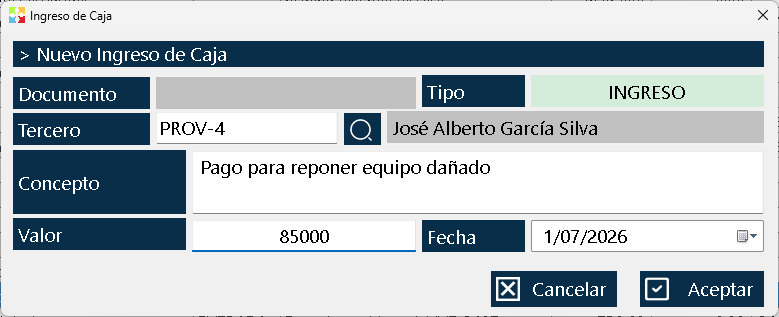
The window is organized in a simple and direct way, with all the fields necessary to record the receipt:
Upper Zone - Document Information
Document Number:
- This field shows the consecutive number that the system will automatically assign to the cash receipt.
- It is read-only and cannot be modified.
- The number is generated at the moment of accepting the receipt.
Type:
- It shows "RECEIPT" indicating that it is a cash inflow.
- It is read-only and is set automatically when opening the window from the "New Receipt" button.
Central Area - Receipt Data
Third Party:
- Third Party Code: Code of the person or entity that delivers the money. This field is selected using a selector with a search button (magnifying glass) that opens the third parties list.
- Third Party Name: It automatically shows the name of the selected third party.
- This field is mandatory. It can be a partner, a bank, a customer, an employee, or any person who delivers the money.
Concept:
Text field where the motive, reason, or circumstance for which this cash receipt is made is described. Examples:
- "Main partner capital contribution"
- "Loan received Banco XYZ"
- "Reimbursement of employee travel expenses"
- "Sale of company vehicle"
- "Employee loan recovery"
- This field is mandatory and must be descriptive to facilitate later identification of the receipt.
Receipt Amount:
Numeric field where the amount of money entering cash is typed.
- It must be a positive number greater than zero.
- This field is required.
- Upon accepting the receipt, this value will be added to the current cash balance.
Date:
Date field where the date of the receipt is recorded. By default it takes the current date, but it can be modified if the receipt corresponds to a different date (for example, to record receipts from previous days).
Lower Zone - Action Button
OK Button:
It is the only button at the bottom of the window. When clicking:
- It validates that all mandatory fields are complete.
- Creates the cash receipt movement.
- It increases the cash balance by the receipt amount.
- It generates a cash receipt that can be printed later.
- It closes the window and returns to the cash movements list.
System Validations
The window implements several validations to guarantee data integrity:
Third Party Validation:
- The third party must be a valid person or entity registered in the system.
- If a nonexistent code is entered, the system shows an error.
- Use the search button (magnifying glass) to select the third party from the list.
Concept Validation:
- The concept field is required.
- It must contain descriptive text (it cannot be empty).
Amount Validation:
- The receipt value must be a positive number greater than zero.
- Negative or zero amounts are not allowed.
- The system validates that it is a correct numeric format.
Date Validation:
- The date must be valid.
- Future dates are generally not allowed (depends on the system configuration).
Relationship with Other Windows
Cash Window:
It is the window from which this window is accessed via the "New Receipt" button. Here all cash movements are displayed, including the manual receipts recorded.
Third Parties List Window:
Provides the list of persons and entities used in the third parties selector. Third parties must be registered in the system.
Accounts Receivable List Window:
If the receipt comes from the collection of an accounts receivable item, that receipt is automatically recorded from the accounts receivable window, not from this window.
Sales Invoices List Window:
If the receipt comes from a cash sale, that receipt is automatically recorded from the sales invoice, not from this window.
Usage Recommendations
Be descriptive in the concept:
Use clear and detailed concepts that allow easily identifying the reason for the receipt. This will facilitate reconciliation and later analysis of cash movements.
Verify the third party before saving:
Make sure to select the correct third party before clicking "Accept". An error in the third party can cause reconciliation problems.
Validate the receipt amount:
Make sure the entered value is correct before accepting. Physically count the money before recording it.
Use the search button for third parties:
Instead of typing the third party code, use the search button (magnifying glass) to select from the list. This prevents typing errors.
Record receipts in a timely manner:
Do not accumulate unrecorded receipts. Make the records at the moment the money is received to keep the balance updated.
Use the correct date:
If you are recording a receipt from a previous day, adjust the date so that it reflects when the money was actually received.
Print the receipt when necessary:
After recording the receipt, you can print the cash receipt as proof of the movement, especially for high-value receipts.
Do not use this window for sales:
Remember that receipts from cash sales are automatically recorded from sales invoices. Use this window only for manual receipts not derived from sales.
Document unusual receipts:
If the receipt is for an unusual or high-value concept, use the notes to document additional information or attach references to physical documents.
Reconcile periodically:
Compare the receipts recorded in cash with the physical money to detect discrepancies.
Train staff:
Make sure all users who can record cash receipts understand when to use this window and when the receipts are generated automatically.
Keep control of the cash:
Although this window records the receipts in the system, you must also implement physical security measures for handling the actual cash.
Integrate with accounting:
If you have an external accounting system, periodically export the cash receipt information so that it is incorporated into the formal accounting.
Review the recorded receipts:
After recording a receipt, review it in the cash movements list to ensure that all the information is correct.
Use standardized concepts:
If possible, use standardized concepts for recurring receipt types (contributions, loans, reimbursements, etc.). This facilitates analysis by receipt type.
Do not record fictitious receipts:
Only record receipts that have actually been received. Recording fictitious receipts can cause legal and accounting problems.
Kardex Tauro - Professional Inventory Management System
Created with HelpNDoc's Personal Edition: Effortlessly convert your Word document into an e-book: a step-by-step guide