General Tab
GENERAL TAB - CONFIGURATION WINDOW
GENERAL DESCRIPTION
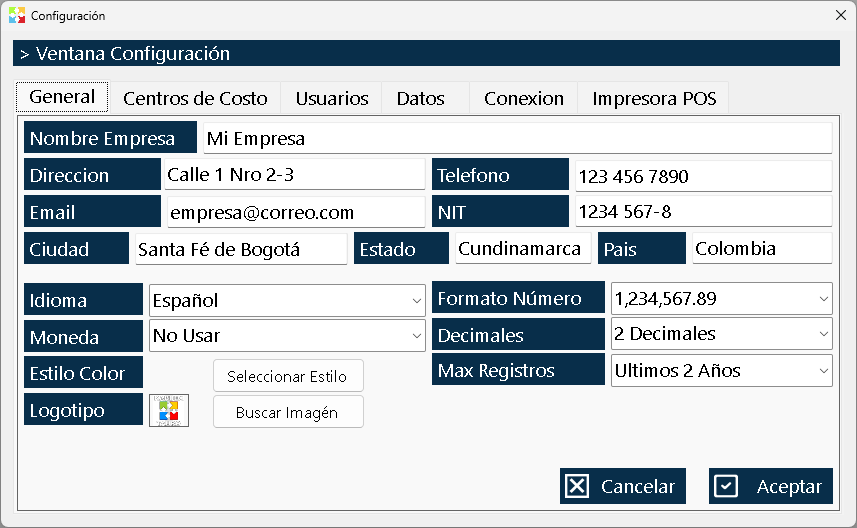
The General Tab is the first and most important tab of the Configuration window. It contains the company's identifying data, the regional display parameters, the appearance of the system windows, the corporate logo, and the configuration of the visible records limit.
This tab acts as the system's "identity card": the information registered here is automatically used as the header and footer in all system reports, in the large invoices printed on the standard printer, and in any formal document generated by Kardex Tauro.
MAIN PURPOSE
The General Tab fulfills three fundamental functions:
- Corporate identification: Defines the company data that will appear in all printed documents and reports.
- Regional configuration: Establishes the language, currency format, and number of decimals that the system will use throughout the interface.
- Visual customization: Allows adapting the color style of the windows and the corporate logo to the company's identity.
- Performance control: Defines how many historical records will be shown in the list windows, optimizing memory consumption and system speed.
TAB STRUCTURE
The tab is organized into several logical sections that group the fields according to their function. Each available field is described below.
1. COMPANY DATA
This section contains the company's identifying information. All this data is printed automatically in the header of large invoices, delivery notes, purchase orders, reports, and any formal document generated by the system.
|
Field |
Description |
Example |
|
Company name |
Company legal name or trade name. It appears prominently in the header of all documents. |
"Distribuidora Tauro S.A.S." |
|
Address |
Complete physical address of the company (street, number, neighborhood). |
"Calle 45 # 12-30, Zona Industrial" |
|
Phone |
Company contact phone number(s). |
"(+57) 601 555 1234" |
|
|
Main corporate email address. |
"contacto@tauro.com" |
|
City |
City where the company operates. |
"Bogotá" |
|
State |
Department, state, or province. |
"Cundinamarca" |
|
Country |
Country where the company is located. |
"Colombia" |
Important: This data is the basis of the corporate identity in all documents. Make sure it is complete and up to date, since it appears in invoices, delivery notes, purchase orders, quotations, and reports.
2. REGIONAL CONFIGURATION
This section defines how the system will display numerical information and in which language the interface will be presented.
|
Field |
Description |
Impact |
|
Language |
Language in which the program interface and the documents will be displayed. |
Changes all the texts of the system and the reports. |
|
Number and currency format |
Defines the symbol and format of the currency used (e.g.: $, COP, USD, with thousands and decimal separators). |
Affects the display of all monetary values in the system. |
|
Decimals |
Number of decimal digits to show in numerical and monetary values. |
Determines the precision with which prices, totals, and calculations are displayed. |
Recommendation: Configure these fields when starting the system implementation, since they affect the display of all financial information. Later changes do not recalculate historical values; they only modify the way they are displayed.
3. SYSTEM APPEARANCE
This section allows customizing the visual appearance of the program to adapt it to the company's or the user's preferences.
|
Field |
Description |
|
Window color style |
Defines the color scheme of the program interface. It allows adapting the visual appearance to the corporate identity or the user's preferences. |
Note: The color style affects only the program interface, not the printed documents. Each user can have their own color preference if the system allows it.
4. NUMBER OF RECORDS TO DISPLAY
This is a critical field for system performance. Instead of a fixed number, the number of visible records in the list windows is defined by period of time.
Available options:
- Last 3 months
- Last 6 months
- Last year
- 2 years
- 3 years
- 5 years
- 10 years
Where does this configuration apply?
This configuration affects all the document list windows of the system:
- Sales Invoice List
- Purchase Order List
- Quotation List
- Consumption List
- Transfer List
- Shrinkage List
- Return List
- Loan and Consignment List
- Accounts Receivable List
- Accounts Payable List
- Cash Movements
- And all the other history windows
System behavior:
- The system will show only the documents created within the selected period.
- The oldest documents are not deleted; they simply are not shown in the lists.
- Old documents remain accessible through specific filters or reports when necessary.
Performance consideration:
The greater the number of years configured, the greater the RAM memory consumption and the lower the navigation speed. It is recommended to keep the default value (2 years) and increase it only if strictly necessary.
5. COMPANY LOGO
This section allows uploading the corporate image that will be printed on all formal documents.
|
Field |
Description |
|
Logo |
Corporate image of the company (usually in PNG or JPG format with a transparent background). It is printed in the header of large invoices, delivery notes, purchase orders, quotations, and reports. |
Recommendations for the logo:
- Use a high-resolution image to guarantee sharpness in printing.
- Prefer formats with a transparent background (PNG) for better integration with the documents.
- Keep adequate proportions so that it does not take up too much space in the header.
- The logo is printed both on the large printer (standard invoices) and in the reports in PDF/HTML format.
ACTION BUTTONS
At the bottom of the tab there are two buttons that control the saving of the configuration:
|
Button |
Function |
|
Cancel |
Closes the tab without saving the changes made. All modified information is lost and the previous configuration is kept. |
|
Accept |
Saves all the changes made in the tab and applies them to the system. The new values are used immediately in the reports, printed documents, and the program's display. |
IMPORTANT: The changes made in the General Tab are not applied automatically. It is mandatory to click the button Accept for the new configuration to take effect. If you close the window without accepting, all changes will be lost.
EFFECTS OF THE CONFIGURATION ON THE SYSTEM
Documents that use the information from the General Tab:
- ✅ Large invoices (printed on a standard/laser printer)
- ✅ Delivery Notes for merchandise delivery
- ✅ Purchase orders sent to suppliers
- ✅ Quotations sent to customers
- ✅ Reports generated from any module (HTML/PDF format)
- ✅ Cash receipt and payment vouchers
- ✅ Internal transfer documents
- ✅ Reinstatement and return notes
Documents that do NOT use this information:
- ❌ POS Invoices (thermal printer tickets) → These use the configuration of the POS Printer Tab.
USAGE RECOMMENDATIONS
Initial configuration
When implementing Kardex Tauro for the first time, it is recommended to complete the General Tab in the following order:
- Company data: Complete all the identifying fields (name, address, phone, email, city, state, country). This information will appear in all the documents.
- Regional configuration: Adjust the language, currency format, and decimals according to local needs.
- Logo: Upload the corporate logo in high resolution.
- Appearance: Select the preferred color style.
- Number of records: Keep the default value (2 years) and adjust it only if necessary.
Periodic maintenance
- Review the company data at least once a year to ensure that the contact information is up to date.
- Update the logo when the company makes a corporate image change.
- Monitor performance of the system: if the list windows become slow, reduce the number of visible years.
Considerations about the number of records
- Do not increase unnecessarily the display period. If you need to consult old documents, use the filters or generate specific reports.
- For audits: It is preferable to keep a reasonable period (2-3 years) and export to Excel or generate reports for older periods.
- On equipment with limited resources: Use short periods (3-6 months) to improve performance.
Considerations about the logo
- Test printing of the logo on a test invoice before using it in real documents with customers.
- Check the size of the logo in the printed documents to ensure that it is not too large or too small.
- Keep a copy of the original logo in a safe place so that it can be restored if necessary.
FREQUENTLY ASKED QUESTIONS
Q: Do changes in the General Tab affect already printed documents?
A: No. The changes only affect the documents generated from the moment the changes are saved. Already printed documents keep the information they had at the time of their generation.
Q: Can I have different logos for different cost centers?
A: No. The logo is unique for the entire company. If you need different logos per branch, you must consider external solutions or print customized documents outside the system.
Q: What happens if I leave any field of the company data blank?
A: The system will allow saving the configuration, but the printed documents will appear with blank spaces in the header. It is recommended to complete all the fields for a professional presentation.
Q: Can I change the currency format after having registered documents?
A: Yes, but the change will only affect the display of values from the moment of the change. Historical values are not recalculated.
Q: Does the number of records to show affect the reports?
A: The reports generated from the list windows respect the configured period. However, you can use specific filters to include documents from older periods in a specific report.
Q: Is the logo printed on POS invoices (thermal tickets)?
A: No. POS invoices use an independent configuration defined in the POS Printer Tab. The logo from the General Tab is only printed on large invoices (standard printer) and in the reports.
Q: Can I have different color styles for different users?
A: It depends on the system configuration. In some cases, each user can customize their own color style. Consult with the system administrator.
Q: What image format should I use for the logo?
A: PNG format with a transparent background is recommended for better integration. High-resolution JPG formats also work. Avoid low-resolution images that look pixelated when printed.
RELATIONSHIP WITH OTHER CONFIGURATION TABS
The General Tab works together with the other tabs of the Configuration window:
- Cost Center Tab: The company data is combined with the specific information of each cost center in the documents.
- Users Tab: The regional configuration (language, decimals) affects all users of the system.
- POS Printer Tab: It complements the print configuration. While the General Tab defines the logo for large invoices, the POS Printer Tab configures the thermal printer for tickets.
- Connection Tab: The configured number of records affects performance depending on the type of database (local or remote).
EXECUTIVE SUMMARY
The General Tab is the heart of the corporate configuration of Kardex Tauro. It defines the company's identity in all documents, establishes the regional display rules, customizes the system's appearance, and controls performance through the management of the visible history.
A correct configuration of this tab guarantees:
- ✅ Professional documents with the complete corporate identity
- ✅ Consistent display of monetary values throughout the system
- ✅ Optimal program performance
- ✅ Customized user experience
Remember: Always click on Accept to save the changes. The printed documents will immediately reflect the new configuration from the moment of saving.
Created with HelpNDoc's Personal Edition: Transform your documentation process with HelpNDoc's Project Analyzer