Cost Centers
COST CENTER TAB - CONFIGURATION WINDOW
GENERAL DESCRIPTION
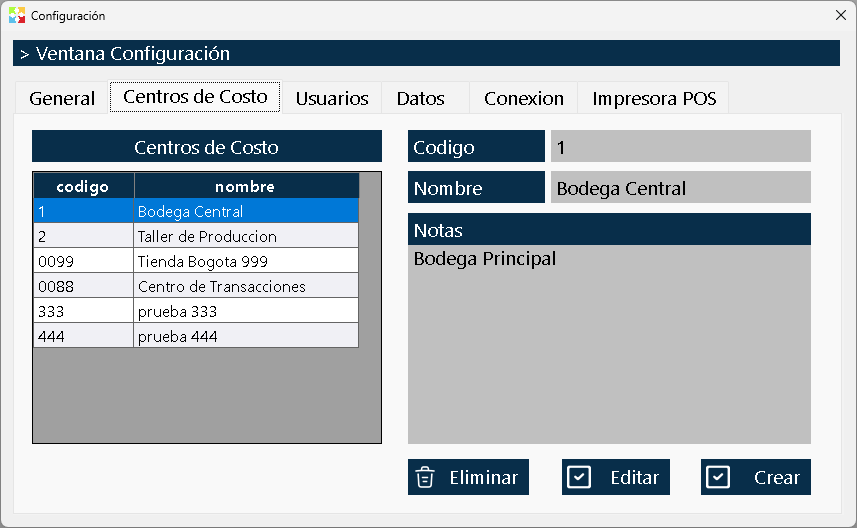
The Cost Center Tab is the module of the Configuration window intended for the creation, administration and organization of the different warehouses, branches, locations or storage points that the company has.
In Kardex Tauro, a "Cost Center" represents an independent physical or logical location where stock on hand is handled and documents are generated. The system allows operating with multiple cost centers simultaneously, maintaining inventory control and the traceability of movements (such as internal transfers) between each of them.
WINDOW STRUCTURE
The interface of this tab is clearly divided into two main areas and an actions area, designed for fast and visual management of the warehouses.
1. Left Zone: Cost Centers List
In the left panel there is a grid that shows all the cost centers created in the system.
- The Default Cost Center: When installing the program, it will always contain at least one preconfigured cost center (usually called "Local" or "Central Warehouse").
- Immutability Restriction: This default cost center cannot be edited or deleted. It is the system's guarantee that there will always be at least one operational warehouse for the program to work correctly.
2. Right Area: Cost Center Information
When you select a cost center from the left list, the right panel shows the specific details of the selected warehouse:
- Code: Unique alphanumeric identifier of the cost center.
- Name: Descriptive name of the warehouse or branch (e.g. "North Branch", "Cold Warehouse", "Main Location").
- Notes: Free text field to add observations, physical addresses, names of responsible persons or any relevant context about that location.
3. Lower Zone: Action Buttons
In the lower right part there are the three buttons that allow you to manage the cost centers:
- Create: Opens the form to register a new warehouse or branch.
- Edit: Allows you to modify the data of the selected cost center.
- Delete: Permanently deletes the selected cost center from the system.
BASIC OPERATIONS
Create a Cost Center
To add a new warehouse or branch to the system:
- Click the button "Create".
- Assign a Code unique (e.g. "BOD02", "SUC-NORTE").
- Enter the Name descriptive of the warehouse.
- Optionally, add Notes with location or person-in-charge information.
- Confirm the operation. The new warehouse will appear immediately in the left list and will be ready to receive merchandise through transfers or receipts.
Edit a Cost Center
If you need to change the description or add observations to an existing warehouse:
- Select the cost center from the left list.
- Click the button "Edit".
- Modify the Name or the Notes as necessary.
- Confirm the changes.
⚠️ IMPORTANT RESTRICTION: The Code of the cost center CANNOT be edited once it has been created. As with product and third party codes, the code remains unchanged to guarantee the historical integrity of all documents (transfers, inventories, etc.) that refer to that warehouse.
Delete a Cost Center (CRITICAL WARNING!)
The button "Delete" permanently deletes the selected cost center. Due to the integrated nature of Kardex Tauro, this is one of the operations most destructive of the system and must be performed with extreme caution.
⚠️ CONSEQUENCES OF DELETING A COST CENTER
When you confirm the deletion of a cost center, the system will execute a mass deletion of all the operational information linked to that specific warehouse:
WHAT IS DELETED (Definitively):
- ❌ All documents: All purchases, sales, consumptions, transfers, shrinkages, returns, production orders and reinstatements that have been made in that cost center will be deleted.
- ❌ Inventory Stock on Hand: The quantities (stock) of all the products that were in that warehouse will be lost.
- ❌ Accounts Receivable and Accounts Payable: The balances and financial documents generated in that cost center will be deleted.
- ❌ Cash Movements: The entire history of cash receipts and cash payments of that warehouse will be deleted.
- ❌ Kardex: The movement history of that warehouse will disappear.
WHAT IS NOT DELETED (Global Information):
- ✅ The Products: The product catalog is global. Products are not deleted from the system, only the quantities that existed in the deleted warehouse.
- ✅ The Third Parties: Customers, suppliers and employees are global. They are not deleted, since they can continue operating in other cost centers.
- ✅ Groups and Subgroups: The inventory classification structure remains intact.
USAGE AND SECURITY RECOMMENDATIONS
- Initial Planning: Before starting to operate, clearly define which cost centers (warehouses/branches) you need. It is much easier to create the structure at the beginning than to try to correct it after having registered documents.
- Descriptive Names: Use clear names for the cost centers (e.g. "Central Warehouse", "Calle 80 Branch", "Main Counter"). This will make it easier to select when making transfers or switching warehouses in the main window.
- Use of Notes: Take advantage of the notes field to record the physical address, the name of the warehouse keeper in charge or the opening hours of that branch.
- NEVER Delete a Cost Center in Production: If a warehouse already has documents, sales or stock on hand registered, do not delete it. If the physical warehouse has closed, the right thing to do is leave the warehouse in the system with zero stock on hand (through sales, shrinkages or transfers to another warehouse) and simply stop using it.
- Alternative to Deletion: If a cost center was created by mistake and it still has no movements, you can delete it without any problem. But if it already has operations, the deletion will destroy the accounting and inventory history of that location.
- The Default Cost Center: Remember that the central warehouse that comes by default in the program is the anchor of the system. Do not try to find ways to delete it; if you need to reorganize, create new warehouses and move the inventory to them through Internal Transfers.
- Previous Backups: If for some extraordinary administrative reason you must delete a cost center that has information, make sure you have a complete backup of the database before proceeding, since the action is irreversible.
RELATIONSHIP WITH OTHER WINDOWS
The configuration of the cost centers in this tab directly impacts the operation of the entire program:
- Main Window / Inventory: Allows the user to select which warehouse they are operating in to view its stock on hand.
- Internal Transfers: Requires that at least two cost centers exist in order to send merchandise from one warehouse to another.
- User Permissions: From the Users tab, an employee can be restricted so that they can only view and operate in a specific cost center, guaranteeing security between branches.
Created with HelpNDoc's Personal Edition: Transform your documentation workflow with HelpNDoc's intuitive user interface