Inventory
MAIN INVENTORY WINDOW
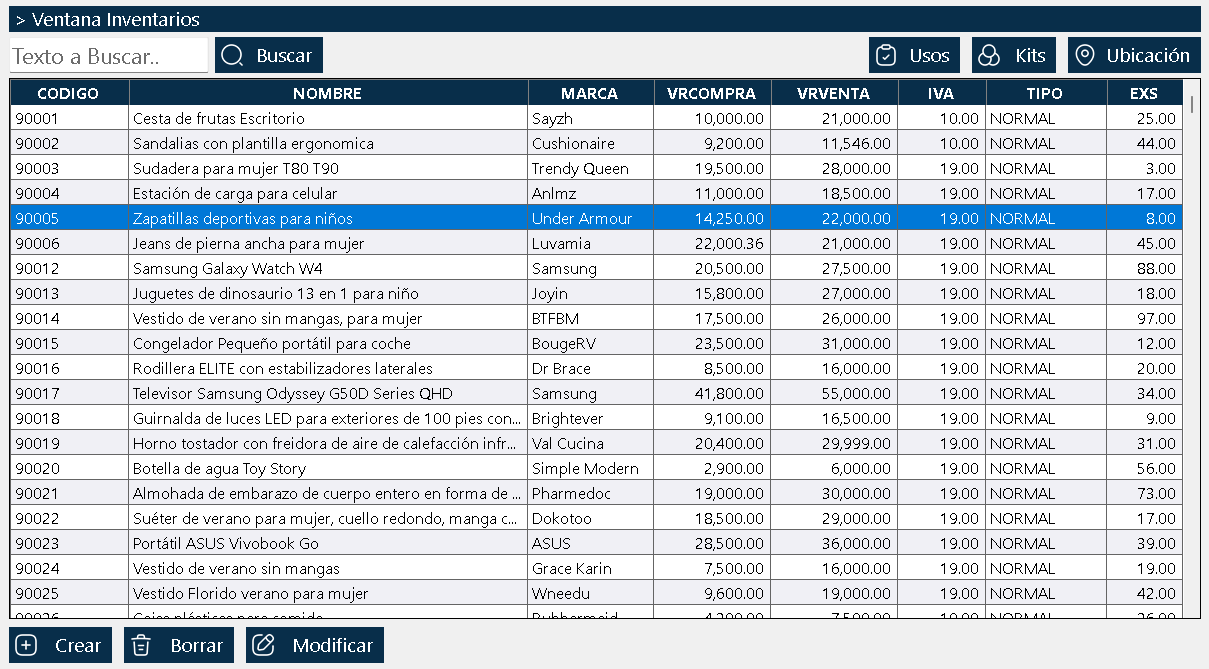
The inventory window presents a complete list of all products registered in the system. This interface shows detailed information for each product including: quantity in stock, purchase value, sale value, minimum stock on hand, and other configurable fields.
Note: Not all columns are visible by default. The system allows customizing the view according to the user's needs.
CONTEXT MENU (RIGHT-CLICK)
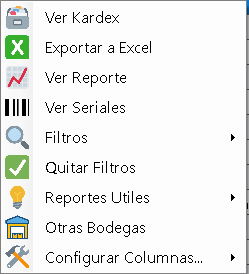
When right-clicking on the inventory window, a menu with the following options is displayed:
Filters and Sorting
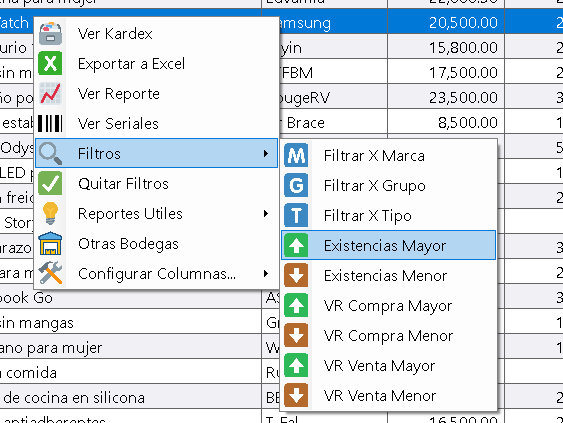
- Filter by brand: Shows only products of a specific brand
- Filter by higher stock on hand: Shows products with stock greater than a defined value
- Filter by lower stock on hand: Shows products with stock lower than a defined value (useful for identifying products to restock)
- Filter by purchase value higher/lower: Sorts products according to their acquisition cost
- Hide/Show columns: Allows customizing which information columns you want to view in the list
Export to Excel
This function generates a Microsoft Excel file with the following characteristics:
- Exports only the visible columns at the time of export
- Respects the applied filters (if you filtered by brand or stock on hand, only those products will be exported)
- Hidden columns will not be included in the Excel file
Generate Reports
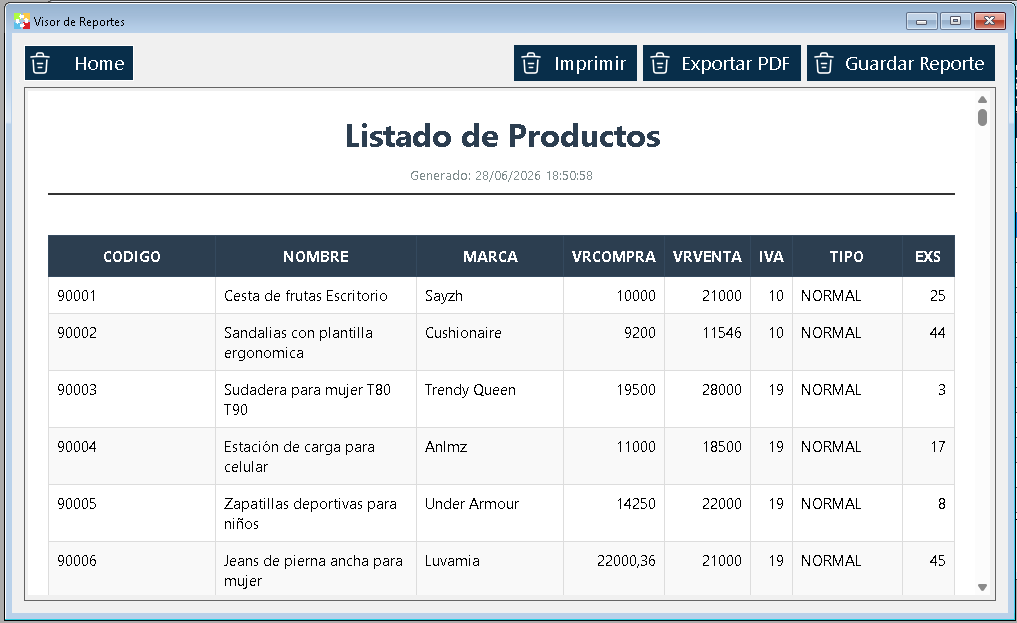
Creates a professional report of the visible inventory with the following options:
- Format: Single-file web page (self-contained HTML)
- Destination: Ready to print, export to PDF, or save as a file
- Advantages:
- Can be sent as an email attachment
- It is stored locally on the computer
- Viewable without an internet connection
- Maintains the professional format for printing
MULTIPLE WAREHOUSE MANAGEMENT (COST CENTERS)
The Kardex Tauro system supports multiple warehouses or cost centers simultaneously.
Default behavior:
- The inventory window shows only the stock on hand of the current cost center where the user is logged in
- The default cost center is called "Local" (Cost Center 1)
Option "National Stock"
Located in the context menu, this function allows:
- View the stock on hand of a specific product in all warehouses of the system
- It is a function purely informational (read-only)
- Does not allow modifying quantities of other warehouses
- Use case: Identify whether a product out of stock in the current warehouse is available in another location
SEARCH AND QUERY TOOLS
Real-Time Search Box
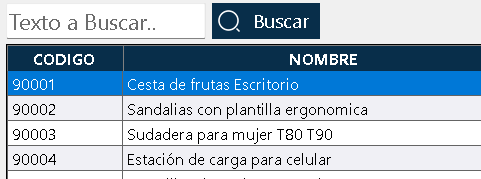
Located at the top of the window, above the products grid:
- Instant search: Results update as you type
- Search fields: Product code, name and brand
- Recommendation: It is the fastest and most efficient way to locate products in inventory
- Security: Using the search box does not modify data or generate conflicts in the system
4.2 "USES" Button
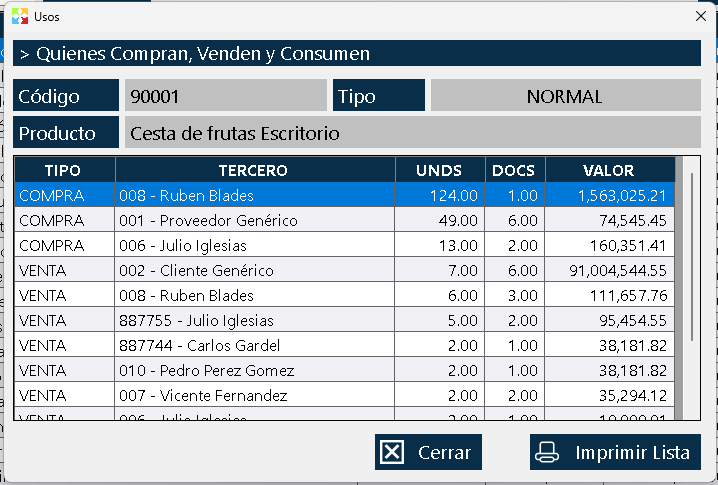
Located to the right of the search box, above the grid:
- Function: Shows a list of third parties (customers, suppliers, etc.) that consume, buy, sell, or use the selected product
- Procedure:
- Select a product from the list
- Click the "Uses" button
- The system will show all third parties associated with that product
4.3 "KITS" Button
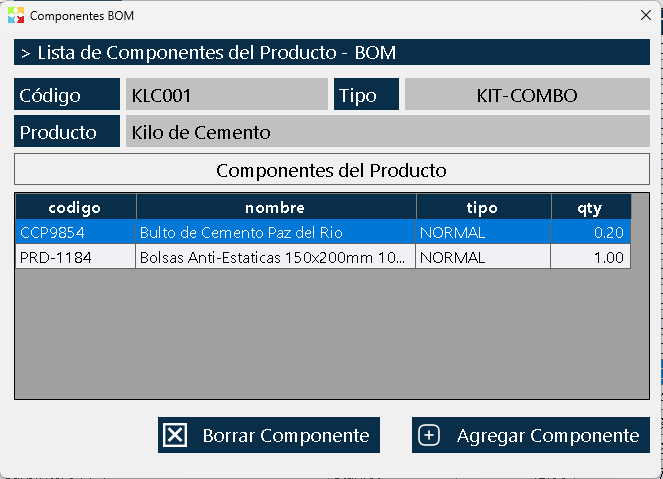
This button manages composite products (combos, gift baskets, packages):
What is a Kit product?
They are products that contain subcomponents or ingredients. Examples:
- A gift basket that includes: basket, box of chocolates, jar of jam, bouquet of flowers, and plush toy
- A package of combined products
Functionality:
- When selecting a Kit-type product and clicking on "Kits", the list of components/subcomponents is displayed
- Nestable kits: A kit can contain other kits inside it
- Example: Kit "Bread" (flour + water + yeast) → Kit "Bag of 24 breads" (uses the "Bread" kit as a component)
System behavior during sales:
- When selling a Kit product, the program internally checks all subcomponents (including subcomponents of nested kits)
- Automatically verifies whether there are sufficient quantities in the warehouse to build the final product
- Discounts the quantities of each individual component
"LOCATION" Button
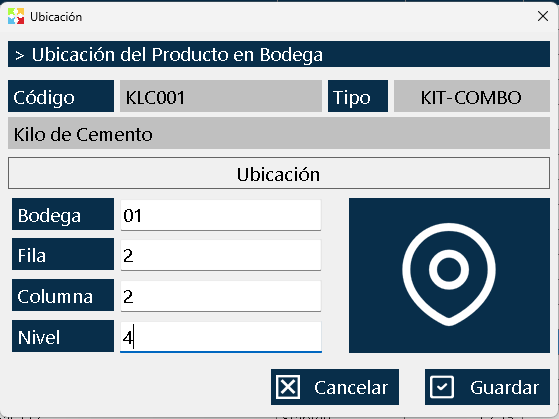
Allows defining and consulting the physical location of the product in the warehouse:
- Data that can be defined:
- Warehouse number
- Row number
- Column number
- Shelf level
- Profit: Facilitates the physical location of the product, especially for new employees who are unfamiliar with the warehouse layout
PRODUCT MANAGEMENT
Create Product (Bottom Button)
Located at the bottom of the window:
- Allows adding one product at a time to the inventory
- It is the standard method for creating individual products
Mass Import
The system offers additional functionality (outside this window) to:
- Import products in batch from spreadsheets
- Supported formats: Excel, OpenOffice, Google Docs, and any compatible spreadsheet format
- This function allows loading multiple products simultaneously
Edit Product
- Select a product from the list
- Access the editing options to modify its properties
PERMISSIONS AND SECURITY SYSTEM
All the program's windows, including the inventory window, are protected by a per-user permissions system.
Specific permission: "View Inventory Window"
Behavior:
- If a user does not have this permission active, when trying to open the inventory window they will receive an informative message indicating that they do not have access
- Does not generate errors: The system simply does not show the window
- Administration: Permissions can be configured to restrict access to specific functionalities according to the user's role
USAGE RECOMMENDATIONS
- Quick search: Use the real-time search box to locate products quickly
- Customization: Configure the visible columns according to your daily needs
- Reports: Use the export to Excel function for data analysis and the report function for formal documentation
- Stock control: Apply "lower stock on hand" filters to identify products that need restocking
- Kits: Take advantage of the nestable kits functionality to manage composite products efficiently
- Location: Keep the physical location information updated to optimize warehouse operations
Created with HelpNDoc's Personal Edition: Make documentation easier with a help authoring tool