Database Connection
CONNECTION TAB - CONFIGURATION WINDOW
General Description
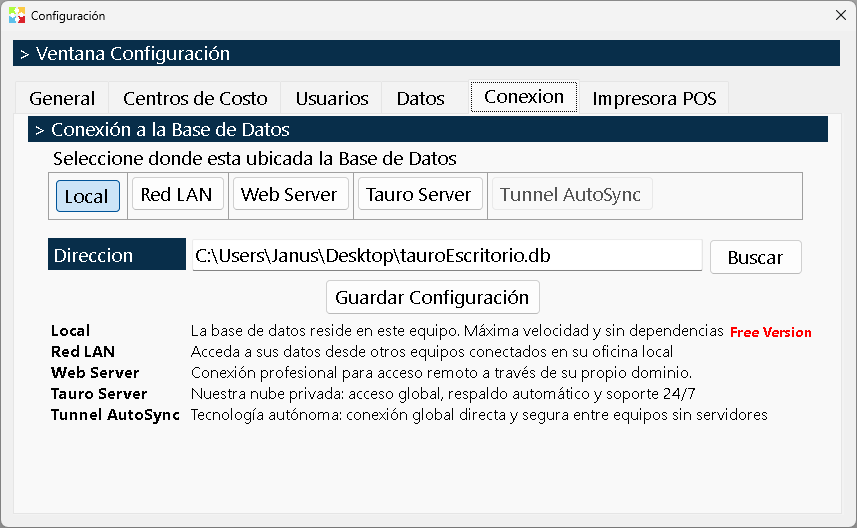
The Connection Tab is the configuration module that allows you to specify to the Kardex Tauro program where the database is stored. This tab is essential to establish communication between the program and the data file that contains all the inventory information, transactions, third parties and configurations.
The functionality of this tab varies significantly depending on the type of program license: free version or licensed version.
Operation in Free Version (Free)
When Kardex Tauro is installed in free mode, the program operates with specific restrictions designed for individual and local use:
Default database:
- The program automatically uses the database that is in the same folder where the executable is installed.
- This location is fixed and cannot be modified.
- The connection tab has no use in this version, since it does not allow changing the database location.
Free version limitations:
- Does not allow network work: It is not possible for two or more computers to share the same database.
- Individual use: Only one program can operate with the database at a time.
- No remote connectivity: You cannot connect to databases hosted on web servers or on other computers of the local network.
- Connection tab inactive: Although the tab exists in the interface, it does not allow changes and shows the fixed location of the local database.
Free version use cases:
- Software testing and evaluation
- Personal use or small business use with a single user
- Environments where sharing information between multiple computers is not required
- System demonstrations
Operation in Licensed Version
When a valid license of Kardex Tauro, the connection tab is fully enabled and allows you to configure different data storage scenarios:
Locations available for the database:
1. Local Location (Same Computer):
- The database is stored on the same computer where the program runs.
- It is the simplest and fastest configuration.
- Ideal for standalone computers that do not need to share information.
- The database can be in any folder on the computer, not necessarily next to the executable.
2. Location on Local Network:
- The database is stored on a different computer within the company's local network.
- Allows multiple computers simultaneously access the same database.
- Ideal for companies with several users who need to share information in real time.
- Requires proper configuration of network permissions and shared folders.
- All users must have read/write access to the folder where the database is located.
3. Location on Web Server:
- The database is hosted on a remote web server.
- Allows access from any location with an internet connection.
- Ideal for companies with multiple branches or remote users.
- Requires configuration of a web server and adequate security protocols.
- The program connects through a URL or IP address of the server.
Tab Structure
The connection tab presents the following elements:
Database Location Field:
- Text field where the full path of the database is shown or specified.
- In the free version: it shows the fixed path and is not editable.
- In the licensed version: it allows you to edit the path manually or use the search box.
Search Button:
- Button with a folder or magnifying glass icon that opens a browsing dialog.
- Allows you to browse the local computer or the network to select the database location.
- On the local network: it shows the available computers and their shared folders.
- Makes selection easier without the need to type the full path manually.
Web Server Field (if applicable):
- Field to specify the address of the web server where the database is hosted.
- It can be a URL (e.g.: "https://servidor.empresa.com") or an IP address.
- Only available when a web server connection is configured.
Test Connection Button:
- Button that verifies whether the connection to the database is successful.
- Shows a message indicating whether the connection was successful or if there were errors.
- Useful for validating the configuration before saving the changes.
Save Button:
- Saves the specified connection configuration.
- In the free version: it is not available or does not make changes.
- In the licensed version: it applies the new connection configuration.
Local Network Configuration
To configure Kardex Tauro on a local network where multiple computers share the same database, the following steps must be followed:
Prerequisites:
- All computers must be on the same local network.
- There must be a computer designated as "server" where the database will be stored.
- The folder where the database is located must be shared on the network.
- All users must have read and write permissions on the shared folder.
- All computers must have the licensed version of Kardex Tauro installed.
Configuration steps:
On the server computer (where the database is located):
- Create a specific folder for the database (e.g.: "C:\KardexTauro\BaseDatos").
- Share the folder on the network with read/write permissions for all users.
- Ensure that the firewall allows access to the shared folder.
- Write down the network path of the folder (e.g.: "\SERVIDOR\KardexTauro\BaseDatos").
On each client computer:
- Install Kardex Tauro with a valid license.
- Open the connection tab.
- Click the search button.
- Browse the network until you find the server computer.
- Select the shared folder where the database is located.
- The full path will appear in the location field (e.g.: "\SERVIDOR\KardexTauro\BaseDatos\kardex.db").
- Click "Test Connection" to validate.
- If the test is successful, click "Save".
- Restart the program if necessary.
Important considerations:
- All computers must use exactly the same network path.
- If the path changes (e.g.: server name change), all computers must be reconfigured.
- Network speed affects the performance of the program.
- It is recommended to use wired connections (Ethernet) instead of WiFi for greater stability.
Web Server Configuration
To configure Kardex Tauro with the database hosted on a web server, additional considerations are required:
Prerequisites:
- Web server configured with the necessary services.
- Database hosted and accessible through web protocols.
- Adequate security configuration (SSL certificates, authentication, etc.).
- Stable internet connection on all client computers.
- Valid Kardex Tauro license on all computers.
Configuration steps:
- Open the connection tab on each client computer.
- In the web server field, enter the full address of the server (URL or IP).
- If authentication is required, enter the access credentials.
- Click "Test Connection" to validate.
- If the test is successful, click "Save".
Security considerations:
- Always use secure connections (HTTPS) whenever possible.
- Implement firewalls and intrusion detection systems.
- Perform frequent backups of the database.
- Monitor access to and use of the database.
- Keep security certificates up to date.
Troubleshooting Common Problems
Problem: Cannot connect to the database on the network
Possible causes:
- The shared folder does not have adequate permissions.
- The firewall is blocking access.
- The network path is incorrect.
- The server computer is turned off or disconnected.
- Network connectivity problems.
Solutions:
- Verify the permissions of the shared folder (read/write for all users).
- Configure the firewall to allow access to the shared folder.
- Validate the network path using the Windows file explorer.
- Verify that the server computer is turned on and connected to the network.
- Ping the server computer to verify connectivity.
Problem: The connection works intermittently
Possible causes:
- Network stability problems.
- Use of WiFi with weak signal.
- IP conflicts on the network.
- Server computer overload.
Solutions:
- Use wired connections (Ethernet) instead of WiFi.
- Verify the quality of the network signal.
- Review the IP configuration to avoid conflicts.
- Optimize the performance of the server computer.
Problem: Multiple users report slowness
Possible causes:
- Local network with insufficient bandwidth.
- Server computer with limited resources.
- Database too large without optimization.
- Too many simultaneous users.
Solutions:
- Improve the network infrastructure (switches, cables, etc.).
- Upgrade the hardware of the server computer.
- Optimize and compact the database periodically.
- Evaluate whether the number of simultaneous users is adequate for the infrastructure.
Problem: Cannot connect to the web server
Possible causes:
- Incorrect server address.
- Internet connectivity problems.
- Expired or invalid SSL certificate.
- Incorrect authentication credentials.
- Firewall blocking the connection.
Solutions:
- Verify the address of the web server (URL or IP).
- Verify the internet connection on all computers.
- Renew or install valid SSL certificates.
- Validate the access credentials.
- Configure the firewall to allow the connection to the web server.
Usage Recommendations
For free version:
- Use the free version only for evaluations or individual use.
- If you need network operation or multiple users, consider acquiring a license.
- Perform frequent backups of the local database.
For licensed version on local network:
- Designate a dedicated computer as the database server.
- Use wired connections for greater stability and speed.
- Implement adequate permissions on the shared folders.
- Perform daily backups of the database.
- Monitor the performance of the network and the server.
- Document the network configuration to facilitate technical support.
For licensed version on web server:
- Always use secure connections (HTTPS).
- Implement robust security policies.
- Perform automatic and frequent backups.
- Monitor access to and use of the database.
- Keep security certificates and systems up to date.
- Consider using specialized hosting services for databases.
General:
- Test the connection after any change in the configuration.
- Document the database location and the access credentials.
- Train the technical staff in network configuration.
- Establish backup and disaster recovery procedures.
- Keep all software licenses up to date.
Security:
- Do not share the access credentials to the database.
- Use strong passwords for access to shared folders and web servers.
- Implement two-factor authentication systems whenever possible.
- Perform periodic audits of access to the database.
- Protect the database against unauthorized access.
Maintenance:
- Compact and optimize the database periodically.
- Monitor the size of the database and plan for growth.
- Update the software regularly to obtain performance improvements.
- Review the system logs to detect problems early.
- Plan maintenance windows for optimization tasks.
Relationship with Other Configurations
General Configuration Window:
The connection tab is part of the general configuration window of the program. From there you access all the configuration options, including connection, permissions, system parameters, etc.
License System:
The functionality of the connection tab depends directly on the type of license activated. Without a valid license, the tab is disabled.
Program Modules:
All the modules of the program (Warehouse, Inbound, Outbound, Accounting) depend on a successful connection to the database. Without a connection, none of the modules can work.
Backups:
The database location defined in this tab is the one that must be backed up periodically. It is crucial to know exactly where the information is stored in order to perform effective backups.
Executive Summary
The Connection Tab is the critical component that defines where and how Kardex Tauro stores and accesses its database. Its functionality varies according to the type of license:
Free Version:
- Fixed database next to the executable
- No configuration capability
- No support for networks or web servers
- Individual and local use only
Licensed Version:
- Flexible database location configuration
- Support for local network (multiple users)
- Support for web server (remote access)
- Network search box to facilitate configuration
- Connection test to validate configuration
The correct configuration of this tab is essential for the operation of the program, especially in multiuser environments or with remote access. An adequate configuration guarantees efficient and secure access to the inventory information.
Kardex Tauro - Professional Inventory Management System
Created with HelpNDoc's Personal Edition: Maximize your productivity with HelpNDoc's CHM help file creation features