Backups
BACKUPS SECTION - DATA TAB (CONFIGURATION WINDOW)
GENERAL DESCRIPTION
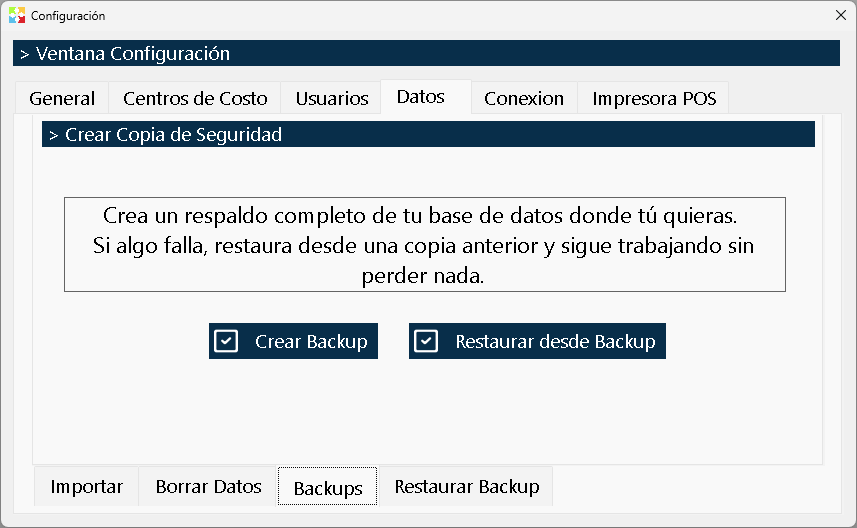
The Backups Section is the security and survival tool of the Kardex Tauro system. Its purpose is to generate a complete and exact backup copy of the program's entire database in the location of your choice, and to allow the restoration of the system to a previous state in the event that a critical error, data corruption or a failed mass operation occurs.
This section acts as the "life insurance" of your business information. Since Kardex Tauro stores all the information (products, third parties, sales, purchases, kardex, configuration) in a centralized database, having an up-to-date backup guarantees that, in the face of any disaster, your business can continue operating without losing absolutely anything.
CRITICAL IMPORTANCE
The Backups Section is the mandatory complement of the other two sections of the Data Tab:
- Before Importing: If you are going to perform a mass import of inventory or third parties from a spreadsheet, an error in the column mapping could alter thousands of records in seconds. A previous backup lets you revert the change with a single click.
- Before Deleting Data: The "Delete Data" section is a destructive and irreversible operation. Although the system generates an automatic internal backup before executing the deletion, having your own external and manual backup is the only real guarantee that you will be able to recover your information if something goes wrong during the process.
WINDOW STRUCTURE
The interface of this section is deliberately minimalist and direct, containing only two buttons that cover the entire lifecycle of data protection:
|
Button |
Function |
|
Create Backup |
Generates a complete backup copy of the current database and lets you save it in any folder or drive (hard disk, USB flash drive, network drive, etc.). |
|
Restore from Backup |
Lets you select a previously created backup file to overwrite the current database, returning the system exactly to the state it was in when that backup was created. |
OPERATION: CREATE BACKUP
When clicking the button "Create Backup", the system packages the entire SQLite database and its associated files into a single backup file.
Process:
- The system opens a standard Windows dialog box so that you can choose the destination location (for example, your desktop, a "Monthly Backup" folder, or an external drive).
- A name is assigned to the file (generally with the automatic date and time to avoid accidental overwrites).
- The system copies the information and confirms the successful creation of the backup.
Recommendations when creating backups:
- External Location: Do not save the backups in the same folder where the program is installed. If the computer fails, you would lose both the program and the backups. Save the copies on an external hard disk, a USB flash drive or a cloud service (OneDrive, Google Drive, Dropbox).
- Clear Naming: If the system allows it, or if you move the files later, use names that indicate the date and the reason (Ex: KardexTauro_Backup_2026-07-02_AntesDeImportar.db).
- Frequency: Create a backup at the end of each working day, or at least before any mass operation (imports, deletions, inventory adjustments).
OPERATION: RESTORE FROM BACKUP
When clicking the button "Restore from Backup", the system will start a recovery process that will replace the current database with the one contained in the selected backup file.
Process:
- The system opens a dialog box so that you can search for and select the backup file you want to restore.
- The system will show a confirmation warning, informing you that all the current data will be replaced by the backup data.
- After confirming, the system closes the connections to the current database, copies the backup file to the original database location and restarts the services.
- When finished, the program will be found exactly in the same state (with the same products, sales, inventories and configurations) as at the moment that backup was created.
⚠️ CRITICAL WARNING ABOUT RESTORATION:
- Loss of Recent Data: When restoring, all the information generated between the backup date and the current moment will be lost. If you create a backup on Monday, work on Tuesday and on Wednesday restore Monday's backup, all the sales, purchases and movements of Tuesday and Wednesday will disappear.
- Disconnected Users: If there are other users connected to the system (in a shared or remote database environment), it is advisable to notify them before restoring, since the operation will close their sessions abruptly.
- Use it only when necessary: The restoration is an emergency tool. Do not use it to "go back" for a small typing error; for minor errors, use the editing, reinstatement or Kardex adjustment processes. The restoration is for when the database is corrupted or an irreversible mass error was made.
USAGE RECOMMENDATIONS AND BEST PRACTICES
1. The Golden Rule of Backup
"Before touching the database massively, make a backup."
Whenever you are going to use the section Import or the section Delete Data, your first step must be to go to the section Backups and create a backup. If the import goes wrong, simply restore the backup and try again without any risk.
2. Backup Retention Policy
Do not settle for a single old backup. Maintain a rotation of at least the last 3 to 5 backups. If a backup file turns out to be corrupted (something very rare but possible), having backups from previous days will save you from losing your entire history.
3. Restoration Tests (Optional but recommended)
If you are new to the system or have just migrated to a new server, do the test of creating a backup and restoring it in a test environment to make sure that the process works correctly on your computer and that the folder permissions are appropriate.
4. Mental Automation
Get used to creating a backup at the close of the month (to have a monthly accounting backup) and before any update of the program or of the server's operating system.
RELATIONSHIP WITH OTHER SECTIONS OF THE DATA TAB
The Backups Section is the safety net that allows you to use the other two sections with confidence:
- Import Section: If you import thousands of products and make a mistake in the price format, the backup lets you return to the previous state in seconds.
- Delete Data Section: As mentioned, although the system creates an internal backup before deleting, having your own external backup in this section gives you total control to restore the database on another machine or verify the integrity of the file before overwriting your production database.
Created with HelpNDoc's Personal Edition: Revolutionize the output of your CHM help file with HelpNDoc