Create Cash Payment
Window NEW CASH PAYMENT
General Description
The window New Cash Payment is the module where cash outflows from the business that do not come from automatic payments to accounts payable are manually recorded. This window allows reducing the cash balance by recording payments under various concepts such as operating expenses, service payments, partner withdrawals, loans to employees, purchase of minor assets, or any other cash payment that is not automatically generated from other modules of the system.
This window is the counterpart of the New Cash Receipt window, sharing the same interface and field layout, but with the title "New Cash Payment" and operating in payment mode.
When Is This Window Used?
The New Cash Payment window is used to record cash outflows that are not automatically generated from other processes of the system. Typical examples:
Operating expenses:
- Payment of public services (electricity, water, telephone, internet)
- Payment of office or premises leases
- Payment of payroll in cash
- Payment of cleaning or maintenance services
Administrative expenses:
- Purchase of office supplies
- Payment of stationery and photocopies
- Payment of courier or transport
- Representation expenses
Withdrawals and loans:
- Withdrawals by partners or owners
- Cash loans to employees
- Payroll advances
Minor purchases:
- Purchase of minor assets in cash
- Purchase of non-inventory supplies
- Payment of minor repairs
Miscellaneous payments:
- Payment of taxes in cash
- Payment of fines or penalties
- Cash donations
- Tips or representation expenses
Important: Payments originating from supplier payments or credits to accounts payable are automatically recorded in cash. This window is only used for manual payments that are not generated from other modules.
Window Structure
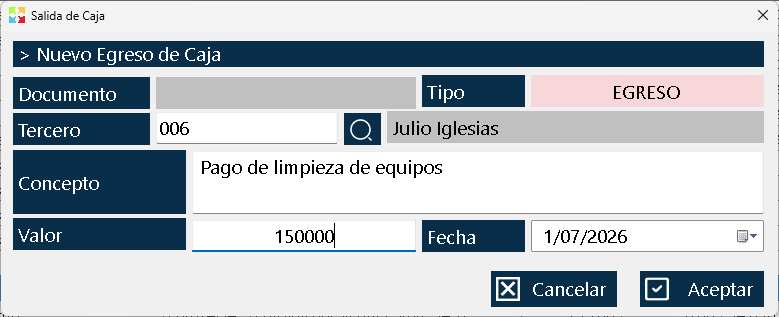
The window is organized in a simple and direct way, with all the fields necessary to record the payment:
Upper Zone - Document Information
Document Number:
- This field shows the consecutive number that the system will automatically assign to the cash voucher.
- It is read-only and cannot be modified.
- The number is generated at the moment of accepting the payment.
Type:
- It shows "PAYMENT" indicating that it is a cash outflow.
- It is read-only and is set automatically when opening the window from the "New Payment" button.
Central Area - Payment Data
Third Party:
- Third Party Code: Code of the person or entity that receives the money. This field is selected using a selector with a search button (magnifying glass) that opens the third parties list.
- Third Party Name: It automatically shows the name of the selected third party.
- This field is mandatory. It can be a supplier, an employee, a partner, a service entity, or any person who receives the money.
Concept:
Text field where the motive, reason, or circumstance for which this cash payment is made is described. Examples:
- "Electric service payment for the month of January"
- "Office rent payment January 2026"
- "Partner capital withdrawal"
- "Employee loan Juan Pérez"
- "Purchase of office supplies"
- "Monthly cleaning service payment"
- This field is mandatory and must be descriptive to facilitate later identification of the payment.
Payment Amount:
Numeric field where the amount of money leaving cash is typed.
- It must be a positive number greater than zero.
- This field is required.
- Upon accepting the payment, this value will be subtracted from the current cash balance.
- The system validates that there is sufficient cash balance to cover the payment.
Date:
Date field where the date of the payment is recorded. By default it takes the current date, but it can be modified if the payment corresponds to a different date (for example, to record payments from previous days).
Lower Zone - Action Button
OK Button:
It is the only button at the bottom of the window. When clicking:
- It validates that all mandatory fields are complete.
- It validates that there is sufficient cash balance to cover the payment.
- Creates the cash payment movement.
- It decreases the cash balance by the payment amount.
- It generates a cash voucher that can be printed later.
- It closes the window and returns to the cash movements list.
System Validations
The window implements several validations to guarantee data integrity:
Third Party Validation:
- The third party must be a valid person or entity registered in the system.
- If a nonexistent code is entered, the system shows an error.
- Use the search button (magnifying glass) to select the third party from the list.
Concept Validation:
- The concept field is required.
- It must contain descriptive text (it cannot be empty).
Amount Validation:
- The payment value must be a positive number greater than zero.
- Negative or zero amounts are not allowed.
- The system validates that it is a correct numeric format.
- Important: The system validates that the current cash balance is sufficient to cover the payment. If there is not enough balance, the system shows an error and does not allow recording the payment.
Date Validation:
- The date must be valid.
- Future dates are generally not allowed (depends on the system configuration).
Balance Validation:
- Before accepting the payment, the system verifies that the current cash balance is greater than or equal to the payment value.
- If the balance is insufficient, the system shows an error message indicating the available balance.
Relationship with Other Windows
Cash Window:
It is the window from which this window is accessed via the "New Payment" button. Here all cash movements are displayed, including the manual payments recorded.
Third Parties List Window:
Provides the list of persons and entities used in the third parties selector. Third parties must be registered in the system.
Accounts Payable List Window:
If the payment comes from the payment of an accounts payable item, that payment is automatically recorded from the accounts payable window, not from this window.
Warehouse Consumptions List Window:
If the payment comes from a warehouse consumption paid in cash, that payment is automatically recorded from the consumptions window, not from this window.
Usage Recommendations
Be descriptive in the concept:
Use clear and detailed concepts that allow easily identifying the reason for the payment. This will facilitate reconciliation and later analysis of expenses.
Verify the third party before saving:
Make sure to select the correct third party before clicking "Accept". An error in the third party can cause reconciliation problems.
Validate the payment amount:
Make sure the entered value is correct before accepting. Physically count the money before delivering it.
Verify the cash balance:
Before recording a payment, verify that there is sufficient cash balance. If there is not enough balance, you must first record some receipt.
Use the search button for third parties:
Instead of typing the third party code, use the search button (magnifying glass) to select from the list. This prevents typing errors.
Record payments in a timely manner:
Do not accumulate unrecorded payments. Make the records at the moment the money is delivered to keep the balance updated.
Use the correct date:
If you are recording a payment from a previous day, adjust the date so that it reflects when the money was actually delivered.
Print the receipt when necessary:
After recording the payment, you can print the cash voucher as proof of the movement, especially for high-value payments or supplier payments.
Do not use this window for supplier payments:
Remember that payments for supplier payments or credits to accounts payable are automatically recorded from the corresponding windows. Use this window only for manual payments not derived from supplier payments.
Document unusual payments:
If the payment is for an unusual or high-value concept, use the notes to document additional information or attach references to physical invoices or receipts.
Reconcile periodically:
Compare the payments recorded in cash with the physical money and with the receipts or invoices of the expenses to detect discrepancies.
Train staff:
Make sure all users who can record cash payments understand when to use this window and when the payments are generated automatically.
Keep control of the cash:
Although this window records the payments in the system, you must also implement physical security measures for handling the actual cash.
Integrate with accounting:
If you have an external accounting system, periodically export the cash payment information so that it is incorporated into the formal accounting.
Review the recorded payments:
After recording a payment, review it in the cash movements list to ensure that all the information is correct.
Use standardized concepts:
If possible, use standardized concepts for recurring payment types (services, rents, payroll, etc.). This facilitates analysis by expense type.
Do not record fictitious payments:
Only record payments that have actually been made. Recording fictitious payments can cause legal and accounting problems.
Establish payment limits:
Define policies on who can authorize cash payments and up to what amounts, especially for high-value payments.
Keep the physical supporting documents:
Keep the physical invoices, receipts, or vouchers of all recorded payments. These supporting documents are necessary for audits and reconciliations.
Analyze expenses periodically:
Use the cash payment reports to analyze the business expenses by type, period, or third party, allowing you to identify savings opportunities.
Control loans to employees:
If you record loans to employees as payments, keep a separate control of these loans to ensure their timely recovery.
Plan the payments:
Use the recorded payment information to plan future expenses and ensure that there is enough cash in the cash register to cover obligations.
Kardex Tauro - Professional Inventory Management System
Created with HelpNDoc's Personal Edition: Bring your WinHelp HLP help files up to date with HelpNDoc's simple CHM conversion