Create Third Party
ADD NEW THIRD PARTY window
General Description
The window Add New Third Party is the module where all the third parties that interact with the Kardex Tauro system are created, edited, and viewed. This pop-up window allows you to record all the necessary information about customers, suppliers, employees, carriers, and any other person or entity with which the company carries out commercial operations.
This window is essential for the operation of the system, since all the documents in the program (sales, purchases, consumptions, transfers, accounts receivable, accounts payable, etc.) require the selection of a valid third party. Without registered third parties, it is not possible to carry out any operation in the system.
What is a Third Party?
In Kardex Tauro, a Third Party is any natural or legal person that interacts with the system, regardless of the role they play in a specific transaction. The same third party can act as:
- Customer: In sales invoices
- Supplier: In purchase orders
- Employee: In internal consumptions or as the person responsible for operations
- Carrier: In transfers between warehouses
- Consignee: In loans and consignments
- Creditor or Debtor: In accounts payable or receivable
This unification simplifies management, avoids duplication of information, and allows you to see the complete history of interactions with each person or entity.
Window Structure
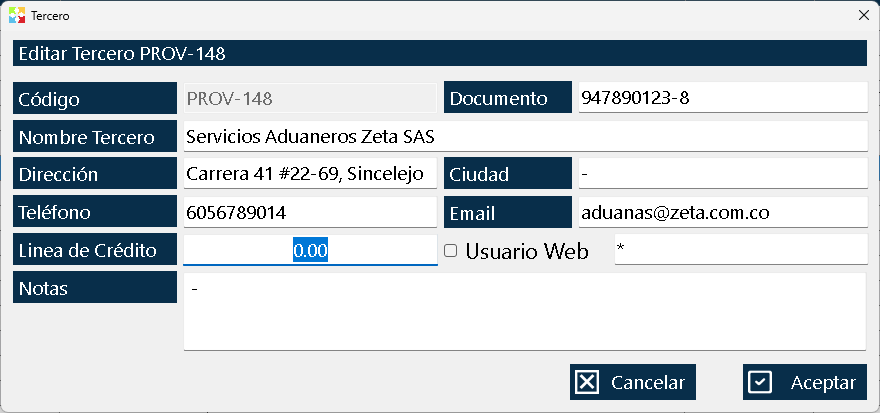
The window is organized in a clear and direct manner, with all the fields necessary to record the complete information of the third party:
Upper Area - Third Party Identification
Third Party Code:
- Alphanumeric field where the unique identifier of the third party is assigned.
- IMPORTANT: This is the only field that CANNOT be modified after creating the third party.
- The code remains unchanged because it is used as a reference in all the documents of the system (purchases, sales, transfers, shrinkages, accounts receivable, accounts payable, etc.).
- If the code were allowed to be modified, the traceability of all the historical documents associated with that third party would be lost.
- It must be a unique code throughout the system.
- It is recommended to use meaningful and easy-to-remember codes (e.g., "CLI001" for customers, "PROV001" for suppliers, "EMP001" for employees).
Document:
- Field for the identification number of the third party (NIT, ID card, passport, etc.).
- It is editable at any time.
- Useful for electronic invoicing and compliance with tax obligations.
- It can be left blank if the third party does not have an identification document (e.g., occasional customers).
Third Party Name:
- Text field for the full name or company name of the third party.
- It is editable at any time.
- It must be descriptive and clear to facilitate search and selection.
- For natural persons: full name (e.g., "Juan Carlos Pérez Rodríguez").
- For legal persons: full company name (e.g., "Distribuidora XYZ S.A.S.").
Central Area - Contact Information
Address:
- Text field for the physical address of the third party.
- It is editable at any time.
- Useful for invoicing, deliveries, and correspondence.
- It can include detailed information (street, number, apartment, neighborhood, etc.).
City:
- Text field for the city where the third party is located.
- It is editable at any time.
- Useful for geographic analysis of customers and suppliers.
- It allows filtering and generating reports by location.
Phone:
- Text field for the telephone contact number.
- It is editable at any time.
- It can include multiple numbers separated by commas if the third party has several contacts.
- Useful for quick communication and order tracking.
Email:
- Text field for the email address.
- It is editable at any time.
- Useful for sending quotations, electronic invoices, and communications.
- The system can validate the format of the email address.
Lower Zone - Financial and Access Information
Credit Line:
- Numeric field where the maximum credit amount that can be granted to the third party is defined.
- This is a critical field which controls credit sales (explained in detail later).
- It is editable at any time.
- If the value is zero, the third party cannot buy on credit.
- If the value is greater than zero, the system verifies that credit sales do not exceed this limit.
Web User:
- Checkbox that indicates whether the third party has access to web functionalities of the system.
- If it is checked, the password field is enabled.
- It allows the third party (generally customers or suppliers) to access specific information through a web interface.
- It is editable at any time.
Password:
- Field to assign a web access password to the third party.
- It is only enabled if the "Web User" checkbox is checked.
- It is editable at any time.
- It must comply with security policies (minimum length, character combination, etc.).
- The third party can use this password to access their web portal.
Notes:
- Extensive text field for additional observations about the third party.
- It is editable at any time.
- Useful for recording information that does not fit in the standard fields:
- Special payment conditions
- Customer preferences
- Incident history
- Alternate contacts
- Any other relevant information
Button Area
Cancel Button:
- Closes the window without saving the changes.
- If a new third party is being created, it is not recorded.
- If an existing third party is being edited, the changes are not applied.
OK Button:
- It validates that all mandatory fields are complete.
- Saves the third party's information in the database.
- If it is a new third party, it creates it and makes it available for selection throughout the system.
- If it is an existing third party, it updates the modified information.
- Closes the window and returns to the previous window.
The Credit Line Field: Credit Sales Control
The field Credit Line is one of the most important in this window, since it controls the financial risk of credit sales. This field defines the maximum amount that the system allows to sell on credit to a specific third party.
How does the credit line work?
Limit definition:
- When creating or editing a third party, a numeric value is assigned in the "Credit Line" field.
- This value represents the total maximum amount that the third party can owe the company at any time.
- Example: If a credit line of $10.000.000 is assigned, the third party cannot have accounts receivable that add up to more than that value.
Validation in credit sales:
- When a credit sale is made to a third party, the system automatically verifies:
- The total value of the third party's current accounts receivable.
- The value of the new sale being made.
- The sum of both cannot exceed the assigned credit line.
Practical example:
Scenario 1: Third party with a credit line of $10.000.000
- The third party "Customer ABC" has a credit line of $10.000.000.
- It currently has accounts receivable of $3.000.000 (from previous sales).
- A new credit sale of $5.000.000 is attempted.
- System validation:
- Current balance: $3.000.000
- New sale: $5.000.000
- Projected total: $8.000.000
- Credit line: $10.000.000
- Result: The sale is allowed because $8.000.000 ≤ $10.000.000.
Scenario 2: Sale that exceeds the credit line
- The same third party "Customer ABC" has accounts receivable of $8.000.000.
- A new credit sale of $3.000.000 is attempted.
- System validation:
- Current balance: $8.000.000
- New sale: $3.000.000
- Projected total: $11.000.000
- Credit line: $10.000.000
- Result: The system BLOCKS the sale and displays a message: "The customer has exceeded their credit line. Current balance: $8.000.000. Credit line: $10.000.000. Requested sale: $3.000.000."
Scenario 3: Multiple credit sales
- The third party has a credit line of $10.000.000.
- Several successive credit sales are made:
- Sale 1: $2.000.000 → Balance: $2.000.000 ✓
- Sale 2: $3.000.000 → Balance: $5.000.000 ✓
- Sale 3: $4.000.000 → Balance: $9.000.000 ✓
- Sale 4: $2.000.000 → Projected balance: $11.000.000 ✗ BLOCKED
- The system allows multiple credit sales, but the accumulated total cannot exceed the credit line.
Credit line at zero:
- If the "Credit Line" field is left at zero or empty, the third party cannot buy on credit.
- All sales to this third party must be cash sales.
- The system will block any attempt at a credit sale.
Credit line adjustment:
- The credit line can be modified at any time by editing the third party.
- If the line is increased, the third party can make more purchases on credit.
- If the line is decreased, the system validates that the current balance does not exceed the new limit.
- If the current balance already exceeds the new line, the system may display a warning but allows the change.
Importance of credit line control:
- Financial risk control: It prevents the company from selling more on credit than it can recover.
- Portfolio management: It allows setting differentiated limits per customer according to their history and payment capacity.
- Delinquency prevention: It reduces the risk of bad debts.
- Decision making: It facilitates the evaluation of credit applications.
Web Users: Access to Online Functionalities
The field Web User and their associated password allow third parties (generally customers or suppliers) to access specific functionalities of the system through a web interface.
What is a web user?
A web user is a third party who has access credentials (user and password) to connect to the Kardex Tauro system from a web browser, without needing to install the software on their computer.
Typical use cases:
Customers with web access:
- Query of accounts receivable balances.
- Viewing of purchase history.
- Download of electronic invoices.
- Query of order status.
- Placing orders online (if enabled).
Suppliers with web access:
- Query of accounts payable balances.
- Viewing of sales history.
- Submission of electronic quotations.
- Query of pending purchase orders.
- Confirmation of deliveries.
Advantages of web access:
- Self-service: Third parties can consult information without calling the company.
- Reduction of administrative burden: Fewer phone calls and inquiries.
- 24/7 access: Available at any time, not only during working hours.
- Transparency: Third parties can see their complete history in real time.
- Efficiency: Faster processes (online orders, invoice downloads, etc.).
Web access security:
- Each web user has a unique password.
- Passwords must comply with security policies.
- Access is recorded in audit logs.
- Access to specific functionalities can be restricted according to the role of the third party.
System Validations
The window implements several validations to guarantee data integrity:
Code Validation:
- The code must be unique throughout the system.
- Duplicate codes are not allowed.
- If you try to create a third party with an already existing code, the system displays an error.
- Once created, the code cannot be modified.
Validation of Required Fields:
- The code is required.
- The name is required.
- Other fields may be optional depending on the system configuration.
Format Validation:
- The email field validates the email format.
- The credit line field validates that it is a valid number.
- The document field can validate the format according to the type of identification.
Credit Line Validation:
- The value must be a positive number or zero.
- Negative values are not allowed.
- If the credit line is modified, the system validates that the current balance does not exceed the new limit (or displays a warning).
Web User Validation:
- If the "Web User" checkbox is checked, the password field becomes mandatory.
- The password must comply with the configured security policies.
Typical Workflow
Scenario 1: Create a new customer
- The need to register a new customer is identified.
- Go to the Third Parties List window.
- Click the "Create Third Party" button.
- The Add New Third Party window opens.
- Enter the code: "CLI001".
- The document is typed: "900.123.456-7" (NIT).
- The name is typed: "Distribuidora ABC S.A.S."
- Enter the address: "Calle 123 # 45-67".
- Enter the city: "Bogotá".
- Enter the phone: "(+57) 300 123 4567".
- The email is typed: "compras@distribuidoraabc.com".
- Enter the credit line: "$15.000.000".
- The "Web User" checkbox is checked (if the customer will have web access).
- Enter the password: "Cliente2026*".
- Notes are added: "Preferred customer. Payment within 30 days. Contact: Juan Pérez".
- Click the "OK" button.
- The customer is created and becomes available for selection throughout the system.
Scenario 2: Create a new supplier
- The need to register a new supplier is identified.
- Go to the Third Parties List window.
- Click the "Create Third Party" button.
- The Add New Third Party window opens.
- Enter the code: "PROV001".
- The document is typed: "800.987.654-3" (NIT).
- The name is typed: "Suministros Industriales XYZ Ltda."
- The address is typed: "Av. Principal # 100-20".
- Enter the city: "Medellín".
- Enter the phone: "(+57) 310 987 6543".
- The email is typed: "ventas@suministrosxyz.com".
- The credit line is left at zero (suppliers do not buy on credit).
- "Web User" is not checked (or it is checked if the supplier will have web access).
- Notes are added: "Supplier of raw materials. Delivery within 5 business days".
- Click the "OK" button.
- The supplier is created and becomes available for selection.
Scenario 3: Edit an existing third party
- A customer's phone needs to be updated.
- Go to the Third Parties List window.
- Search for and select the customer in the list.
- Click the "Edit Third Party" button.
- The Add New Third Party window opens with the current data.
- The "Code" field appears in gray (not editable).
- The "Phone" field is modified with the new number.
- Click the "OK" button.
- The changes are saved and reflected throughout the system.
Scenario 4: Trying to modify the code of a third party
- A third party's code needs to be changed because it was assigned incorrectly.
- Go to the Third Parties List window.
- Select the third party.
- Click "Edit Third Party".
- Try to modify the "Code" field.
- The field is grayed out (not editable).
- The system does not allow modifying the code.
- If it is absolutely necessary to change the code, a new third party must be created and the associated documents migrated manually (a complex process that requires technical intervention).
Relationship with Other Windows
Third Parties List Window:
It is the window from which this window is accessed by means of the "Create Third Party" and "Edit Third Party" buttons. Here all the registered third parties are displayed.
Sales Invoices List Window:
The customers that appear in the sales invoices are third parties selected from this window. The credit line controls credit sales.
Purchase Orders List Window:
The suppliers that appear in the purchase orders are third parties selected from this window.
Accounts Receivable List Window:
Debtors are customers registered as third parties. The credit line affects the ability to generate new accounts receivable.
Accounts Payable List Window:
Creditors are suppliers registered as third parties.
Cash Window:
The third parties that appear in the cash movements are selected from this window.
Warehouse Consumptions List Window:
The employees that appear in the consumptions are registered third parties.
Internal Transfers List window:
The destination warehouses are registered third parties (cost centers).
Loans and Consignments List window:
Consignees are registered third parties.
Web Portal (if enabled):
The third parties marked as "Web User" can access the web portal with their password.
Usage Recommendations
Use meaningful and consistent codes:
Establish a clear nomenclature for third party codes. For example:
- "CLI001", "CLI002" for customers
- "PROV001", "PROV002" for suppliers
- "EMP001", "EMP002" for employees
- "TRAN001", "TRAN002" for carriers
This facilitates identification and avoids confusion.
Verify the information before saving:
Make sure that all data is correct before clicking "Accept". Although they can be edited later, it is more efficient to do it correctly from the start.
Assign credit lines with good judgment:
Do not assign high credit lines to new customers or those without a history. Start with conservative lines and increase them as the customer demonstrates payment capacity.
Regularly review credit lines:
Every 6-12 months, evaluate whether the assigned credit lines are still adequate. Increase the lines of good-paying customers and reduce those of delinquent customers.
Keep the contact information up to date:
Periodically check that the phones, addresses, and email addresses are up to date. This facilitates communication and the sending of electronic invoices.
Use notes for relevant information:
Take advantage of the notes field to record information that does not fit in the standard fields: special payment conditions, customer preferences, incident history, alternate contacts, etc.
Do not share third-party codes:
Each third party must have a unique code. Do not reuse codes of deleted third parties.
Document web users:
If you mark a third party as "Web User", document who is responsible for that account and provide the password securely.
Implement password policies:
Establish clear policies for web user passwords: minimum length, character combination, periodic change, etc.
Train staff on the creation of third parties:
Make sure that all users who can create third parties follow the same information and coding standards.
Validate tax information:
For customers and suppliers, verify that the document numbers (NIT, ID) are correct. This is crucial for electronic invoicing and tax compliance.
Do not delete third parties without evaluating the impact:
Before deleting a third party, verify that it has no associated documents (invoices, accounts receivable/payable, etc.). Deletion can cause traceability problems.
Use the search with magnifier:
When selecting third parties in other windows, use the search button (magnifying glass) instead of typing the code. This avoids typing errors.
Keep consistency in names:
Use complete and consistent names to avoid duplicates. For example, do not use "Juan Pérez" in one record and "Juan Carlos Pérez" in another if it is the same person.
Analyze the portfolio by credit line:
Use the reports to identify customers who are close to exceeding their credit line and take preventive actions.
Document credit line changes:
When you modify a third party's credit line, document the reason for the change in the notes.
Integrate with external systems:
If you have an external CRM or customer management system, periodically synchronize the third party information to maintain consistency.
Review inactive third parties:
Periodically identify third parties that have had no activity for a long time and evaluate whether they should be kept in the system or archived.
Train web users:
If you enable web access for third parties, provide training on how to use the portal and the available functionalities.
Monitor web access:
Periodically review the access logs of web users to detect unusual activity or unauthorized access.
Establish procedures for creating third parties:
Document who can create third parties, what information is mandatory, and what the coding standards are.
Kardex Tauro - Professional Inventory Management System
Created with HelpNDoc's Personal Edition: Revolutionize your documentation process with the online capabilities of HelpNDoc