Third Parties
THIRD PARTIES LIST Window
General Description
The window Third Parties List it is the module where all the people and entities with which the system interacts are managed. In Kardex Tauro there are no separate categories such as "customers", "suppliers", "employees" or "buyers". The system uses a unified and much simpler concept: Third Parties.
A Third Party is any natural or legal person that interacts with the system, regardless of the role it plays in a specific transaction. The same third party can be a customer in a sale, a supplier in a purchase, or an employee in an internal consumption. This simplification eliminates the duplication of information and makes management easier.
What is a Third Party?
A Third Party is any entity that participates in the system's operations:
- Customers: Those to whom merchandise is sold.
- Suppliers: Those from whom merchandise is purchased.
- Employees: Those who make sales, consumptions, or manage operations.
- Carriers: Those who move merchandise between warehouses.
- Workshops: Those to whom equipment is sent for repair.
- External salespeople: Those who have products on consignment.
- Any other person or entity that interacts with the system.
Advantages of the unified concept:
- There is no duplication of information (a supplier that is also a customer is registered only once).
- Simplifies contact management.
- It makes searching and selection easier in all the windows.
- It allows viewing the complete history of interactions with each person or entity.
Window Structure
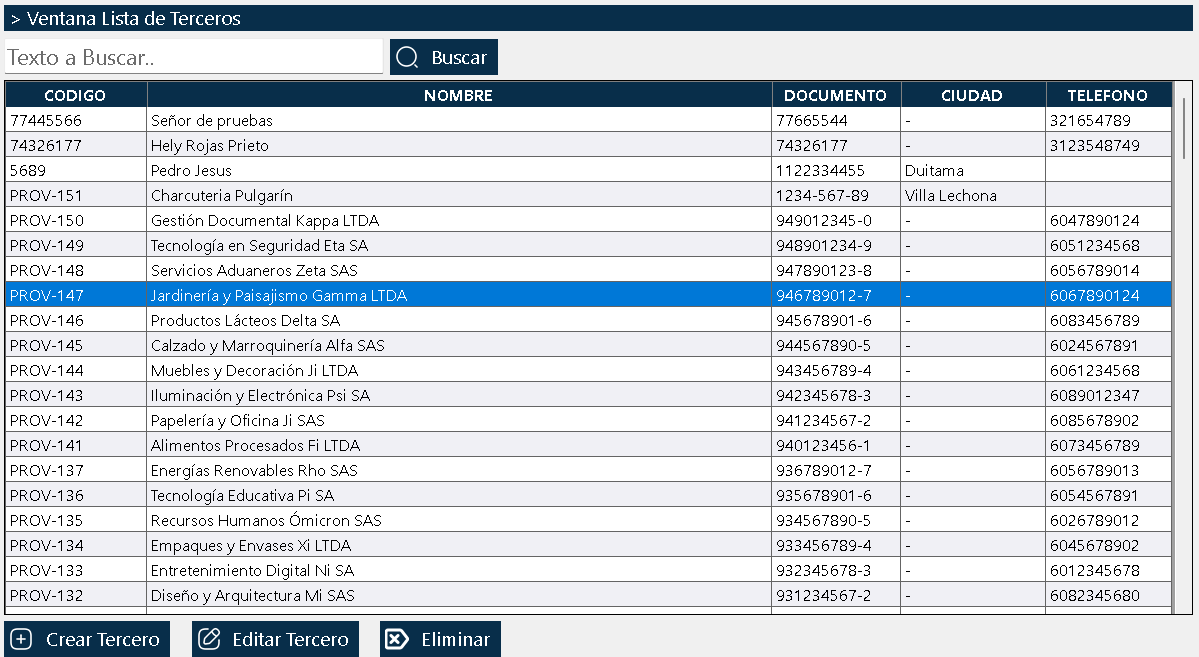
The window is organized into three clearly differentiated areas:
Top Area - Global Search Box
At the very top there is a real-time search text box. It allows typing any data related to third parties: code, name, identification document, city, phone, or any information contained in the records. The system filters automatically, showing only the matching items. When the search box text is cleared, all third parties are shown again.
Central Zone - Third Parties Grid
In the center of the window a grid is presented with all the third parties registered in the system. The main columns include:
- Code: Unique identifier of the third party.
- Name: Name or business name of the third party.
- Document: Identification number (NIT, ID, etc.).
- City: City where the third party is located.
- Phone: Phone contact number.
Additional columns available:
Through the configure columns menu, the following additional columns can be shown or hidden:
- Address: Physical address of the third party.
- Assigned credit amount: Credit limit available for the third party.
- Email: Email address of the third party.
Bottom Area - Action Buttons
Three main buttons that control the operations on third parties:
Create Third Party: Opens the window to register a new third party in the system. It allows entering all the third party's information: code, name, document, city, phone, address, email, and credit limit.
Edit Third Party: Allows modifying the information of the selected third party. Any data can be updated except the code, which is immutable once created.
Delete: Removes the third party from the system. The system validates that the third party is not being used in active documents before allowing its deletion.
Third Parties Grid Context Menu
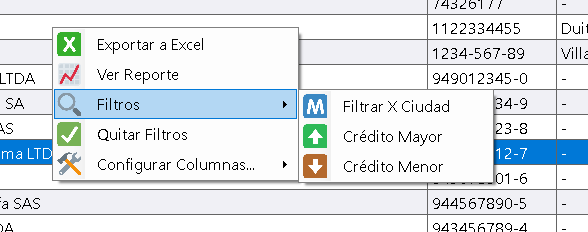
When right-clicking on any third party in the list, the standard menu is displayed with the following options:
Export to Excel
Generates an Excel file with the third parties currently visible in the list. If there are applied filters, only the third parties that meet those criteria are exported.
View Report
Shows a printable report with the third parties that appear in the list. If the list has applied filters, the report will reflect exactly those same criteria.
Filters
Allows applying advanced filtering criteria on the third party list:
- By code
- By name
- By document
- By city
- By phone
- By assigned credit
The filters are stackable, which means that several can be combined simultaneously. For example, you can request to show all third parties from Bogotá with an assigned credit greater than ten million.
Remove Filters
Restores the full view by removing all applied filters, showing all the system's third parties again.
Configure Columns
Allows showing or hiding columns in the third party list. It also allows modifying the column width. The system remembers this configuration when closing and reopening the window.
Full Integration with Other Windows
One of the most important features of third party management in Kardex Tauro is its full integration with all the system windows that require selecting a third party.
Third Parties Selector with Search Button:
In each window where a third party needs to be selected (sales, purchases, consumptions, transfers, returns, consignments, etc.), there is a selector with a search button (magnifying glass). When clicking this button, a dialog box opens showing the complete list of registered third parties, allowing you to search for and select the necessary third party.
Advantages of this integration:
- There is no need to memorize third party codes.
- You can search by name, code, document or any other data.
- The search is fast and efficient.
- Duplication of third parties is avoided (when creating a new third party, the system validates that it does not already exist).
- All the system's documents use the same third party database.
Integration examples:
- Sales Invoice Window: When selecting the customer, the third party selector opens.
- Purchase Order Window: When selecting the supplier, the third party selector opens.
- Warehouse Consumption Window: When selecting the employee who consumes, the third party selector opens.
- Internal Transfer Window: When selecting the destination warehouse, the third party selector opens (cost centers).
- Return to Suppliers Window: When selecting the supplier, the third party selector opens.
- Loans and Consignments Window: When selecting the consignee, the third party selector opens.
Typical Workflow
Scenario 1: Create a new third party
- The need to register a new customer, supplier or employee is identified.
- Go to the Third Parties List window.
- Click the "Create Third Party" button.
- The third party creation window opens.
- All the information is entered: code, name, document, city, phone, address, email.
- If it is a customer or supplier, a credit limit can be assigned.
- The third party is saved.
- The new third party appears in the list and is available to be selected in any window of the system.
Scenario 2: Edit third party information
- A third party's phone or address needs to be updated.
- Go to the Third Parties List window.
- The third party is searched for and selected in the list.
- Click the "Edit Third Party" button.
- The necessary information is modified.
- The changes are saved.
- The updated information is immediately reflected in all the windows where that third party is selected.
Scenario 3: Select a third party from another window
- A sales invoice is being created and the customer needs to be selected.
- In the customer selection field, click the search button (magnifying glass).
- The third parties selector opens.
- The customer is searched by name, code or document.
- The customer is selected from the list.
- The customer is selected in the sales invoice.
- The sale process continues.
Scenario 4: Delete a third party
- A third party that is no longer used is identified.
- Go to the Third Parties List window.
- The third party is searched for and selected in the list.
- The "Delete" button is clicked.
- The system validates that the third party is not being used in active documents.
- If the validation is successful, the third party is deleted.
- If the third party is being used, the system shows a message indicating that it cannot be deleted.
Relationship with Other Windows
Sales Invoices List Window:
The customers that appear in the sales invoices are third parties selected from the Third Parties List.
Purchase Orders List Window:
The suppliers that appear in the purchase orders are third parties selected from the Third Parties List.
Warehouse Consumptions List Window:
The employees that appear in the consumptions are third parties selected from the Third Parties List.
Internal Transfers List window:
The destination warehouses are third parties (cost centers) selected from the Third Parties List.
Accounts Receivable List Window:
The debtors are customers that are third parties registered in the Third Parties List.
Accounts Payable List Window:
The creditors are suppliers that are third parties registered in the Third Parties List.
Cash Window:
The third parties that appear in the cash movements are selected from the Third Parties List.
Usage Recommendations
Keep the information up to date:
Periodically review the third parties' information to ensure that phones, addresses and emails are up to date.
Use meaningful codes:
When creating third parties, use codes that are easy to remember and that allow identifying the third party quickly.
Use the search box:
The real-time search box is the most efficient way to locate specific third parties when some reference data is known.
Use the filters for analysis:
Combine filters to generate third party reports by city, by assigned credit, or by any other criterion.
Do not duplicate third parties:
Before creating a new third party, verify that it does not already exist in the system. Use the search box to confirm.
Document relevant information:
Use the third party notes to record additional information that does not fit in the standard fields.
Customize the columns:
Configure the visible columns according to your needs. If you work frequently with credits, show the assigned credit column.
Delete third parties with judgment:
Only delete third parties that are truly not used. Remember that a third party can have a history in multiple documents.
Validate the contact information:
Make sure that phones and emails are valid to facilitate communication with customers and suppliers.
Train staff in the use of the selector:
Make sure that all users know how to use the search button (magnifying glass) to select third parties efficiently.
Review credit limits:
Periodically review the credit limits assigned to customers and suppliers to ensure that they are adequate.
Use the information for commercial analysis:
The registered third parties can be used for sales analysis by customer, purchases by supplier, or consumptions by employee.
Keep consistency in names:
Use complete and consistent names to avoid confusion when searching for third parties.
Integrate with other tools:
If you have an external CRM or customer management system, periodically export the third party information to keep it synchronized.
Document special third parties:
Use the notes to flag special third parties (VIP customers, strategic suppliers, etc.) to make them easier to identify.
Review inactive third parties:
Periodically identify third parties that have not had activity for a long time and evaluate whether they should be kept in the system.
Train staff on the creation of third parties:
Make sure that all users who can create third parties follow the same information and coding standards.
Kardex Tauro - Professional Inventory Management System
Created with HelpNDoc's Personal Edition: Effortlessly optimize your documentation website for search engines