Import
IMPORT SECTION - DATA TAB (CONFIGURATION WINDOW)
GENERAL DESCRIPTION
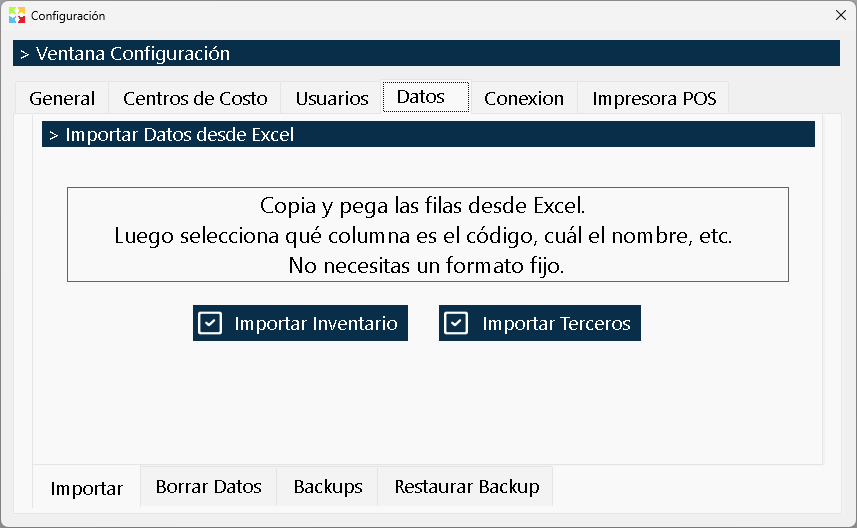
The Import Section is the first of the three tabs that make up the Data Tab within the Configuration window. Its purpose is to allow the fast bulk loading of large volumes of information into the system, eliminating the need to register products or third parties one by one.
This section has two main buttons:
- Import Inventory: To load multiple products into the catalog.
- Import Third Parties: To load customers, suppliers, employees and other actors of the system.
One of the greatest advantages of this tool is its extreme flexibility: it does not require you to download a specific template or to adapt your information to a rigid format. The system is designed to read directly from the Windows clipboard, allowing you to import data from any spreadsheet format (Microsoft Excel, OpenOffice Calc, Google Sheets, LibreOffice, etc.).
ACTION BUTTONS
|
Button |
Function |
|
Import Inventory |
Starts the wizard to bulk-load products into the catalog. It allows entering codes, names, prices, costs, initial stock, groups, among other data. |
|
Import Third Parties |
Starts the wizard to bulk-load customers, suppliers and employees. It allows entering codes, names, documents, phone numbers, addresses, credit lines, etc. |
IMPORT MECHANISM: THE CLIPBOARD
Unlike other systems that require saving a CSV or Excel file in a specific folder, Kardex Tauro uses the Windows clipboard as a data bridge.
The workflow is as follows:
- Open your source spreadsheet (Excel, Calc, etc.) where you have the information organized.
- Select with the mouse all the rows and columns you want to import (including the headers if you wish).
- Copy the selection to the clipboard (using Ctrl + C or right-click -> Copy).
- Go to Kardex Tauro, click on Import Inventory or Import Third Parties.
- The system will automatically read what is in your clipboard and take it to the mapping wizard.
THE IMPORT WIZARD (COLUMN MAPPING)
Once the system reads the data from the clipboard, it opens the Importer, a fundamental window that gives you total control over how your data is interpreted.
Freedom of Order
It does not matter how the columns are organized in your spreadsheet. If in your Excel the "Name" is in column A and the "Code" in column Z, or if you have intermediate columns you do not want to import (such as remarks or dates), the system adapts to you.
How does the mapping work?
The importer will show a preview of the data read and will ask you to associate each field required by Kardex Tauro with the corresponding column of your selection:
- Destination field (Kardex Tauro): It tells you which data the system needs (Ex: Code, Name, Purchase Value, Sale Value, Minimum Stock).
- Source column (Your spreadsheet): It allows you to select from a drop-down list which of the columns you copied contains that information (E.g.: Column A, Column B, Column F).
- Skip columns: If your spreadsheet has columns you are not interested in importing (for example, a "Photos" or "Excel Notes" column), simply do not assign them to any destination field and the system will ignore them.
Real-Time Validations
While you map the columns, the system performs validations to avoid catastrophic errors:
- Duplicate Codes: If you try to import a product or third party with a code that already exists in the database, the system will alert you to avoid accidentally overwriting information.
- Required Fields: The system will tell you if you have forgotten to map an indispensable field (such as the Code or the Name).
- Data Format: The importer will try to automatically recognize number, decimal and text formats to ensure that monetary values are loaded correctly.
USAGE RECOMMENDATIONS
1. Spreadsheet Preparation
- Clear headers: Although the system allows you to map the columns, it is good practice for the first row of your spreadsheet to contain the field names (E.g.: "Code", "Description", "Price"). This greatly facilitates the mapping process in the wizard.
- Data cleaning: Make sure there are no interspersed empty rows or strange characters (such as line breaks within the same cell) that could confuse the clipboard reader.
- Unit of measure and Groups: If you are importing inventory, make sure the Groups and Subgroups are already created in the system (in the Groups window) before doing the import, or write the names exactly as you want them to be created.
2. Be Careful with Codes
- The Code is Immutable: Remember that, once a product or third party is created in Kardex Tauro, its code cannot be changed. When importing, pay special attention to the codes column to ensure you are not duplicating existing records.
- Update vs. Creation: Depending on the wizard configuration, the system can detect whether a code already exists. Be clear about whether the process you are about to run will create new records or will try to update existing ones.
3. Prior Backup (Very Important!)
- Make a Backup before importing: Bulk import is a high-impact operation. If you make a mistake in the mapping (for example, assigning the "Cost" column to the "Sale Price" field), you could alter all your prices in seconds.
- Before clicking "Import" or "Finish" in the wizard, go to the section of Backups (the third tab of the Data Tab) and generate a backup of your database. If something goes wrong, you will be able to restore the system to its previous state in a matter of minutes.
4. Pilot Tests
- If it is the first time you import data or if you are working with a very large file (thousands of records), do a pilot test. Copy and paste only the first 5 or 10 rows to make sure that the column mapping and the numeric formats (especially decimals and thousands separators) are being interpreted correctly. Once the process is validated with a few data, proceed with the bulk import.
RELATIONSHIP WITH OTHER SECTIONS OF THE DATA TAB
- Data Tab -> Delete Data Section: If a bulk import goes wrong and you need to revert the changes quickly (and you do not have a backup at hand), this section contains emergency tools to clean specific data.
- Data Tab -> Backups Section: As mentioned, it is the life insurance before running any bulk import from this section.
- General Tab: The number and decimal formats you have configured in the General Tab will be the ones the importer will use by default to interpret the numeric values of your spreadsheet.
Created with HelpNDoc's Personal Edition: Advantages of help documentation authoring tools