Reinstate Loans
REINSTATE PRODUCTS Window
General Description
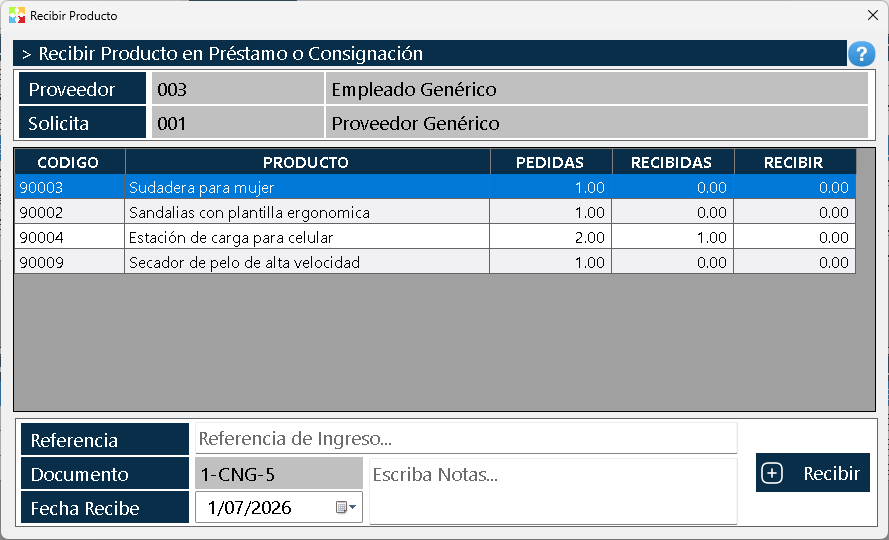
The window Reinstate Products it is exactly the same window found in Inbound => Receive Products. This window is automatically invoked from the window Loan and Consignment List when clicking the "Reinstate" button of a selected consignment.
What is the Reinstatement Process?
The Reinstatement process is the mechanism through which the returns of products that were loaned or delivered on consignment to a third party are recorded. It represents the physical return of the merchandise to the warehouse inventory, causing the stock on hand to return gradually as the consignee returns the products.
Process features:
- The products return to inventory automatically when the reinstatement is confirmed.
- The corresponding entries are generated in the Kardex as a receipt by reinstatement.
- Partial reinstatements can be made (it is not necessary to return everything at once).
- If the products use serial numbers, these must match the serial numbers originally loaned.
- The consignment document changes from the CLOSED status to PARTIAL (if it is a partial reinstatement) or to FINISHED (if it is a total reinstatement).
- The window automatically shows the quantities pending reinstatement for each product.
Reinstatement Process Flow
Step 1: Select the consignment
From the "Loans and Consignments List" window, select the consignment with the CLOSED or PARTIAL status that you want to reinstate.
Step 2: Open the reinstatement window
Click the "Reinstate" button. The "Receive Products" window opens automatically (the same one from the Inbound Module).
Step 3: Verify information
The window shows:
- The consignee returning the products.
- The employee who receives the return.
- The list of loaned products with their pending quantities.
Step 4: Specify quantities to reinstate
In the "Receive" column, enter the quantities being returned at this moment. The system validates that more units than were originally loaned cannot be reinstated.
Step 5: Capture serial numbers (if applicable)
If the products use serial numbers, the system will automatically open the serial number selection window. The reinstated serial numbers must match the serial numbers originally loaned.
Step 6: Document the reinstatement
Complete the receipt reference field indicating the consignment document number to which this reinstatement corresponds.
Step 7: Confirm the reinstatement
Click the "Receive" button to process the reinstatement. The system automatically updates:
- The stock on hand in inventory (the products return to the warehouse).
- The "Received" column in the consignment detail grid.
- The document status (PARTIAL or FINISHED).
- The Kardex with the inbound movement.
Important Considerations
Partial reinstatements:
It is not necessary to return all the loaned product at once. Multiple partial reinstatements can be made until the total loaned is completed. Each reinstatement updates the pending quantities.
Serial number validation:
If the products use serial numbers, it is required that the reinstated serial numbers match exactly the serial numbers loaned. This guarantees the complete traceability of equipment and tools.
Document status:
- If it is partially reinstated, the document changes to the PARTIAL status.
- If it is fully reinstated (all quantities match what was loaned), the document changes to the FINISHED status.
- Once in the FINISHED status, no more reinstatements can be made.
Full traceability:
The system keeps the complete history of all reinstatements made, making it possible to know at any moment how much product has been returned and how much is still to be returned.
Relationship with the Receive Products Window
This window is identical in operation to the window Receive Products of the module Inbound entries. The only difference is the context from which it is invoked:
- Inbound => Receive Products: It is used to receive merchandise from suppliers, production orders, etc.
- Loans and Consignments List => Reinstate: It is used specifically to record returns of loaned products.
Both windows share the same interface, validations and information capture process, guaranteeing consistency in all merchandise receipt processes into inventory.
Kardex Tauro - Professional Inventory Management System
Created with HelpNDoc's Personal Edition: Easily add encryption and password protection to your PDF files