
What is a router and what is it for?
What is a router and what is it for?
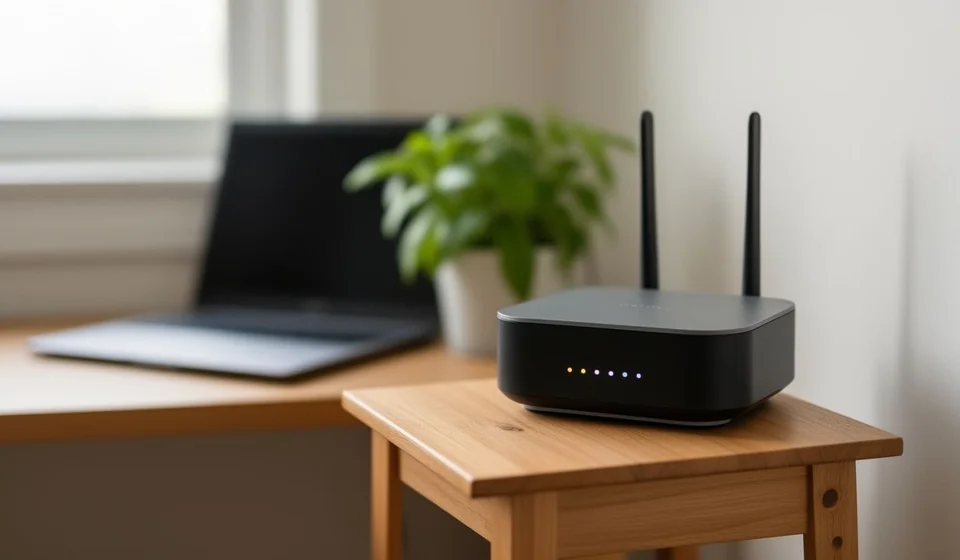
If you have ever had internet installed in a house or a small office, you have almost certainly heard about a device called a router. It is that box with blinking lights, antennas or a rounded, modern design that the technician leaves connected next to the modem and that, supposedly, lets every device browse the web at the same time. Although it looks like just another gadget, it performs an essential job: without a router, only one device could get online, while with one, computers, phones, televisions, game consoles and many other devices can all be connected at once.
In simple words, a router is a networking device that receives the internet connection and shares it among several devices, while also directing data traffic between them and the wider network. Its name comes from the verb to route, which means to send something along a path, and that is exactly what it does: it finds the best route for every piece of data to reach its destination. This article explains in plain language what a router is, how it differs from a modem, how it works inside, what types exist, how to choose the right one for a house or a small office, which basic security measures are worth applying and why restarting it helps when the connection starts failing.
What exactly is a router
A router is a networking device whose main job is to connect two or more networks to each other and let information travel from one to the other. In a home or a small office, its daily work comes down to two tasks: it receives the internet signal delivered by the modem and shares it with every device that connects to it, either by cable or over Wi-Fi, and at the same time it creates a local network in which those same devices can talk to each other, for example to share a printer, watch a movie stored on a computer or send a file from one machine to another without using the internet.
An easy way to picture it is to think of the mailroom clerk of a large building. That person receives the packages coming from outside, checks them and decides which office each one should go to; and when someone needs to send a package out, the clerk also collects it and takes it to the right place. A router does something similar, but with data: every time a phone asks to open a web page or a computer sends an email, the router knows which device made the request, where the request needs to travel and which device should receive the answer. Without that organizing work, the data would arrive all mixed together and no device would know which information belongs to it.
The router also performs a quiet protective role. Because the devices at home connect to the internet through it, they are not exposed directly to the public network. The router acts as a mandatory gateway that helps separate the home network from the rest of the world, something technicians call network address translation. So, besides sharing the connection, a properly configured router provides a first line of defense for every device behind it.
The difference between a modem and a router
One of the most common mistakes is believing that the modem and the router are the same thing, or that the single box at home does everything. In reality, they perform different and complementary jobs. The modem, whose name comes from modulator and demodulator, is in charge of talking to the internet provider: it receives the signal that travels through the fiber-optic cable, the coaxial cable or the telephone line and converts it into digital data that devices can use. In other words, the modem is the front door of the service you pay for.
The router, on the other hand, does not talk to the provider: it talks to the devices at home. It takes the connection already prepared by the modem and shares it among all the equipment, while organizing the local network at the same time. To use an analogy, the modem brings the water to the entrance of the building and the router makes sure it reaches every apartment. An important detail: because modern devices take up little space, many internet providers hand out a single unit that combines both functions, known as a modem-router or gateway. In that case, the box that arrives at your home is both the front door of the internet and the distributor of the signal.
The following table summarizes the main differences between the two devices.
| Aspect | Modem | Router |
|---|---|---|
| Main function | Converts the provider's signal into usable digital data | Shares the connection among several devices and creates the local network |
| Who it talks to | The internet service provider | The modem and the devices at home |
| How devices connect | Usually only the router connects to it | By Ethernet cable or Wi-Fi, supporting many devices at once |
| IP addresses | Holds the public IP address assigned by the provider | Assigns local IP addresses to every device on the network |
| Typical look at home | A box with one cable coming from the wall or the pole | A box with antennas or a modern design and indicator lights |
How can you tell whether the unit at home is a combined one? If there is a single box connected to the provider's cable and that same box broadcasts the Wi-Fi network, it is an integrated modem-router. If instead there are two units connected to each other by a cable, one receiving the provider's signal and the other sharing the Wi-Fi, then the modem and the router are separate. Knowing the difference helps you understand what is failing when the internet stops working and decide which unit is worth upgrading or replacing.
How a router works
How a router works can be explained in a few steps, without going too deep into technical details. It all starts when the provider sends the internet signal to the modem, which converts it into digital data and hands it to the router. From that moment on, the router runs a routine that repeats hundreds of times every second:
- It assigns a local IP address to each device at home, a unique number that works like an identification tag for every device inside the network. The most common addresses start with 192.168.
- When a device asks for information from the internet, for example to open a web page, the router records the request and sends it out using the public IP address of the connection.
- When the answer comes back from the internet, the router checks its records, identifies which device made the request and delivers the information only to that device.
- The same process repeats for every phone, computer, television or console connected, keeping the communication of the whole network organized at the same time.
To share the connection, the router uses two paths. The first one is the cable: the Ethernet ports on the back let you connect devices directly, a more stable and faster option that is recommended for desktop computers or game consoles. The second path is Wi-Fi: the router broadcasts radio waves that travel through the air and that wireless devices pick up to connect without cables. The most common bands are 2.4 GHz and 5 GHz, and modern routers broadcast on both at the same time, as explained below.
Types of routers
Not all routers are the same, and knowing the differences helps you choose the most convenient one. For a house or a small office, the three most common types are:
- Traditional wireless router. This is the classic model that broadcasts a single Wi-Fi network and has a few Ethernet ports for wired connections. It is affordable, simple to install and enough for small homes with few devices connected at the same time.
- Dual-band router. It broadcasts two Wi-Fi networks at once: one on the 2.4 GHz band, which reaches farther and goes through walls better, and another on the 5 GHz band, which is faster but has a shorter range. This lets you connect each device according to its needs: a video call or an online game works better on 5 GHz, while a device far away can use the 2.4 GHz band. Today it is the most recommended option.
- Mesh system. Instead of a single unit, it uses several devices spread around the house that broadcast one network with the same name. Your device connects to the nearest unit and the signal hops from one unit to another without cutting off, which makes it the best alternative for multi-floor homes, offices with many rooms or spaces where a single router cannot cover everything.
Current routers also differ in their Wi-Fi technology. The Wi-Fi 5 and Wi-Fi 6 standards offer higher speeds and better handling of many devices connected at the same time; Wi-Fi 6 also uses less power and performs better when several devices are transmitting at once. Before buying, it is worth checking which standard the router supports and also which standard your devices support, because the real speed of the network depends on the weakest link.
How to choose a router for a house or a small office
Choosing a router does not have to be complicated. You just need to answer a few questions about the space and how you will use it. These are the most important criteria:
- Coverage. Estimate the size of the place and think about where the router will be located. Ideally, place it in a central spot, raised and away from thick walls, microwaves and other objects that block the signal. If the space is large or has several floors, a mesh system may be more convenient than a single router.
- Speed and technology. Check the speed of the internet plan you pay for and choose a router that can handle it without falling short. A dual-band router with Wi-Fi 5 or Wi-Fi 6 technology offers good performance for browsing, streaming, video calls and working from home.
- Number of devices. Count how many devices normally connect: phones, computers, televisions, consoles, voice assistants and smart home gadgets. A basic router can become overloaded if many devices use the network at the same time; in those cases a more powerful model or a mesh system is a better fit.
- Available ports. If you plan to connect devices by cable, check how many Ethernet ports the router has. Some models include faster ports, which are useful if you move large files around or use network storage.
- Ease of setup. Many current routers are configured from a phone app, which makes it easy to change the network name, set the password and manage the connected devices. This option is very helpful for people without technical experience.
- Budget. Price is not always a sign of quality. A mid-range dual-band model may be enough for a small home; for heavier needs, such as many people connected at once or intensive online work, it is worth investing in a better model or a mesh system.
Basic security measures worth applying
A poorly configured router can leave the network open so that strangers connect, use your internet plan or even reach the information on your devices. With just a few adjustments, the network becomes much safer:
- Change the administrator password. Routers come with a default password, which is well known and published on the internet, that gives access to the device settings. The first thing you should do when installing a router is change it to a long, unique password, because anyone who knows it can modify every setting of the network.
- Use WPA2 or WPA3 encryption. The Wi-Fi network should be protected with WPA2 encryption or, if the router supports it, with the newer WPA3. Both methods scramble the information traveling between devices and the network so other people cannot read it. A router without encryption or with the old WEP system is an open door.
- Turn on the guest network. When visitors arrive, the safest move is to offer them the guest network, a separate Wi-Fi network with its own password that does not allow access to your home devices. That way, an unknown phone can browse without putting the information on the main network at risk.
- Update the firmware. The internal software of the router, called firmware, receives updates that fix security flaws and improve performance. Checking from time to time whether a new version is available and installing it is one of the simplest and most effective measures.
- Choose a sensible network name. The Wi-Fi name should not reveal personal information, such as your last name, address or the exact model of the router. A neutral name and a strong password are enough to keep the network protected.
Why restarting the router helps when the internet fails
At some point, the provider's technician or a friend with experience has probably told you: turn off the router, wait a few seconds and turn it back on. That advice, which sounds like a myth, has a real explanation. The router is a small computer that works nonstop, and over time it accumulates pending tasks, connections that were left open and data stored in memory that is no longer useful. That buildup can make the network slow, keep some devices from connecting or make the internet fail for no apparent reason.
Restarting the router means turning it completely off and on again. When you do that, the device clears its memory, closes stuck connections, requests a new IP address from the provider and re-establishes communication with the modem. In many cases, that process of a few minutes solves problems that no other setting can fix. The right way to do it is to unplug the router from the power outlet, wait between thirty seconds and a minute so it fully discharges, and plug it back in; then be patient, because the device takes a couple of minutes to boot and recover the connection.
It is also important to know that restarting does not fix everything. If the problem is a general outage from the provider, a service failure in the area or physical damage to the wiring, the restart will have no effect. So, if the internet is still down after restarting the device, it is worth checking whether other services in the neighborhood are also down or contacting the provider directly. Restarting is the first diagnostic tool, but not the only one.
Conclusion
The router is, in practice, the heart of the network in any house or small office: it receives the connection from the modem, shares it among all devices and keeps the flow of information organized. Understanding the difference between a modem and a router, knowing the types available and knowing what criteria to consider when choosing one lets you make the most of your internet plan and avoid headaches. With simple security measures, such as changing the default passwords and enabling WPA2 or WPA3 encryption, the network stays protected without needing to be an expert. And when the connection fails, restarting the router on time is usually the first step to getting the service back before calling the provider.
