Cycle count plan template in Excel

Cycle count plan template in Excel
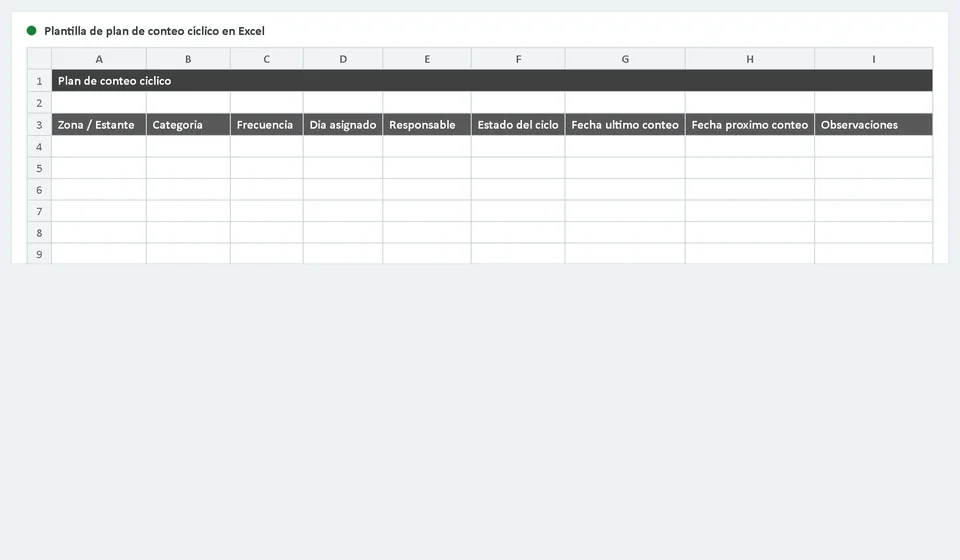
Keeping your inventory accurate should not mean shutting down your warehouse for days once a year. Cycle counting solves that problem: instead of counting everything in a single event, you split the storage area into zones and categories and schedule small counts throughout the year. This article presents a cycle count plan template in Excel, ready to download, that helps you organize those reviews: which zone is counted, how often, on which day, who runs it, and where the cycle stands.
The template is designed for businesses with their own warehouse — hardware stores, distributors, spare-parts shops, food storage rooms — and for any team that wants to stop relying on a single annual physical inventory. It includes a count plan sheet with nine columns, an instruction sheet with a solved example, and a simple layout you can adapt to your own areas. Download it free with the green button and start organizing your counts today.
⬇ Download cycle count plan (.xlsx)What is cycle counting
Cycle counting is an inventory control technique in which the physical count is spread across cycles throughout the year instead of being concentrated in a full shutdown. Rather than “we close everything and count”, you count a group of zones or categories every week or every month, following a calendar defined in advance. By the end of the year, every zone has been counted at least once, and the high-movement ones several times.
Its main advantage is that it does not stop operations: sales, purchases and restocking continue as usual while one person counts a limited zone. It also lets you detect differences shortly after they happen, when you can still find the cause — a misrecorded receipt, an unposted dispatch, a wrong location — instead of discovering them a year later, when nobody remembers what happened. Because the effort is spread out, each count is shorter and can be assigned to people who know the zone they are counting.
The frequency of each zone depends on its movement, its value and its criticality. Fast-moving products are counted more often (monthly or even weekly); medium-movement ones can run quarterly; and slow-moving or low-value items once or twice a year. That is exactly the logic the template schedules: one row per zone with its frequency, its assigned day and its owner, so the whole plan is visible at a glance.
What the template includes
The template is made of two worksheets and a one-row-per-zone layout. Here is the map of its components:
| Component | What it does |
|---|---|
| “Count plan” sheet | Main register of the file: each row is a zone or category with its frequency, day, owner, status and count dates. |
| “Instructions - Cycle count” sheet | Explains what the template is, how to use it, includes a solved example and a note on the scope of the tool. |
| Nine planning columns | Area, category, frequency, assigned day, owner, cycle status, last and next count dates, and notes. |
| Solved example row | Shows area A1, hardware category, monthly frequency, day 5 and owner Peter, so you can see the layout in use. |
| Simple row structure | One zone or category per row, so the plan grows without complex formulas or macros. |
The workbook uses only simple Excel elements: text, dates and the cycle status you type in at each count. You do not need macros or complicated formulas to get started: just open the file, read the instruction sheet and fill in one row for every real zone or category in your warehouse. If you later want to automate the next-date calculation or keep a history of differences per zone, the column structure is already ready to grow with you.
Columns of the count plan
The main sheet organizes the information in nine columns. Each row represents a zone or category with its full schedule:
| Column | What it records | Example |
|---|---|---|
| Area / Rack | Where the merchandise is physically located in the warehouse: aisle, shelf or section. | A1 |
| Category | Group of products that are counted together. | Hardware |
| Frequency | How often the zone is counted: monthly, quarterly, semi-annual. | Monthly |
| Assigned day | Fixed day of the month for the count; routine helps keep it from being forgotten. | 5 |
| Owner | Team member who runs the count and answers for that zone. | Peter |
| Cycle status | Stage of the cycle: pending, in progress, reconciled or closed. | Pending |
| Last count date | When the zone was last counted; useful if you already have earlier data. | 5 Aug 2026 |
| Next count date | Scheduled date for the next count; it is updated when each cycle closes. | 5 Sep 2026 |
| Notes | Differences, damaged goods, location changes or comments from the owner. | No differences |
With these nine columns you get a complete view of the cycle on a single screen: what is counted, when, by whom and how it is progressing. The last and next count dates let you know at a glance whether a zone is up to date or the cycle is falling behind, so you can react before the plan loses its rhythm.
Example: a hardware store warehouse
To show the layout in action, the template includes a solved example: area A1, in the hardware category, with monthly frequency, assigned day 5 and owner Peter. Following that same logic, a warehouse could schedule its zones like this:
| Area | Category | Frequency | Day | Owner | Cycle status | Last count | Next count | Notes |
|---|---|---|---|---|---|---|---|---|
| A1 | Hardware | Monthly | 5 | Peter | Pending | 5 Aug 2026 | 5 Sep 2026 | — |
| A2 | Hand tools | Monthly | 12 | Lucy | In progress | 12 Aug 2026 | 12 Sep 2026 | — |
| B1 | Paint and finishes | Quarterly | 20 | Andrew | Reconciled | 20 Jun 2026 | 20 Sep 2026 | No differences |
| B2 | Fasteners | Quarterly | 20 | Carmen | Pending | 20 Jun 2026 | 20 Sep 2026 | — |
| C1 | Electrical and lighting | Semi-annual | 5 | Peter | Closed | 5 Mar 2026 | 5 Sep 2026 | 1 unit adjusted |
Notice the logic of the example: the fastest-moving areas (A1 and A2) are counted every month, on fixed days and by different owners to spread the workload; the medium areas (B1 and B2) move to a quarterly frequency, and the slowest area (C1) is scheduled twice a year. The cycle status is updated at each count: it stays pending until the date arrives, moves to in progress while the count is running, to reconciled once the difference has been checked against the record, and to closed when the cycle is fully finished and the next date has been updated.
How to use the template step by step
- Download the template with the green button and open it in Excel.
- Read the instruction sheet to understand the logic of the plan and the solved example.
- Divide your warehouse into zones or racks and define the product categories you will count.
- Assign a frequency to each zone according to its movement and criticality: the higher the rotation, the more frequent the counts.
- Set a fixed day of the month and one owner per zone, so everyone knows what they are responsible for.
- Enter the dates: the last count if you already have data, and the next count, which you can start with the assigned day of the following month.
- Run the count on the scheduled date and update the cycle status and notes as soon as you finish.
- Reconcile each count against your system or your records before closing the cycle, then update the next count date.
Tips to make cycle counting work
A template organizes the work, but the result depends on the discipline of the team. These tips help you keep the cycle going month after month:
- Prioritize fast-moving items: the references that come in and out the most are the ones that accumulate the most errors, so schedule them with the highest frequency in the plan.
- Never stop the operation: spread the counts across the month and run them at quieter times, so the warehouse keeps dispatching without interruptions.
- Reconcile before closing the cycle: compare the physical count with your record or system while the information is fresh, and document the cause of every difference before closing the cycle.
- Keep one owner per zone: when the same person knows the location and the pace of a zone, counts are faster and the notes are far more useful.
- Record issues as they happen: a location change, a damaged package or a small difference should be written in Notes on the spot, not from memory.
- Review the plan periodically: if a zone changes its pace, going up or down in movement, adjust its frequency and assigned day in the next schedule.
When to move to inventory software
The cycle count plan template is an excellent internal control tool: it does not replace fiscal or accounting documents; rather, it helps you keep physical stock aligned with what you believe you have. It works very well when the warehouse fits into a plan of dozens of rows and the counting team is small. The moment to move to a system arrives when the catalog grows, when several people need to update the plan at the same time, when you want a history of counts and differences per product, or when calculating the next date and the status per zone should happen automatically.
Inventory software such as Kardex Tauro records merchandise receipts and issues and keeps stock levels up to date, so every cycle count can be validated immediately against the system and differences can be adjusted with traceability. You can start with this Excel template and, when the business demands it, rely on Kardex Tauro so the physical count becomes just the verification of a record that is already under control.
Frequently asked questions
What is a cycle count?
Counting in parts during the month instead of everything at the close, prioritising what moves most or is worth most.
How is it scheduled?
By class: A items (high value or turnover) are counted more often, C items less. The plan spreads the work across the weeks.
What is it for?
To find differences while they can still be explained, not three months later when nobody remembers what happened.
Download the template, define your zones and schedule your first cycle: within a couple of hours you will have your cycle count plan ready for the whole year.
⬇ Download cycle count plan (.xlsx)