Delete Data
DELETE DATA SECTION - DATA TAB (CONFIGURATION WINDOW)
GENERAL DESCRIPTION AND CRITICAL WARNING
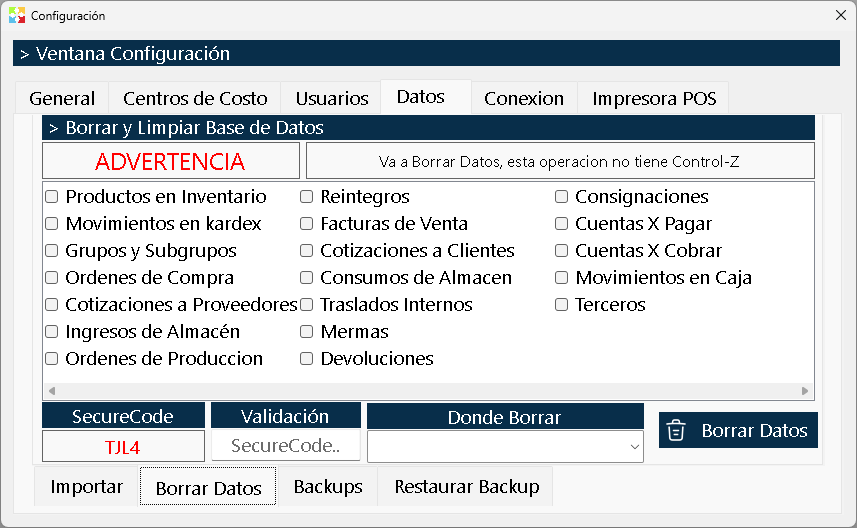
The Delete Data Section is the most powerful and destructive emergency and maintenance tool of Kardex Tauro. Its purpose is to clean, restart or massively purge the system database, permanently deleting inventory records, documents, financial movements and third parties.
⚠️ EXTREME SECURITY WARNING:
This is an operation irreversible from the program interface (there is no "Undo" or "Control Z" button). Although the system, as an automatic protection measure, generates an internal backup right before executing the deletion, this tool is designed for very specific scenarios (such as restarting a test system, cleaning a corrupted database or preparing the system for a new fiscal year).
GOLDEN RULE: Never execute this operation without having previously generated a Manual and external Backup backup of your database. If something goes wrong, the internal backup might not be enough or might be corrupted. This operation should preferably be performed under the supervision of the main Administrator or of technical support.
WINDOW STRUCTURE
The window is divided into three fundamental areas: the selection of what to delete, the scope of application and the security mechanisms to confirm the operation.
1. Deletion Options (Checkboxes)
The system presents an exhaustive list of checkboxes (checks) that allow you to select with surgical precision what type of information you want to delete. You can check a single option or combine several according to your need.
Catalog of deletable items:
Warehouse Module:
- ☑ Delete products in inventory
- ☑ Delete movements in Kardex
- ☑ Delete groups and subgroups
Inbound Module:
- ☑ Delete purchase orders
- ☑ Delete supplier quotations
- ☑ Delete warehouse receipts
- ☑ Delete production orders
- ☑ Delete reinstatements
Outbound Module:
- ☑ Delete sales invoices
- ☑ Delete customer quotations
- ☑ Delete warehouse consumptions
- ☑ Delete internal transfers
- ☑ Delete shrinkages
- ☑ Delete returns
- ☑ Delete consignments
Accounting Module:
- ☑ Delete accounts payable
- ☑ Delete accounts receivable
- ☑ Delete cash movements
Master Data:
- ☑ Delete third parties (Customers, suppliers, employees, etc.)
2. Scope of Application (Where to delete?)
Kardex Tauro lets you limit the scope of the data destruction. The system will ask you where you want to apply the deletion:
- In all cost centers: Deletes the selected information from all the warehouses, branches and locations of the system globally.
- In a specific warehouse: Lets you select a single cost center. This is extremely useful if, for example, a specific branch made a mass error and needs to be restarted, without affecting the data of the other branches of the company at all.
3. Security Validation (Confirmation Code)
To prevent this operation from being executed by an accidental click, the system implements a mandatory security captcha:
- Code Generation: The program will display a random alphanumeric code on the screen.
- Manual Typing: You must retype exactly that code in the enabled text field.
- Anti-Copy Restriction: For security, the system does not allow copying and pasting the code. It must be typed manually, rigorously respecting the uppercase and lowercase. This guarantees that there is a conscious human being on the other side of the screen.
EXECUTION PROCESS
Once you have selected the checkboxes, defined the scope (specific warehouse or all) and correctly typed the security code, the process ends with the button "Delete Data".
When clicking this button, the system does not execute the action immediately, but instead displays a double confirmation protocol:
- First Confirmation: The system will remind you of the magnitude of the operation and the data that is about to disappear.
- Second Confirmation: You will be asked for a final explicit validation to ensure that you are completely sure of the action.
Only after passing these two confirmation barriers will the system proceed to:
- Create an automatic internal security backup.
- Execute the mass deletion of the selected data.
- Free up space in the database.
USAGE RECOMMENDATIONS AND PRECAUTIONS
1. Manual Backup is Mandatory
Although the program creates an internal backup for security, you must create your own backup (by copying the SQLite database file to another folder or external drive) before clicking "Delete Data". If the database is corrupted or the process is interrupted, the internal backup might fail.
2. Be Careful with Third Parties and Products
If you check the option "Delete third parties" or "Delete products in inventory", keep in mind that these are global master data. If you delete them, you will lose the customer catalog, the supplier catalog and the item catalog, which will force you to import them again from scratch (using the section Import of this same tab).
3. Selective Deletion by Warehouse
If your intention is to correct an operational error of a branch (for example, a cashier who registered false sales or a warehouse clerk who made erroneous transfers), use the option of "In a specific warehouse". This lets you "restart" only the problematic cost center without touching the financial and inventory information of the other healthy branches.
4. Logical Deletion Sequence
If you are going to clean the database completely to start from scratch, it is recommended to check all the options in the following logical order to avoid orphans in the database:
- First the operation documents (Sales, Purchases, Transfers, Cash, AR, AP, etc.).
- Then the audit movements (Kardex, Receipts, Reinstatements).
- Finally the master data (Products, Third Parties, Groups).
Note: The system is designed to handle the internal dependencies when deleting, but following a logical order is a good practice.
5. Test Environment
This tool is ideal for when you are evaluating the software or training staff in a test environment. You can fill the test database with fictitious data, do all the practices you want, and then use "Delete Data" to leave the system completely clean and ready for the real implementation.
6. Administrative Supervision
Given the impact of this tool, it is strongly recommended that access to the Data Tab -> Delete Section be restricted exclusively to the company owner or the most trusted IT administrator. Improper or malicious use of this section could halt the operation of the business until the manual backup is restored.
Created with HelpNDoc's Personal Edition: Experience the power and ease of use of a help authoring tool