Import Third Parties
IMPORT THIRD PARTIES FROM EXCEL WINDOW
GENERAL DESCRIPTION
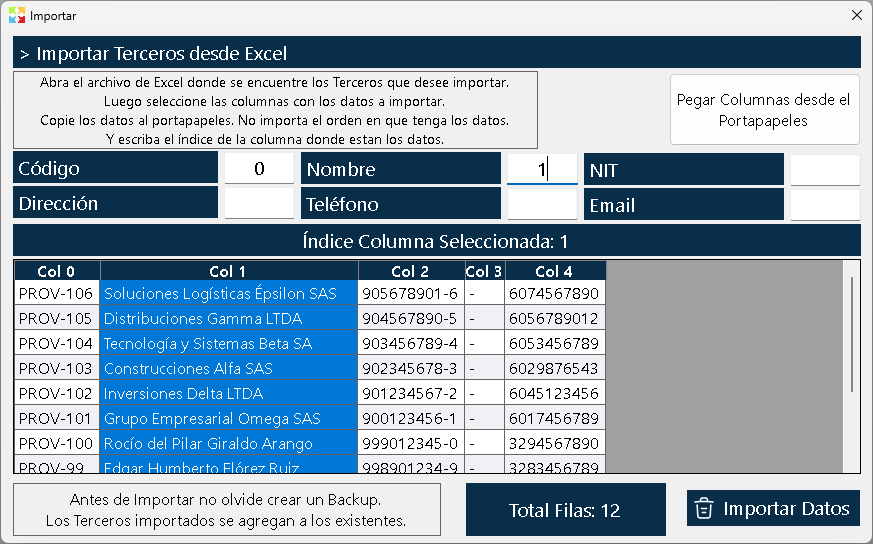
The window Import Third Parties from Excel is a pop-up wizard designed for the bulk loading of people and entities into the system.
In Kardex Tauro, the concept of "Third Party" is unified. This means that there are no separate categories or distinct modules for customers, suppliers, employees, carriers or consignees; they are all "Third Parties". This tool allows you to register all these actors at once regardless of the role they will play in the system, eliminating the tedious task of creating them one by one.
Like the inventory import, this window is highly flexible: it does not require a rigid template or a specific column order. The system reads the data from the Windows clipboard and allows you to "map" (assign) each column of your spreadsheet to the corresponding field in Kardex Tauro.
WINDOW STRUCTURE
The interface of this wizard is clean and direct, organized into four main zones:
1. Upper Zone - Informative Text and Main Action
At the top, the process guide message is displayed:
"Open the Excel file where the third parties you want to import are located, then select the columns with the data to import, copy the data to the clipboard. The order in which you have the data does not matter, and write the index of the column where the data is."
Next to this text is the main action button:
- Paste columns from the clipboard: A large, prominent button that reads the information you have just copied from your spreadsheet (using Ctrl + C) and dumps it into the window grid for further processing.
2. Central Area - Mapping Fields
Below the paste button are the six fields of the system that can be populated through the import. Each field has a text box (textbox) where you must write the number (index) of the Excel column that contains that information.
The fields to map are:
- Code: The unique identifier of the third party (E.g.: CLI001, PROV05, EMP12).
- Name: Full name or company name.
- Address: Physical or tax address.
- Phone: Contact number.
- Email: Email address.
- (Sixth complementary field, usually Document of identity or Notes, depending on the configuration of your database).
Golden Rule of Mapping: If in your Excel file the "Name" is in the first column (A), you will write the number 1 in the "Name" textbox. If you do not have an "Email" column, simply leave that textbox blank and the system will ignore it.
3. Pasted Data Grid
Just below the mapping fields there is a table (grid) that is filled automatically after clicking "Paste columns from clipboard".
- View: It shows a preview of all the rows and columns you copied.
- Getting the Index (Visual help): To prevent you from having to count the columns manually in your Excel, the grid includes an interactive function: When you click on the header of any column in the grid, the system immediately tells you the index (number) of that column. That is exactly the number you must write in the textboxes of the upper zone.
4. Lower Area - Validation and Execution
At the bottom of the window are the final control elements before running the load:
- Warning Text:
"Before importing, do not forget to create a backup. The imported third parties are added to the existing ones."
This message is crucial. It reminds you that the import is additive (it does not erase what you already have) and that you must protect your database against any mapping error.
- Information Box (Total Rows): It shows a counter with the exact number of rows that were detected and pasted from the clipboard. This serves to quickly verify that no row was left out of the selection in your Excel.
- Button "Import data": Once you have pasted the information and written the correct indices in the mapping fields, this button is enabled. On clicking, the system processes the list and creates the third parties in the database.
STEP-BY-STEP WORKFLOW
- Prepare the Excel: Organize your list of customers, suppliers or employees in your preferred spreadsheet. Make sure the codes are not duplicated with those you already have in Kardex Tauro.
- Copy: Select all the cells (with or without headers) and copy them to the clipboard (Ctrl + C).
- Paste: In the import third parties window, click on "Paste columns from the clipboard". Verify in the lower box that the "Total rows" is correct.
- Identify Indexes: Click on the grid column headers to discover what number (index) the system assigns to each one (E.g.: Code is column 1, Name is column 2, etc.).
- Map: Write those numbers in the corresponding textboxes (Code, Name, Address, Phone, Email).
- Import: Click on "Import data". The system will validate that there are no repeated codes and will add the new third parties to the Third Parties List Window.
CRITICAL CONSIDERATIONS AND RECOMMENDATIONS
⚠️ Code Immutability
In Kardex Tauro, once a Third Party is created, its code cannot be modified (it appears in gray in the editing window). If during the import you assign the codes incorrectly or make a typing error in your Excel, those third parties will keep the wrong code forever.
- Recommendation: Carefully review the "Code" column in your Excel before copying it to the clipboard.
⚠️ Backup is Mandatory
Since third parties are linked to invoices, purchases, accounts receivable, accounts payable and cash movements, importing thousands of erroneous records can generate an administrative mess that is difficult to clean manually.
- Preventive Action: Before opening this window, go to Configuration -> Data Tab -> Backups Section and generate a backup. If the import goes wrong, simply restore the backup and start again.
Role Unification
Remember that when you import a third party, it becomes available for the entire system. The same imported third party can be used as a "Customer" in a Sales Invoice, and as a "Supplier" in a Purchase Order, or as an "Employee" in a Warehouse Consumption. You do not need to import it three times; a single import is enough for it to be available in all the selectors (magnifiers) of the program.
FREQUENTLY ASKED QUESTIONS
Q: What happens if in my Excel there is a third party with a code that already exists in Kardex Tauro?
A: The system will detect the duplicate code. Depending on the configuration, it will ignore that specific row so as not to overwrite the historical information of the third party that already exists, or it will show you a conflict warning when finishing the import.
Q: Is it mandatory to map the six fields?
A: No. The only strictly mandatory field for the system to create the third party is the Code and the Name. The others (Address, Phone, Email) are optional. If your Excel does not have them, leave their textboxes blank.
Q: Can I import the passwords for the Web Portal of my customers?
A: No. The access credentials to the Web Portal (if your company has this extension enabled) and the web, credit or route permission settings are managed individually from the window of Edit Third Party once the third party has already been created in the system.
Q: Why does the "Import data" button sometimes not let me click?
A: The button may remain disabled if you have not pasted data from the clipboard, if the grid is empty, or if the system detects that the mandatory "Code" field is missing from the mapping. Make sure you have completed at least the index of the Code column.
Created with HelpNDoc's Personal Edition: Advantages of help documentation authoring tools