Purchase order template in Excel: free download
Purchase order template in Excel: free download
Buying without paperwork is one of the most expensive habits a small business can have. You order by phone or by chat, the vendor ships, the invoice arrives, and nobody can confirm exactly what was agreed: not the price, not the delivery date, not the quantities, not who approved the purchase. A purchase order (PO) is the document that closes that gap: a form where you record, before the vendor ships, what you are going to buy, at what price, by when, and under what conditions.
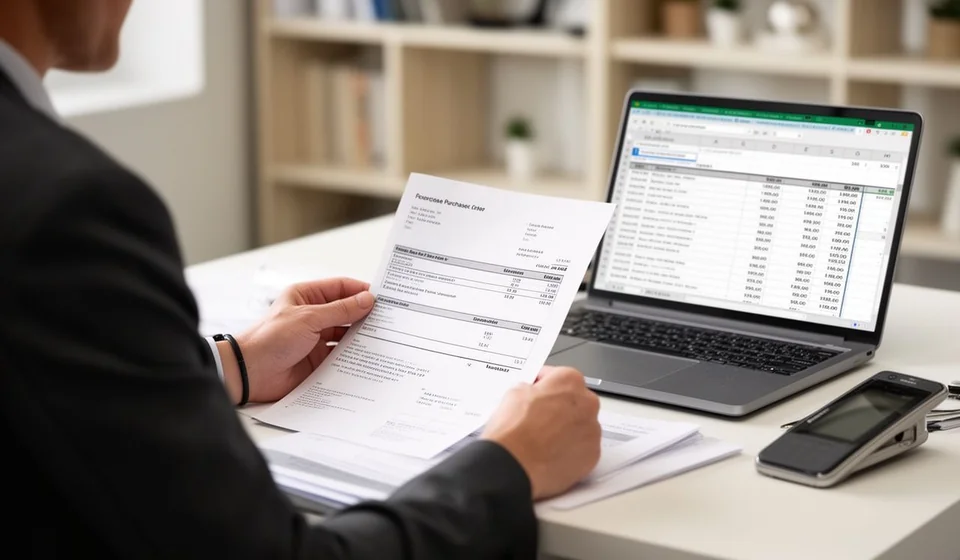
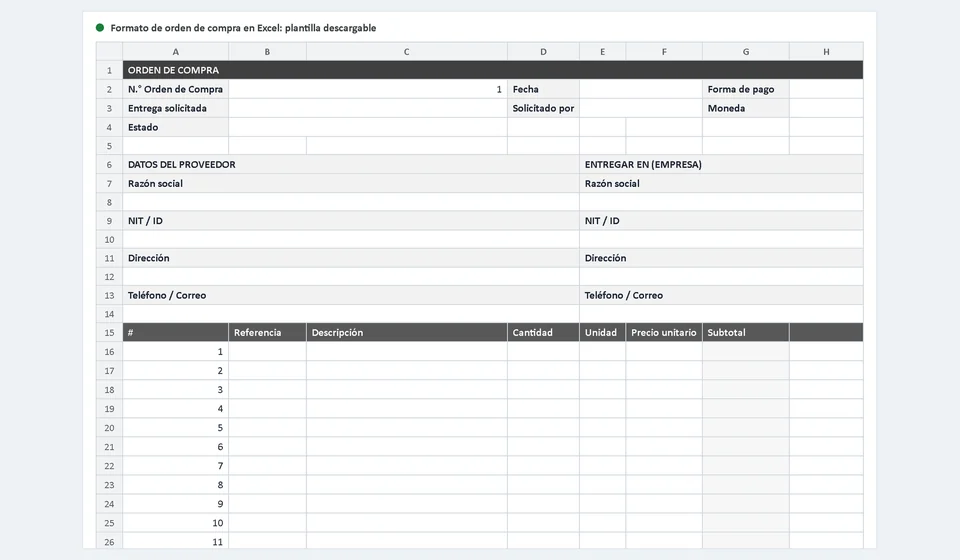
In this article I explain what a well-built purchase order should include and give you a free purchase order template in Excel, ready to use. You type in the vendor's details, add each product with its reference, quantity, unit and price, and the line subtotals and the total are calculated automatically. The template also includes drop-down lists for status and payment terms, a conditions block for delivery, payment and quality, and space for the three signatures that make the process valid: requested by, approved by, and received in good order.
If you currently buy by eye, this form gives you three immediate benefits: locking the price in writing before the goods arrive, leaving a record of what you ordered under a PO number, and having a tracking document until the goods arrive and enter your inventory.
⬇ Download purchase order template (Excel .xlsx)What the purchase order template includes
The template is organized as a one-page document. It has two sheets: the main one, named "Purchase Order", and a second sheet, "Instructions – Purchase Order", with tips to fill it out without mistakes. The values you see when you download the file are examples: replace them with your real data.
| Section | What it contains |
|---|---|
| Order header | Sequential PO number, issue date, requested delivery date and the name of the person requesting the purchase. Payment terms and currency are chosen from drop-down lists, and status is controlled by another list: Pending, Sent, Partially received, Received or Cancelled. |
| Vendor details | Business name, tax ID or identification document, address and contact phone or email of the seller. These details make sure the order reaches the right vendor and invoices are easy to match. |
| Deliver to | Business name or recipient name, identification, address and phone or email of the place where the goods must arrive. Useful when you buy for a branch, a warehouse or a customer. |
| Items table | Line number, reference, description, quantity, unit, unit price and line subtotal. The subtotal is calculated automatically by multiplying quantity by price, so you never do the math by hand. |
| Order summary | Subtotal, an editable tax row you can leave at zero when it does not apply, and the order total, calculated automatically. |
| Terms and notes | Agreed delivery terms (timing, freight and schedules), payment terms and quality conditions, plus a free space for observations such as packaging notes or references to the order. |
| Signatures | Three signature lines: requested by (who asked for the purchase), approved by (who authorized it) and received in good order (signed by the vendor or by the person who receives the goods). |
Why a purchase order protects your business
The first protection is the price agreement. When the vendor quotes and you accept in writing, the price is locked into the order: if the invoice arrives with a different amount, you have a document to claim the difference. Without that backup, the seller's word and yours turn into a new negotiation every time, and the business that buys without documents is the one that ends up overpaying.
The second is traceability. A numbered PO lets you answer, even months later, questions such as what was bought, from whom, at what price and when it was received. That paper trail is the same one you need to settle accounts with the vendor, to support a tax review or to know whether a purchase has already been paid.
The third is confirmed receipt. The order defines what you expect to receive: quantities, references and dates. When the goods arrive, you compare them against the order and against the carrier's delivery note, check that everything matches, and only then sign as received in good order. If something arrives incomplete or damaged, the purchase order is the basis for returning it or claiming the missing items without arguments.
Compare that process with ordering over WhatsApp. A chat is fine for talking, but it is not a document: messages get lost when you change phones, they have no numbering, anyone can type "yes, ship it" without authorization, and they leave no useful evidence for accounting. The purchase order does not replace communication with your vendor; it backs it up.
Example with numbers
To see how the items table is filled in, imagine your business needs packaging materials for next month. The purchase order would look like this:
| Reference | Description | Quantity | Unit price | Subtotal |
|---|---|---|---|---|
| EMP-001 | Corrugated cardboard box 40 x 30 x 30 cm | 200 | 1,850.00 | 370,000.00 |
| EMP-002 | Clear packing tape 48 mm x 100 m | 50 | 4,200.00 | 210,000.00 |
| EMP-003 | Stretch wrap film 30 cm x 300 m | 30 | 9,600.00 | 288,000.00 |
Each line subtotal is the result of multiplying quantity by unit price, and the template calculates it the moment you type both values. The subtotal of this order is 868,000.00; the tax row is left at zero for the example, and the total to pay is 868,000.00. If the vendor charged tax, you would just enter the value and the total would adjust itself, but you would never have to add lines by hand.
How to use the template step by step
Downloading the file is only the beginning. This is the complete flow we recommend so the purchase order does its job:
- Fill in the header. Assign a sequential PO number (for example PO-001, PO-002 and so on), write the issue date and the date you need the goods, and note who is requesting the purchase. Choose payment terms and currency from the drop-down lists and leave the status as "Pending".
- Record the vendor and the delivery point. Complete both blocks, Vendor details and Deliver to, with business name, identification, address and phone or email. This step looks simple but prevents two classic problems: goods arriving at the wrong address and invoices you cannot match to an order.
- Add the items. On each line write the reference, description, quantity, unit and agreed unit price. The line subtotal appears automatically. Check that quantities match what you really need and what the vendor can ship.
- Get the order approved before sending it. This is the step most businesses skip and the one that saves the most money. The person who authorizes purchases must review prices, quantities and vendor, and sign on the "Approved by" line. An approved order is a conscious purchase; an unapproved order is a surprise at the end of the month.
- Send the order and keep a copy. Send the file or a printed copy to the vendor and change the status to "Sent". Store the copy in a physical or digital folder where you can find it: the PO number is the reference you will use to follow up, receive the goods and reconcile the invoice.
- Update the status when you receive. When the goods arrive, compare them against the order and the carrier's delivery note: check quantities, references and condition of the products. If everything is complete, sign "Received in good order", change the status to "Received" and record the receipt into your inventory. If the delivery is incomplete, mark it as "Partially received", write down what is missing and follow up with the vendor before closing the case.
Common mistakes when handling purchase orders
Knowing the typical mistakes saves you from repeating them. These are the four we see most often in small businesses:
- Sending the order without approval: if anyone can generate a PO and send it to the vendor, you lose control of spending, and purchases nobody authorized show up at the end of the month. The rule must be simple: the order goes out only with the signature of the authorized person.
- Forgetting the requested delivery date: without an agreed date, the vendor ships whenever it suits them and your operation stops because the material did not arrive. The delivery date is not a decorative field: it is the commitment that lets you claim on time.
- Not reconciling against the invoice and the delivery note when receiving: if you receive, sign and pay without comparing quantities and prices, shortages, damage and overcharges become silent losses. When you receive, cross three documents: the order, the delivery note and the invoice.
- Leaving the status as "Pending" forever: a PO that is never updated loses its value as a control tool. Define who marks the order as sent, partially received or received, and do it on the same day each event happens.
Ordered purchasing with software
The Excel template is the first level of order: cheap, flexible and enough while purchase volume is low. Its limit shows up when the business grows: every approved order has to be typed again into inventory when the goods arrive, and that double entry is the classic source of quantity errors and of differences between what you bought and what you recorded.
When that moment comes, moving to inventory software is the right step. In Kardex Tauro, for example, an approved purchase order becomes the inventory receipt when you confirm the delivery: you do not type the products twice, the cost of the purchase updates your stock, and the trail is complete from the PO to the product available for sale. The template serves you today to organize the process and to understand what you will need tomorrow.
Frequently asked questions
What is a purchase order?
The document a company uses to order a good or service and commit to paying under agreed terms. It is what lets the supplier ship without a separate contract.
What should it include?
Number, supplier, description of what is ordered, quantities, unit prices, total, payment and delivery terms, and the buyer's authorization.
Does it replace a contract?
No. For large or recurring purchases a contract is better; the purchase order suits everyday buying and keeps a trace of what was ordered.
Download the free purchase order template in Excel and try it with your next real purchase, even a small one. Completing a single order with real data will show you, better than any explanation, where the gaps in your current process are. And when the volume grows and you want every approved PO to become an inventory receipt without typing it twice, Kardex Tauro is the natural next step.
⬇ Download purchase order template (Excel .xlsx)