Returns register template in Excel: free download
Returns register template in Excel: free download
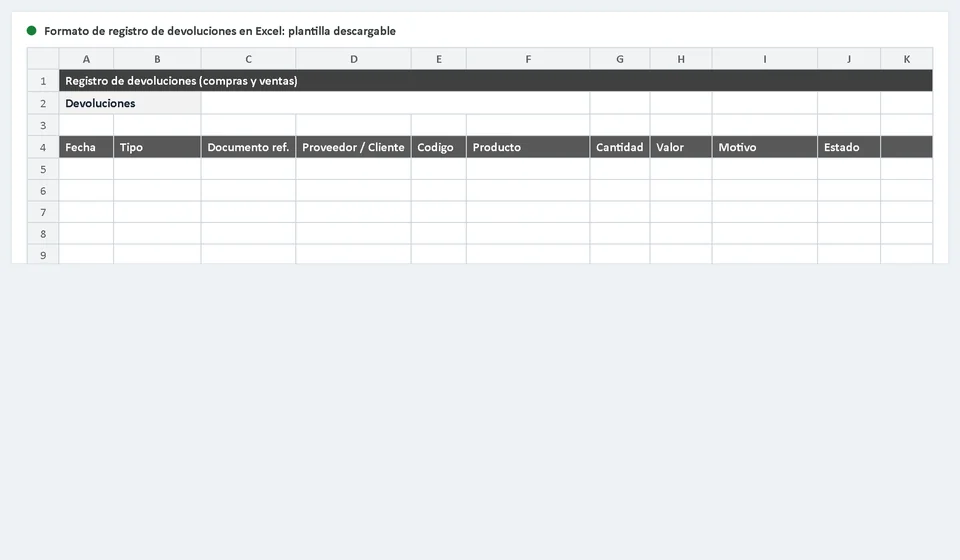
Returns are an everyday part of running a business that keeps inventory. Sometimes you have to send goods back to a supplier because they arrived damaged, incomplete, or not as ordered; other times it is the customer who returns a product under warranty, because the wrong item was shipped, or simply to exchange it. When every case is handled over the counter and nothing is written down, it does not take long to lose track: which order was returned, for what reason, did the goods come back into the warehouse, or is the case still open? A returns register template in Excel brings order to that process with a single table in which each return takes its own row, with date, reference document, supplier or customer, product, quantities and status.
In this article we explain what a returns register is, which components and columns the downloadable template includes, how to fill it in with a practical example, and when it makes sense to move that control into inventory software.
⬇ Download the returns register template in Excel (.xlsx)What is a returns register?
A returns register is an orderly record of every return that affects the operation of the business. Its value lies in the fact that it works in both directions in which goods move:
- Returns to suppliers: when purchased goods arrive damaged, wrong, incomplete or faulty, the business sends them back to the supplier and arranges a replacement, a credit note or a refund.
- Returns from customers: when the customer returns a purchased product under warranty, because it does not meet expectations or to exchange it, and the business receives the goods back into its warehouse.
In both cases the return has an effect on stock and leaves a supporting document worth keeping. If you bought ten units and return three to the supplier, your inventory now holds seven; if you sold an item and the customer brings it back, those units become available for sale again. Recording each movement with its reason and its status lets you answer questions with data instead of memory: how much was returned this month, which supplier generates the most returns, which product is returned most often, and which cases are still open waiting for a decision.
What the returns register template includes
The template is designed to be used from day one, with no complicated formulas and no prior setup. These are the components you will find when you open the file:
| Component | Purpose |
|---|---|
| Main register sheet | A continuous table where each return is added as a new row, in date order. |
| Column headers | Fixed names that show which data goes in each cell and keep the information uniform. |
| Dropdown lists | Predefined options for return type, reason and status, so everyone records the same terms. |
| Total value column | A cell that multiplies the returned quantity by the unit value and avoids manual calculation errors. |
| Instructions guide | Brief notes at the end of the sheet or on an extra sheet explaining how to fill in the format correctly. |
With these components the template works like a logbook: you open it, record the day's return and save the file. The information stays organized and ready to be filtered or totalled whenever you need it.
Columns of the returns register
Each column of the template captures a specific piece of information about the return. This is the structure the format uses:
| Column | What you enter |
|---|---|
| Date | The day the return takes place or the goods are received back. |
| Return type | Purchase, when the goods go back to the supplier, or Sale, when the customer returns them. |
| Reference document | Number of the invoice, delivery note or receipt that originated the operation. |
| Party | Name of the supplier or the customer involved, depending on the type of return. |
| Product | Name or reference of the item being returned. |
| Quantity returned | Number of units coming in or going out because of the return. |
| Unit value | Value agreed per unit at the time of the operation. |
| Total value | Result of multiplying the returned quantity by the unit value. |
| Reason | Why the return happened: damaged goods, wrong product, warranty, exchange, among others. |
| Status | Pending, Approved or Rejected, depending on how each case is managed. |
| Notes | Additional remarks: whether a replacement, a credit note or a refund was agreed. |
Not every column demands the same effort: the dropdown lists for type, reason and status take one click, and the total value calculates itself. The rest is copying the information from the document that supports the operation.
Example: a purchase return recorded in the template
Imagine that on 4 September you receive an order of lamps and, while checking it, you find that three units arrive with factory faults. You decide to return them to the supplier and record them in the template. The row would look like this:
| Date | Type | Document | Party | Product | Quantity | Unit value | Total value | Reason | Status |
|---|---|---|---|---|---|---|---|---|---|
| 04/09/2026 | Purchase | Invoice 1023 | North Distributors | 12 W LED lamp | 3 | 15,000 | 45,000 | Factory fault | Approved |
| 06/09/2026 | Sale | Invoice 2051 | The Motor Workshop | 14-piece wrench set | 2 | 12,500 | 25,000 | Wrong product shipped | Pending |
The first row shows how a purchase return works: three units leave your inventory towards the supplier, the value involved is 45,000 and, since the status is Approved, the case is closed. The second row shows the opposite direction: a customer returns two wrench sets because the wrong model was shipped; the status stays Pending until the exchange is confirmed, and at that moment the row is updated so the register always reflects reality.
The same table serves both directions of the movement and can be filtered by type, by party or by status. At the end of the month you do not need to open several files to know how many units went back to suppliers or how many came in again through customer returns.
How to fill in the returns register step by step
- Choose the return type. In the Type column select Purchase if the goods go back to the supplier or Sale if a customer returns them.
- Enter the date and the reference document. Write the day of the return and the number of the invoice, delivery note or receipt that originated the operation, so the supporting document can be found later.
- Identify the party. Record the name of the supplier or the customer, depending on the case.
- Detail the product and the quantities. Write the item reference and the returned quantity; the template calculates the total value by multiplying it by the unit value.
- Select the reason. Choose from the dropdown list why the return happened: damaged goods, wrong product, warranty, exchange or other.
- Set the status. Mark it Pending while the case is being managed and update it to Approved or Rejected once the supplier or the customer confirms the decision.
- Complete the notes. If a replacement, a credit note or a refund was agreed, write it down so the follow-up is not lost.
Tips for a reliable returns register
- Attach or file the supporting document. Keep the invoice or delivery note behind every return; with the document number in the register you will find it in seconds.
- Review the pending cases regularly. Filter by Pending status every week and manage open cases before they pile up.
- Remember the effect on inventory. Returning goods to a supplier is an outgoing movement and receiving goods from a customer is an incoming one; if you do not record them, your stock count becomes outdated.
- Record on the same day. Write the return when it happens; if several accumulate, quantities, reasons or documents are easy to forget.
- Always use the same terms. Rely on the dropdown lists so reasons and statuses stay comparable and filters keep working.
When to move the register into software
The Excel template is an excellent solution while the volume of returns is low and one person handles the control. But as sales, suppliers and daily movements grow, keeping the register by hand starts to cost time: every row must be typed, pending cases must be watched, totals added up, and the information transferred to the stock record so inventory stays up to date. At that point, a typing error in a single row can disrupt the whole control.
With a program such as Kardex Tauro, for example, the return is recorded indicating whether it corresponds to a purchase or a sale; when it is approved, the system automatically generates the corresponding inventory movement: an output if the goods go back to the supplier or an input if the customer returns them. That movement stays linked to the reference document and to the product's stock record, so entering the same information twice, filtering pending cases and calculating totals stop being daily work.
Frequently asked questions
What does a returns log record?
Which product came back, in what quantity, who returned it, the reason and what was done with it: back into stock, exchanged or written off.
Why does the reason matter?
Because it separates a product problem from a dispatch error. The two are fixed differently and by different people.
Does the returned product go back into stock?
Only if it is fit to be sold. If it does, it enters at its cost and shows in the kardex the same day.
The Excel template remains a great ally for organizing returns while the business is small. When volume grows, having kept an orderly register from the start will make the move to software such as Kardex Tauro much easier.
⬇ Download the returns register template in Excel (.xlsx)