Backorder tracking template in Excel
Backorder tracking template in Excel
There is a scene that repeats itself in nearly every business that sells by catalog, over the counter, or by order: the customer places the order, the salesperson writes it down with the best intentions, and the sale is considered confirmed. But when it is time to prepare the merchandise, the classic stumbling block appears: there is not enough stock of one of the products. What is available gets shipped, the balance is jotted down on a loose piece of paper or kept in the salesperson's memory, and that is where the trouble starts. Without an organized record, that balance is easily forgotten; the customer calls weeks later to complain, trust erodes, and the business ends up paying for the shortage out of its own pocket to put out the fire.
That balance waiting to be shipped has a name: a backorder. Keeping track of it is not an administrative luxury or an office whim; it is the difference between fulfilling what you sold and piling up silent complaints. In this article we explain what a backorder is, why you should record it from day one, and how to use the Excel template we prepared, with its components, its columns, and a worked example: an order of 20 units where 12 are shipped and 8 remain pending, with the balance calculated automatically.
⬇ Download backorder tracking template in Excel (.xlsx)What is a backorder
A backorder is a sale you could not ship in full because, when it came time to prepare the merchandise, you did not have all the stock the customer ordered. The sale exists and the customer confirmed it; in many cases they have already paid or reserved the goods. What is missing is the delivery of the balance. A typical example: the customer orders 20 units of a product, your available stock only reaches 12, you ship those 12, and you are left with 8 pending units that you will deliver as soon as the replenishment arrives.
It is worth telling a backorder apart from two similar situations. A late order is one that is already complete but has not been delivered for logistics or delivery-scheduling reasons; a backorder, on the other hand, is incomplete by definition, because merchandise you do not yet have in the warehouse is missing. Neither is it a lost sale, at least not yet: it is a sale waiting for stock. The difference matters because each case is managed differently: a lost sale is analyzed and left behind, a late order is coordinated with the customer and the carrier, and a backorder is replenished and shipped as soon as the product arrives.
Why you should keep track of it
When the business is small and ships low volume, the occasional backorder is handled from memory and it almost always works. The problem is that volume grows: orders arrive with several products, some are shipped complete and others in two or three deliveries, replenishment arrives on different dates, and every salesperson keeps their own notes. At that point memory and loose scraps of paper start to fail, and every failure has a real cost: a customer who never received their balance complains, asks for a discount to make up for it, or worse, simply never buys again.
A well-kept backorder record answers four questions in seconds that would otherwise be a headache: who do you owe merchandise to, how many units of each product, by what date did you promise to deliver them, and which orders are already complete. With those answers in front of you, you can notify customers in advance, prioritize shipments by promised date, and buy or produce based on real data instead of guesses.
The record also protects you commercially. When a customer calls to ask about their order, the answer does not depend on whether the salesperson remembers: you open the file, check the row, and tell them exactly how much is missing, why, and when it will be delivered. That prompt and honest reply turns what could have been a complaint into a sign of organization, and that sells too.
What the template includes
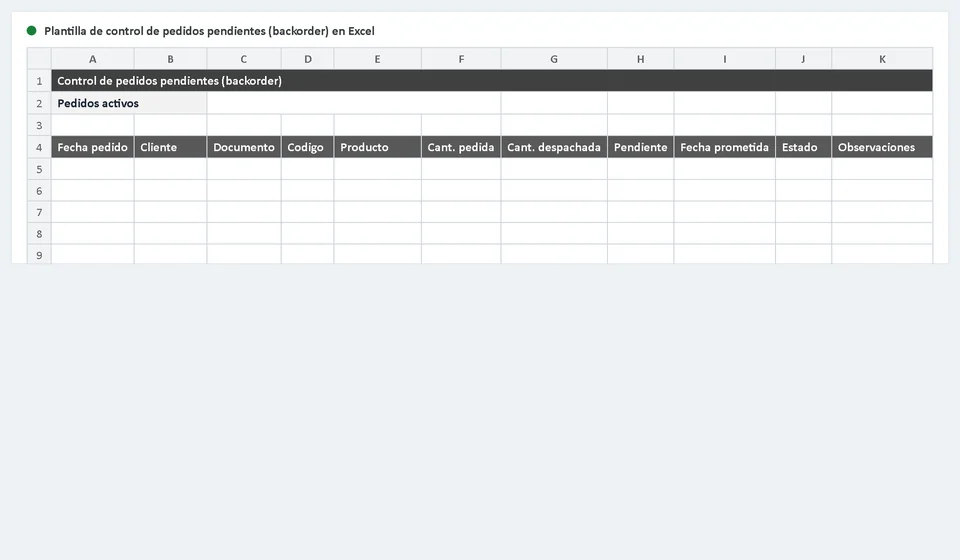
The template is designed so you can record and review information without mixing things up. When you open it you will find a main table for day-to-day records, a formula column that calculates the pending balance for you, and an instructions sheet with the worked example. Specifically:
| Component | What it is for |
|---|---|
| Backorder register | The main table in the file: one row for each pending product of each order, with the customer, quantities, dates, and status. |
| Pending-to-ship column | A formula cell that subtracts what was shipped from what was ordered. You type the quantity that goes out and the pending balance recalculates on its own. |
| Status column | Mark each row as pending, partial, or complete with a dropdown list, so you can see at a glance what is still to be delivered. |
| Instructions sheet | Explains the meaning of every column, the step-by-step usage, and a worked numeric example so there is no doubt left. |
The columns of the register
Each row of the register represents one pending product of one order. These are the columns you will find and what you should type in each one:
| Column | What you record |
|---|---|
| Order date | The day the customer placed the order. |
| Customer | The name of the customer or the sales order. |
| Product | The reference or description of the item still to be shipped. |
| Quantity ordered | The total units the customer ordered. |
| Quantity shipped | The units that have already left your warehouse. You update it on every partial shipment, adding what goes out. |
| Pending to ship | Formula cell: quantity ordered minus quantity shipped. You do not type it by hand; it calculates itself. |
| Promised date | The date by which you committed to completing delivery of the balance. |
| Status | Pending, partial, or complete, depending on what is left to ship in the row. |
A worked example: 20 ordered, 12 shipped, 8 pending
The best way to understand the template is to watch it work. Imagine a clothing sale in which the customer ordered 20 units of a shirt and you only had 12 in stock at the time of shipping. You ship the 12 and leave the row marked as partial, because the Pending to ship column shows the 8-unit balance:
| Order | Customer | Product | Quantity ordered | Quantity shipped | Pending to ship | Status |
|---|---|---|---|---|---|---|
| 0017 | Comercial Ríos | Long-sleeve collared shirt | 20 | 12 | 8 | Partial |
| 0018 | Boutique El Carmen | Pleated skirt | 30 | 30 | 0 | Complete |
The Pending to ship column is not filled in by hand: the cell holds a formula that subtracts the shipped quantity from the ordered quantity, so the balance is calculated on the spot. In the row of order 0017, the formula does the math 20 minus 12 and shows 8; in the row of order 0018, 30 minus 30 gives 0, which is why that row is marked as complete.
The advantage of the formula shows on the later partial shipment. When replenishment arrives and you ship the 8 missing units, you do not have to delete the row or do separate math: you only update the shipped quantity from 12 to 20, the pending column moves from 8 to 0 automatically, and you change the status from partial to complete. That is how simply the loop closes, and the register keeps the full history of the order: how much was ordered, how much went out at each moment, and when it was settled.
How to use the template step by step
Putting it to work takes less than ten minutes. This is the recommended flow:
- Download the template with the button in this article and open it in Excel or a compatible spreadsheet.
- In the first empty row of the register, type the order date, the customer, the product, and the quantity ordered.
- Write the promised date and leave the initial status as pending while no unit has gone out.
- When you prepare the shipment, type in Quantity shipped the units that actually go out; if the shipment is partial, the Pending to ship column will show the remaining balance.
- Update the row status on every movement: pending if nothing has shipped, partial if part of it went out, and complete when the balance reaches zero.
- Notify the customer when the order is complete and archive the row or leave it marked for your weekly review.
Tips to make the tracking actually work
An organized template does not fill itself in: the habit of keeping it up to date is what makes the difference. These practices keep the record from becoming a decorative register:
- Update the status on every shipment, without waiting until the end of the day: pending, partial, or complete. A row with an outdated status is a broken promise you cannot see.
- Prioritize shipments by promised date, not by the order in which orders arrived. The customer who has waited the longest is the first one you must complete.
- Notify the customer as soon as you know a balance will be delayed, and give them a new realistic date. Anticipation defuses the complaint.
- Review the register once a week and reconcile pending items with the stock that keeps arriving, so you replenish exactly what is left to ship.
- Do not promise delivery dates for products you do not have in the warehouse yet: a backorder is managed with real replenishment, not good intentions.
When to move from the template to software
The Excel template is an excellent first stop and works very well while the volume of pending orders is manageable. At some point, however, the file starts to fall short: when several people ship at the same time and each one works on a different copy, when you need to know a customer's pending balance in seconds without filtering dozens of rows, or when you want the backorder to relate to purchases, sales, and the stock record instead of living isolated in a table.
That is where moving to an inventory system makes sense. Kardex Tauro records your products and stock movements, lets you manage orders and sales in one place, and keeps the inventory balance up to date, so backorder tracking stops being a separate sheet and becomes part of the daily operation of the business. If your shipping process already demands that integration, try Kardex Tauro; if you are still at the stage where a well-kept record solves the problem, this template is exactly what you need.
Frequently asked questions
What does a backorder log record?
What the customer ordered and could not be shipped: quantity pending, promised date and the status of purchasing or production.
What is it for?
So the order is not lost, and to prioritise buying or producing what is already sold.
How do you keep it from growing?
By checking it before promising dates. Backorders fill up by selling without confirming stock.
Download the template, record your backorders from today, and stop relying on memory to know what you owe your customers.
⬇ Download backorder tracking template in Excel (.xlsx)