Opening inventory template in Excel

Opening inventory template in Excel
Every inventory control effort in a business starts with the same question: how much merchandise is actually in the store on the day you open the doors, or on the day you decide to start keeping records for real. That first snapshot of what you have is the opening inventory, and everything that follows rests on it. If the quantities you record at the start are miscounted, incomplete or disorganized, every purchase, every sale and every later movement carries that error from the base; no form, formula or system fully fixes a wrong starting point. That is why well-run businesses do not improvise that first count or jot it down on a loose piece of paper: they do it on a template designed so that no product is left out and so that the value of the stock is calculated automatically, without depending on manual sums. That first record also answers a question about money: how much capital is invested in merchandise, and from exactly which point the business starts moving.
In this article we explain what an opening inventory is and why it is the starting point of all stock control, which components and columns the downloadable template includes, how to fill it in with a worked example, what care to take during the count, and when it makes sense to move that first record into inventory software.
⬇ Download opening inventory template in Excel (.xlsx)What is an opening inventory?
An opening inventory is the orderly record of all the merchandise with which the business starts: each product with its code, the exact quantity in the warehouse and on display, the unit cost at which it was acquired and the total value that stock represents. It is the starting snapshot of control: it lets you know how much there was before the first movement took place and serves as the benchmark to measure, later on, what was purchased, what was sold, what was lost and how much remains on the shelves.
Its value lies not in the document itself but in the fact that everything else is compared against it. The stock ledger starts with those opening balances; each purchase increases them and each sale decreases them; when you later run a physical count, you can identify surpluses or shortages because there is a baseline to compare against. Without a reliable opening inventory, the business operates blind from day one: it sells without knowing for sure what it has, it buys too much or too little, and shortages show up just when customers ask for them at the counter.
What the template includes
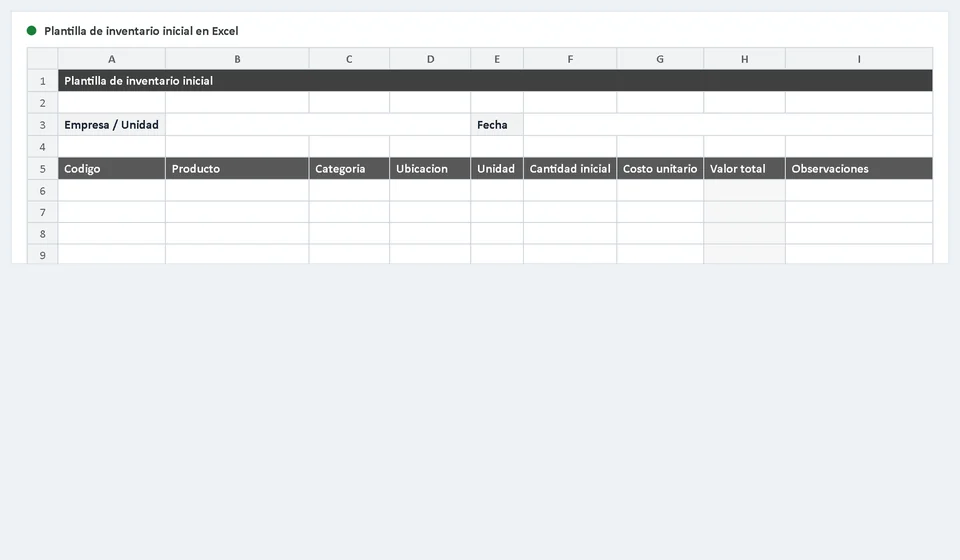
The template is designed so that the first count ends up complete and orderly, without mixing information or doing math on the side. When you open it you find a main table to record the merchandise, columns with formulas that calculate the value of each product, and an instructions sheet with a worked example. Specifically:
| Component | What it is for |
|---|---|
| Opening inventory table | The main table of the file: one row per product in stock, with code, description, category, location, unit, opening quantity and cost. |
| Total value column | A formula cell that multiplies the opening quantity by the unit cost of the row and returns the value of that stock without typing it by hand. |
| Totals row | The overall sum of the Total value column, showing how much the whole inventory of the business is worth on count day. |
| Instructions sheet | Explains the meaning of each column, the step-by-step usage and a solved numeric example so that nothing is left unclear. |
This same template is the opening inventory form that is also part of the inventory start-up kit; here you have it on its own, ready to download, for those who are looking for this file directly.
The columns of the template
Each row of the table represents a different product in the business. These are the columns you will find and what you should enter in each one:
| Column | What you record |
|---|---|
| Code | The unique identifier of the product: a number, a barcode or a short reference that is not repeated by any other item. |
| Product | The clear name or description of the item, with the details that set it apart: brand, presentation, size. |
| Category | The group it belongs to, such as groceries, dairy, cleaning supplies or stationery, useful for filtering and analyzing the stock easily. |
| Location | Where the product is kept inside the store: warehouse, shelf, display case or dispatch area. |
| Unit | The unit of measure used to count it: units, kilograms, liters, boxes or meters, depending on the product. |
| Opening quantity | The exact number of units that came out of the physical count on the day the inventory was taken, without rounding or approximations. |
| Unit cost | What each unit cost when it was purchased, or the last replacement cost you know, so that the total reflects what was invested. |
| Total value | A formula column that multiplies the opening quantity by the unit cost and shows the value of that stock without typing it by hand. |
| Notes | Useful comments: product close to its expiry date, damaged packaging, a lot in transit or any detail worth remembering. |
A worked example: flour, oil and the inventory total
The best way to understand the template is to see it in action. Imagine a grocery store that has just opened and decides to record its opening inventory before selling the first unit. The physical count left this in the warehouse: 25 bags of wheat flour of 1 kg, purchased at 12,000 each, and 8 bottles of vegetable oil of 1 liter, at 9,500 each. These are the first two rows of the file:
| Code | Product | Opening quantity | Unit cost | Total value |
|---|---|---|---|---|
| 001 | Wheat flour, 1 kg bag | 25 | 12,000 | 300,000 |
| 002 | Vegetable oil, 1 L bottle | 8 | 9,500 | 76,000 |
| Total | 376,000 |
The Total value column is not typed: it contains a formula that multiplies the opening quantity by the unit cost of the row. In the first one, 25 times 12,000 equals 300,000; in the second, 8 times 9,500 equals 76,000. At the bottom of the table, the totals row adds up the column and shows the value of the whole inventory: 376,000. The example uses figures without a currency symbol on purpose: the template works the same in any currency, because you type the cost in the one your business handles.
With that figure recorded you already have the comparison point for the future. If some time from now you run another count and the value of the stock does not match what your movements show, you will know that there is an unrecorded receipt or issue, a typing error or a loss worth reviewing in time, before it turns into a silent cost.
How to fill in the opening inventory step by step
Putting the template to work is more a matter of method than of time. The recommended order is this:
- Count physically first. Walk through the warehouse, the display area and the showcases and write down the real quantity of each product on a draft, without trusting old lists or what you believe you have; the physical count is the only source that matters on day one.
- Assign a unique code to each product. Use a sequential number, the barcode or a short reference that is not repeated, so that each row of the template represents a single item and there are no mix-ups later.
- Record the unit cost of each product: the value you actually paid for it or the latest replacement cost you know, so that the total value reflects what is invested in that stock.
- Type the rows in full, without skipping columns: unit, category, location and notes may look like details, but they are what let you filter the information and find a product within seconds.
- Check the totals before closing: verify that each row total and the overall sum match your own calculations; if the total does not add up, go through the rows one by one until you find the error before considering the inventory finished.
Tips to get the opening inventory right
A well-designed template takes little time to fill in; what guarantees that the data is useful is the discipline with which it is recorded. These practices make the difference:
- Take the opening inventory when you open the business or right when you start using a control system: that is the clean base on which all the movements you record later will stand.
- Save the file as a backup and keep a copy somewhere else: it will be the day-one reference for reconciling future counts, and it should not get lost or mixed up with other forms.
- Record everything on the same day of the count, without leaving data entry for tomorrow. Merchandise moves every day, and the figure loses value if it does not reflect exactly the moment when it was counted.
- Do not mix later movements into this file: purchases and sales that happen after day one are recorded in the stock ledger, not on top of the opening inventory quantities.
- Leave a single person in charge of maintaining the file, so that updates are not scattered and it is always clear who recorded each change.
When to move from the template to software
The Excel template handles the opening inventory of a business that is starting out or that manages a reasonable volume of products very well. But there comes a point where the file falls short: when several people record receipts and issues and each one works on a different copy, when you need to know the balance of a product within seconds without filtering hundreds of rows, or when you want each movement to update the stock and the value of the inventory at the very moment it happens, without typing the same information twice.
That is where moving to an inventory system makes sense. Kardex Tauro lets you load this same opening inventory, with its products, quantities and costs, as the starting balances of the business; from there you record purchases and sales and the stock stays up to date on its own, with the value of the inventory always in sight. The day-one file stops being a loose sheet and becomes the base of a control that tells you how much there is, how much it is worth and what should be reordered.
Frequently asked questions
What is opening inventory?
The count that opens the period, with its quantities and its value. It is the starting point for the whole control.
Where does the value come from?
From each product's acquisition cost. Without a reliable cost, it is estimated and the basis is documented.
Why does it matter so much?
Because cost of sales and closing inventory come from it. If opening inventory is wrong, the whole period is wrong.
If your business still relies on loose papers or on several spreadsheets that do not talk to each other, start by downloading the template and get the opening count recorded today: with that organized base, the move to Kardex Tauro later will be quick and painless.
⬇ Download opening inventory template in Excel (.xlsx)