Goods receipt form in Excel

Goods receipt form in Excel
When the supplier's truck arrives, the goods come into the business in a few minutes and are almost always received by whoever is closest: the warehouse clerk, the shop assistant, the helper who unloads the boxes. Without a form to organise that moment, the delivery is handled from memory: the receipt gets signed, the boxes are put away, and only days later, when the inventory does not match, someone discovers that units were missing or that damaged goods arrived. A goods receipt form in Excel turns that pressure into a procedure: you enter the invoice details, count the units against what was invoiced and the sheet works out the differences for you.
This template is designed for businesses that receive goods every day and want a written record of what arrived and what did not, without paying for software: it is free, it downloads in seconds, it opens in Excel and it does not require advanced spreadsheet skills. The file is in English, it includes an instructions sheet with a usage guide and it comes on a single landscape A4 page with a business grey palette, ready to print. It is part of the free spreadsheet collection from Kardex Tauro, built to help you keep your inventory under control without complications.
⬇ Download the goods receipt form in Excel for freeWhy you never sign a receipt without opening the boxes
The signature on the receipt is the moment your business accepts the goods exactly as they arrived. After you sign, the supplier considers the delivery closed and any discussion about missing units or damaged goods becomes your problem. That is why the rule is simple: open the boxes, count and weigh before signing, with the person carrying the goods present.
When the difference is written on the same document, with name, date and signature, the supplier responds without argument and fixes it with a credit note or a later shipment. When it is not written down, the difference is discovered days later, nobody remembers who received the goods and the business ends up paying for that shortage. Recording the lot number and expiry date matters too: in food, medicine and cosmetics, without that data the goods cannot be sold or claimed later.
What the template includes
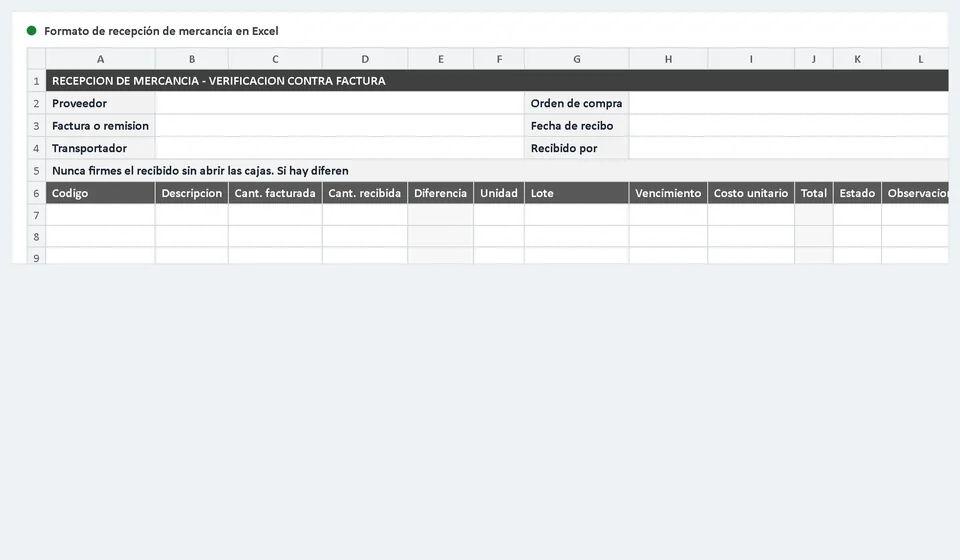
The downloadable file is an Excel workbook with two sheets: the receipt sheet, called Receiving, where the goods are counted against the invoice and the document is printed, and a second instructions sheet in English that explains the purpose of the form, the step-by-step guide and the worked example. There are no macros or complicated formulas: just cells for you to type in, cells calculated by the sheet and a print setup that is ready to use. This is what you will find inside:
| Component | What it is for |
|---|---|
| Receiving sheet | The main sheet: it is where you enter the delivery details and count the goods against the invoice, exactly as the document will be printed. |
| Instructions sheet | A short guide in English with the purpose of the form, the step-by-step process and the worked example; handy for a quick check the first time you use it. |
| Title bar | A fixed heading with the name of the document: goods receipt and verification against the invoice. |
| Delivery header | Fields for supplier, purchase order, invoice or delivery note, receipt date, carrier and the person receiving the goods. |
| Table of 40 lines | Room to record up to 40 different products in a single receipt, with their details and their differences. |
| Difference column | Calculated by formula: it compares the received quantity with the invoiced one and shows the shortage or the overage with its sign. |
| Total column | Calculated by formula: it multiplies the received quantity by the unit cost of each line. |
| Status column | A drop-down list with Conforming, Short, Over, Damaged and Rejected to classify each line received. |
| Total received row | Adds up the quantity and the value of every line, so the whole receipt is totalled without doing the sums by hand. |
| Receiving checklist | Eight control points with a Yes, No or Not applicable drop-down, to confirm the review before signing. |
| Signature areas | Spaces for received by, reviewed by, carrier and the closing date of the receipt. |
| Landscape A4 printing | The page is set to landscape orientation with a business grey palette, so the whole form prints without manual adjustments. |
The 12 columns of the receipt form
The heart of the form is the table where the goods are counted. It is set up for 40 lines and each column has a specific job: the data columns you type in and the calculated columns the sheet resolves. These are the fields, exactly as they appear in the file:
| Column | What it is for |
|---|---|
| Code | Your internal product reference or the supplier's code, so you can locate it just as it is kept in your inventory. |
| Description | The detail of the goods received, with their name and main characteristics. |
| Invoiced qty | The quantity that appears on the supplier's invoice or delivery note. |
| Received qty | The quantity that actually came into the business, after opening and counting every box. |
| Difference | Calculated by the sheet: received minus invoiced; zero means no issue, a negative value is a shortage and a positive value is an overage. |
| Unit | The measure the goods are received in: unit, box, kilo, litre, metre or sack. |
| Lot | The product's lot number, needed to trace a problem later. |
| Expiry | The expiry date of the lot; for food and medicine the product cannot be sold without this data. |
| Unit cost | The agreed value of a single unit, taken from the purchase order. |
| Total | Calculated by the sheet: received quantity times unit cost. |
| Status | A drop-down list: Conforming, Short, Over, Damaged or Rejected for each line. |
| Note | A short remark to explain the issue: a broken carton, tampered seals, a product other than the one ordered. |
How to read the Difference column
The Difference column is never typed by hand: the sheet calculates it by subtracting the invoiced quantity from the received quantity. That is why the sign says everything. When it reads zero, what arrived matches what was invoiced and the line is marked Conforming. When it reads a negative number, less arrived than was invoiced and there is a shortage. When it reads a positive number, more arrived than was invoiced and there is an overage worth clarifying before you sign.
The sign also helps you value the problem: a shortage of four units at 2.500 is 10.000 of goods that are paid for on the invoice but never reach your inventory. That is why the difference is reviewed line by line before signing and the Note column records what happened: how many units were missing, whether any arrived damaged or whether the supplier shipped a product other than the one ordered.
Worked example: an invoice for 100 units
To show how the form looks once it is filled in, picture a delivery of ground coffee: the supplier's invoice lists 100 units at 2.500 each and only 96 arrive, because four were damaged. The sheet calculates the difference and the total on its own. The figures use the local format, with a dot for the thousands:
| Code | Description | Invoiced qty | Received qty | Difference | Unit | Lot | Expiry | Unit cost | Total | Status | Note |
|---|---|---|---|---|---|---|---|---|---|---|---|
| A-100 | Ground coffee 500 g | 100 | 96 | -4 | unit | L-2045 | 12/2026 | 2.500 | 240.000 | Short | Four units damaged, rejected |
| Item | Value in the example |
|---|---|
| Invoiced value (100 times 2.500) | 250.000 |
| Goods received (96 times 2.500) | 240.000 |
| Shortage (4 times 2.500) | 10.000 |
| Total received on the form | 240.000 |
| Status of the line | Short |
| Closing | The receipt is signed with the note, a credit note for 10.000 is requested and purchasing is notified. |
Check the maths: the supplier invoices 100 units at 2.500, which is 250.000, but only 96 come in, so the difference is minus four, a shortage of 10.000. The form totals the goods that actually arrived at 240.000 and marks the line as Short. In the template you do none of these operations: the Difference column subtracts the invoiced quantity from the received one, the Total column multiplies the received quantity by the unit cost and the total received row adds up the whole delivery. At closing, the receipt is signed with the note written on it, a credit note for 10.000 is requested from the supplier and purchasing is told that the invoice should not be paid in full.
How to use the form step by step
The first time it takes less than ten minutes. This is the order worth following on every delivery:
- Before unloading the goods, fill in the header with supplier, purchase order, invoice or delivery note, receipt date, carrier and your name as the person receiving.
- Open the boxes and actually count: compare the units that arrived one by one with the invoice, and weigh anything received in bulk.
- Write one line per product: code, description, invoiced quantity, received quantity and unit; the Difference column and the Total column are calculated for you.
- Record the lot number and the expiry date on each line, especially for food, medicine and cosmetics, where that data is required before the product can be sold.
- Choose the status of each line from the drop-down list: Conforming, Short, Over, Damaged or Rejected, and explain the issue in the Note column.
- Check the total received row: it tells you how many units and how much value actually came into the business in that delivery.
- Go through the eight-point checklist and mark Yes, No or Not applicable on each point; the points marked No are the ones to resolve before signing.
- Sign it yourself, have the carrier sign it and keep a copy of the form together with the supplier's invoice so the delivery is fully supported.
Receiving checklist: the 8 points
Before signing, go through this list inside the file itself: each point is marked with the Yes, No or Not applicable drop-down. If any point stays on No, do not sign yet: first resolve the issue with the carrier and put it in writing.
| Control point | Mark |
|---|---|
| The purchase order matches the invoice or delivery note | Yes / No / Not applicable |
| The physical quantities match what was invoiced | Yes / No / Not applicable |
| The goods arrived without dents, dampness or breakages | Yes / No / Not applicable |
| The lot number and expiry date were checked product by product | Yes / No / Not applicable |
| The invoiced price is the one agreed in the purchase order | Yes / No / Not applicable |
| The goods were counted or weighed in the carrier's presence | Yes / No / Not applicable |
| The differences were written down before signing | Yes / No / Not applicable |
| A signed copy of this document and of the invoice was kept | Yes / No / Not applicable |
Common mistakes when receiving goods
These are the mistakes that cost a business the most when it takes in goods:
- Signing the receipt without opening the boxes: the difference shows up days later, nobody remembers who received the goods and the business ends up paying for the shortage.
- Receiving without a purchase order: there is nothing to compare prices or agreed quantities against, so any overcharge goes through unchecked.
- Not recording the lot number or expiry date for food, medicine or cosmetics: without that data the goods cannot be sold or claimed later.
- Counting only the boxes and not the contents: an opened carton can arrive incomplete and the mistake is discovered after you have already signed.
What to do when goods are missing
When the Difference column shows a shortage, the answer is not to argue at the door: it is to put it in writing and follow an order. First the difference is written on the line, the status is set and the units are described in the Note column; then the receipt is signed with that note on it, never as a clean document. With the signed form in hand, you ask the supplier for a credit note for the value of what was missing —10.000 in the example— or you agree to have the missing goods shipped with the next delivery.
At the same time, purchasing is notified the same day: that is the person who talks to the supplier, negotiates the replacement and stops the invoice from being paid in full. And before the day is over, the receipt is recorded in the product's stock ledger so that the system inventory reflects what actually came in and not what the invoice claimed. That way a shortage does not become a silent gap in your inventory, but a documented difference with someone responsible for it.
When to move to inventory software
The Excel form is the best way to organise receiving: it is free, it is understood in an afternoon and it leaves in writing what arrived and what did not. Its limit appears with volume: when the business takes in many suppliers a day, writing every line, keeping every copy and then moving each receipt into inventory takes time and opens the door to errors.
- With the form: you receive, count and sign on the same sheet; the file remains as support for the delivery and does not depend on the internet.
- With the form: every receipt is entered into inventory by hand, and a difference copied wrongly is carried into the stock ledger.
- With software: the receipt flows into the stock ledger by itself, the cost is updated and the difference stays linked to the supplier's invoice.
When that point arrives, inventory software such as Kardex Tauro takes over the repetitive part: it records the entry, updates the product's cost and balance and keeps the history of every receipt next to the supplier. The decision is not either-or: many businesses start with the Excel form, understand their receiving process well and then migrate with the information already in order.
Frequently asked questions
What does a goods receipt form record?
What arrived, in what quantity, in what condition and against which document: the purchase order, the delivery note or the invoice. It is the record of entry into the warehouse.
What do I check on receipt?
Quantity against the document, the condition of the packaging and the product, and whether the paperwork arrived. What is not checked on the spot gets claimed late and badly.
What if it arrives short or damaged?
Note it on the same form and have the carrier sign it. That note is what lets you claim against the supplier or the carrier later.
Download the goods receipt form in Excel for free, fill it in on your next delivery and sign only after you have opened the boxes, counted and written down every difference. It is the sheet that protects your inventory and gives your business proof of what it received. Keep in mind that it is an internal control tool and not an official tax document.
⬇ Download the goods receipt form in Excel for free