Inventory control template in Excel: free download
Inventory control template in Excel: free download
A master inventory list, that is, a table with the name of every product, its category, its location and its quantity, answers the question of what you have in your warehouse, but it falls short as soon as the business starts moving. The stock it shows is the one from the day you typed it: every sale, purchase and return leaves it outdated, and within a week nobody trusts the number. Real inventory control is not a photograph, it is a movie: it needs the master list and, on top of it, the record of every movement that comes in and goes out.
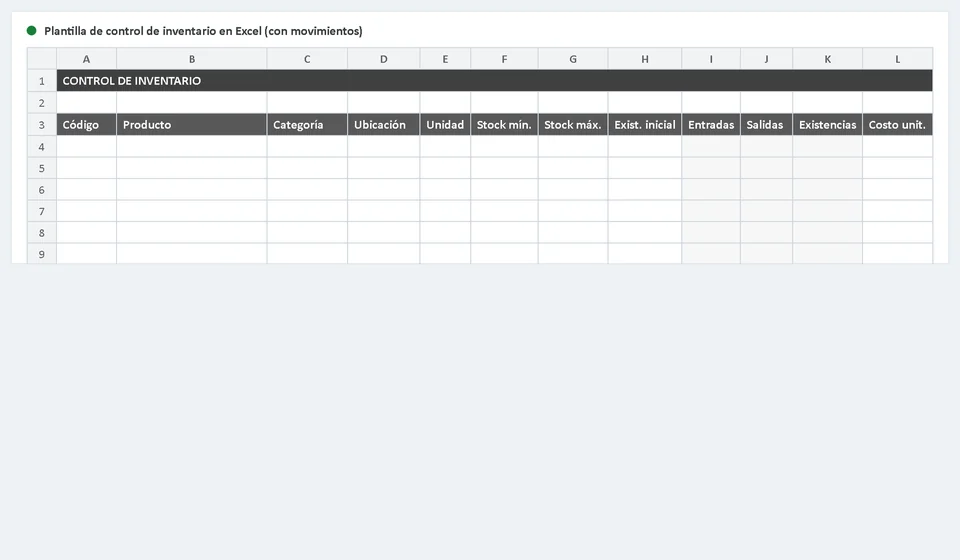
This inventory control template in Excel solves that with two connected sheets. On the Movements sheet you log every entry and exit with its date, the product code and the quantity; on the Inventory sheet, the master list, simple formulas add up the movements of each product by themselves and calculate the stock on hand, the total inventory value and a reorder alert for every row. You download it for free, adapt it to your products in minutes and start controlling stock without being a spreadsheet expert.
⬇ Download inventory control template (Excel .xlsx)What the template includes
The file comes with three ready-to-use sheets. The Inventory sheet is your master list: up to 100 products, with the basic information about each one and the entries, exits, stock, value and status columns that calculate themselves. The Movements sheet is the log where you record every operation, with room for 500 movements and the movement type in a dropdown menu to prevent typos. The third sheet, Instructions, explains how everything works and reminds you of the important rules, such as keeping codes unique and never deleting the formulas.
| What it includes | What you will find |
|---|---|
| Inventory sheet | A master list for up to 100 products with code, product name, category, location, unit, minimum stock, maximum stock, opening balance, unit cost, and formula-driven columns for entries, exits, stock on hand, total value and status. |
| Movements sheet | 500 rows to record every inbound and outbound movement with date, product code, movement type (dropdown menu), quantity, supporting document and note. |
| Reorder alerts | Every product shows an automatic status: Out of stock when its balance reaches zero or less, Reorder when it sits at or below the minimum, and OK otherwise. |
| Inventory valuation | Each row calculates the total value of the stock on hand (units times unit cost), and the footer adds up the total value of the whole inventory, ready for your accounting or your balance sheet. |
How the two sheets connect
The connection between the two sheets runs through the product code, and understanding that rule is the only thing you need for everything to work. Every row in the Movements sheet carries the code of the product being moved. Using that code, the formulas in the Inventory sheet rely on SUMIFS to add up every quantity logged as an entry for that product and every quantity logged as an exit, no matter which row they sit in or in what order they were entered.
This means you never touch the stock column: you record the movement with the correct code and the stock updates itself. If tomorrow you sell 3 units of P001, you write a row in Movements with code P001, type Out and quantity 3, and the Inventory sheet deducts those 3 units instantly. The same logic covers purchases, returns, transfers, shrinkage and adjustments: everything is an entry or an exit attached to a code.
That is why codes must be unique and exact. If two products share a code, their movements get mixed and both stock balances come out wrong without anyone noticing at a glance. If you type P01 instead of P001 on a movement, that quantity becomes an orphan: it does not add to or subtract from any product. Use a simple, tidy pattern (P001, P002, P003) and copy the code from the Inventory sheet when you log a movement instead of typing it from memory.
Example with numbers
To see the whole logic in action, imagine five products with the opening balances and movements shown in the table. The stock column is always the opening balance plus entries minus exits, and the total value is the stock on hand multiplied by the unit cost:
| Code | Product | Opening | Entries | Exits | Stock on hand | Unit cost | Total value | Status |
|---|---|---|---|---|---|---|---|---|
| P001 | Vegetable oil 1 L | 10 | 5 | 3 | 12 | 8,000 | 96,000 | OK |
| P002 | White rice 5 kg | 0 | 20 | 20 | 0 | 45,000 | 0 | Out of stock |
| P003 | Lentils 1 kg | 4 | 0 | 6 | -2 | 6,500 | -13,000 | Review |
| P004 | Ground coffee 500 g | 10 | 8 | 2 | 16 | 18,500 | 296,000 | Reorder |
| P005 | Laundry detergent 2 kg | 25 | 0 | 0 | 25 | 12,800 | 320,000 | OK |
P001 ended with 12 units and 96,000 in value, above its minimum, so its status is OK. P002 came in and went out in equal amounts and finished at zero: out of stock, it needs to be reordered. P003 is the most instructive case: with 4 opening units it logged an exit of 6 and the balance went to -2. A negative balance is never normal; it means more went out than was available, and the first step is reviewing the movements, not buying more. P004 ended with 16 units, just below its minimum of 20, and the template flags it as Reorder. P005 had no movement and stays OK.
How to use it step by step
Setting the template up takes less than an hour if you already know your products and have a recent physical count. These are the steps:
- Download the file and open it in Excel. The Instructions sheet gives you a summary of how each block of the template is organized.
- Go to the Inventory sheet and replace the sample data with yours: code, product, category, location and unit of measure. Use a unique code for each product.
- Set a minimum stock (the level at which you want the reorder alert) and a maximum stock (the ceiling you do not want to exceed so you do not tie up cash) for every product.
- Enter the opening balance you have today and the unit cost of each product. If you just finished a physical count, this is the perfect moment to set a clean starting point.
- Record every movement in the Movements sheet: the date, the exact product code, the type (In or Out), the quantity, the supporting document and a note if you need one.
- Go back to the Inventory sheet: the entries, exits and stock columns have already updated through the formulas. Review each product status and the total value at the footer.
- Run a periodic physical count (monthly, for example) and compare it against the stock column so you catch differences early.
What the alerts mean
The Status column in the Inventory sheet is automatic and works by comparing stock on hand with the minimum stock of each product. You never type it or update it: if the balance reaches zero or less, the status shows Out of stock; if it sits at or below the minimum, it shows Reorder; otherwise it shows OK. At a glance you know which products demand your attention today and which ones can wait.
| Status | What it means | What to do |
|---|---|---|
| Out of stock | Stock on hand reached zero or less. There are no units available to sell. | Place the purchase or reorder request now, and check why the product ran out: it may be higher sales than expected or a movement you forgot to record. |
| Reorder | Stock on hand is at or below the minimum. Units remain, but not many. | Prepare an order for the quantity needed to get back to a comfortable level, and set a reorder point for each product based on how fast it sells. |
| OK | Stock on hand is above the minimum level. | No action needed. Keep recording movements as usual. |
| Review | The balance went negative, meaning more units went out than were available. This is an inconsistency, not a normal state. | Compare the recorded movements against your invoices, credit notes and physical count; fix the quantity or the movement type that is wrong and adjust the opening balance if needed. |
When the sheet falls short
This template is a great ally when inventory is handled by one person, in one place, with a volume of movements you can log by hand every day. But it is worth being honest about its limits. Every record is manual: each sale, purchase and return requires someone to write the row in Movements, and on a busy day a movement is easily forgotten or entered twice. Stock is only as current as the last entry, not as the last sale, because the template knows nothing about your invoices: you tell it about movements one by one.
As the business grows, those limits start to show. With several people selling at the same time, two warehouses, or products that move every single day, keeping the log up to date becomes a job of its own, and a file with hundreds of movements starts to slow down. That is when you look at a system like Kardex Tauro, built for exactly that: it updates stock automatically with every sale, invoice or purchase you record, it handles more than one warehouse, and it frees you from logging movements twice.
The practical rule is this: if your inventory fits in one warehouse, you are the one moving it and you can give it time every day, this template is enough. If you want sales to update what you need to know automatically and you no longer want to depend on memory or manual logging, the natural next step is trying Kardex Tauro. Between the two there is a comfortable path: start with the template today, record your products and movements, and when volume asks for it, make the jump with your data already organized from day one.
Frequently asked questions
What does an inventory movement log record?
Every in and out with date, document, quantity and balance. It is the movement seen from the warehouse, not from one product.
How do you keep it reliable?
By recording the movement when it happens. At month end nobody remembers what moved or why.
How is it different from the kardex?
The kardex is per product; this log carries several products with equivalent movements, useful where there is no system.
Download the inventory control template with movements, fill it with your products and let the formulas do the adding, subtracting and warning. With an up-to-date list and every movement recorded, you will always know how much you have, what it is worth and what needs reordering.
⬇ Download inventory control template (Excel .xlsx)