

How to Record Goods Receipt, Step by Step
How to Record Goods Receipt, Step by Step
A stock figure nobody can back up is worse than no figure at all. Every unit that arrives through a purchase, an opening balance or a hand-back from a colleague has to be booked with its reason and its value: the balance the salesperson sees, the cost used to value what leaves and the trail an auditor asks for all come out of that one record. An entry posted late, or with no reason, leaves the balance right by luck and wrong by history.
This guide walks through the eight screens of the process as it runs in the application, with the meaning of every numbered red box. The example brings in 25 units of product MAN-EN01 (ERGONOMIC CHAIR USER MANUAL EN) in cost center 01 - Bodega Central, with the reason OPENING STOCK MANUAL and a unit price of 350000: the same steps work for any product and any manual stock in recorded from the «Stock Ledger» window.
Before you start
- Permission to record stock movements in the inventory module.
- The right cost center active: it is shown at the bottom of the sidebar, and every entry is booked against it.
- The product already created in that cost center; if the code does not exist, «Search» will not load it.
- The reason decided in advance: «Reason» is mandatory and needs at least 6 characters.
Step by step
Step 1 — The main window
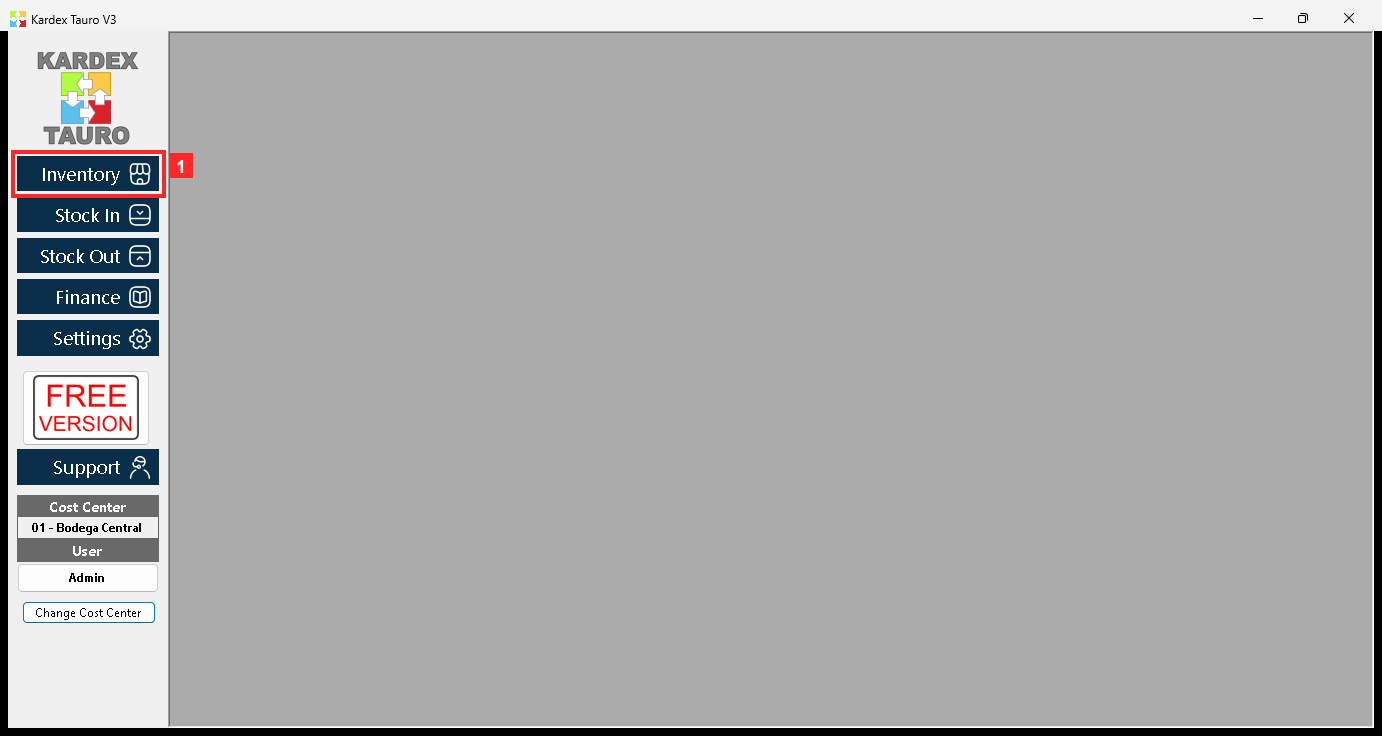
KardexTauro V3 opens in this window. The left sidebar groups the system modules and the central area is the working area. The lower part of the sidebar shows the active Cost Center (01 - Bodega Central), the logged-in User and the «Change Cost Center» button. Stock entries are always recorded in the active cost center.
In the image:
- 1) Button «Inventory»: opens the inventory module menu.
Texts on screen: «Inventory», «Stock In», «Stock Out», «Change Cost Center»
Action: Press «Inventory» to enter the inventory module.
Step 2 — The inventory module menu
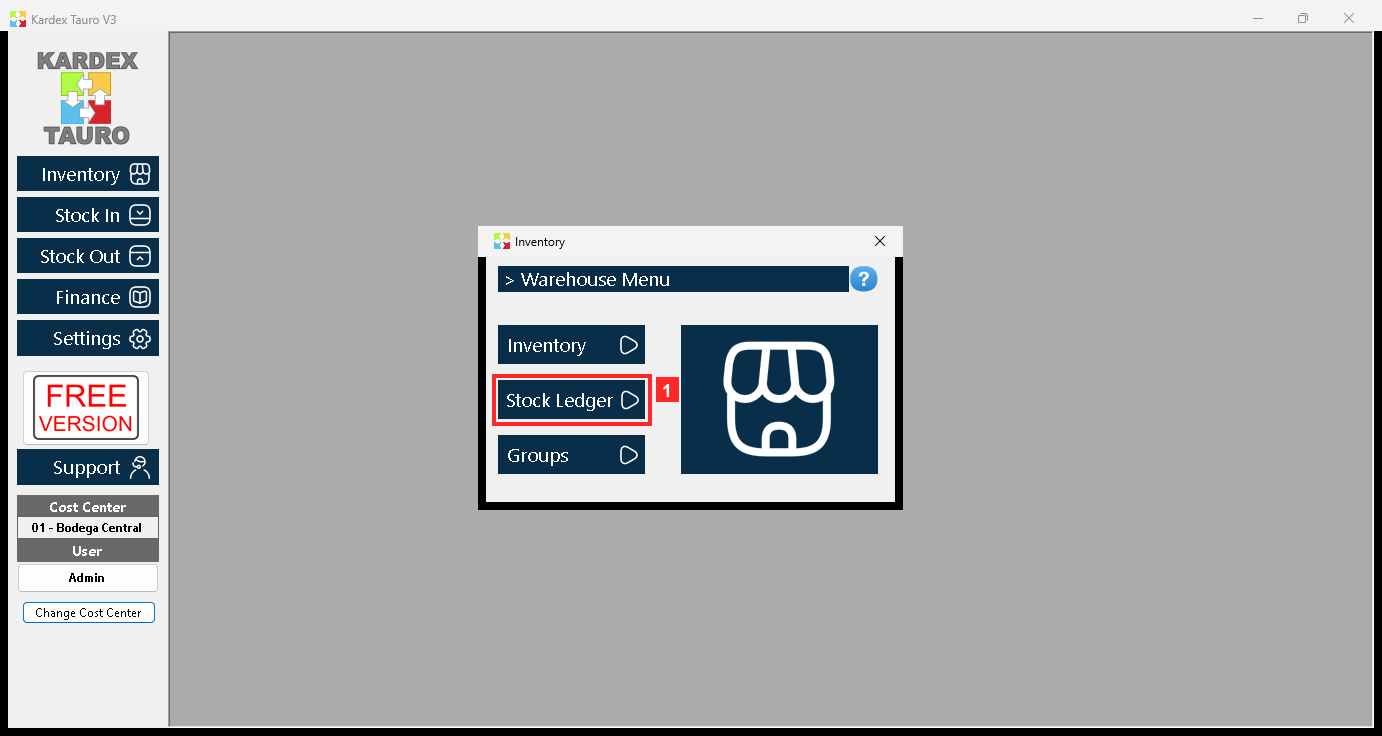
Pressing «Inventory» opens the module menu with «Inventory», «Stock Ledger» and «Groups». «Stock Ledger» is where each product's stock movements are checked and recorded.
In the image:
- 1) Button «Stock Ledger»: opens the stock movements window.
Texts on screen: «Inventory», «Stock Ledger», «Groups»
Action: Press «Stock Ledger» to open the movements window.
Step 3 — The «Stock Ledger» window: find the product
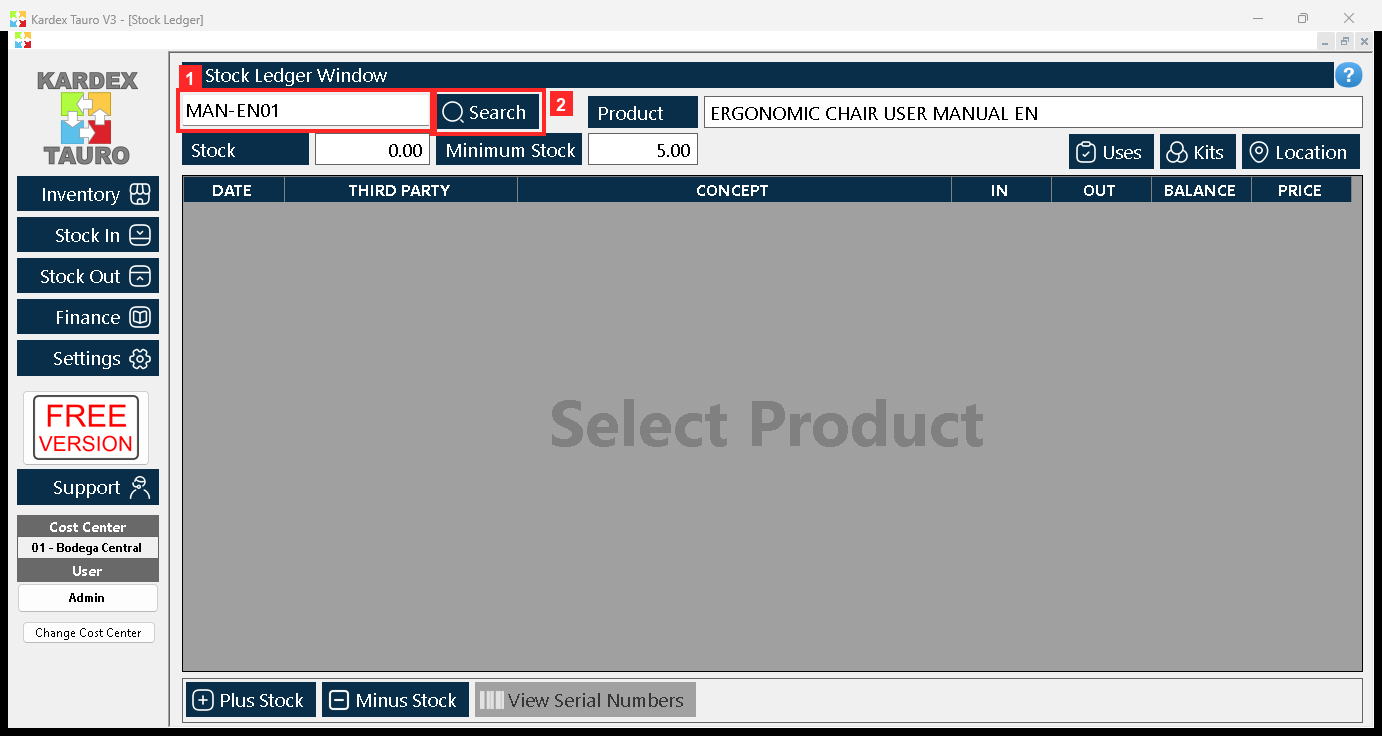
The «Stock Ledger» window opens inside the working area. At the top there is the search box: type the product code and press «Search». The program then shows «Stock» and «Minimum Stock» for the product in the active cost center, and its movements in the list.
In the image:
- 1) Search box: product code (or part of the name).
- 2) Button «Search»: searches the product and refreshes the list.
Texts on screen: «Search», «Uses», «Kits», «Location»
Action: Type the product code and press «Search».
Step 4 — The loaded product and the «Plus Stock» button
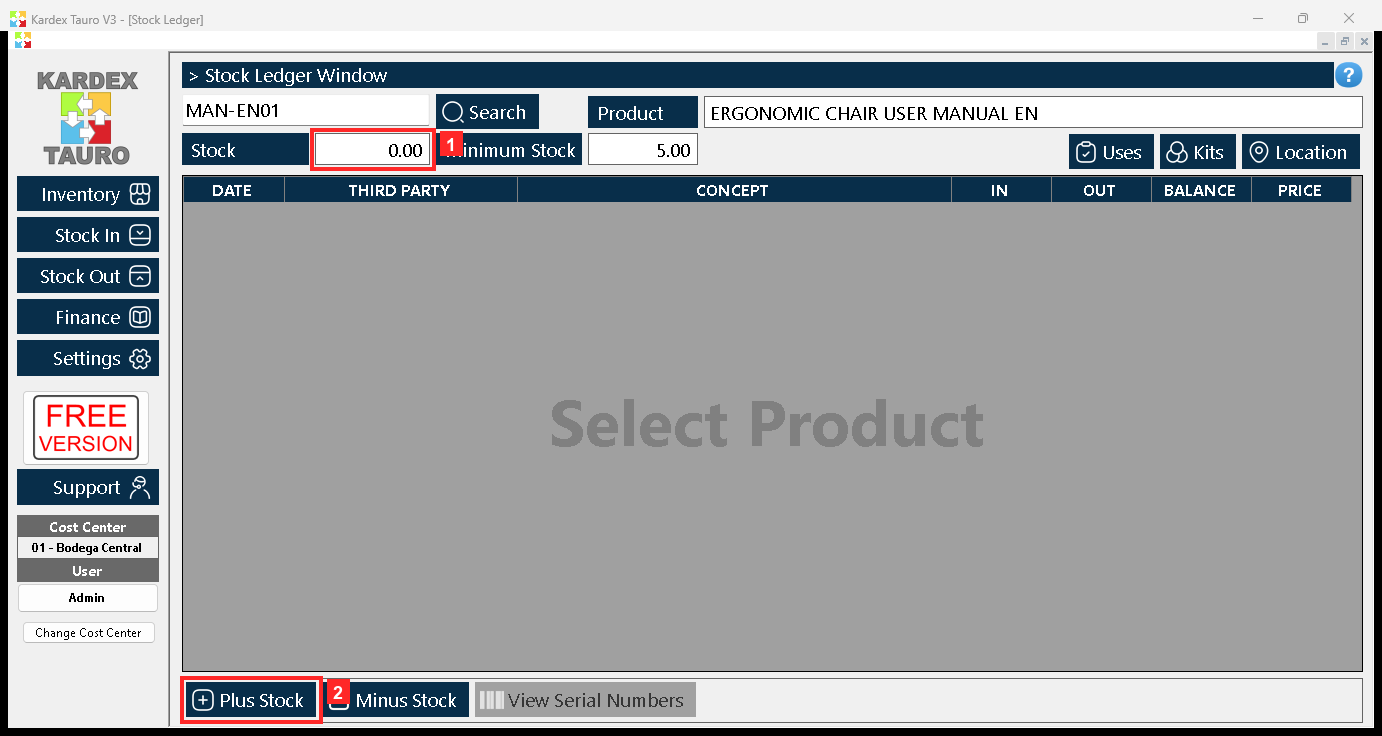
When you search for it, the program loads the product: next to the search box «Product» appears with its name, and below it «Stock» (0.00) together with its «Minimum Stock». The list shows the movements of the product (if it has none yet, it appears empty). The buttons in the bottom bar act on the loaded product: «Plus Stock» records a stock increase and «Minus Stock» a stock decrease.
In the image:
- 1) «Stock» of product MAN-EN01: 0.00 before the entry.
- 2) Button «Plus Stock»: opens the form to add stock.
Texts on screen: «Plus Stock», «Minus Stock», «View Serial Numbers»
Action: Press «Plus Stock» to record the entry.
Step 5 — The «Stock Ledger» form
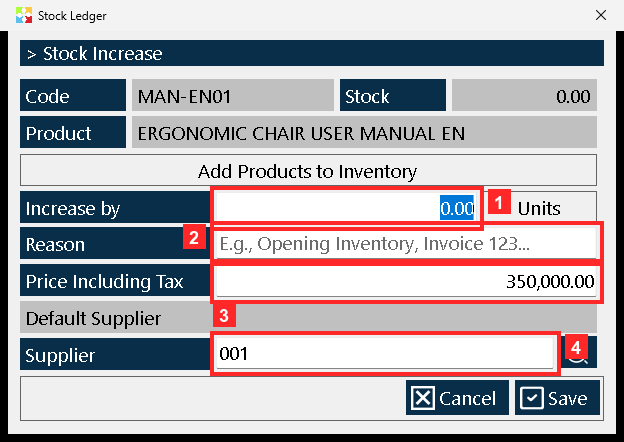
The «Stock Ledger» form opens. At the top it confirms the «Code» (MAN-EN01), the «Product» and the current «Stock». Below, «Add Products to Inventory» groups the entry fields: «Increase by» (how many units come in), «Reason» (the reason for the movement; it is mandatory and needs at least 6 characters) and «Price Including Tax» (unit price of the product including tax). The «Supplier» is optional.
In the image:
- 1) «Increase by»: units coming in, in «Units».
- 2) «Reason»: reason for the entry (at least 6 characters).
- 3) «Price Including Tax»: unit price of the product including tax.
- 4) «Supplier»: supplier of the entry (optional).
Texts on screen: «Add Products to Inventory», «Cancel», «Save»
Action: Fill in the fields and press «Save».
Step 6 — The entry data
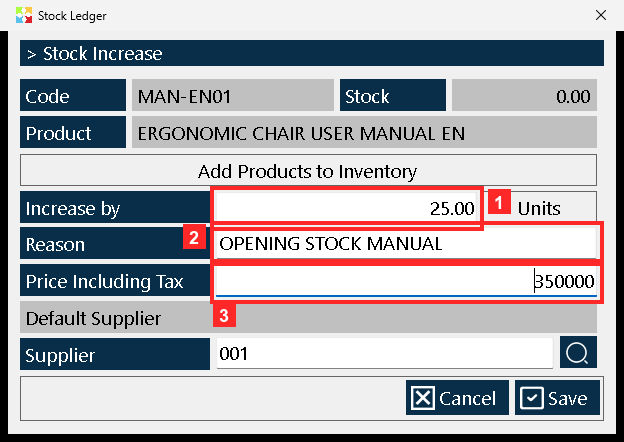
This is how the form looks with the example data: «Increase by» = 25 units, «Reason» = OPENING STOCK MANUAL and «Price Including Tax» = 350000 (unit price including tax).
In the image:
- 1) «Increase by» = 25
- 2) «Reason» = OPENING STOCK MANUAL
- 3) «Price Including Tax» = 350000
Action: Check the data and press «Save» to save.
Step 7 — Saving the entry
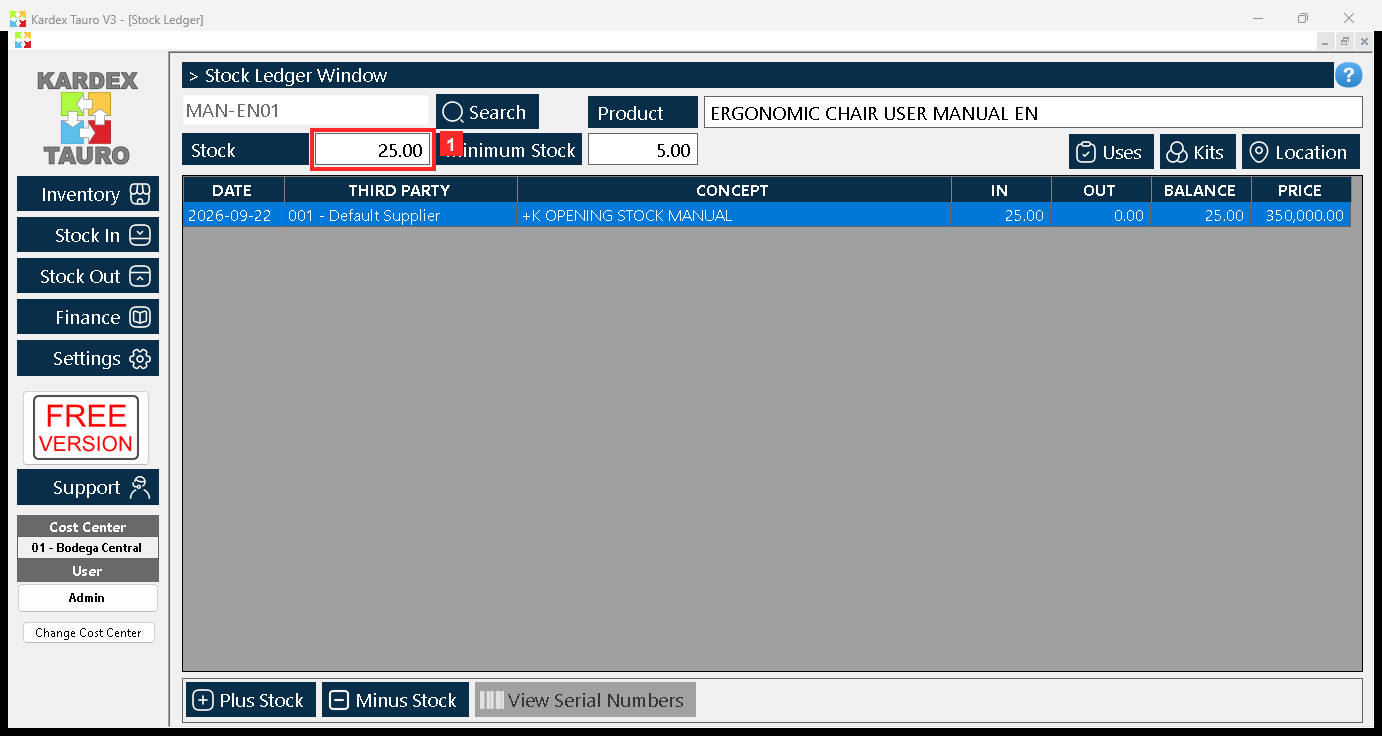
Pressing «Save» stores the movement: the «Stock» of the product in cost center 01 - Bodega Central go from 0.00 to 25.00 and the entry is recorded with its «Reason». If the reason is missing or shorter than 6 characters, the program warns and does not save.
In the image:
- 1) Product «Stock» already updated: 25.00.
Action: The entry is now recorded in the stock and in the movements history.
Step 8 — Checking the entry in the «Stock Ledger» window
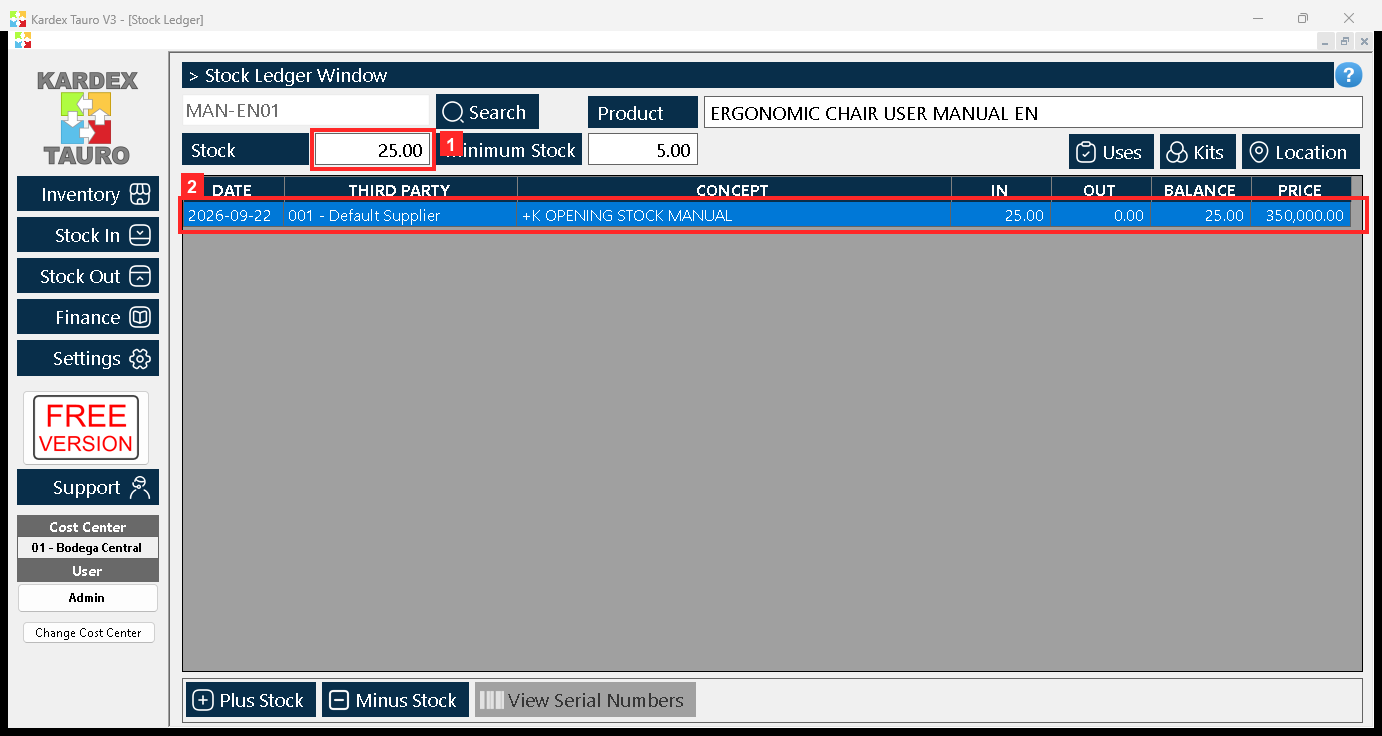
Back in the «Stock Ledger» window, press «Search» again to refresh: «Stock» now shows 25.00 and the movement of the entry appears in the list with the reason OPENING STOCK MANUAL.
In the image:
- 1) «Stock» updated: 25.00.
- 2) Entry movement: OPENING STOCK MANUAL (+25 units).
Texts on screen: «Search»
Action: Repeat the process for other products, or with other reasons to tell each entry apart.
Result
The movement was stored: the product's «Stock» in the active cost center went from 0.00 to 25.00 and the list in the «Stock Ledger» window shows the entry with its reason OPENING STOCK MANUAL. The check was not made on screen alone: reading the program database shows the record 01 · +K OPENING STOCK MANUAL · 001 - Default Supplier · entra=25.0 · saldo=25.0, that is, a balance of 25 units.
Best practices
- Write reasons that state the fact rather than the month: OPENING STOCK MANUAL still makes sense six months later; a vague reason leaves the movement unexplained.
- Book one movement per arrival. If the same order comes in two parts, record two movements with their own reasons, so a mistake can be traced without scrolling the whole history.
- Do not leave «Price Including Tax» at a rough number: it is the unit price of the product with tax included and it is stored on every movement.
- After saving, press «Search» again and confirm «Stock» before moving on to the next product: the entry is only verified once it shows in the list.
Frequently asked questions
Will the program save an entry with no reason, or with a very short one?
No. «Reason» is mandatory and requires at least 6 characters: if it is missing or shorter, the program warns and does not save the movement.
Is «Price Including Tax» the value of the whole entry or the value of one unit?
It is the unit price of the product with tax included, not the total: in the example it is 350000 per unit, for 25 units brought in.
Is this the same as recording it from the goods receipts module?
No. What the screenshots show is recorded from the «Stock Ledger» window in the inventory module, with the «Plus Stock» button, on the product loaded with «Search».
This article is part of the Kardex Tauro V3 User Manual, which gathers every process in the system, explained step by step.