

How to Record Goods Issue, Step by Step
How to Record Goods Issue, Step by Step
Not everything that leaves the warehouse leaves through a sale. A tool lent to the workshop, a supply consumed on a service order or a carton handed to a customer with no paperwork are all withdrawals that nobody will chase later if they were never recorded. The stock ledger is the only place where that withdrawal leaves a trace, and the balance it shows is the one you buy against. Recording the movement the same day keeps the system count in step with what is actually on the shelf.
This guide follows the whole process inside the «Stock Ledger» window of the inventory module, from looking the item up to checking the recorded movement, with one screenshot per screen and the meaning of every numbered red box. The example removes 10 units of the ergonomic chair MAN-EN01 in cost center 01 - Bodega Central under the reason SAMPLE ISSUE: «Stock» drops from 25.00 to 15.00. The same eight steps work for any item.
Before you start
- Permission to record stock movements in the inventory module.
- The right cost center active: it is shown at the bottom of the sidebar and is changed with «Change Cost Center».
- The item already created and in stock at that cost center (MAN-EN01 in the example).
- The reason for the issue decided in advance: it is required and needs at least 6 characters.
Step by step
Step 1 — The main window
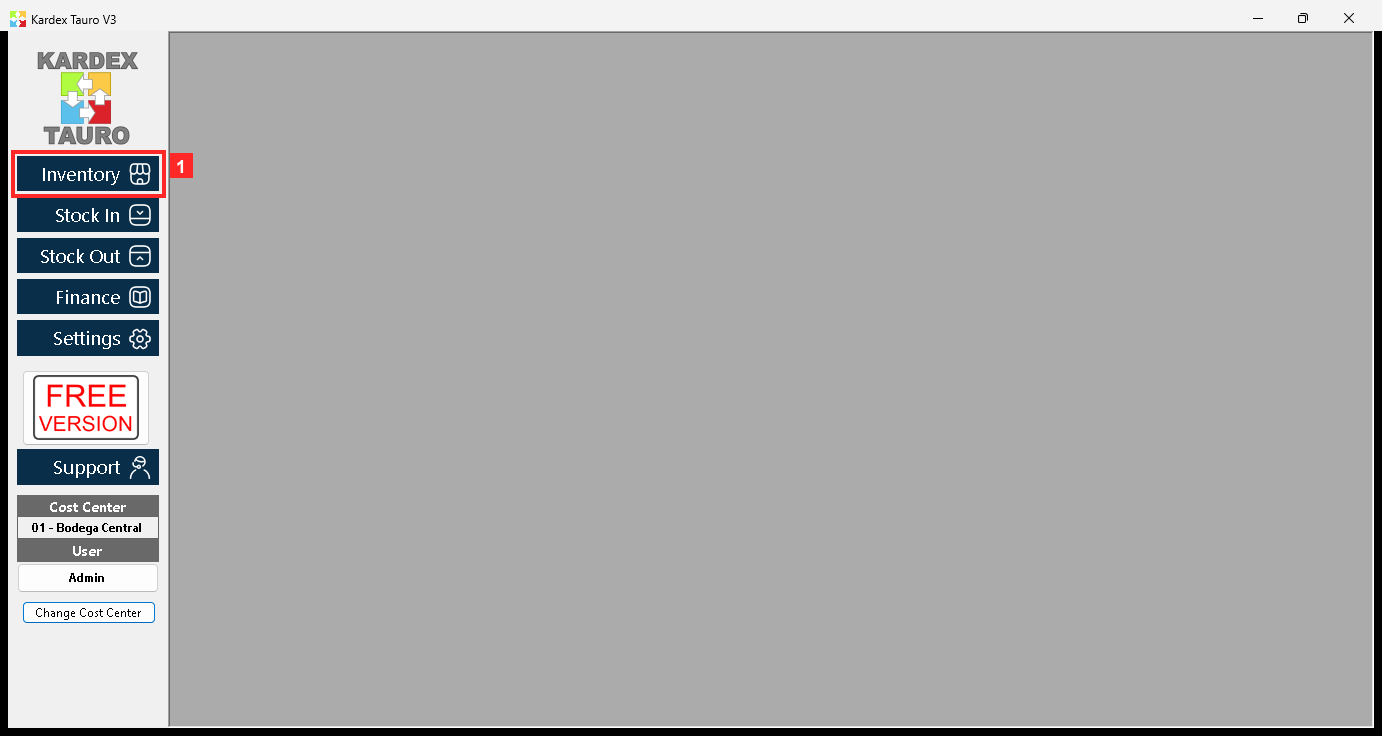
KardexTauro V3 opens in this window. The left sidebar groups the system modules and the central area is the working area. The lower part of the sidebar shows the active Cost Center (01 - Bodega Central), the logged-in User and the «Change Cost Center» button. Stock issues are always deducted from the active cost center.
In the image:
- 1) Button «Inventory»: opens the inventory module menu.
Texts on screen: «Inventory», «Stock In», «Stock Out», «Change Cost Center»
Action: Press «Inventory» to enter the inventory module.
Step 2 — The inventory module menu
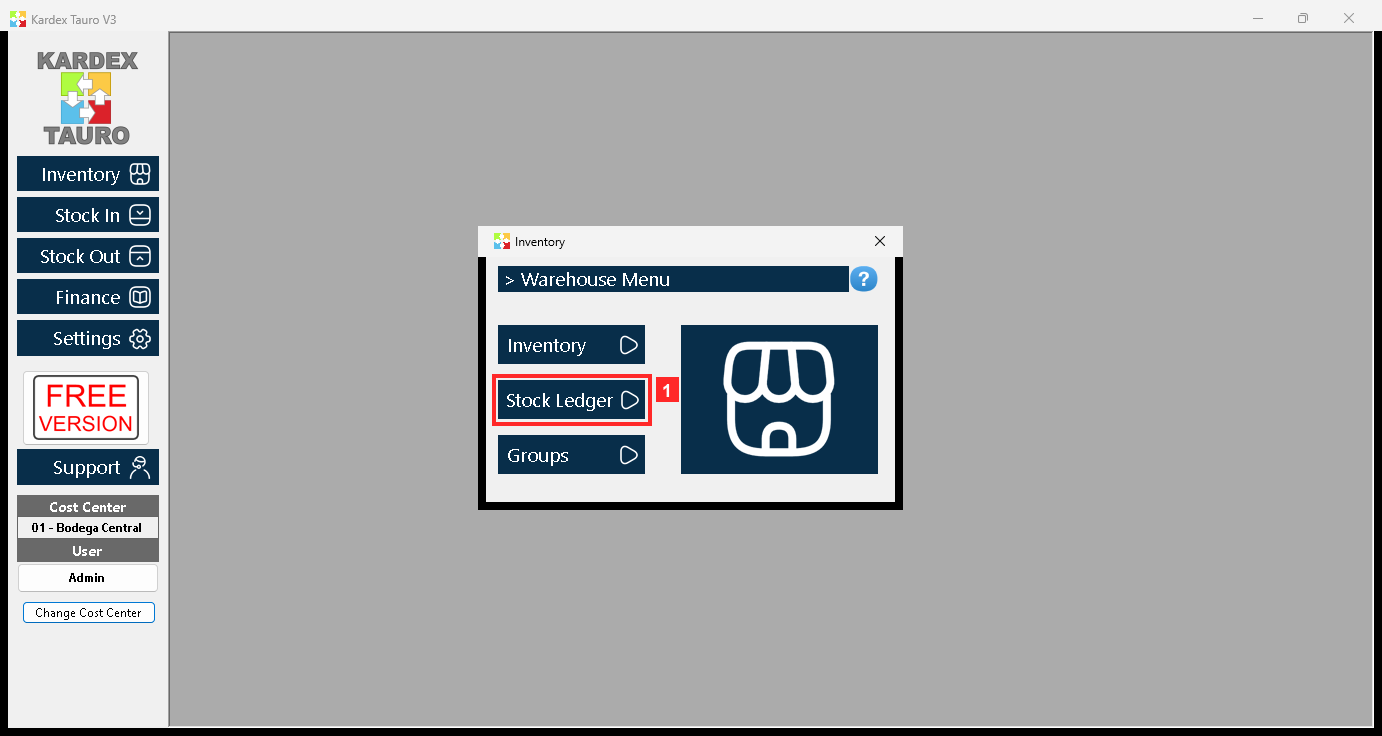
Pressing «Inventory» opens the module menu with «Inventory», «Stock Ledger» and «Groups». «Stock Ledger» is where the stock movements are checked and recorded: both the increases and the decreases of each product.
In the image:
- 1) Button «Stock Ledger»: opens the stock movements window.
Texts on screen: «Inventory», «Stock Ledger», «Groups»
Action: Press «Stock Ledger» to open the movements window.
Step 3 — The «Stock Ledger» window: find the product
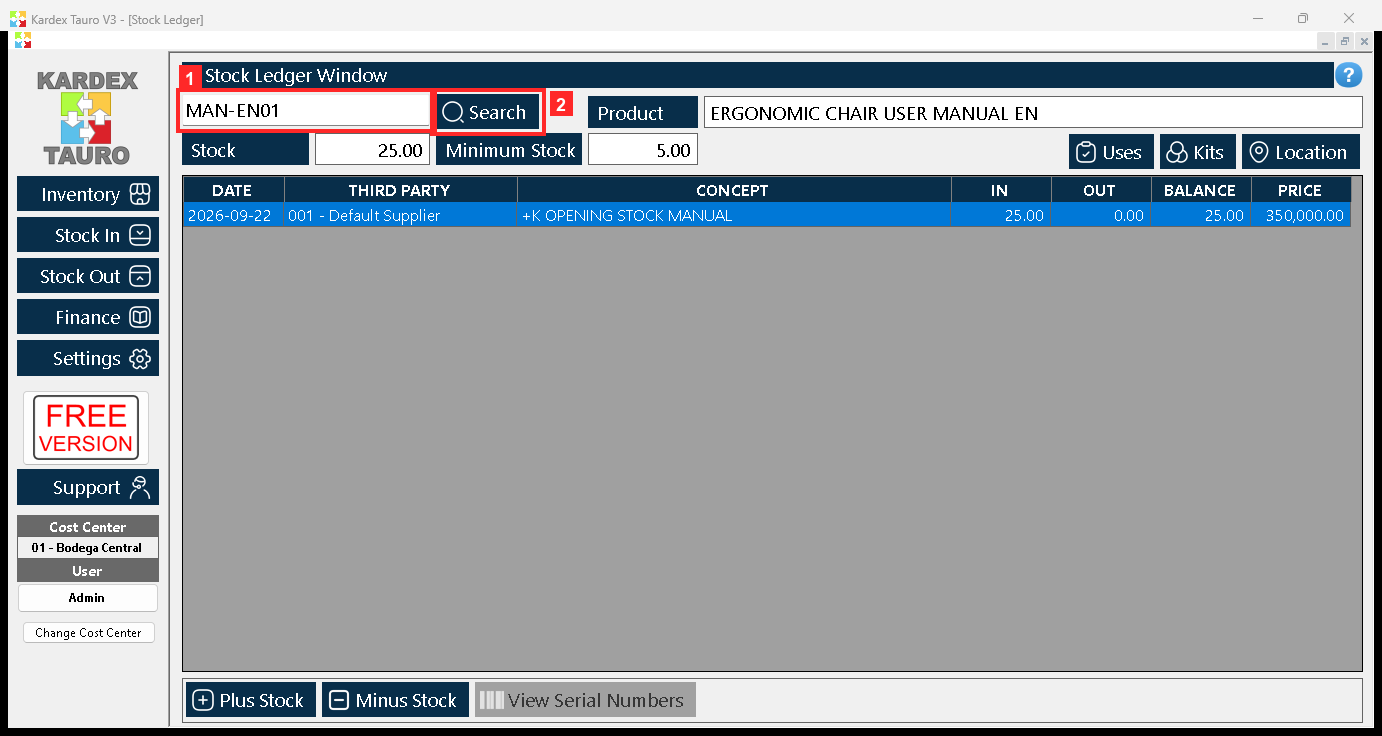
The «Stock Ledger» window opens inside the working area. At the top there is the search box: type the product code and press «Search». The program then shows «Stock» and «Minimum Stock» for the product in the active cost center, and its movements in the list.
In the image:
- 1) Search box: product code (or part of the name).
- 2) Button «Search»: searches the product and refreshes the list.
Texts on screen: «Search», «Uses», «Kits», «Location»
Action: Type the product code and press «Search».
Step 4 — The loaded product and the «Minus Stock» button
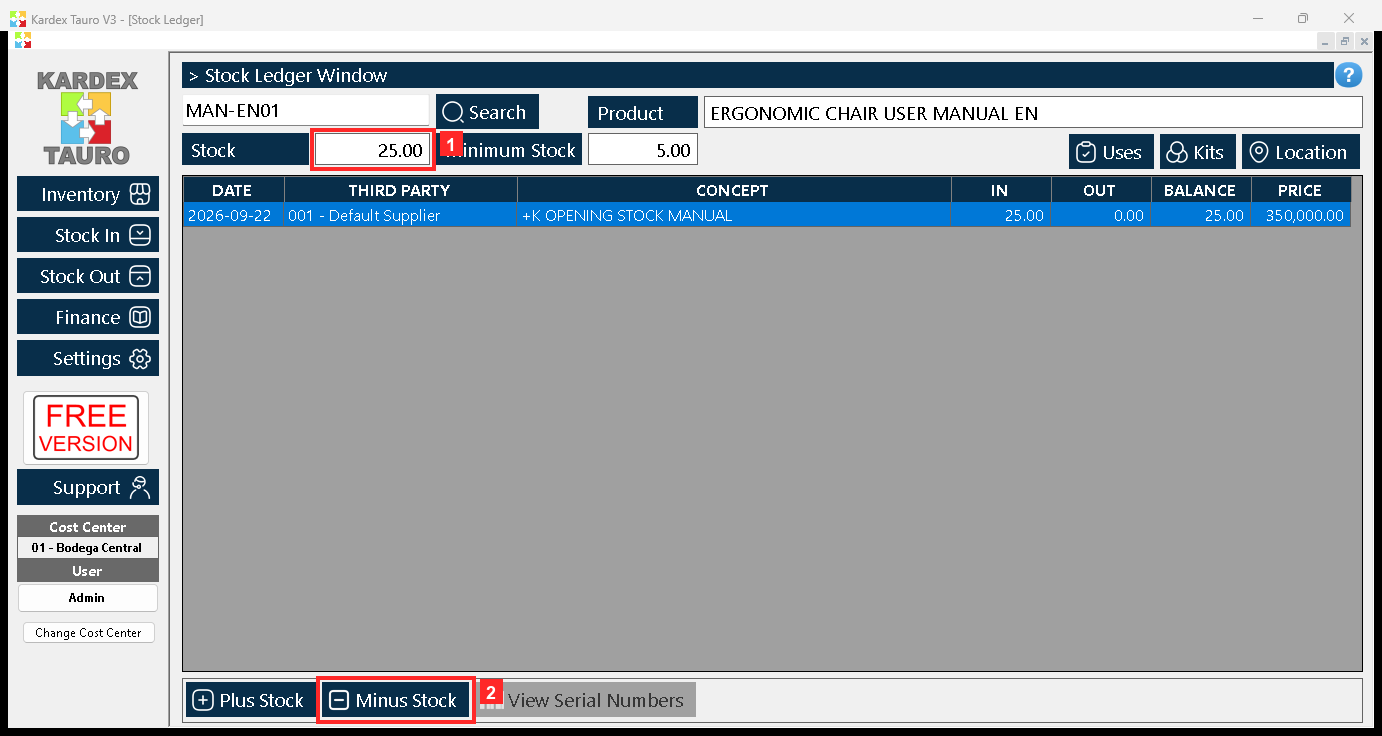
When you search for it, the program loads the product: next to the search box «Product» appears with its name, and below it «Stock» (25.00) together with its «Minimum Stock». The list shows the movements of the product. The buttons in the bottom bar act on the loaded product: «Plus Stock» records an increase and «Minus Stock» a decrease (the one used in this guide).
In the image:
- 1) «Stock» of product MAN-EN01: 25.00 before the issue.
- 2) Button «Minus Stock»: opens the form to remove stock.
Texts on screen: «Minus Stock», «Plus Stock», «View Serial Numbers»
Action: Press «Minus Stock» to record the issue.
Step 5 — The «Stock Ledger» form
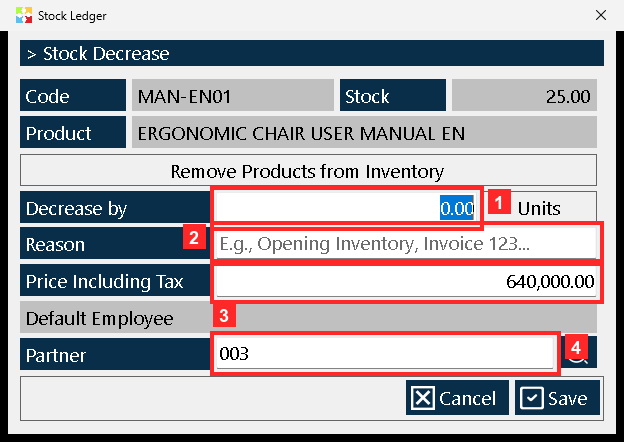
The «Stock Ledger» form opens, the same one used for the entries. At the top it confirms the «Code» (MAN-EN01), the «Product» and the current «Stock». Below, «Remove Products from Inventory» groups the fields of the issue: «Decrease by» (how many units are removed), «Reason» (the reason for the movement; mandatory, at least 6 characters) and «Price Including Tax» (unit price of the product including tax). The «Partner» is optional.
In the image:
- 1) «Decrease by»: units being removed, in «Units».
- 2) «Reason»: reason for the issue (at least 6 characters).
- 3) «Price Including Tax»: unit price of the product including tax.
- 4) «Partner»: who takes the goods (optional).
Texts on screen: «Remove Products from Inventory», «Cancel», «Save»
Action: Fill in the fields and press «Save».
Step 6 — The issue data
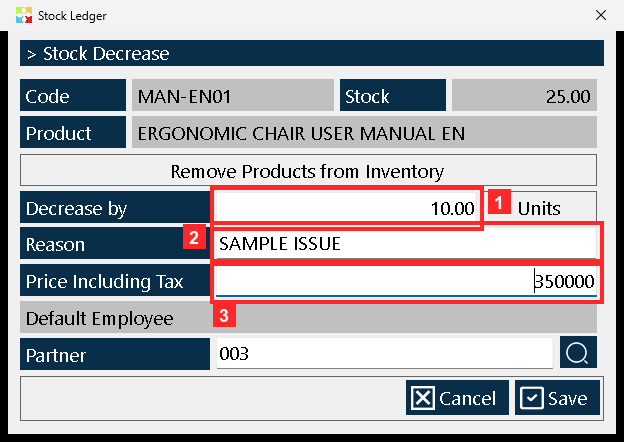
This is how the form looks with the example data: «Decrease by» = 10 units, «Reason» = SAMPLE ISSUE and «Price Including Tax» = 350000 (unit price including tax). The program does NOT allow removing more units than the stock on hand: if a larger quantity is requested it warns («Insufficient Inventory») and saves nothing.
In the image:
- 1) «Decrease by» = 10
- 2) «Reason» = SAMPLE ISSUE
- 3) «Price Including Tax» = 350000
Action: Check the data and press «Save» to save.
Step 7 — Saving the issue
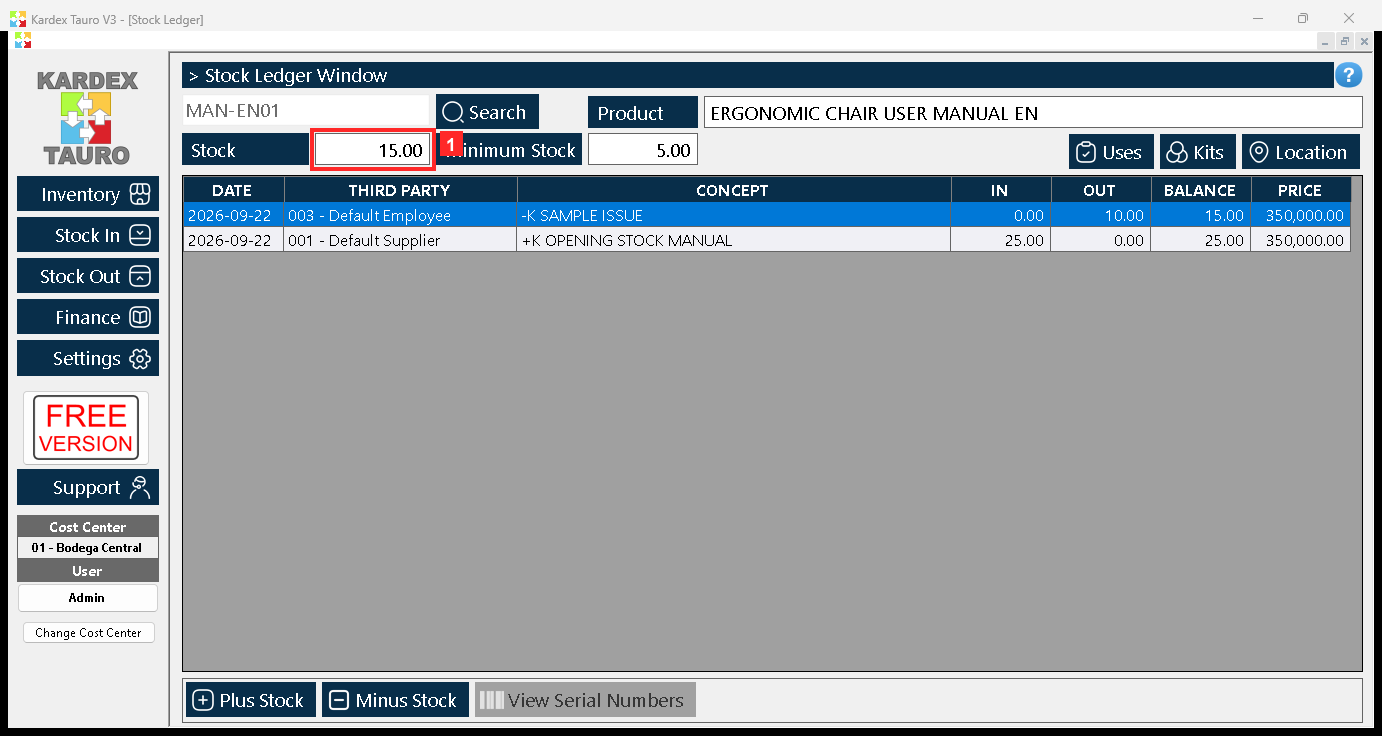
Pressing «Save» stores the movement: the «Stock» of the product in cost center 01 - Bodega Central go from 25.00 to 15.00 and the issue is recorded with its «Reason».
In the image:
- 1) Product «Stock» already updated: 15.00.
Action: The issue is now recorded in the stock and in the movements history.
Step 8 — Checking the issue in the «Stock Ledger» window
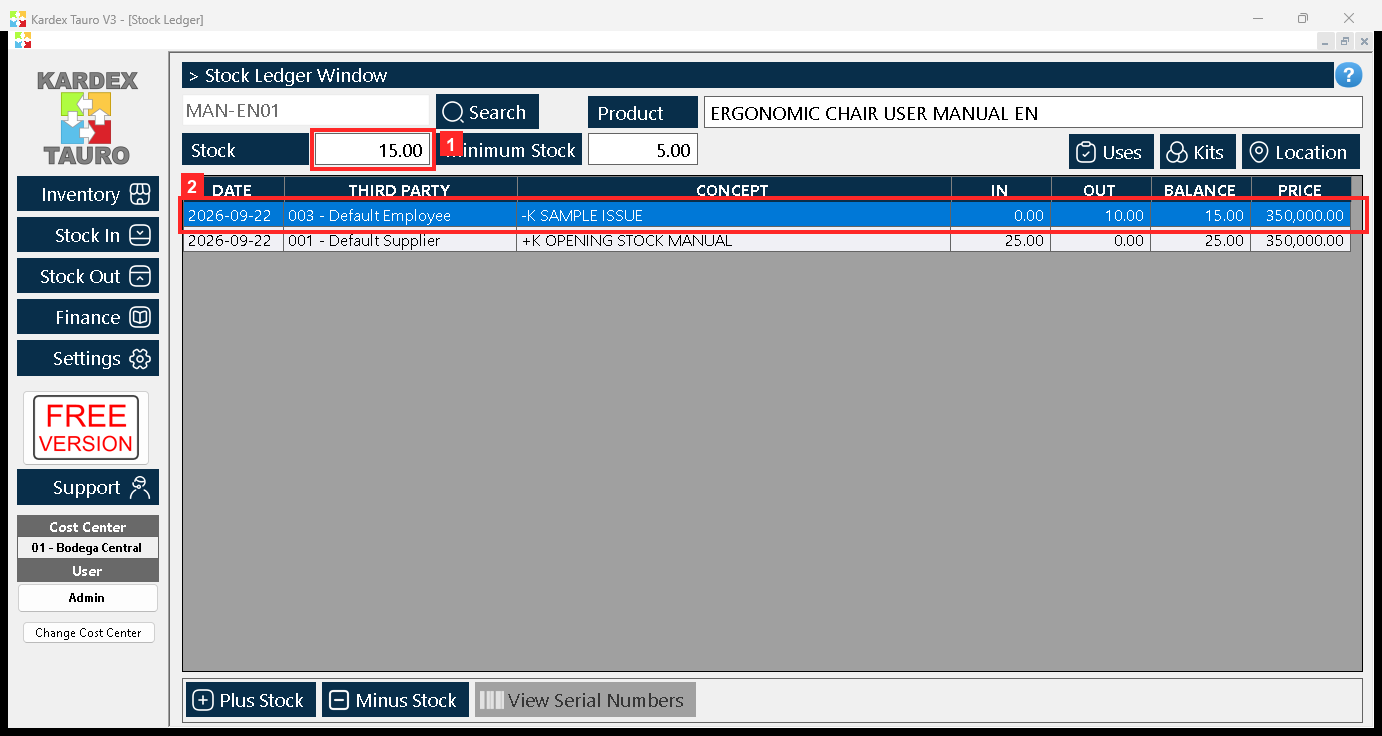
Back in the «Stock Ledger» window, press «Search» again to refresh: «Stock» now shows 15.00 and the movement of the issue appears in the list with the reason SAMPLE ISSUE.
In the image:
- 1) «Stock» updated: 15.00.
- 2) Issue movement: SAMPLE ISSUE (−10 units).
Texts on screen: «Search»
Action: Repeat the process for other products, or with other reasons to tell each movement apart.
Result
«Stock» for the item dropped from 25.00 to 15.00 in cost center 01 - Bodega Central and the issue was recorded under the reason SAMPLE ISSUE. The result was verified by reading the program database: the entry reads 01 · -K SAMPLE ISSUE · 003 - Default Employee · sale=10.0 · saldo=15.0.
Best practices
- Write reasons that name the real cause: workshop consumption, goods handed to a customer, a loan to another area. The reason is what later lets you tell one movement from another in the list.
- Look the item up and read «Stock» and «Minimum Stock» in the active cost center before you remove anything: withdrawing blind is the most common way to run a balance down to zero without noticing.
- Record the issue on the day it happens. The system count is only worth something while it matches what is on the shelf.
- Close the loop with a fresh search after saving: that is how you confirm the balance dropped and the movement landed in the history.
Frequently asked questions
Can I withdraw more units than the stock on hand?
No. If the quantity is larger than the available stock, the program warns «Insufficient Inventory» and saves nothing, so the balance never goes below zero this way.
Is the «Reason» mandatory?
Yes. It is required and needs at least 6 characters; it is the field that identifies the movement in the history.
Do I have to fill in «Partner»?
No. «Partner», which shows who takes the goods, is optional and the movement is saved without it.
This article is part of the Kardex Tauro V3 User Manual, which gathers every process in the system, explained step by step.