

How to Record a Consignment, Step by Step
How to Record a Consignment, Step by Step
Consigned goods are not sold yet: they leave the warehouse for a third party who holds them in deposit and offers them to customers. They are still yours, but they are no longer on your shelves, and that gap is what breaks the inventory when nobody records it: the system would keep counting units it cannot dispatch, and the physical count would end up matching a false balance. Recording the shipment as the goods are handed over keeps the stock ledger balance equal to what is really on the racks.
This guide walks through the whole registration in Kardex Tauro V3, from the main window to the print view, with one screenshot per screen and the meaning of every numbered red box. The example delivers 2 units of MAN-EN01 — ERGONOMIC CHAIR USER MANUAL EN — to consignee 100 — DISTRIBUIDORA HERMES SAS in cost center 01 - Bodega Central, and ends with document 01-CNG-6 closed and ready to print.
Before you start
- Permission to post stock-out documents (consignments) in the «Stock Out» module.
- The right cost center active: it is shown at the top and is changed with «Change Cost Center» (this example uses 01 - Bodega Central).
- The consignee code (100 — DISTRIBUIDORA HERMES SAS) and the code of the person who delivers the goods (003).
- The product available in that cost center with its sale price already set: the example takes 2 units of MAN-EN01 and the document values them at the sale price, not at cost.
Step by step
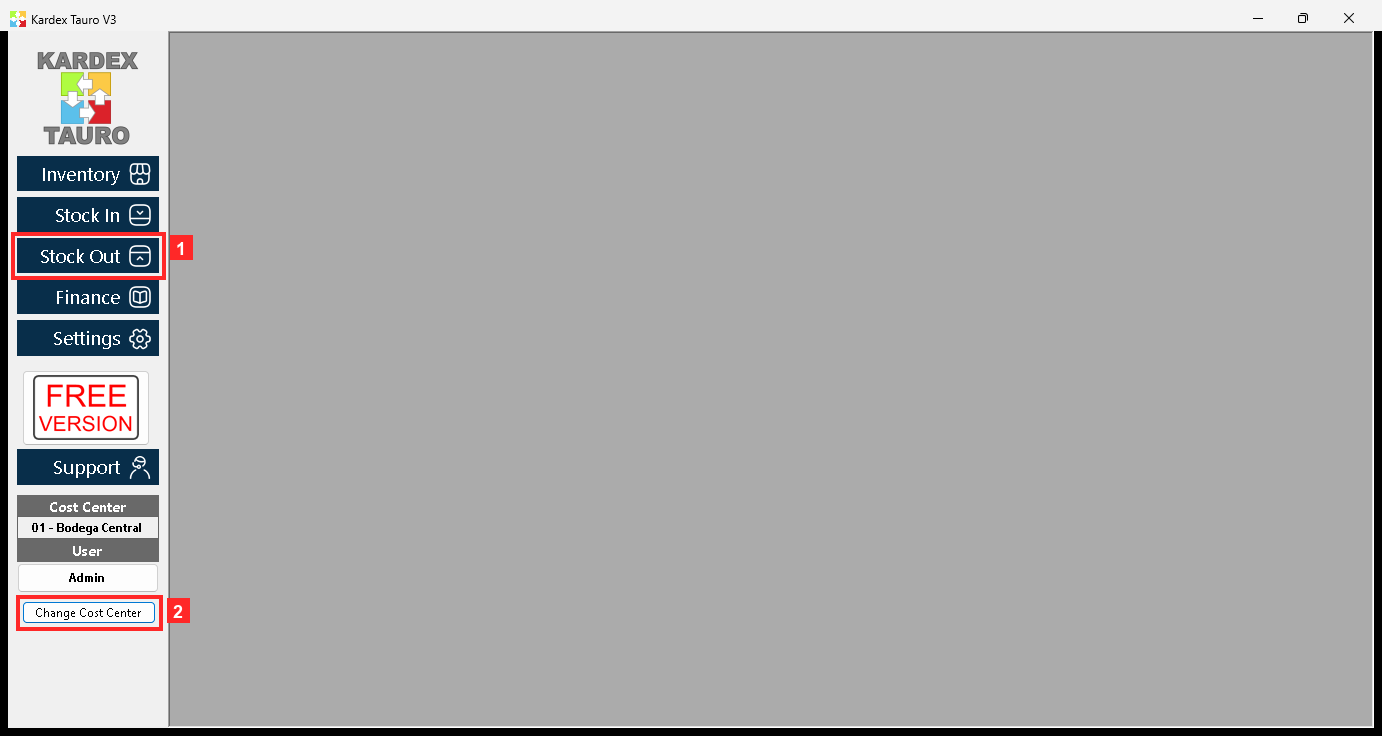
Step 1 — The main window
KardexTauro V3 opens in this window. The modules are on the left and the active cost center is at the top («Change Cost Center» changes it). This consignment is registered in cost center 01 - Bodega Central.
In the image:
- 1) Button «Stock Out»: stock-out module (sales, consumptions, shrinkage).
- 2) «Change Cost Center»: active cost center (01 - Bodega Central).
Texts on screen: «Stock Out», «Inventory», «Stock In», «Finance», «Change Cost Center»
Action: The side buttons open each module; these steps are done in «Stock Out».
Step 2 — The stock-out menu
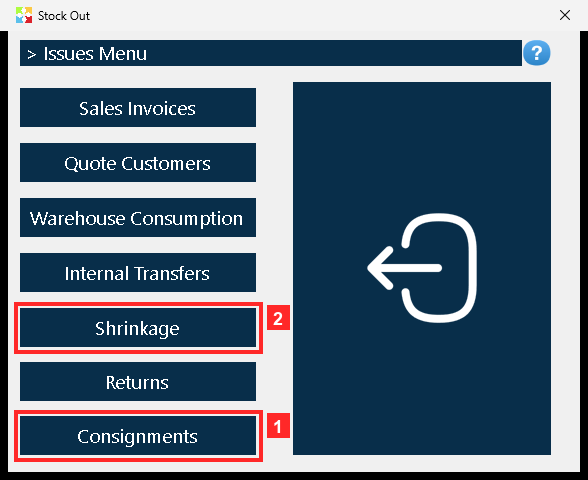
Pressing «Stock Out» opens the menu of stock-out operations. «Consignments» is the loans and consignments option: it delivers goods to a consignee (who keeps them in deposit to sell them) without invoicing them yet.
In the image:
- 1) Button «Consignments»: opens loans and consignments.
- 2) «Shrinkage»: shrinkage (another document).
Texts on screen: «Consignments», «Shrinkage», «Warehouse Consumption», «Sales Invoices»
Action: Press «Consignments» to open the consignment list.
Step 3 — The loans and consignments list
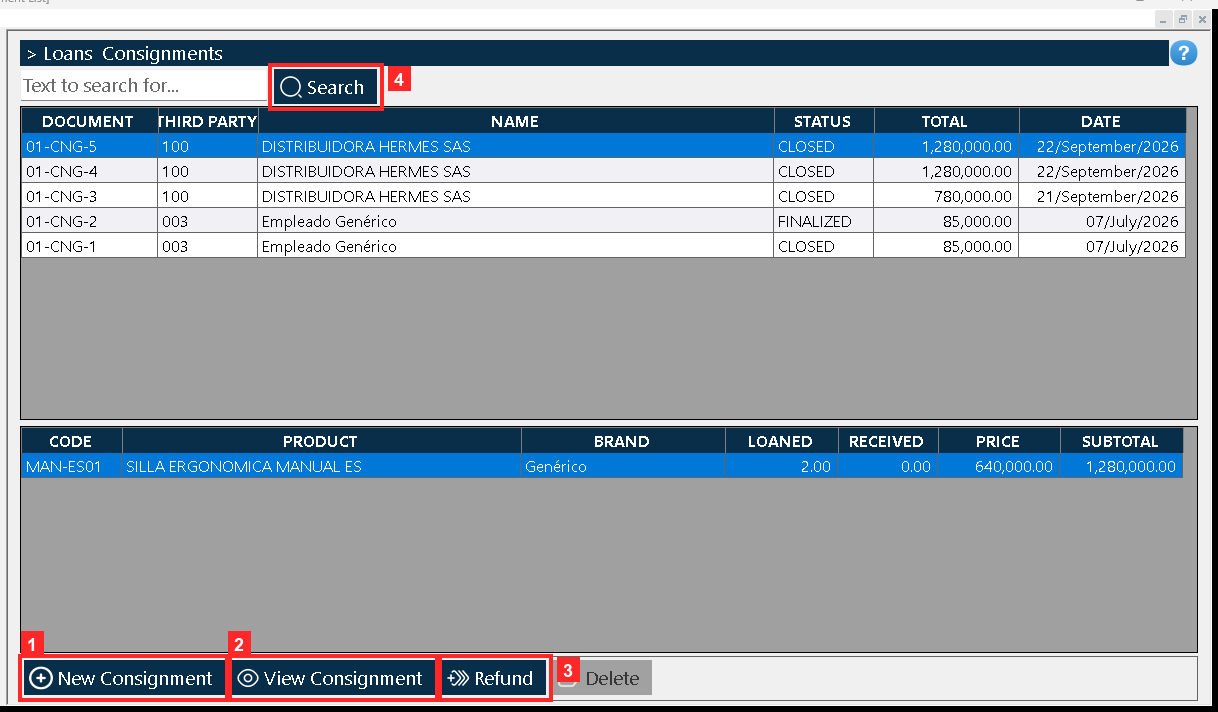
«Document List» opens. The master grid on top lists every document with its reference, the consignee, the STATUS (CLOSED) and the total (01-CNG-5 | 100 | DISTRIBUIDORA HERMES SAS | CLOSED | 1,280,000.00 | 22/September/2026); below, the detail grid shows the lines of the selected document. Besides the usual buttons this list has one of its own: «Refund», used to return to stock what was consigned but not sold. The detail grid shows what was lent and what has already been received (columns PRESTADAS and RECIBIDAS).
In the image:
- 1) Button «New Consignment»: opens a blank consignment.
- 2) «View Consignment»: opens the selected document.
- 3) «Refund»: returns consigned goods to stock.
- 4) «Search»: refreshes the list.
Texts on screen: «New Consignment», «View Consignment», «Refund», «Delete», «Search»
Action: Press «New Consignment» to register a new consignment.
Step 4 — The document: the consignee and who delivers
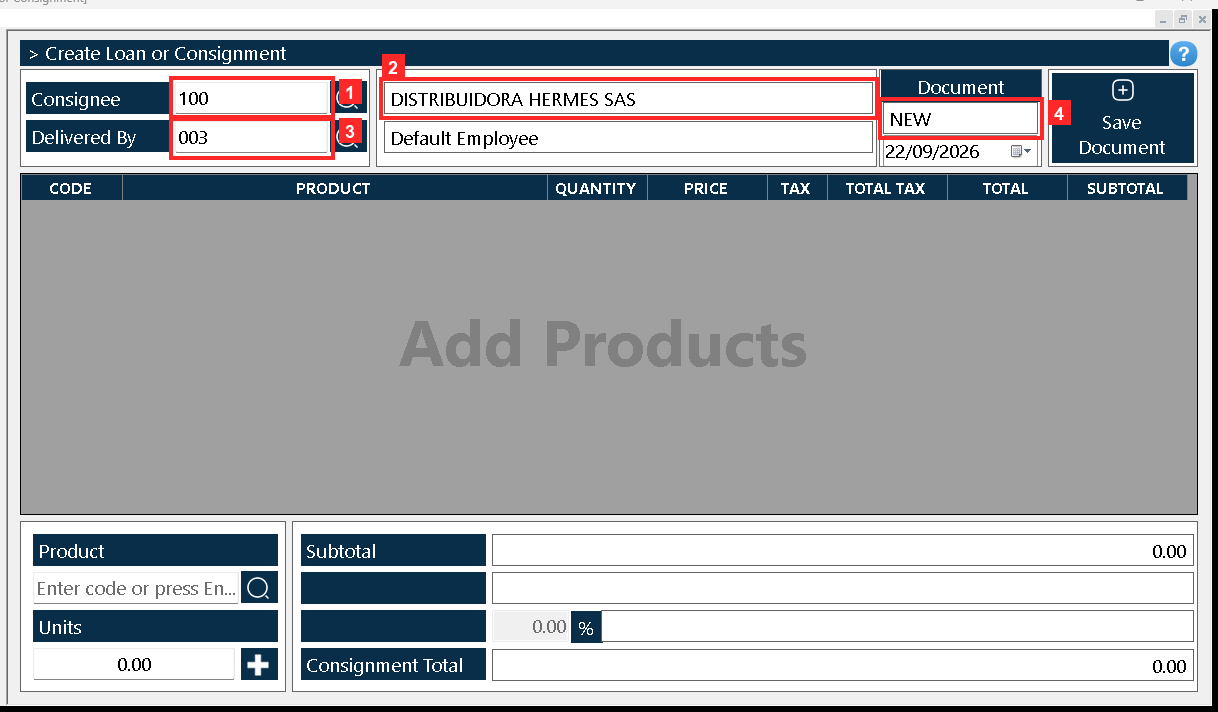
The document «Loan or Consignment» opens. In the header, «Consignee» is who receives the goods on consignment (100 — DISTRIBUIDORA HERMES SAS) and «Delivered By» who delivers them from the warehouse. «Document» shows the number («NEW»: it is assigned when saving) and the date is on the right (22/09/2026).
In the image:
- 1) «Consignee»: consignee code (100).
- 2) Name (DISTRIBUIDORA HERMES SAS).
- 3) «Delivered By»: delivered by (003).
- 4) «Document»: consignment number (NEW).
Texts on screen: «Consignee», «Delivered By», «Document», «Consignee»
Action: Type the consignee code in «Consignee» (or look it up with the magnifier).
Step 5 — The document: the product and the units
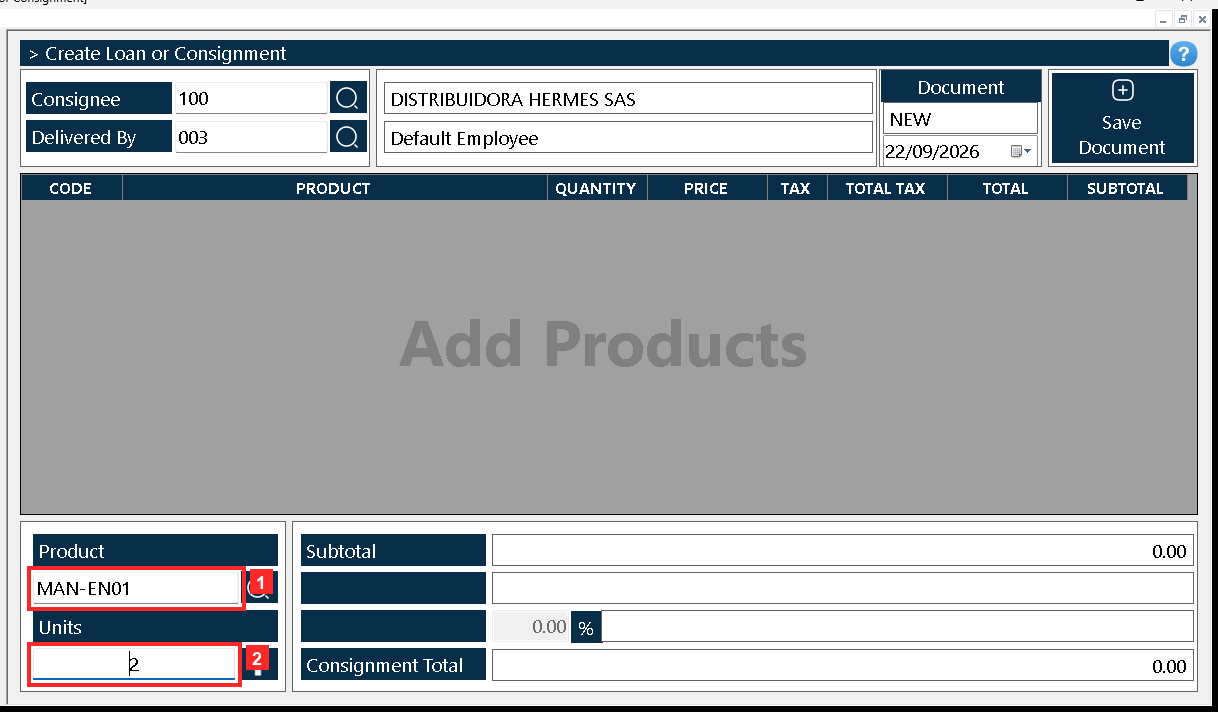
The body of the document holds what leaves on consignment: «Product» is the product code and «Units» the quantity delivered. Next to them are the product search and the button that adds the line.
In the image:
- 1) «Product»: product code (MAN-EN01).
- 2) «Units»: consigned quantity (2).
Texts on screen: «Product», «Units»
Action: Type the product («MAN-EN01») and the units («2») and press the add button: the line enters the grid.
Step 6 — The line added and the total
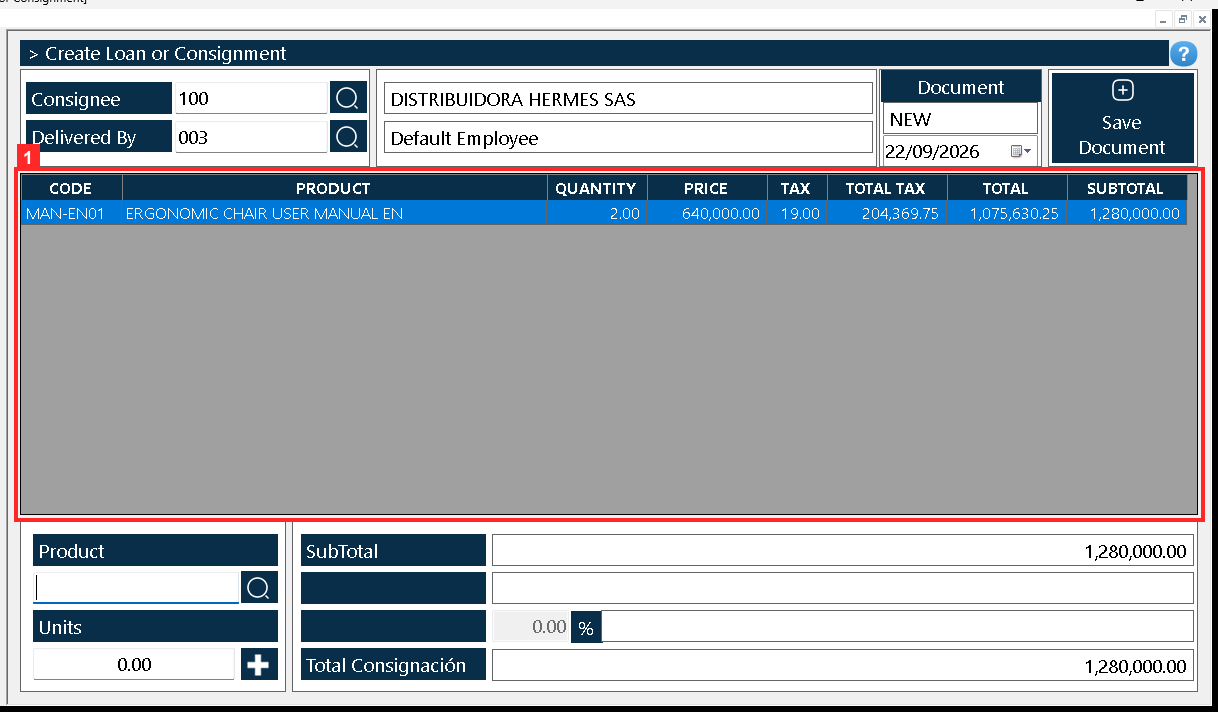
The grid shows the line with the product, the units, the value, the tax and the subtotal. Mind the value: the consignment takes the product SALE PRICE, not the cost. «Total Consignación» summarises the consignment: 1,280,000.00.
In the image:
- 1) Grid: the consigned line (MAN-EN01 | ERGONOMIC CHAIR USER MANUAL EN | 2.00 | 640,000.00 | 19.00 | 204,369.75 | 1,075,630.25 | 1,280,000.00).
Texts on screen: «SubTotal», «Total Consignación»
Action: Check the line and the total before saving.
Step 7 — Saving: the finish dialog
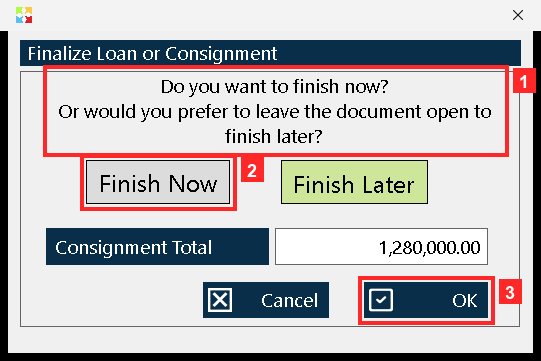
When you press «Save Document» the program asks to finish the consignment: it asks «Do you want to finish now? Or would you prefer to leave the document open to finish later?» and offers «Finish Now» (saves and closes it so it can be printed) or «Finish Later» (leaves it open to keep editing). «Consignment Total» is shown above: 1,280,000.00. This dialog does not ask for a payment method: a consignment is not charged, the goods leave the warehouse and stay registered.
In the image:
- 1) «Do you want to finish now? Or would you prefer to leave the document open to finish later?»
- 2) Option «Finish Now».
- 3) Button «OK»: applies the chosen option and saves.
Texts on screen: «OK», «Finish Now», «Finish Later», «Cancel», «Consignment Total»
Action: Choose «Finish Now» and press «OK»: without «OK» the consignment is not saved.
Step 8 — The saved consignment, ready to print
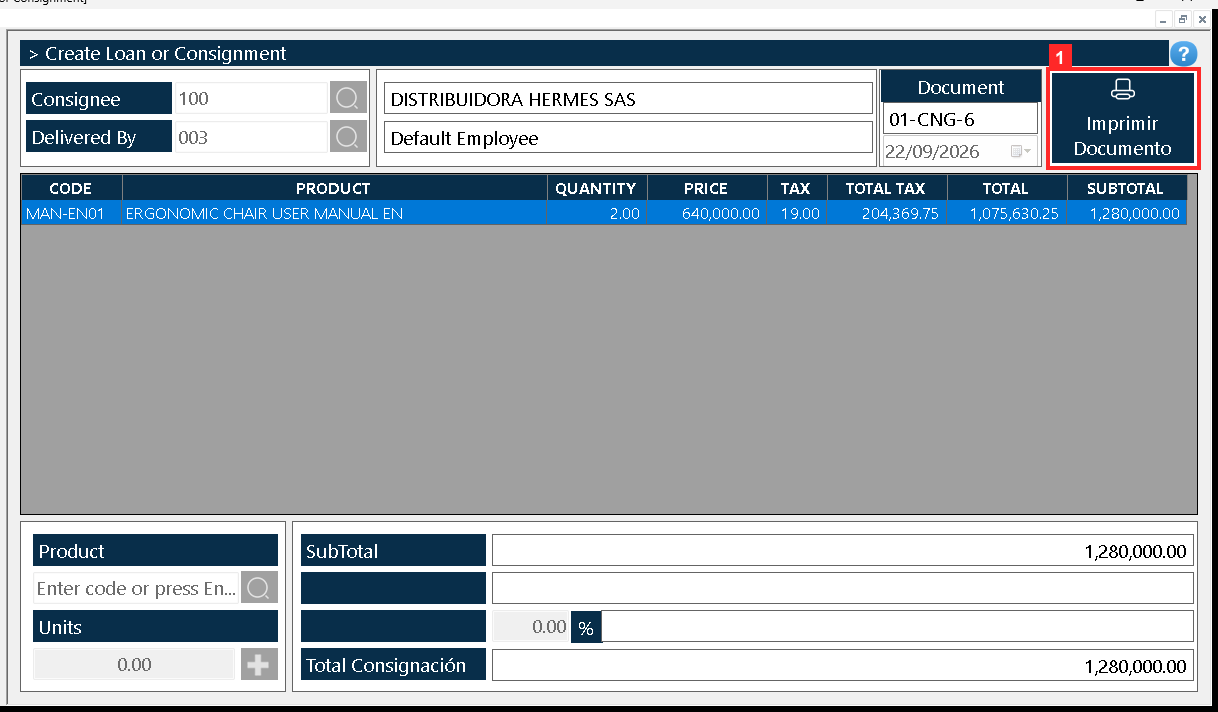
The program reports «Document processed successfully»: the consignment was registered as «01-CNG-6» and the stock of MAN-EN01 went down from 22.0 to 20.0; the stock ledger posted «-CONSIGNMENT 01-CNG-6 · entra=0.0 · sale=2.0 · saldo=20.0». The document is still open, now in read-only mode, and its save button is labelled «Imprimir Documento».
In the image:
- 1) Button «Imprimir Documento»: opens the print view of the consignment.
Texts on screen: «Imprimir Documento»
Action: Press «Imprimir Documento» to open the print view.
Step 9 — The print view
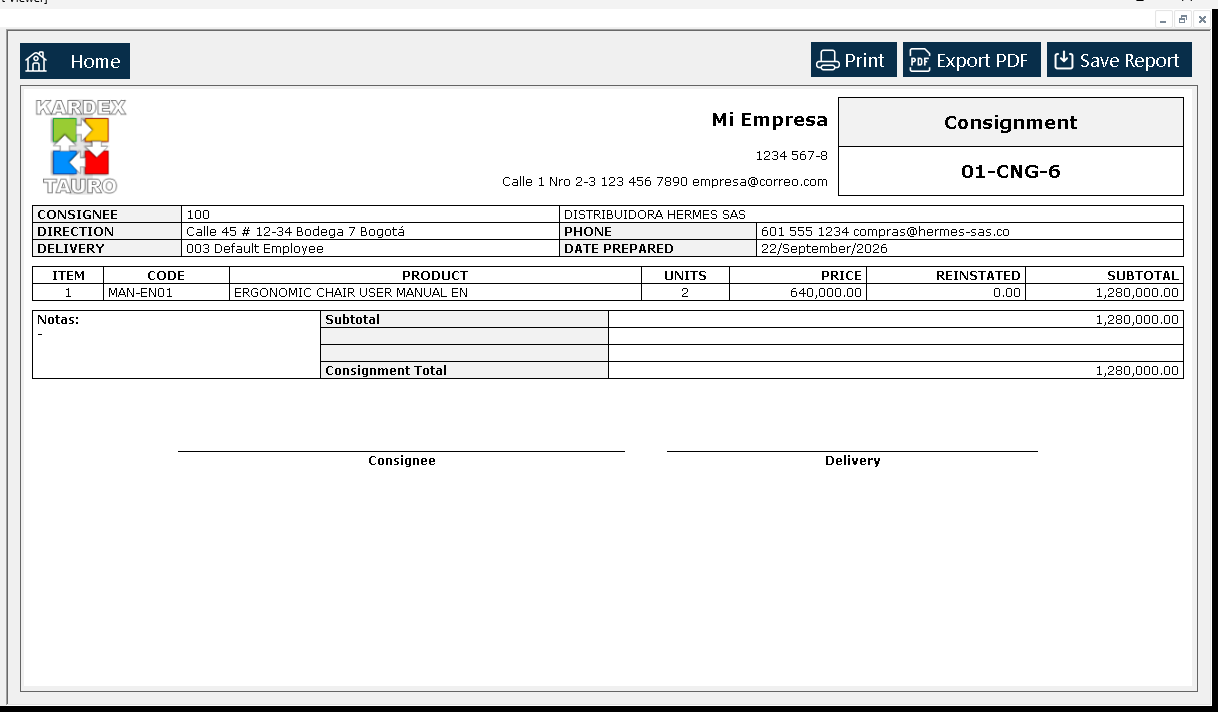
The «Report Viewer» opens with the consignment exactly as it would be printed: header, the consignee, the delivered line and the totals. Its top bar offers «Print, Export PDF, Save Report».
Action: Check the document and use those buttons if you want to print it, export it to PDF or save the report.
Result
The program reports «Document processed successfully» and the consignment is registered under its own number (01-CNG-6, status CLOSED, total 1,280,000.00). The result was verified by reading the program database: the stock of MAN-EN01 went down from 22.0 to 20.0 and the stock ledger posted «-CONSIGNMENT 01-CNG-6 · entra=0.0 · sale=2.0 · saldo=20.0».
Best practices
- Check the active cost center before you open the document: the consignment number and the stock movement stay bound to that cost center.
- Read the line and the total before saving: a consignment is valued at the sale price and not at cost, and without pressing «OK» the document is not saved.
- Choose «Finish Now» once the lines are checked: that is what closes the document and enables «Imprimir Documento»; use «Finish Later» only if you still have editing to do.
- Press «Refund» as soon as the consignee confirms the goods were not sold: it returns loaned goods to stock and stops the units from sitting deducted indefinitely.
Frequently asked questions
Does registering a consignment charge the consignee anything?
No. The saving dialog does not ask for a payment method: a consignment is not charged, the goods leave the warehouse and stay registered. The sale to the end customer is invoiced separately.
Why does my stock go down if the goods are still mine?
Because they are no longer in your warehouse. In the example the stock of MAN-EN01 went from 22.0 to 20.0 and the stock ledger posted «-CONSIGNMENT 01-CNG-6 · entra=0.0 · sale=2.0 · saldo=20.0».
What value do the goods go out with?
The product sale price, not the cost: the line in the example shows 2.00 units at 640,000.00 and a «Consignment Total» of 1,280,000.00.
This article is part of the Kardex Tauro V3 User Manual, which gathers every process in the system, explained step by step.