

How to Create a Sales Invoice, Step by Step
How to Create a Sales Invoice, Step by Step
A sales invoice is the only stock-out document that touches two ledgers at once: it discounts the stock of the cost center and, when the customer does not pay everything in cash, it opens an account receivable in their name. That is why an invoice closed carelessly leaves the inventory short and the receivables long at the same time, and fixing it later means going back into two modules. None of this depends on the price or the layout, only on when and how the document is closed.
This guide follows the whole sale on the application, with one screenshot per screen and the meaning of every numbered red box, and ends at the print preview. The example sells 2 units of MAN-EN01 (ERGONOMIC CHAIR USER MANUAL EN) to customer 100 — DISTRIBUIDORA HERMES SAS on credit for 1,280,000.00: the same ten steps work for a counter sale or for a wholesale shipment.
Before you start
- Access to the «Stock Out» module and, inside it, to «Sales Invoices».
- The right active cost center: it is changed with «Change Cost Center» and the stock discount is taken from it.
- The customer registered with their code: in the example, 100 — DISTRIBUIDORA HERMES SAS.
- The product on file with units available in that cost center: in the example, MAN-EN01 with 25 units.
Step by step
Step 1 — The main window
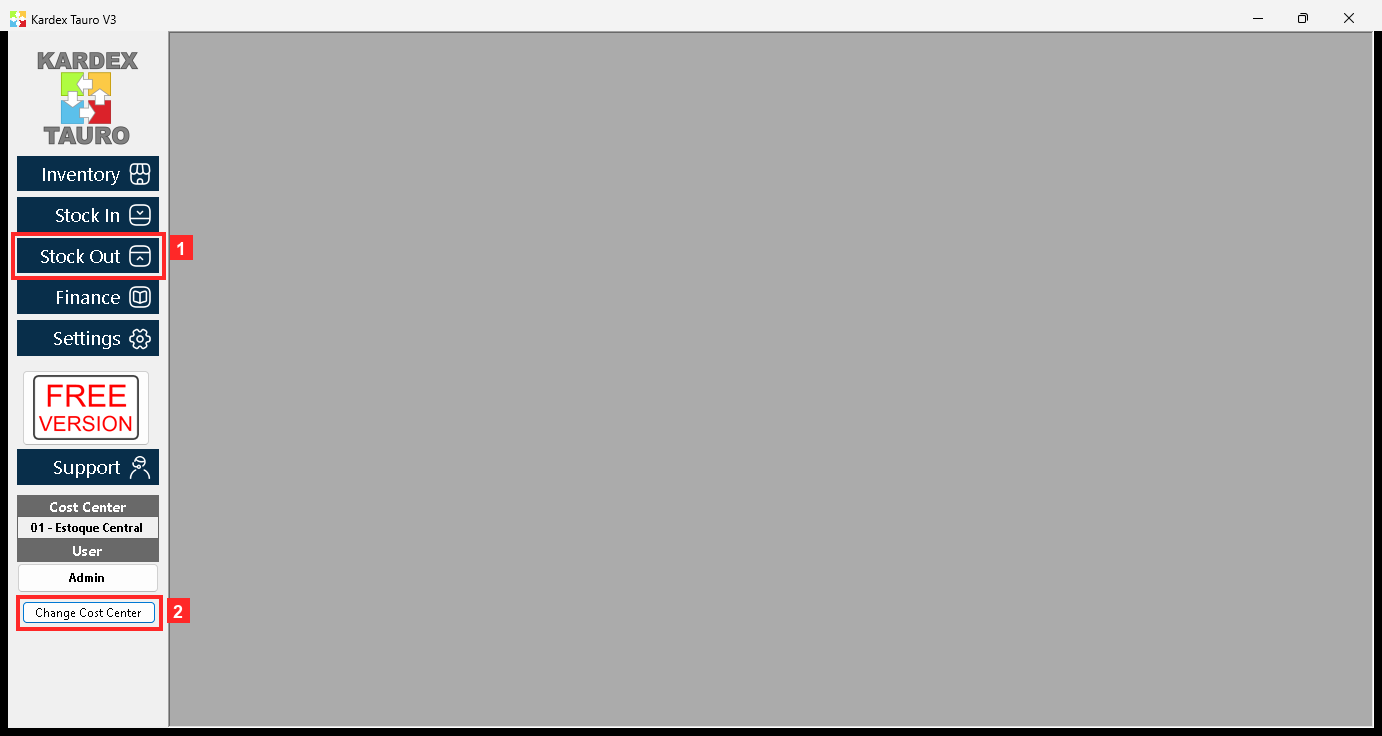
KardexTauro V3 opens in this window. The modules are on the left and the active cost center is at the top («Change Cost Center» changes it). This sale is made in cost center 01 - Estoque Central.
In the image:
- 1) Button «Stock Out»: stock-out module (sales, consumption, write-offs).
- 2) «Change Cost Center»: active cost center (01 - Estoque Central).
Texts on screen: «Stock Out», «Inventory», «Stock In», «Finance», «Change Cost Center»
Action: The side buttons open each module; these steps are done in «Stock Out».
Step 2 — The stock-out menu
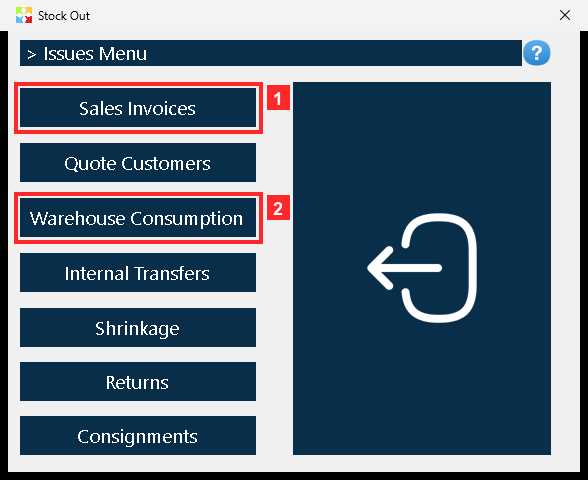
Pressing «Stock Out» opens the menu of stock-out operations. «Sales Invoices» is the sales invoice option; the others are different stock-out documents.
In the image:
- 1) Button «Sales Invoices»: opens the sales invoices.
- 2) «Warehouse Consumption»: warehouse consumption (another document).
Texts on screen: «Sales Invoices», «Quote Customers», «Warehouse Consumption», «Internal Transfers», «Shrinkage»
Action: Press «Sales Invoices» to open the sales invoice list.
Step 3 — The sales invoice list
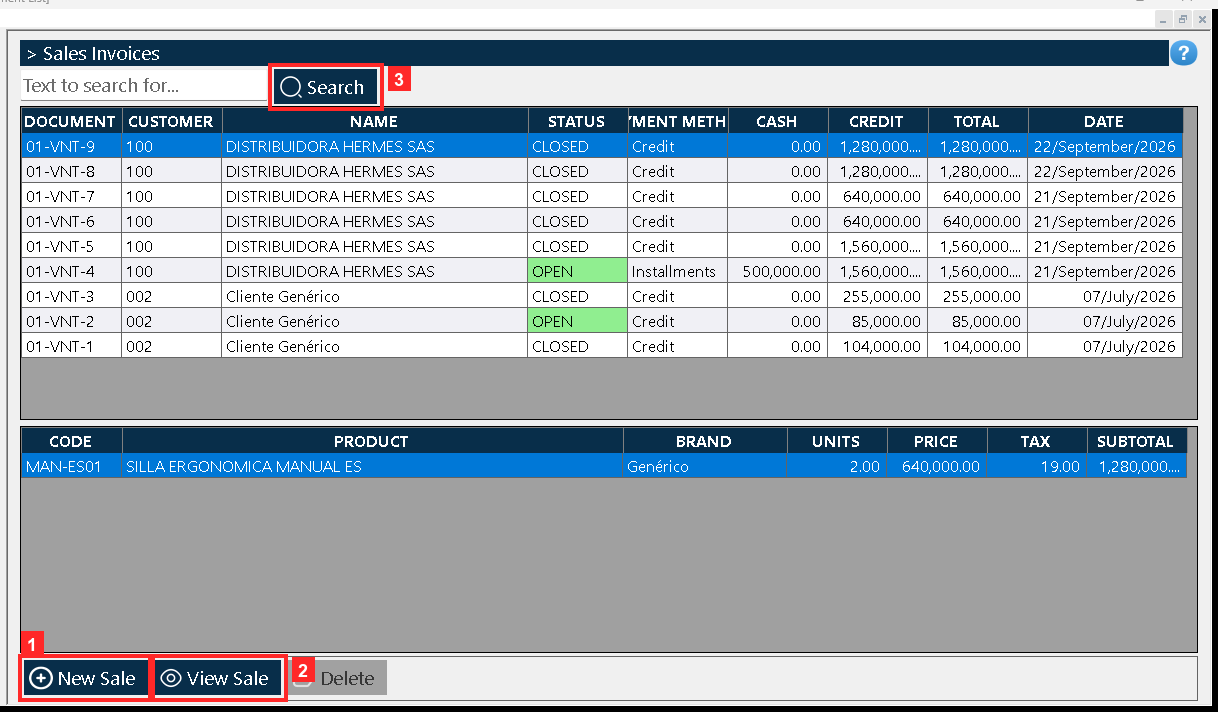
«Document List» opens: every row is a sale with its number, the customer, the status and the total. The search box is on top and the buttons act on the selected row.
In the image:
- 1) Button «New Sale»: opens a blank invoice.
- 2) «View Sale»: opens the selected sale.
- 3) «Search»: refreshes the list.
Texts on screen: «New Sale», «View Sale», «Delete», «Search»
Action: Press «New Sale» to create a new sale.
Step 4 — The document: the buyer and the seller
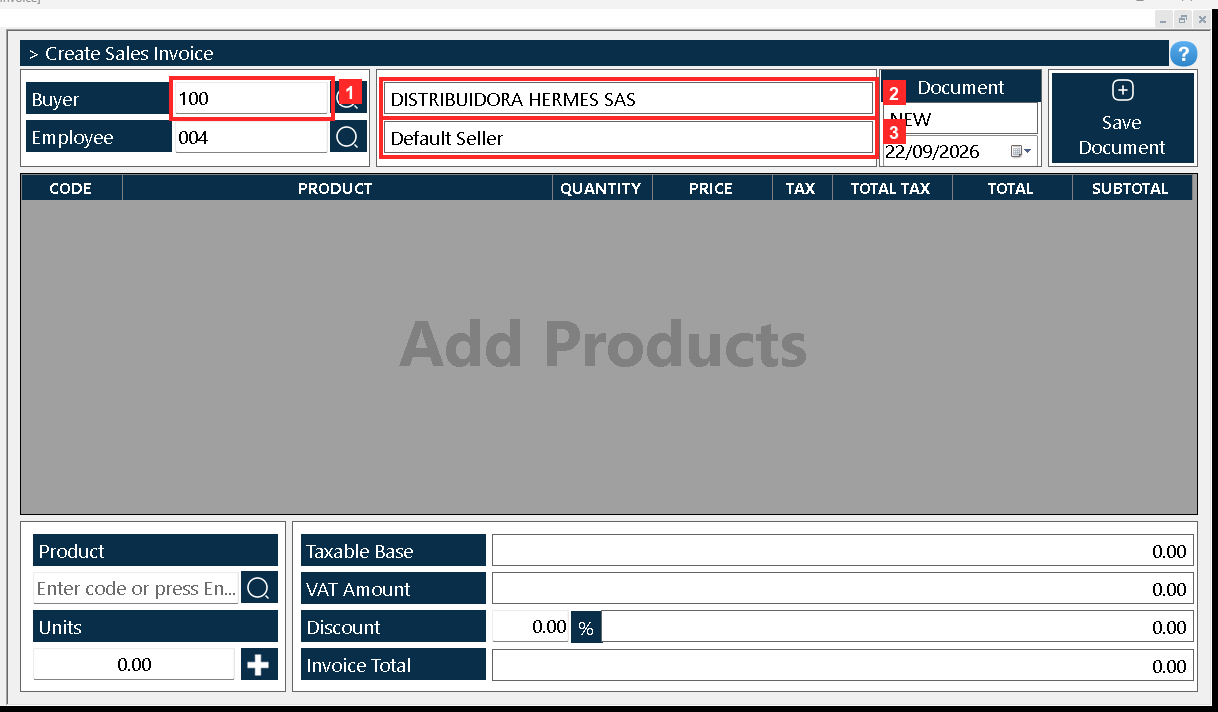
The document «Sales Invoice» opens. In the header, «Buyer» is the customer (100 — DISTRIBUIDORA HERMES SAS) and «Employee» the employee who sells (Default Seller). «Document» is the document number.
In the image:
- 1) «Buyer»: customer code (100).
- 2) Customer name (DISTRIBUIDORA HERMES SAS).
- 3) «Employee»: sold by (Default Seller).
Texts on screen: «Buyer», «Employee», «Document»
Action: Type the customer code in «Buyer» (or look it up with the magnifier button).
Step 5 — The document: the product and the units
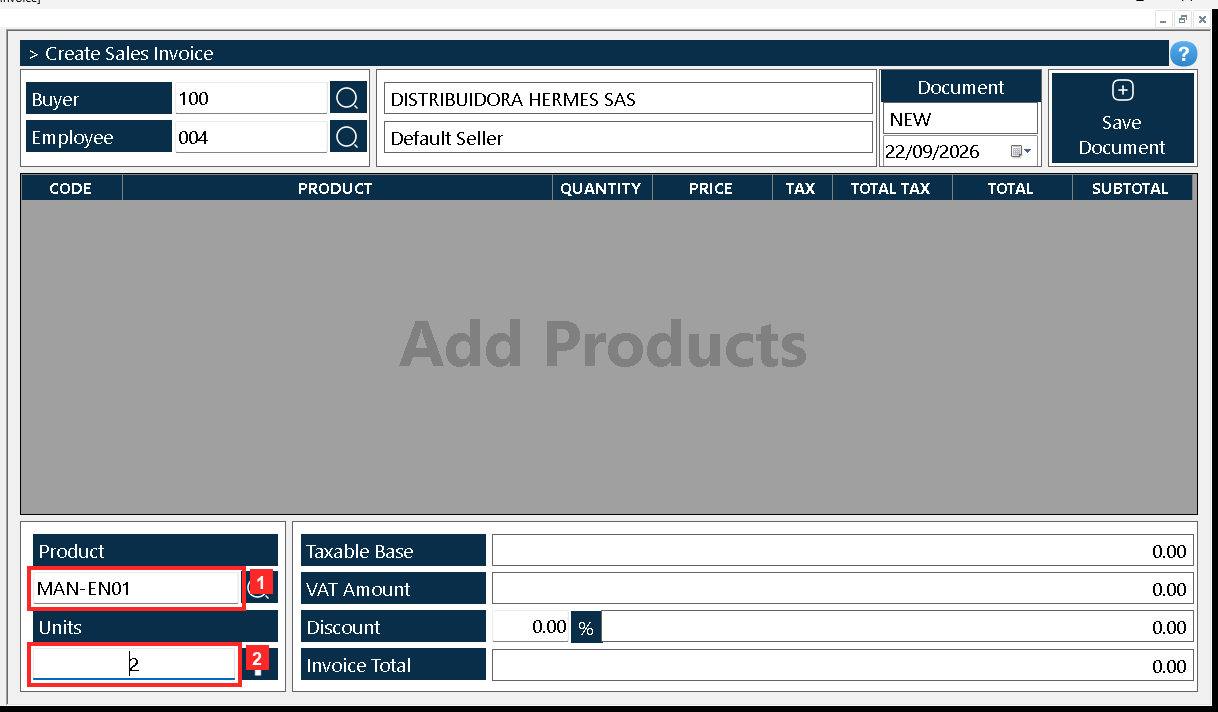
The body of the document holds the list of what is being sold: «Product» is the product code and «Units» the quantity sold. Next to them is the button that adds the line to the grid.
In the image:
- 1) «Product»: product code (MAN-EN01).
- 2) «Units»: quantity sold (2).
Texts on screen: «Product», «Units»
Action: Type the product («MAN-EN01») and the units («2») and press the add button: the line appears in the grid.
Step 6 — The line added to the grid
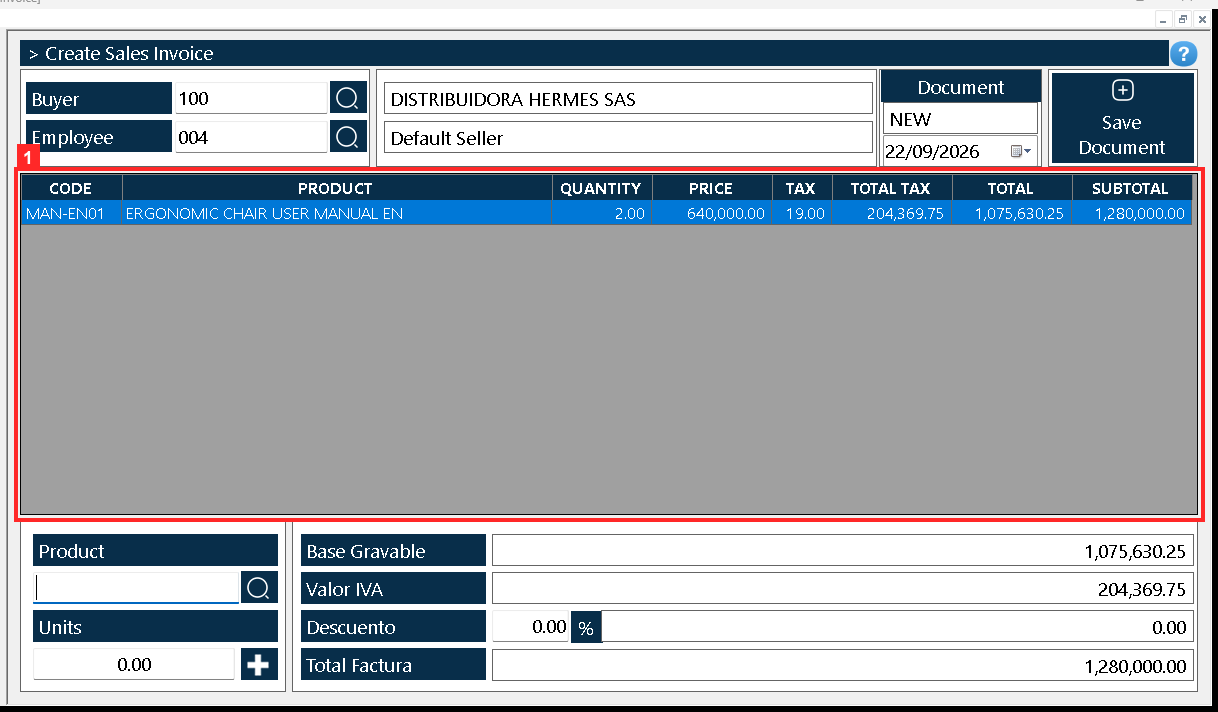
The grid shows the line with the product, the units, the unit price, the tax and the total. Below, «Base Gravable», «Valor IVA», «Descuento» and «Total Factura» (1,280,000.00) summarise the invoice.
In the image:
- 1) Grid: the sold line (MAN-EN01 | ERGONOMIC CHAIR USER MANUAL EN | 2.00 | 640,000.00 | 19.00 | 204,369.75 | 1,075,630.25 | 1,280,000.00).
Texts on screen: «Base Gravable», «Valor IVA», «Descuento», «Total Factura»
Action: Check the line and the total before saving the document.
Step 7 — Saving: «Finish Now» or «Finish Later»
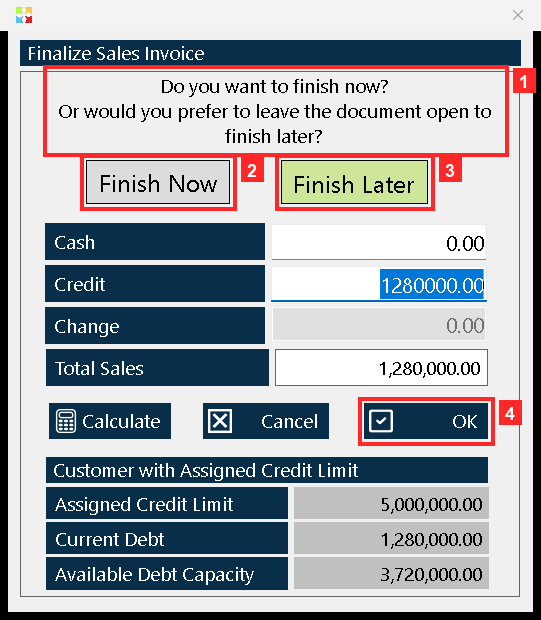
When you press «Save Document» the program asks «Do you want to finish now? Or would you prefer to leave the document open to finish later?». The difference between the two options is decisive: «Finish Now» charges and closes the sale right away (it discounts the stock, posts the movement in the ledger and, if the cash does not cover the total, leaves the rest as an account receivable of the customer), while «Finish Later» charges nothing and discounts nothing: it leaves the invoice OPEN to be finished later. On top you see «Total Sales» = 1,280,000.00.
In the image:
- 1) «Do you want to finish now? Or would you prefer to leave the document open to finish later?»
- 2) «Finish Now»: charges and closes the sale now.
- 3) «Finish Later»: leaves the invoice open, nothing charged.
- 4) Button «OK»: applies the chosen option and saves.
Texts on screen: «OK», «Finish Now», «Finish Later», «Cancel», «Total Sales»
Action: Choose «Finish Now» and press «OK»: without «OK» the sale is not saved.
Step 8 — The payment: «Cash», «Credit» and «Change»
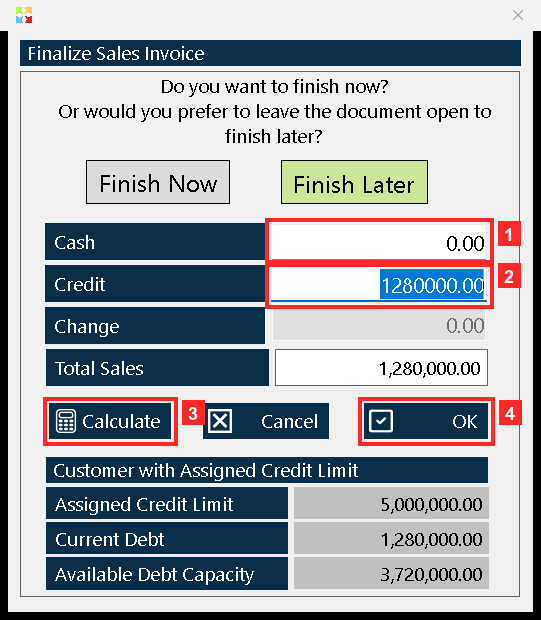
These fields come already calculated. If no cash is typed, the program puts the whole total in «Credit» (1280000.00): the sale goes on credit and the program will leave the rest as an account receivable of the customer. Typing the cash the customer hands over and pressing «Calculate» splits the payment and works out the «Change» to give back.
In the image:
- 1) «Cash»: cash handed over (0.00).
- 2) «Credit»: left on credit (1280000.00).
- 3) Button «Calculate»: splits the payment and works out the change.
- 4) «OK»: closes the sale with this payment.
Texts on screen: «Cash», «Credit», «Change», «Calculate», «OK»
Action: Check the split payment and press «OK» to close the sale.
Step 9 — The sale closed and ready to print
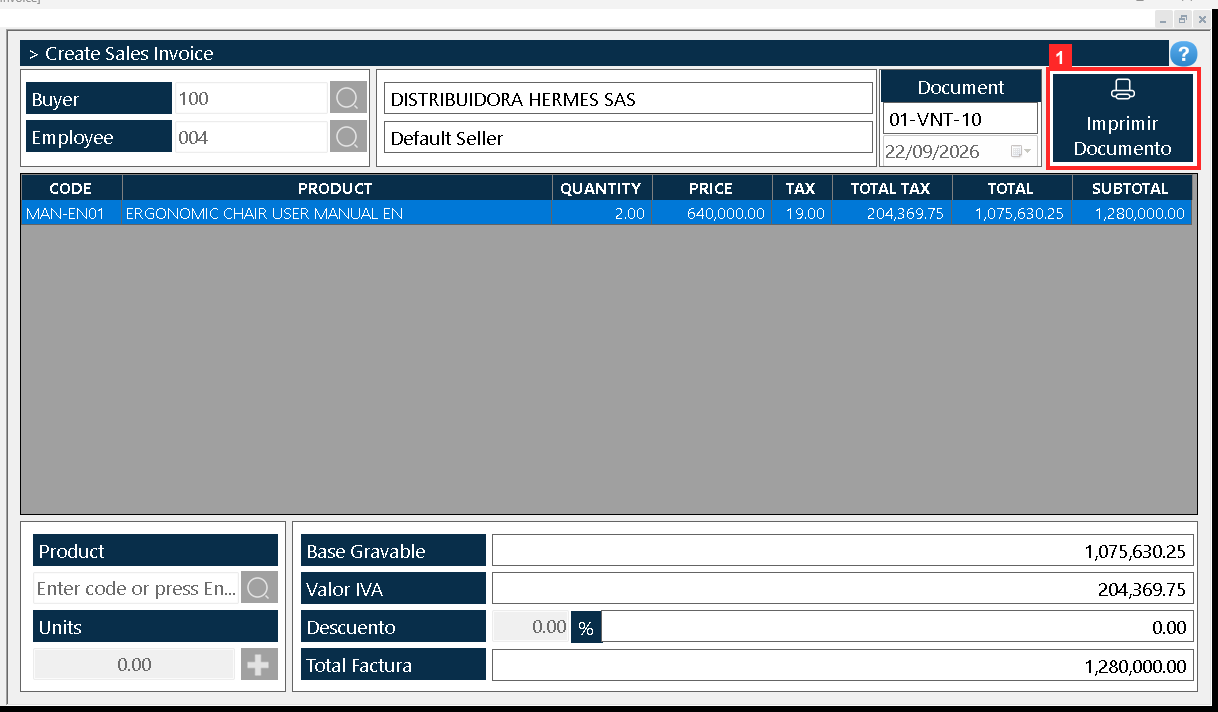
The program reports «Document processed successfully»: the sale was registered as «01-VNT-10» with the status CLOSED, the stock of «MAN-EN01» went down from 25.0 to 23.0 and the ledger posted «-SELL 01-VNT-10 · 100 - DISTRIBUIDORA HERMES SAS · sale=2.0 · saldo=23.0»; the program also created the customer account receivable «01-CXC-8 (1280000.0, OPEN)». The document is still open, now in read-only mode, and its save button is labelled «Imprimir Documento».
In the image:
- 1) Button «Imprimir Documento»: opens the print window of the invoice.
Texts on screen: «Imprimir Documento»
Action: Press «Imprimir Documento» to open the print window.
Step 10 — The print window
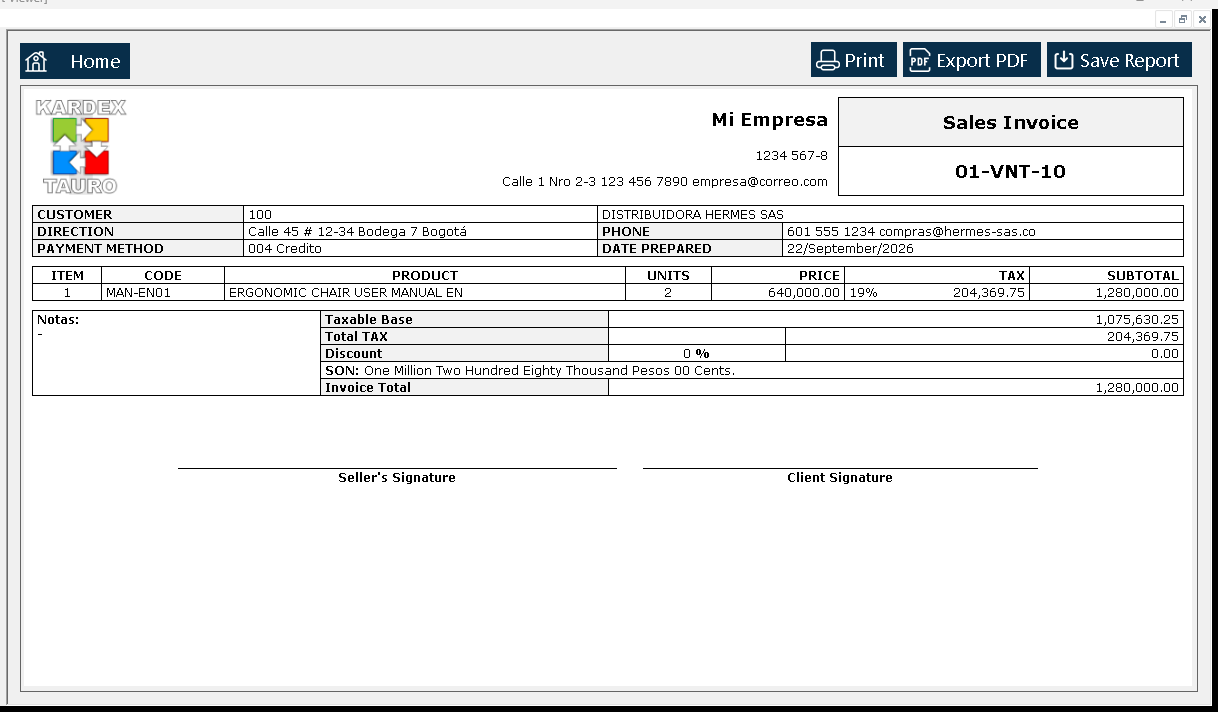
The «Report Viewer» opens with the invoice exactly as it would be printed: header, buyer, the sold line, the taxable base, the tax and the total. Its top bar offers «Print, Export PDF, Save Report».
Action: Check the invoice and use those buttons to print it, export it to PDF or save the report.
Result
The program reports «Document processed successfully» and the sale is registered as «01-VNT-10» with the status CLOSED: the stock of «MAN-EN01» drops from 25.0 to 23.0, the stock ledger posts the outgoing entry with sale=2.0 and saldo=23.0, and the customer's account receivable «01-CXC-8» for 1280000.0 is created. With the sale closed, the document stays open in read-only mode and its save button becomes the print option. The result was verified by reading the program's database (kardex.db), not just the screen.
Best practices
- Compare the line and the invoice total with what was agreed before saving: the program does the arithmetic, but it does not negotiate the price for you.
- If the customer hands over cash, type it into «Cash» and press «Calculate»; with that field at zero the whole total goes to «Credit» and stays as the customer's receivable.
- Do not treat «Finish Later» as a way of saving: that option leaves the invoice OPEN, with nothing charged and no stock discounted from the stock ledger.
- Export the PDF from the «Report Viewer» and keep it: once the sale is closed the document stays in read-only mode and that copy is your record for the customer.
Frequently asked questions
What is the difference between «Finish Now» and «Finish Later»?
«Finish Now» charges and closes the sale right away: it discounts the stock, posts the outgoing entry in the stock ledger and, if the cash does not cover the total, leaves the rest as an account receivable of the customer. «Finish Later» charges nothing and discounts nothing, and leaves the invoice OPEN to be finished later.
What happens if I leave «Cash» empty?
The program puts the whole total in «Credit»: the sale goes on credit and the rest is recorded as an account receivable of the customer. If the customer hands over cash, type it in and press «Calculate» so the program splits the payment and works out the «Change».
Can I see the invoice before printing it?
Yes. When the sale is closed the document stays open in read-only mode and its save button becomes «Imprimir Documento», which opens the «Report Viewer» with the invoice as it would be printed; from its top bar you can print it, export it to PDF or save the report.
This article is part of the Kardex Tauro V3 User Manual, which gathers every process in the system, explained step by step.