

How to Create a Receivable, Step by Step
How to Create a Receivable, Step by Step
A credit sale that never gets written down is money nobody is going to collect. The customer walks away with the goods, the debt lives in a notebook or in the memory of whoever was at the counter and, when the month closes, there is nothing to reconcile against: the balance in the system and the notebook never match. Recording the obligation in the program, with its debtor, its amount and its payment date, turns a verbal promise into data you can track, settle and chase on time.
This guide follows the whole entry inside Kardex Tauro V3, from the finance menu to the account listed in the grid, with one screenshot per screen and the meaning of every numbered red box. The example records the account for partner 100 — DISTRIBUIDORA HERMES SAS for 500000, with the description «SAMPLE RECEIVABLE ACCOUNT», created in cost center 01 - Bodega Central: the same eight steps work for any customer and any amount.
Before you start
- The right cost center active: it is shown at the top, next to «Change Cost Center», and the account is recorded in that center.
- The debtor partner already created, with the code at hand (in the example, 100 — DISTRIBUIDORA HERMES SAS).
- The description and the obligation amount decided before opening the document: what is owed and for how much.
- Permission to work in the «Finance» module, where accounts receivable are handled.
Step by step
Step 1 — The main window
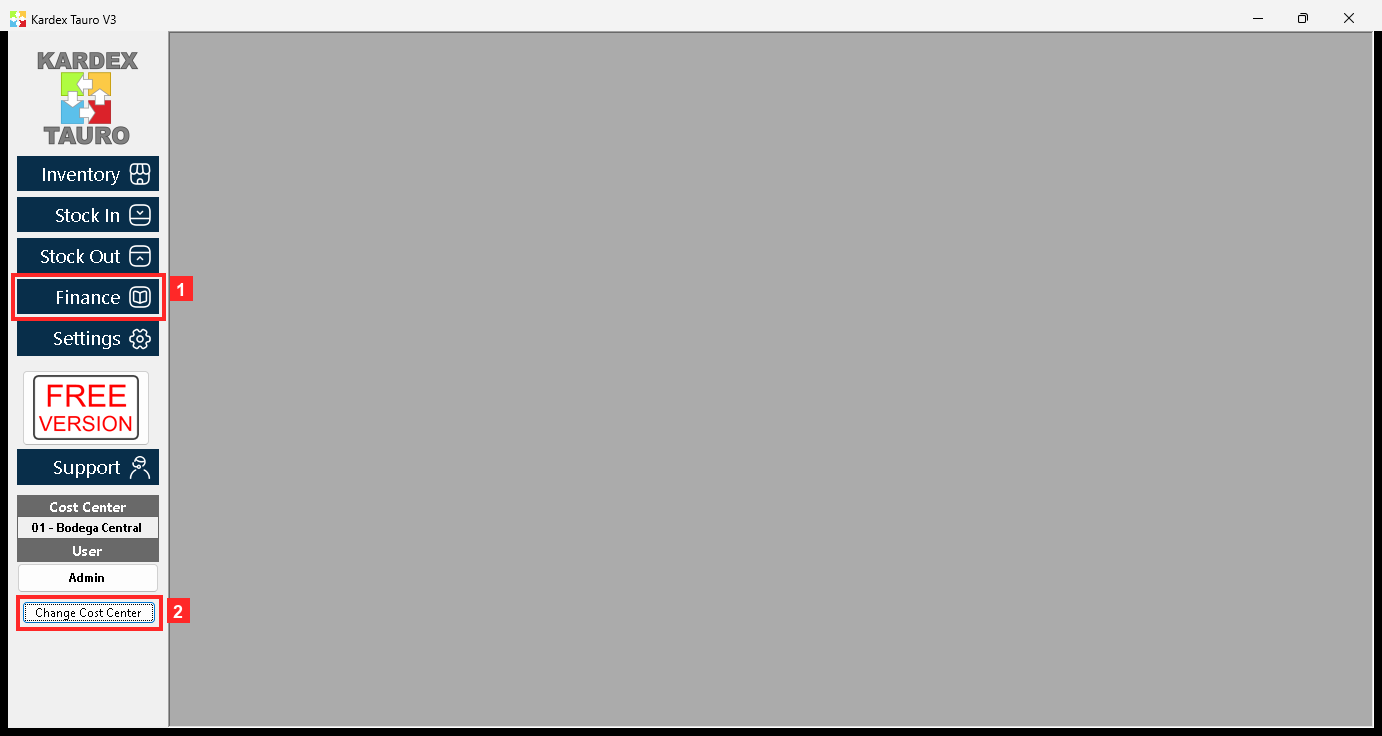
KardexTauro V3 opens in this window. The modules are on the left and the active cost center is at the top («Change Cost Center» changes it). This accounts receivable account will be opened in cost center 01 - Bodega Central.
Texts on screen: «Finance», «Inventory», «Stock In», «Stock Out», «Change Cost Center»
Action: The side buttons open each module; accounts are handled in «Finance».
Step 2 — The finance menu
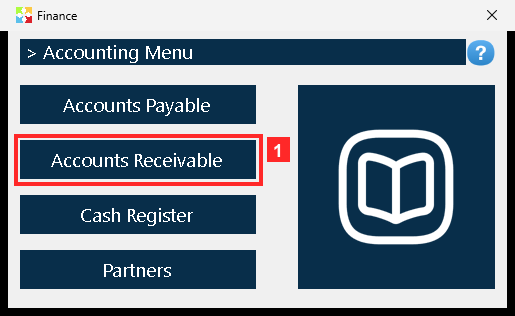
Pressing «Finance» opens the finance menu. «Accounts Receivable» is the accounts receivable accounts option; the other ledger is right next to it, so it is worth checking which one you press.
Action: Press «Accounts Receivable» to open the accounts receivable accounts list.
Step 3 — The accounts receivable accounts list
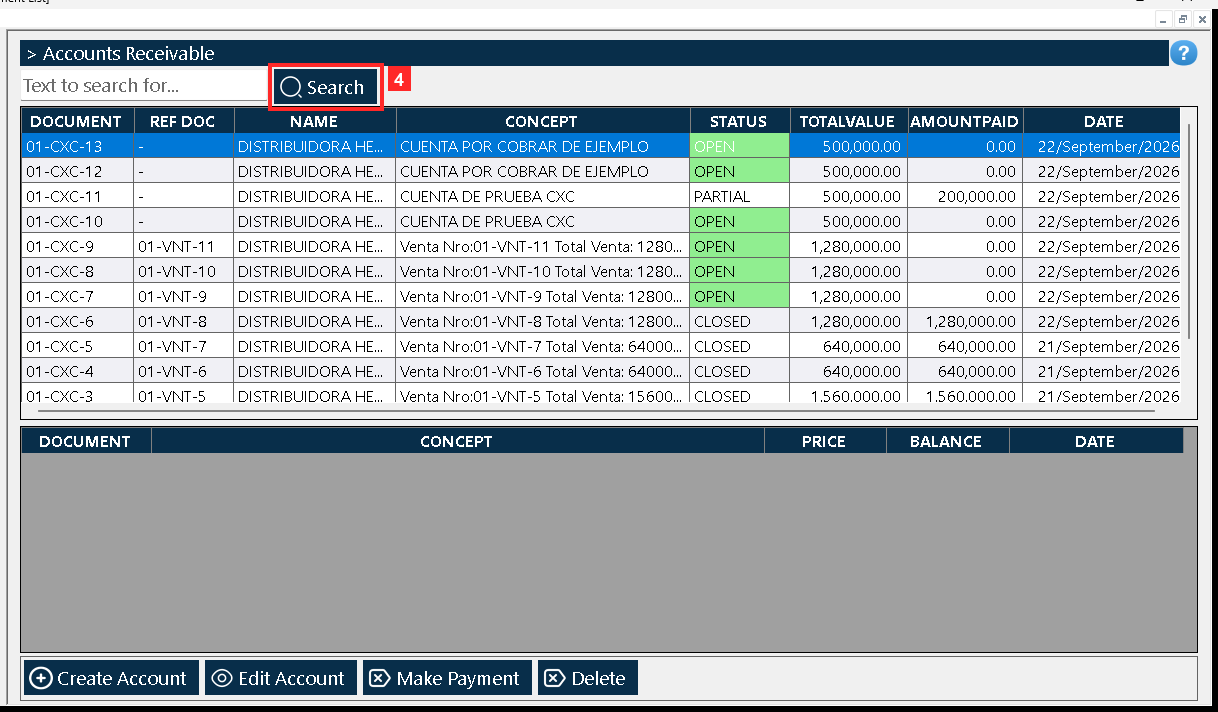
«Document List» opens. The master grid lists every account with its reference, the partner, the description, the STATUS (OPEN), the total, the amount paid and the date (01-CXC-13 | - | DISTRIBUIDORA HERMES SAS | CUENTA POR COBRAR DE EJEMPLO | OPEN | 500,000.00 | 0.00 | 22/September/2026); below, the detail grid shows the movements of the selected account. The states are OPEN (no payments), PARTIAL (with payments) and CLOSED (fully paid).
Texts on screen: «Search»
Action: Press «Create Account» to create a new account.
Step 4 — The document: the partner
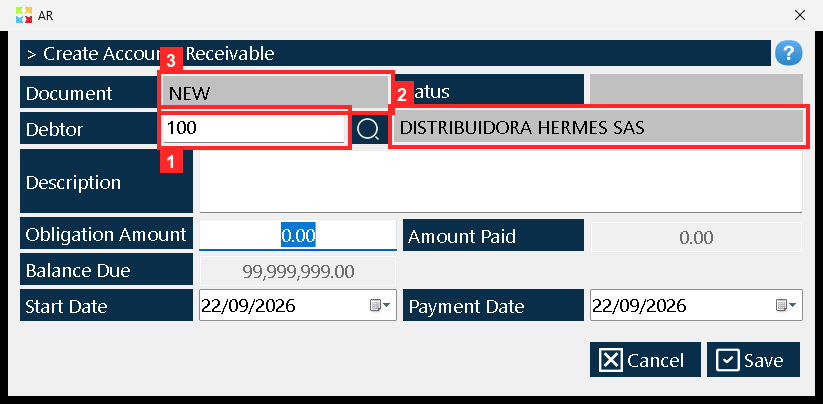
The document «AR» opens. «Debtor» is the partner of the account (100 — DISTRIBUIDORA HERMES SAS). At the top you can see «Document» («NEW»: it is assigned when saving) and «Status».
In the image:
- 1) «Debtor»: partner code (100).
- 3) «Document»: account number (NEW).
Texts on screen: «Debtor», «Document», «Status»
Action: Type the partner code in «Debtor» (or look it up with the magnifier).
Step 5 — The description and the amount due
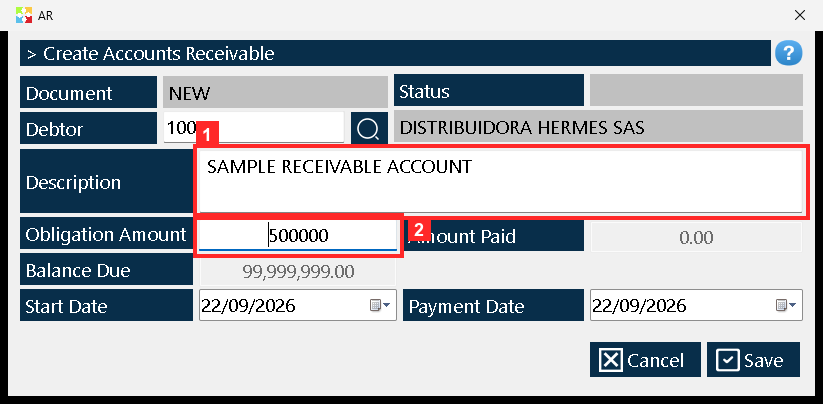
Below are «Description» (what the account is for) and «Obligation Amount», the amount owed. In this example: «SAMPLE RECEIVABLE ACCOUNT» for 500000. Note: the program uses the SAME field labels in both ledgers, so do not go by them; what makes this account a RECEIVABLE one is the partner in «Debtor» and the 01-CXC document number.
In the image:
- 1) «Description»: account description.
- 2) «Obligation Amount»: amount owed (500000).
Texts on screen: «Description», «Obligation Amount», «Amount Paid», «Balance Due»
Action: Type the description and the amount due.
Step 6 — The dates and the balance
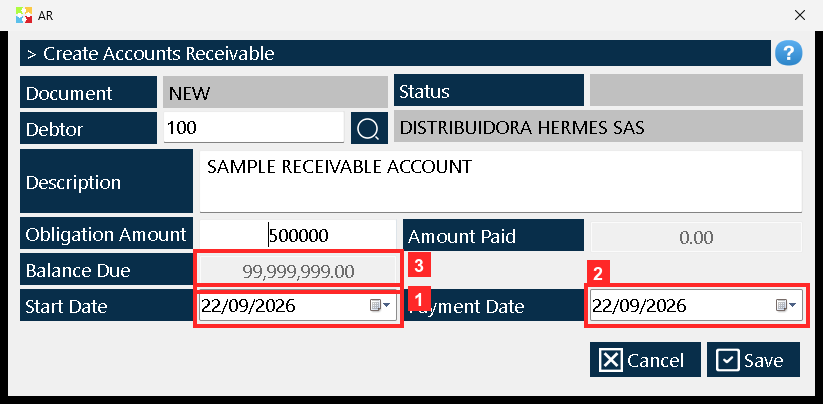
«Start Date» is the account date and «Payment Date» the expected payment date; the program proposes today for both (22/09/2026 and 22/09/2026). Next to them you see «Amount Paid» (0.00) —what has been paid, zero when the account is created— and «Balance Due», the outstanding balance, which is a calculated field: it appears greyed out because it is not typed by hand.
In the image:
- 1) «Start Date»: account date (22/09/2026).
- 2) «Payment Date»: payment date (22/09/2026).
- 3) «Balance Due»: outstanding balance (99,999,999.00).
Texts on screen: «Start Date», «Payment Date», «Amount Paid», «Balance Due»
Action: Check the dates: each one can be changed with its drop-down.
Step 7 — Saving the account
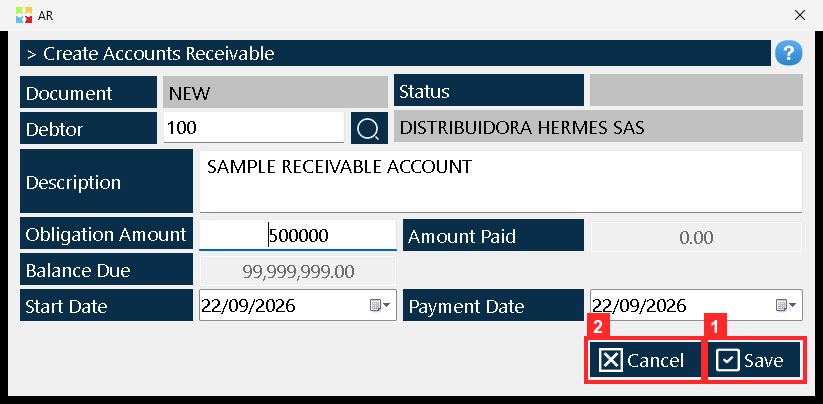
The document is saved with «Save». Unlike the warehouse documents, there is no finish dialog here: when you save, the account is registered and the document closes by itself.
Texts on screen: «Save», «Cancel»
Action: Press «Save» to save the account.
Step 8 — The account created
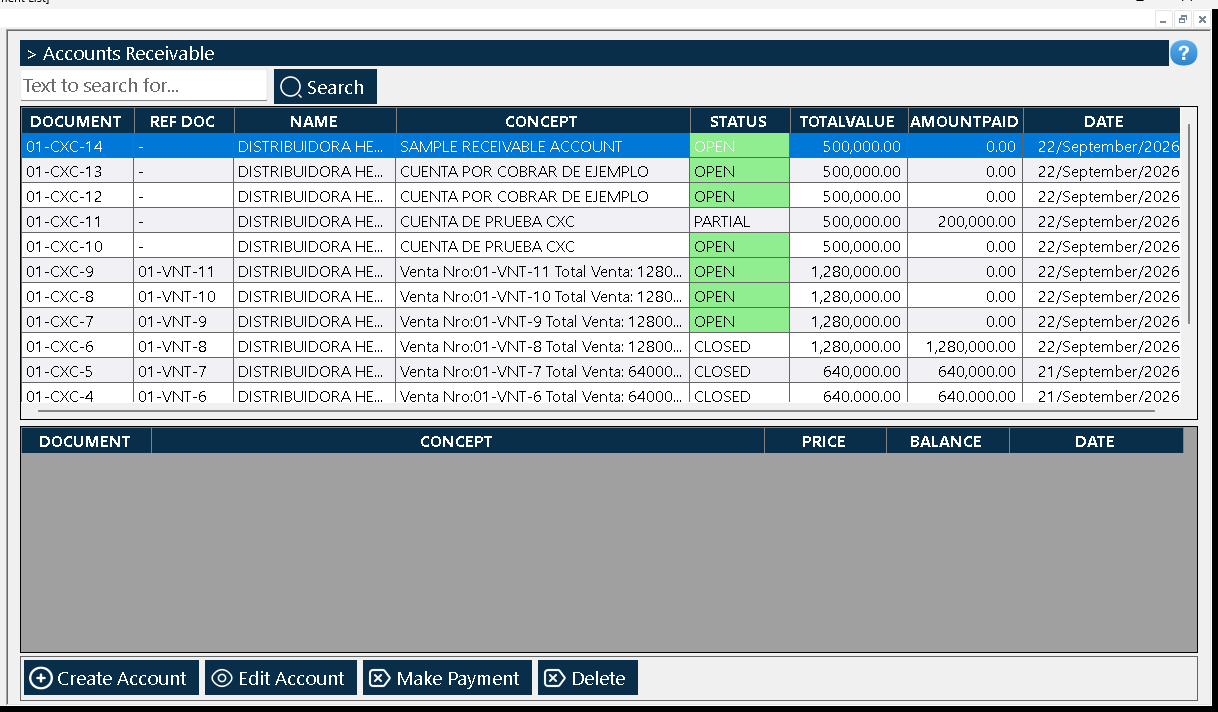
Once saved, the account appears in the list as «01-CXC-14» with status OPEN, the total 500000.0 and no payments yet (0.0). From here you can open it with «Edit Account» or register a payment with «Make Payment».
Action: Check the new account in the list; to pay it, see the payment guide.
Result
Once saved, the account appears in «Document List» as 01-CXC-14 with status OPEN, the total 500000.0 and no payments yet (0.0); from that same list it can be opened with «Edit Account» or have a payment registered with «Make Payment». The result was verified by reading the program's database (kardex.db), not just the screen.
Best practices
- Check which option you press: «Accounts Receivable» sits right next to the payables ledger, and the field labels are identical in both.
- Write the description so it explains itself: it is the one line that will say why the debt exists when someone reviews the list months later.
- Set «Payment Date» to the date actually agreed instead of leaving today's date; that is the field that flags an overdue account.
- Do not type into «Balance Due»: it is a calculated field shown greyed out; the outstanding balance drops by itself when a payment is registered with «Make Payment».
Frequently asked questions
Why does «Document» show «NEW» when the form opens?
Because the number is assigned when you save. Until the account is saved the document has no reference; once it is stored it appears with its sequence number, such as 01-CXC-14, and the document closes by itself, with no finish dialog like the warehouse documents.
The field labels are the same as in the other ledger, so how do I know this account is a receivable?
Two pieces of data decide it: the partner typed into «Debtor» is the debtor, and the document number carries the 01-CXC prefix. The field names («Obligation Amount», «Amount Paid», «Balance Due», «Payment Date») are repeated in both ledgers, so they cannot be used to tell them apart.
How do I know whether the account is still pending or already paid?
From the status shown in the list: OPEN while it has no payments, PARTIAL when it has payments and a balance is still outstanding, and CLOSED when it is paid in full.
This article is part of the Kardex Tauro V3 User Manual, which gathers every process in the system, explained step by step.