

How to Post a Payment to a Receivable, Step by Step
How to Post a Payment to a Receivable, Step by Step
A payment that stays as a loose receipt is worthless: if the money is not applied to the document it came from, the account balance never moves and the accounts receivable ledger keeps showing as outstanding a debt the customer has already settled. Recording the payment on the account is what ties the cash received to that specific obligation, brings the balance down and leaves a trace of the movement in the cash register.
This guide walks through the whole process on the application, with one screenshot per screen and the meaning of every numbered red box. The example applies 200000 to account 01-CXC-14 for DISTRIBUIDORA HERMES SAS («SAMPLE RECEIVABLE ACCOUNT»), a total of 500,000.00 in cost center 01 - Bodega Central: at the end the account reads PARTIAL with 300000.00 still due.
Before you start
- A session opened with the user who collects the money (Admin in the example) and permission to enter the finance module.
- The right cost center active, the one of the account being paid (01 - Bodega Central in the example).
- The accounts receivable account already created and located in the list, found by its reference or its description before you pay.
- The amount collected and a note to identify it, because the «Description» field is mandatory and without it the payment is not saved.
Step by step
Step 1 — The main window
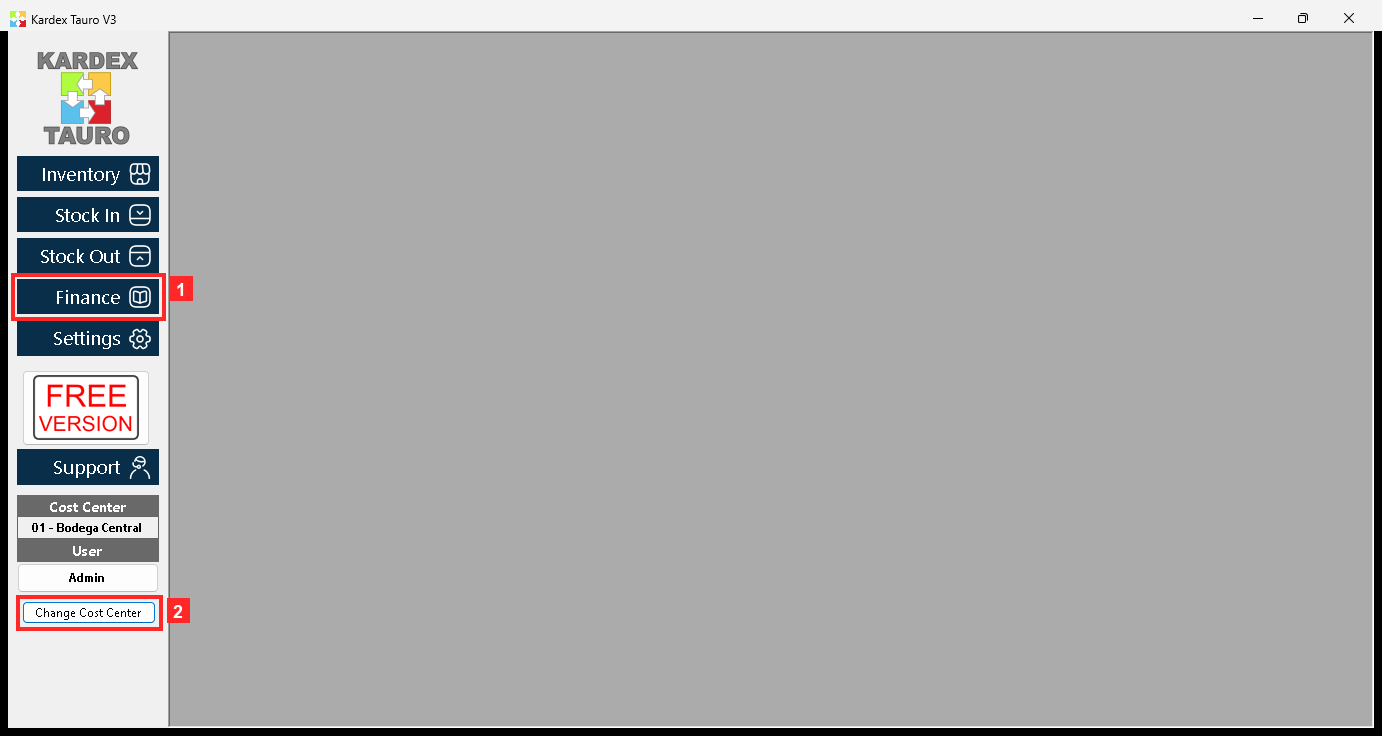
KardexTauro V3 opens in this window. Payments are registered from the finance module, so the first step is to enter «Finance». The active cost center is shown at the top (01 - Bodega Central), which is the one of the account being paid.
Texts on screen: «Finance», «Inventory», «Stock In», «Stock Out», «Change Cost Center»
Action: Press «Finance» to enter the finance module.
Step 2 — The finance menu
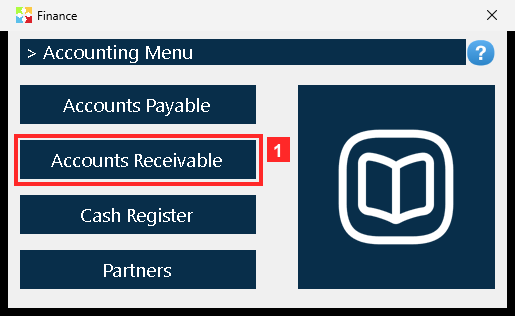
The finance menu opens. The payment is made on a accounts receivable account, so you go in through «Accounts Receivable» (the other ledger, with its own accounts, is right next to it).
Action: Press «Accounts Receivable» to open the accounts receivable list.
Step 3 — The accounts receivable list
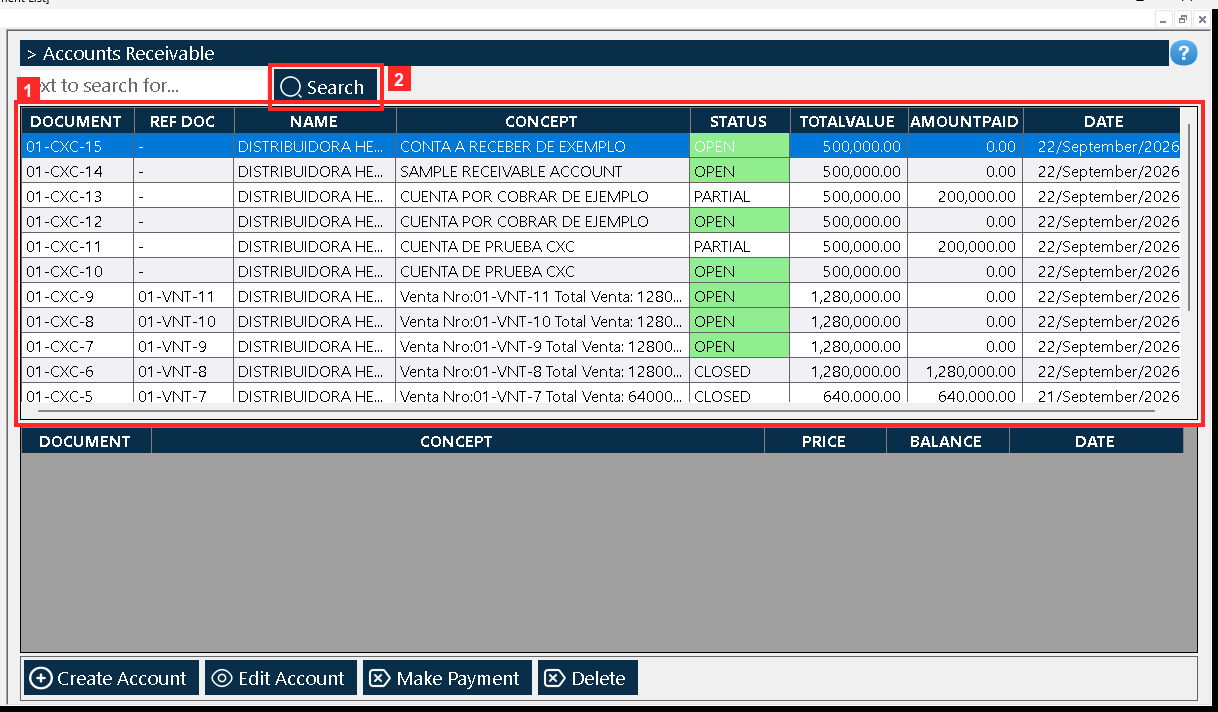
«Document List» opens. Every row is an account with its reference, the partner, the description, the STATUS, the total, the amount paid and the date. Before paying it is worth checking the status and the amount paid: a CLOSED account is already fully paid.
Texts on screen: «Search»
Action: Find the account you are going to pay (in the example, the one described «SAMPLE RECEIVABLE ACCOUNT»).
Step 4 — Select the account and press «Make Payment»
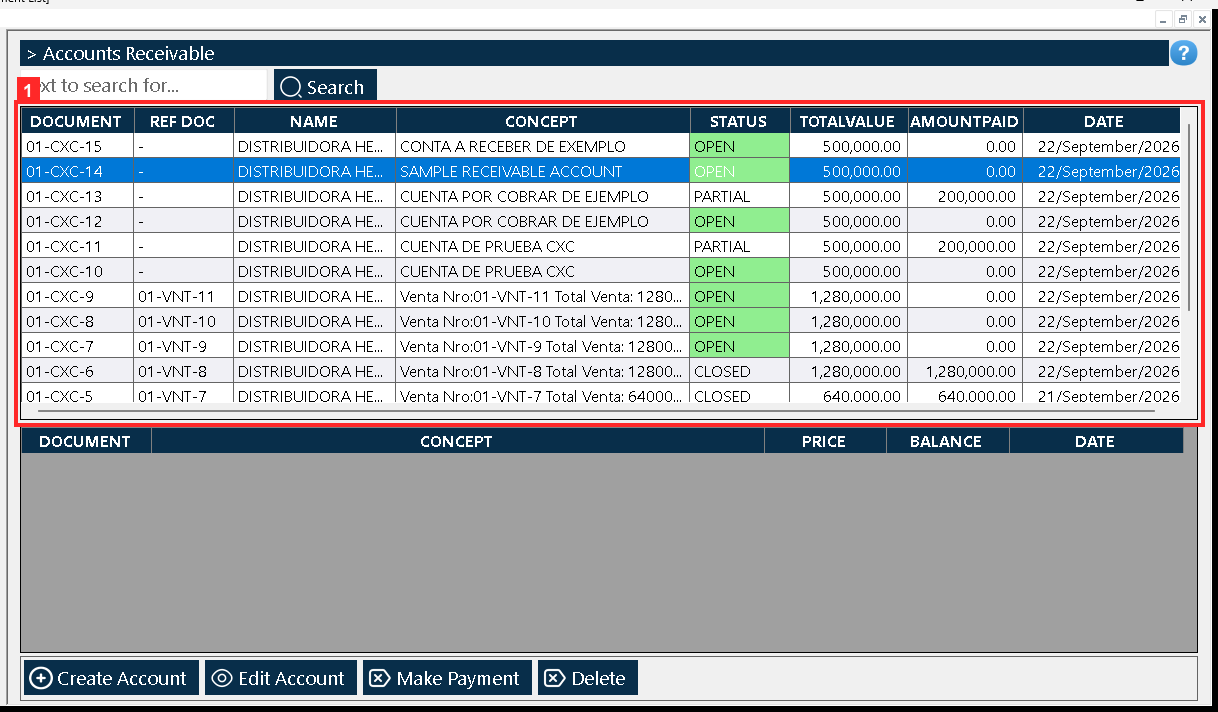
With the account row selected («01-CXC-14 | - | DISTRIBUIDORA HERMES SAS | SAMPLE RECEIVABLE ACCOUNT | OPEN | 500,000.00 | 0.00 | 22/September/2026») you press «Make Payment». The button always acts on the selected account, so if no row is chosen it does nothing.
Action: Select the row and press «Make Payment».
Step 5 — The payment dialog
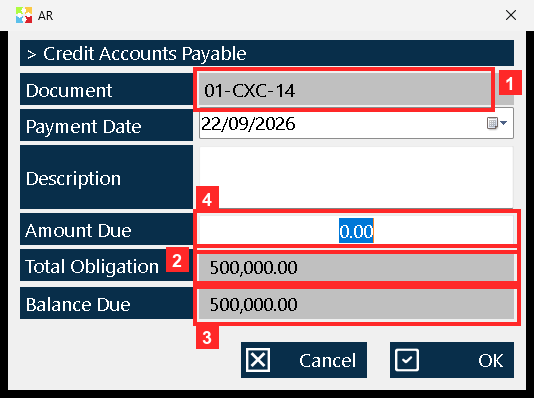
The payment window opens already showing the account data: «Document» (01-CXC-14), «Total Obligation» (500,000.00), «Balance Due» (500,000.00) and the «Payment Date» (22/09/2026). To register the payment you have to fill in «Amount Due», which starts at zero, and the «Description». Mind the caption: the program titles this window «Credit Accounts Payable» —the wording of the OTHER ledger— even when the account is a receivable one. What identifies the account is the «Document»: an 01-CXC-… number is an accounts receivable account.
In the image:
- 1) «Document» (01-CXC-14): accounts receivable (01-CXC), not payable.
- 2) «Total Obligation»: the full amount due (500,000.00).
- 3) «Balance Due»: what is still owed (500,000.00).
- 4) «Amount Due»: here you type the payment.
Texts on screen: «Document», «Total Obligation», «Balance Due», «Amount Due», «Description», «Payment Date»
Action: Check the account and the balance shown in the dialog.
Step 6 — Type the amount and the description
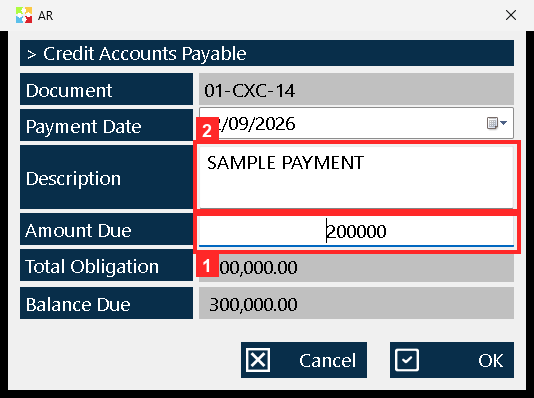
In «Amount Due» you type the amount being paid —in the example 200000, part of the balance— and in «Description» a note to identify it («SAMPLE PAYMENT»). The description is mandatory: without it the program does not save the payment.
In the image:
- 1) «Amount Due»: the amount typed (200000).
- 2) «Description»: the payment note («SAMPLE PAYMENT»).
Texts on screen: «Amount Due», «Description», «Payment Date»
Action: Type the payment amount and its description.
Step 7 — Accepting the payment
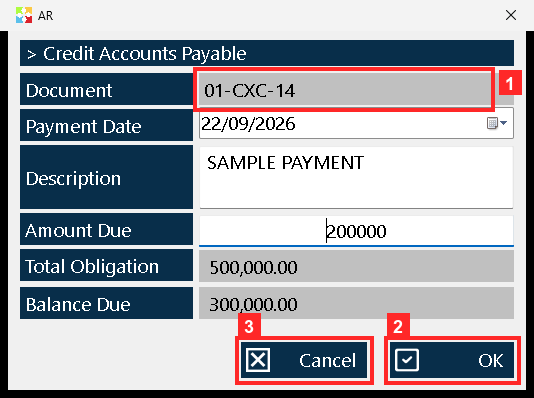
The payment is registered with the «OK» button of the dialog. When accepted, the program adds the amount to the account and leaves the movement in the cash box (an entry when collecting, an exit when paying).
In the image:
- 1) «Document» (01-CXC-14): accounts receivable (01-CXC), not payable.
- 2) Button «OK»: registers the payment.
- 3) «Cancel»: closes without paying.
Texts on screen: «OK», «Cancel»
Action: Press «OK» to register the payment.
Step 8 — The account after the payment
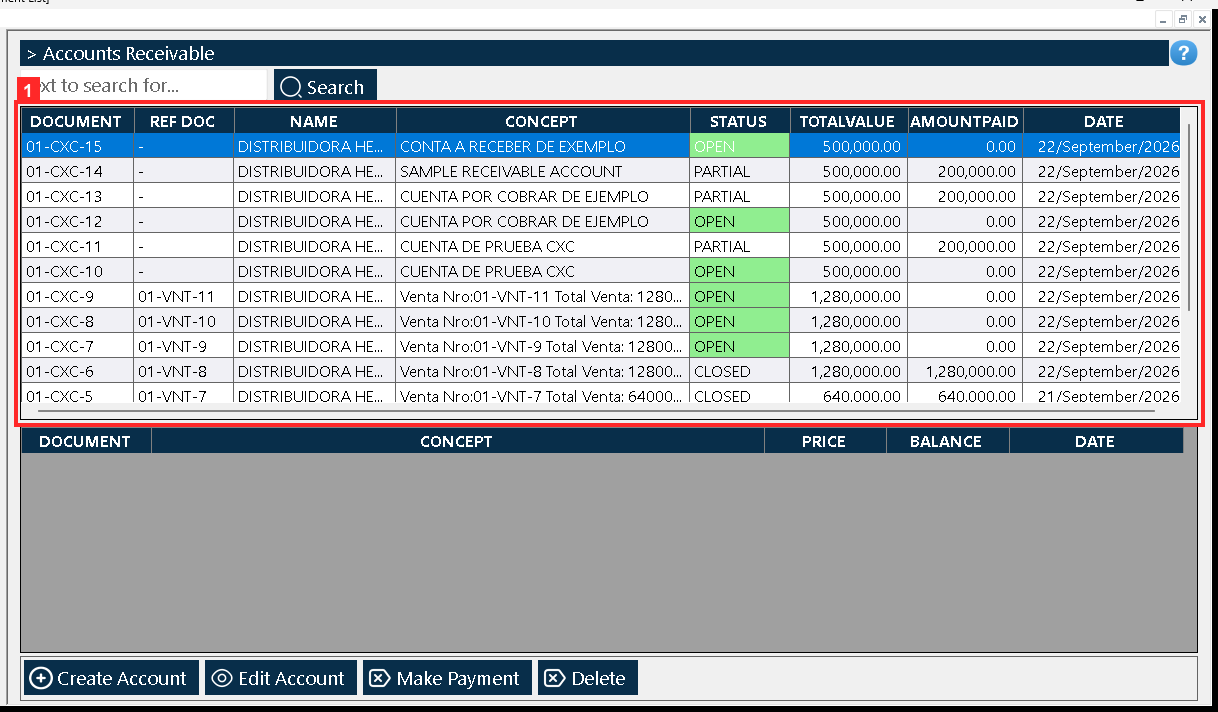
The account is now «01-CXC-14» with status PARTIAL, 200000.0 paid out of 500,000.00 (balance 300000.00) and the cash box kept the movement «01-CIG-1 · Abono a CXC. SAMPLE PAYMENT». If the payment had covered the whole balance, the account would be CLOSED.
Action: Check the status and the amount paid in the list.
Result
The payment is applied to the account: «01-CXC-14» reads status PARTIAL, with 200000.0 paid against a 500,000.00 obligation and a 300000.00 balance (the «Balance Due» was 500,000.00 when the dialog opened), and the cash register keeps the movement «01-CIG-1 · Abono a CXC. SAMPLE PAYMENT». Had the payment covered the whole balance, the account would read CLOSED. The result was verified by reading the program's database (kardex.db), not just the screen.
Best practices
- Check the status and the amount paid in the list before opening the dialog: a CLOSED account is already fully paid and takes no further payment.
- Type a note in «Description» that lets you trace the payment later (receipt number, date or payment method): without it the program does not save the payment.
- Confirm in «Document» that the number is 01-CXC-… and not 01-CXP-…: the window is titled «Credit Accounts Payable» even when the account is a receivable one.
- If the customer pays only part, leave the payment partial and do not force the full amount: the account reads PARTIAL and the balance stays visible for the next collection.
Frequently asked questions
Why does the payment window say «Credit Accounts Payable» when I am collecting?
Because the program titles the dialog that way even when the account is a receivable one: it is the wording of the other ledger. What identifies the account is the «Document»; an 01-CXC-… number is an accounts receivable account.
Can I pay only part of the balance?
Yes. In the example 200000 is paid against a 500,000.00 obligation and the account reads PARTIAL with 300000.00 outstanding. Only when the payment covers the whole balance does the account move to CLOSED.
What happens if I press «Make Payment» with no row selected, or leave the «Description» empty?
«Make Payment» always acts on the selected account, so with no row chosen it does nothing; and the «Description» is mandatory, because without it the program does not save the payment.
This article is part of the Kardex Tauro V3 User Manual, which gathers every process in the system, explained step by step.