ABC product analysis template in Excel

ABC product analysis template in Excel
In most small businesses a short list of products carries almost all of the revenue. That imbalance is what ABC analysis is built around: sort the catalogue by revenue and split it into three classes so attention goes where it is earned. This template does that work on a single sheet. You type units sold and unit price, and the sheet works out revenue, each product's share of the total, the running cumulative and the class it falls into, with no pivot table to build and no formula to copy by hand.
The classification is there to drive decisions, not to decorate a report. A class A product gets reviewed more often: stock is watched, price is negotiated with the supplier and a stockout is treated as a problem. A class C product is not abandoned, but it can be ordered less often and held at a lower level. Once the list is sorted, buying stops depending on what someone remembers from the counter and starts resting on a number anyone can check.
The sheet imposes no business rule of its own. The two cut-offs that separate one class from the next are editable cells in the header: by default class A runs up to 80 percent of cumulative revenue and class B up to 95 percent, which leaves the remainder in C. If the catalogue is very short, very long or highly seasonal, those two values change and the whole table reclassifies itself. The sections below cover what the workbook contains, how to use it, what each column means and which mistakes to avoid before acting on the list.
What it is and what it solves
ABC analysis prioritises a catalogue with a measure rather than an opinion. Products are sorted from highest to lowest revenue, each one's share of the total is calculated and that share is added up row by row. When the cumulative reaches the first cut-off, everything above it is class A; at the second, what sits in between is class B; the rest is class C. Nothing here is arbitrary, because the order is set by money.
What it answers is a practical question: out of everything we sell, which few items deserve most of our time? In a stationery business, for instance, the paper ream and the toner can weigh more than twenty minor references together. Without that figure, effort is spread evenly across the catalogue and the products that carry the month go unwatched. With the analysis done, the supplier conversation changes: you negotiate where there is volume and accept a longer lead time where volume does not pay for it. It does not calculate profit, deduct costs or forecast demand: it works with revenue, units times price, and with each product's share of it.
The blocks on the sheet
The workbook has two sheets. Sheet «ABC» is the working one; sheet «Instructions» restates in words what each block does, so questions can be answered without leaving the file. Inside «ABC» the information is split into five blocks that read from top to bottom.
| Block | What it holds | What it is for |
|---|---|---|
| Header | Company, period and the two cut-offs | Identifying the analysis and adjusting the thresholds without touching formulas |
| Product table | Product, code, units, price, revenue, share, cumulative and class across eight filled rows and empty rows that carry the formula | Loading the catalogue for the period |
| Totals row | Sum of units and of revenue | Checking that the sum closes before reading anything else |
| Summary by class | Number of products, revenue and share of revenue for A, B and C | Seeing the concentration at a glance |
| Instructions sheet | What it does, how to use it, how it is calculated, example, mistakes and notice | Answering questions without leaving the file |
The header gathers the four values that apply to the whole analysis. The product table occupies the middle, with eight filled rows and twenty-two empty ones that already carry the formula, so typing units and price makes the rest appear. Below that are the totals and the summary by class, which is what people read first.
The columns and what each one means
Eight columns, of which three are typed and five are calculated. Knowing which is which prevents the most common mistake: overwriting a formula with a value that stops updating when the units change.
| Column | Typed or calculated | What it means |
|---|---|---|
| Product | Typed | Name the item is known by at the counter |
| Code | Typed | Internal reference for matching it against the stock records |
| Units sold | Typed | Units for the period, without mixing returns in |
| Unit price | Typed | Selling price for the period, in the same currency on every row |
| Revenue | Calculated | Units times price |
| Share | Calculated | Product revenue divided by total revenue |
| Cumulative | Calculated | Running sum of the share, starting from the first row |
| Class | Calculated | A, B or C from the cumulative figure and the two header cut-offs |
Share and cumulative are stored as fractions and displayed with percentage formatting, so the sheet calculates with the full value rather than the rounded number on screen. That difference matters at the cut-off: a cumulative sitting a thousandth below the threshold is classified differently from one that reaches it.
The class is never typed. A formula compares the row's cumulative against the first cut-off and, if it is above, against the second. That is why changing a cut-off in the header reclassifies the table instantly and keeps it coherent. If someone types a letter over the formula, that row stops answering to the cut-offs and the summary by class starts counting wrong.
The example that ships with the file
The file arrives loaded with eight products from a stationery shop and total revenue of 14,600,000, already sorted from highest to lowest, which is the condition for the cumulative figure to mean anything.
| Product | Revenue | Cumulative | Class |
|---|---|---|---|
| Letter paper ream | 4,800,000 | 32.88 | A |
| Black toner | 3,200,000 | 54.79 | A |
| Archive box | 2,400,000 | 71.23 | A |
| Blue ballpoint pen | 1,600,000 | 82.19 | B |
| Metal stapler | 1,200,000 | 90.41 | B |
| Ring binder | 800,000 | 95.89 | C |
| Dry-erase marker | 400,000 | 98.63 | C |
| Sticky notes | 200,000 | 100.00 | C |
| Totals | 14,600,000 | 100.00 | 8 products |
The first three products add up to 10,400,000, which is 71.23 percent of revenue, and form class A. The fourth and fifth take the cumulative to 82.19 and 90.41, stay below the second cut-off and form class B with 2,800,000, or 19.18 percent. The last three, with 1,400,000 and 9.59 percent, are class C. The cumulative runs 32.88, 54.79, 71.23, 82.19, 90.41, 95.89, 98.63 and ends at 100.00, which is the check that the sum closed.
The ballpoint pen moves the most units in the example, eight hundred, and still lands in class B because its price is low. That is the argument against classifying by units, and the template settles it without debate: the criterion lives in the formula, not in opinion.
There is also a warning the sheet cannot give on its own: a product can be class A by revenue and not by profit. If its margin is thin it moves a lot of money and leaves little behind, and when the highest-revenue product is also the thinnest-margin one, the buying decision does not rest on the letter A alone.
How to use it, step by step
Order matters, especially in the first two steps. Loading products before checking the cut-offs means doing the work twice.
- Download the file and open it in Excel, LibreOffice Calc or Google Sheets. The formulas work in all three without changes.
- Type the company name and the period in the header. The period is free text: a month, a quarter or a campaign, as long as you can remember later what was compared.
- Check the two cut-offs. If your business uses the usual values, leave them at 80 and 95 percent; if the catalogue is short and you want a stricter class A, lower the first one.
- Replace the eight example products with your own, one per row, with units sold and unit price. Do not delete the spare rows: leave them empty and the formula shows nothing.
- Sort the table from highest to lowest revenue before reading the classes. If you load the data in another order, the cumulative still forms but the classification loses its meaning.
- Read the summary by class at the bottom: how many products, how much revenue and what share of the total. That is the picture you take to the purchasing meeting.
- Save a copy per period with the month in the file name, and leave the original template clean for the next cut.
With eight products it takes minutes; with two hundred, an afternoon that is usually still worth it.
Mistakes to avoid
Most abandoned ABC analyses fail not because of the formula but because of how the data was entered.
- Classifying by units sold instead of by revenue. The cheap, fast-moving item looks important and gets attention it has not earned.
- Not sorting before classifying. The cumulative is a running sum: if the rows are out of order, the cut-offs land anywhere.
- Typing the class by hand. When a cut-off or a figure changes, the letter goes stale and the summary by class stops matching the table.
- Changing the cut-offs halfway through. Period-to-period comparison is lost, because the same product can move from A to B with nothing changing in the business.
- Mixing list prices with actual selling prices on the same table. Share is then calculated on a base that is not homogeneous and the result means nothing.
- Leaving products with no movement and zero revenue in the table. They do not change the total, but they clutter the summary count and confuse the class C reading.
- Reading the class as a measure of profitability. A high-revenue, low-margin product can be A on the sheet and not be A in the profit of the business.
The file opens in Excel, in LibreOffice Calc and in Google Sheets with no conversion. In Calc and in Sheets, check the number format of the revenue columns, because the thousands separator follows the regional settings; the value does not change, only the display.
The sheet on screen
The screenshot below shows sheet «ABC» with the example loaded, exactly as it looks when the file is opened.
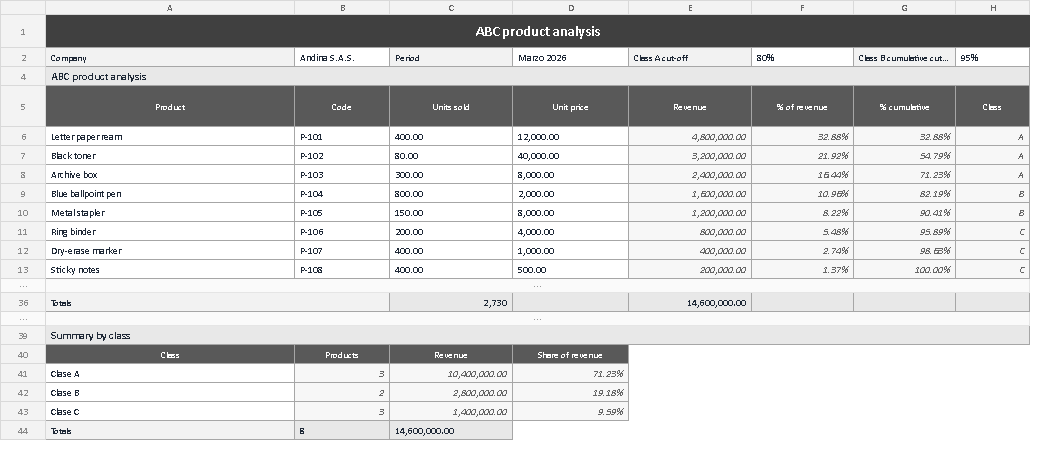
The image shows the five blocks: the title bar, the header with company, period and the two cut-offs, the table of eight products with its totals row and the summary by class. The revenue columns use the thousands separator of the sheet's language and the class column already shows the calculated letters. The totals row closes at 14,600,000 and the summary splits that figure into 10,400,000, 2,800,000 and 1,400,000: if they disagree with your data, a row has fallen outside the sum range.
Closing
A catalogue sorted by revenue looks obvious until it is done. The template does not decide for you: it puts the number where it can be seen and leaves the call to whoever knows the business, with share and cumulative calculated the same way every time.
If the analysis is repeated every month, the value multiplies: products that change class tell a story about pricing, assortment or competition that no other sheet shows as clearly.
Kardex Tauro publishes this template as an internal control tool: amounts and cut-offs are editable and the file calculates no taxes and does not replace a financial statement.