Sales by representative and commission template for Excel

Sales by representative and commission template for Excel
The arithmetic almost never breaks a commission run. The name column does. By the last day of the month the invoice list has the same rep written three ways, one row with the accent, one without, one with a space left at the end, and every one of those rows drops out of the count. Add a cancelled sale nobody deleted and a rep who keeps their own tally on a phone, and the settlement turns into an argument you cannot win with a spreadsheet full of numbers you cannot defend.
Commission work is really two jobs that look like one. The first is recording each sale with the rate that applies to it, because in a small business the rate is rarely single: it is agreed person by person and sometimes shifts by product line or by month. The second is answering, per rep, how much they sold, how many times, and what they are owed. Keep only the first and you have an invoice log. Keep only the second and you have a summary nobody can check. This template does both on the same table.
It is built for the owner or the office manager who settles commissions once a month, with a handful of reps and a different rate for each one. It also fits the ordinary case where commission is paid on invoiced sales rather than on cash collected. It is not payroll and it is not a billing system: it is the sheet where the commission is worked out and from which it gets paid.
⬇ Download the template (Excel .xlsx)What the file is, and who it is for
One workbook, two sheets. Sales holds everything that moves: a header with company and period, the capture block, a totals row, and the summary by salesperson directly underneath. Instructions explains what the file is, how to use it, how to read the summary, and repeats the worked example so the figures can be checked without coming back to this article.
The capture block runs from row 6 to row 125, one row per invoice, 120 rows. Row 126 totals the block, and rows 130 to 134 hold the summary: one line per rep plus a totals line. The salesperson cell is a dropdown rather than free text, and that is the most useful feature in the file, because the summary counts and sums by exact text match. A name that is not on the list simply vanishes from the payout.
One warning before you start, because it is the real limitation of this sheet: the totals sum the whole block and do not filter by date. Keep one copy per period, or one sheet per month, and the header will tell you which month you are looking at when the file surfaces a year later.
What the template includes
Five blocks, and only one of them is typed by hand. Everything else feeds off it.
| Block | What it holds | What it does on its own |
|---|---|---|
| Header (row 2) | Company name and the period being settled | Nothing: reference text for filing and for knowing which month you are reading |
| Capture block (rows 6 to 125, 120 rows) | One row per invoice: date, document, salesperson, customer, amount, rate | Works out the commission for each row in the next column |
| Totals row (row 126) | Two cells: amount sold and commission | Sums the entire capture block |
| Summary by salesperson (rows 130 to 134) | One line per rep plus a totals line | Counts documents, sums amount and commission, computes average ticket |
| Instructions sheet | What it is, how to use it, how to read the summary, the example, common errors | Nothing: it is the guide that travels with the file |
The columns, one at a time
The eight columns of the capture block fall into two groups: the ones you type and the ones that are calculated. Commission is the only column worked out row by row.
| Column | What you type | What is calculated |
|---|---|---|
| Date | The invoice date, not the payment date | Nothing; it orders the rows and lets you split periods when you archive |
| Document | The invoice or receipt number, exactly as on the original | Nothing; it is how a disputed commission gets traced and how a sale avoids being entered twice |
| Salesperson | Picked from the dropdown | It is the key to the summary: the count and the sums both match against this text |
| Customer | The customer name | Nothing; context for reviewing a doubtful line |
| Sale amount | The amount the commission was agreed on, as a number, no currency symbol | Base for the commission and for the per-rep total |
| % commission | The rate agreed with that rep, in percentage format | Multiplies the amount on its own row |
| Commission | Nothing: the formula fills it | Amount times rate, rounded to two decimals; blank when the amount or the rate is missing |
| Notes | One-off agreements, a credit note number, why a line was adjusted | Nothing; it is the row's memory |
| Sales (summary) | Nothing | Counts how many documents that rep has |
| Amount sold (summary) | Nothing | Sums the amount of all their rows |
| Commission (summary) | Nothing | Sums the commission of all their rows: this is what is owed |
| Average ticket (summary) | Nothing | Amount sold divided by number of sales, rounded to two decimals |
How the numbers work, figure by figure
The example in the file has six sales across three reps, at three different rates. Here is how the summary lands:
| Salesperson | Sales | Amount sold | Rate applied | Commission | Average ticket |
|---|---|---|---|---|---|
| Laura | 2 | 2,000,000 | 3 percent | 60,000 | 1,000,000 |
| Andres | 1 | 2,500,000 | 4 percent | 100,000 | 2,500,000 |
| Marta | 3 | 2,500,000 | 2.5 percent | 62,500 | 833,333.33 |
| Totals | 6 | 7,000,000 | — | 222,500 | — |
Laura has two documents adding up to 2,000,000 and her rate is three percent, so her commission is 60,000. Andres has a single sale of 2,500,000 at four percent: 100,000. Marta sold exactly what Andres sold, 2,500,000, but in three documents and at two and a half percent, which gives her 62,500.
That is the first lesson the layout teaches: the same amount sold does not produce the same commission. With one rate in the header, Marta and Andres would be paid the same and one of them would be wrong. The rate lives on the row for that reason: it changes with the deal, with the product and with the month, and the record has to keep the one that applied on the date of the sale.
Inside each row the commission is amount times rate, rounded to two decimals, so that adding rows up does not drag phantom cents into the payment. When the amount or the rate is empty, the commission cell stays blank instead of showing a zero: a zero looks like a settled commission, a blank looks like a missing entry.
The summary is not typed, it is counted and summed. For Laura, the sales column counts two documents, the amount column adds 2,000,000 and the commission column adds 60,000. Her average ticket is 2,000,000 divided by two, 1,000,000. Andres's average is the full value of his only sale, 2,500,000; Marta's is 2,500,000 divided by three, 833,333.33. That last column compares effort without flattering anyone: it does not measure how much each rep sold, but what each invoice is worth.
The totals row closes the sheet: 7,000,000 sold and 222,500 in commission. The check takes ten seconds and should never be skipped: 60,000 + 100,000 + 62,500 = 222,500. If the summary does not reach the figure in row 126, either a row falls outside the range or a name does not match the list, and the payout waits.
Step by step
- Open the file, enable editing, and stay on the Sales sheet. Instructions is a guide, not a place to type.
- Fill the header with the company name and the period you are settling. It is the first thing lost when a file gets archived.
- Enter one row per invoice: date, document number, salesperson, customer. Pick the salesperson from the dropdown, because a hand-typed name will not count.
- Type the sale amount as a number, with no currency symbol and no thousands separators; the cell is already formatted.
- Enter the agreed rate in the commission column. If a rep has a different rate this month, change it only on the new rows, never on the old ones.
- Check that the Commission column is filled on every row. An empty cell means a missing rate or a missing amount, not a commission of zero.
- Compare the totals row with the totals line of the summary: amount sold and commission must match exactly. If they do not, there is a name off the list or a half-filled row.
Common mistakes
Every one of these gets made once and costs an argument with a rep. Almost all of them are avoided by the dropdown and by a thirty-second review before paying.
- Typing the salesperson by hand. "Andres" without the accent, or with a space at the end, does not match the dropdown value, and those sales never appear in the summary. The count is an exact text match.
- Leaving the rate empty. The commission stays blank and the rep is underpaid with no warning anywhere on the sheet.
- Entering the rate as text, with the sign inside a text cell. The cell stops multiplying and shows an error or a zero.
- Rewriting an old row's rate "to fix it". Commission already paid changes value and the record stops working as support.
- Adding commission up by hand on top of the summary. If the summary and the totals row disagree, the problem is in the data, not in the addition.
- Entering a return or a credit note as if it were a normal sale, with no negative sign and no note. The rep ends up with a sale that should be reducing what is owed.
- Pasting rows below row 125. The totals and the summary use fixed ranges and will not see them.
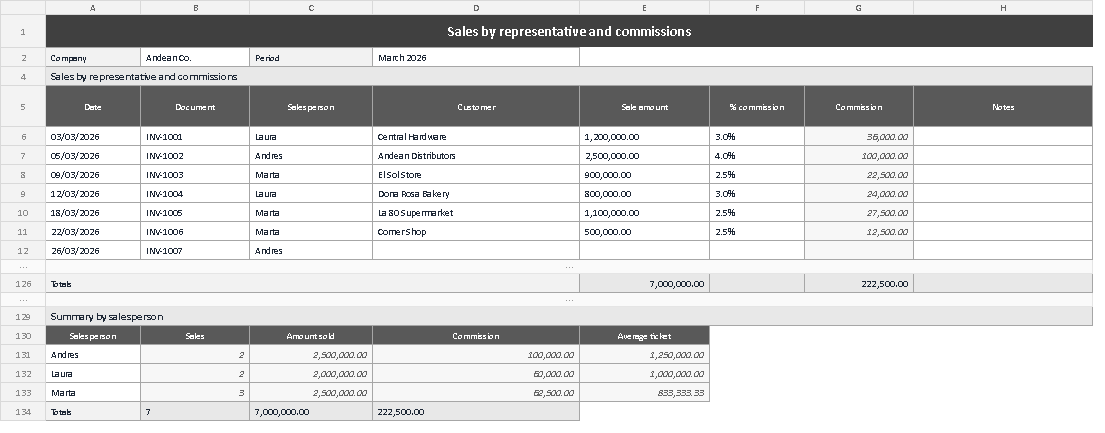
The screenshot shows the sheet as it stands once the example is loaded: the header with company and period, six sale rows with their document numbers, the salesperson picked from the list and the commission already worked out, the totals row at 7,000,000 sold and 222,500 in commission, and the summary with the three reps, their number of sales, amount sold, commission and average ticket. Before paying, look at two things: that the Commission column has no gaps, and that the Totals line in the summary repeats the same two figures as the totals row.
When it is worth moving to software
The sheet holds up to a point. It is fast, it needs no training and it does not depend on anybody. It stops working when any of these becomes true: commission is paid on cash collected rather than on invoices, so every invoice has to be matched against its payments; returns and credit notes have to subtract on their own; rates change mid-month and you need to know which one applied on each date; more than one person edits the file; or someone asks, six months later, to explain why a rep was paid what they were paid.
There is one concrete limitation worth saying out loud: this template does not separate settled commission from paid commission. It has no payment date column. You can add one, and plenty of businesses do, but at that point the sheet starts asking for controls a sheet is not good at.
When volume justifies it, a system such as Kardex Tauro keeps the salesperson inside the sales document instead of leaving it as free text, works the commission out from that document and keeps the rate history with its effective date. The difference is not speed. It is that the data can no longer be written two ways. Until that becomes a real problem, the template does the job, and does it well.
Download the file, load it with your own sales for the month and compare the totals row with the summary before you pay the first commission. If the two figures match, the settlement is square; if they do not, the file is telling you where to look.
⬇ Download the template (Excel .xlsx)