Collections dashboard template in Excel
Collections dashboard template in Excel
Receivables are not collected in the order they arrive, nor in the order of the loudest customer. They are collected in order of risk. An invoice from four months ago looks exactly the same on paper as one from last week, but the odds of recovering it are not the same at all, and a collections effort should reflect that gap. Most small businesses know how much they sold and how much they are owed; what they rarely know is how much of that debt has already crossed the line where it becomes hard to collect. Without that figure, the sales team calls whoever holds the largest invoice and leaves the oldest one sitting untouched.
This dashboard puts both numbers on the same row: the balance of each document and the days it has been overdue. The total stops being a single figure and becomes a list you can sort, prioritise and split between several people. The template ships with six sample invoices that leave a balance of 4,750,000 after a payment of 200,000, and spreads that balance across five ageing buckets so the concentration of the problem is visible at a glance.
It is built for whoever handles collections without an expensive receivables module: the owner of a wholesale business, the accounts receivable clerk in a small company, the bookkeeper putting together the monthly report. It does not replace the billing system or the accounting ledger. What it does is answer one very specific question every time it is opened: whom to call first this week, and what to say. It is an internal control tool, and that should be said up front: its figures are editable and it calculates no taxes and produces no fiscal documents.
What it is and what it solves
The file has two sheets. The Collections sheet is the working surface: a header with the company name, the period and the cut-off date, a table where each row is an outstanding document, and below it a totals row and a summary by ageing bucket. The Instructions sheet explains in plain language what the dashboard shows, how to use it, how to read it, the worked example and the mistakes to avoid. There are no macros, no passwords and nothing hidden. You open it and you see it.
What it solves is a confusion that runs through most small-business collections. People talk about receivables as one number, and that number tells you nothing useful. A large balance may be spread across customers who pay on time, while a small balance may be concentrated in two documents nobody is ever going to pay. Splitting the debt into thirty-day steps shows the quality of the receivable, not just its size. A business with 4,750,000 outstanding and almost half of it past sixty days has a different problem from one with the same balance but nothing overdue, even though the headline figure is identical.
The second problem it solves is how the work gets divided. Once the list is sorted by days overdue, the person doing the calling can take the first five rows of the oldest bucket, log the calls, and come back next week knowing exactly what moved. Without that order, collections turns into a round of similar reminders that makes no distinction between a customer who is three days late and one who is nearly four months late.
| Block of the sheet | What it holds |
|---|---|
| Header | Company, period and cut-off date. The cut-off date is an editable cell, and it is the date all overdue counts are measured against. |
| Invoice table | Six sample rows across ten columns: customer, document, issued, due, amount, payments, balance, days overdue, ageing bucket and status. |
| Totals row | The sum of amount, payments and balance across every row. It is the only place where the total receivable appears. |
| Summary by bucket | One line per ageing bucket with the number of documents, the balance in that bucket and its share of total receivables. |
| Instructions sheet | What it shows, how to use it, how to read it, the worked example and the common mistakes. |
The columns, one by one
The first six columns are for typing. There are no formulas there, and the user writes what belongs to each document. The last four are for reading: they calculate themselves and should never be touched. That split is what keeps the dashboard usable for a year without breaking, because the person filling it in never has to make a technical decision and the person reading it never has to trust a hand-typed figure.
| Column | What it means | How it is filled |
|---|---|---|
| Customer | The legal name or the name by which the account is known. | Typed, one row per document. |
| Document | The invoice or note number being collected. | Typed. It is the reference when the customer asks for detail. |
| Issued | The date the document was issued. | Typed as a date. |
| Due | The date the debt became payable under the agreement with the customer. | Typed as a date. The whole ageing calculation hangs off this column. |
| Amount | The original value of the document. | Typed. |
| Payments | Everything the customer has already paid against that document. | Typed. Updated every time money comes in. |
| Balance | What is still owed on the document. | Calculated: amount minus payments. |
| Days overdue | How many days have passed since the due date. | Calculated against the cut-off date, and zero when the document is not due yet. |
| Ageing bucket | The band the document falls into according to its days overdue. | Calculated: current, 1 to 30, 31 to 60, 61 to 90 or over 90 days. |
| Status | The state of the document in a single word. | Calculated: paid, current or overdue. |
Two columns carry the weight. The balance subtracts payments from the document amount, so a partial payment does not erase the invoice: it leaves a smaller balance and keeps the row in the list until it reaches zero. Days overdue compares the due date with the cut-off date in the header, not with the computer clock, which is what allows the dashboard to be rebuilt backwards. Change the cut-off date to the end of last month and the sheet shows receivables as they stood then. That is why the date is a cell rather than a fixed value.
The ageing bucket is the column that turns days into a decision. The steps are thirty days long because that is roughly how collection escalates: the first month is a friendly reminder, the second a formal call, the third a letter, and by the fourth you are deciding whether to keep selling on credit or hand the account to a lawyer. Status condenses the row into one word, with a rule worth remembering: if the balance reaches zero the document becomes paid even when its due date is still in the past. The sheet does not carry debt that no longer exists.
The example that ships with the template
The six sample rows are arranged so the full spread of a real ledger is visible. One document is not due yet, four are past their due date and one received a partial payment. The file's cut-off date is 29 October 2026, and every overdue count is measured against it.
| Customer | Document | Due | Amount | Payments | Balance | Days overdue | Ageing bucket |
|---|---|---|---|---|---|---|---|
| Central Hardware | INV-1001 | 10/31/2026 | 1,500,000 | 0 | 1,500,000 | 0 | Current |
| Andean Distributors | INV-1002 | 10/15/2026 | 900,000 | 0 | 900,000 | 14 | 1 to 30 days |
| El Sol Store | INV-0998 | 09/04/2026 | 800,000 | 0 | 800,000 | 55 | 31 to 60 days |
| La 80 Supermarket | INV-0995 | 08/19/2026 | 600,000 | 0 | 600,000 | 71 | 61 to 90 days |
| Dona Rosa Bakery | INV-0988 | 07/05/2026 | 450,000 | 0 | 450,000 | 116 | Over 90 days |
| Corner Shop | INV-0970 | 10/10/2026 | 700,000 | 200,000 | 500,000 | 19 | 1 to 30 days |
| Totals | 200,000 | 4,750,000 |
The summary by bucket tells the story. Current holds 1,500,000, which is 30.58 percent of receivables. The 1 to 30 day bucket holds 1,400,000, or 29.47 percent, and it is made of two documents: the one that slipped two weeks and the one that took a partial payment. The 31 to 60 day bucket has 800,000, or 16.84 percent. The 61 to 90 day bucket has 600,000, or 12.63 percent. And the over-90 bucket holds 450,000, or 9.47 percent, in a single invoice now 116 days late.
Read coldly, the dashboard says that almost half of receivables are already overdue and that about a fifth is more than two months old. It also says something the total hides: the largest document, the one for 1,500,000, is not a problem yet, while the smallest one in the old bucket is. If the business had to pick one call this week, the answer would not be the customer who owes the most but Dona Rosa Bakery, the one closest to being lost altogether.
How to use it, step by step
- Open the file and type the company name and the period you are tracking in the header. Both are text cells and affect no calculation.
- Set the cut-off date to the day you want to read receivables from. Reviewing the October close means the last day of October; seeing where the ledger stood a month ago means that earlier date, and the sheet recalculates itself.
- Fill one row per document: customer, number, issue date, due date and amount. Do not type anything in the four columns on the right.
- Record payments as they arrive, in the matching column and on the same row as the document. A partial payment leaves the balance open; a payment for the full amount closes the row.
- Look at the ageing bucket before the balance. Sorting the table by days overdue, highest first, puts what needs attention at the top.
- Read the summary by bucket at month end and compare it with the previous month. What matters is not only how much is owed but whether the balance is drifting into the older buckets or back into the newer ones.
- Keep one copy per period. The dashboard reads better in series: a file per month shows the trend without anyone having to reconstruct it.
Mistakes that inflate or hide receivables
- Recording a payment without the date it arrived. The balance is right, but you lose the ability to tell when the customer actually moved.
- Leaving paid invoices in the list at their original amount. The balance gives them away, but the headline total becomes misleading at a glance.
- Changing a due date so an old document looks recent. This is the worst one, because it destroys the only field that is any use for prioritising.
- Typing the ageing bucket by hand. Once it is typed it stops updating, and at the next change of cut-off date the table lies.
- Using the dashboard as a sales book. Every row should be an outstanding document; cash sales have no place here.
- Combining two documents from the same customer into one row by adding the amounts. You lose each due date, and with them all the ageing.
- Not moving the cut-off date when a new period starts. The dashboard keeps showing last month's snapshot and the overdue counts freeze.
How it opens and what it runs on
The file is an ordinary Excel workbook and opens without add-ins in desktop Excel, Excel on the web, LibreOffice Calc and Google Sheets. In all four the balance, days overdue, bucket and status formulas recalculate on open, and date order can flip depending on the machine's regional settings, so it is worth checking the first row after opening it on a different computer. Uploaded to Google Sheets, the bucket labels survive as text and the summary by bucket keeps working. For printing, the useful area is the table plus the summary; the rest of the sheet is deliberately empty so it fits on one landscape page.
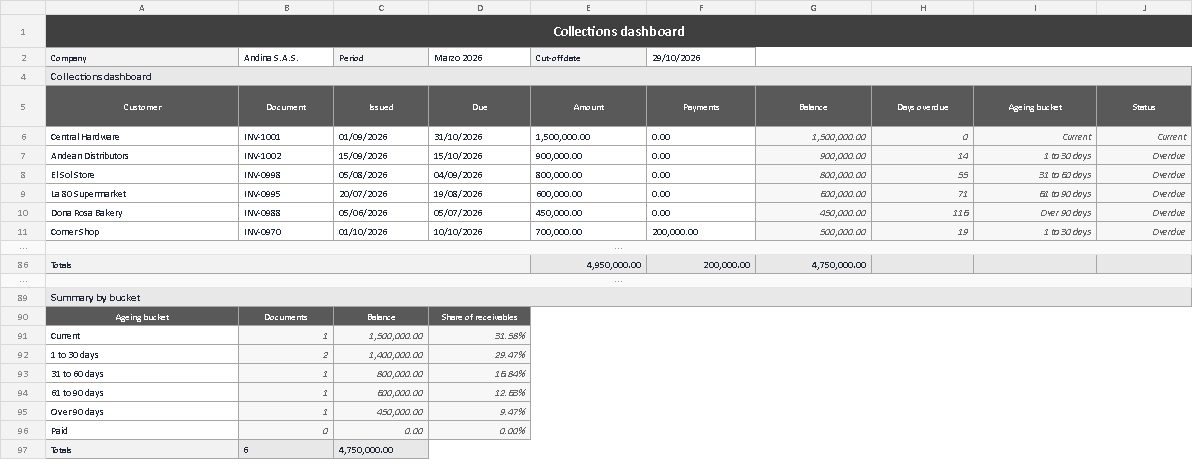
The screenshot shows the sheet with the sample loaded. At the top is the header with company, period and cut-off date; in the middle, the six invoices with balance, days overdue, bucket and status already calculated, listed in the order in which they deteriorate; and at the bottom, the summary by bucket with the number of documents, the balance in each band and its share of receivables. The totals row between the table and the summary is what confirms that the 4,750,000 balance matches the sum of the buckets.
A collections dashboard does not collect anything on its own, but it changes the conversation: instead of asking how much we are owed, you ask which document needs attention this week. Asked every month, that question is what eventually moves the receivable. Kardex Tauro builds these templates so the control starts the day they are downloaded, with no setup and no extra system to depend on.