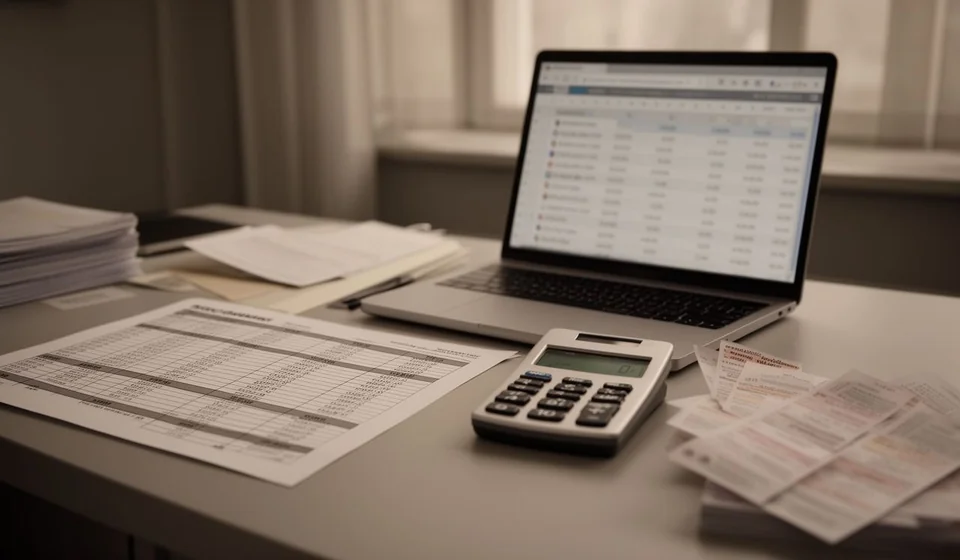
Purchase book template in Excel
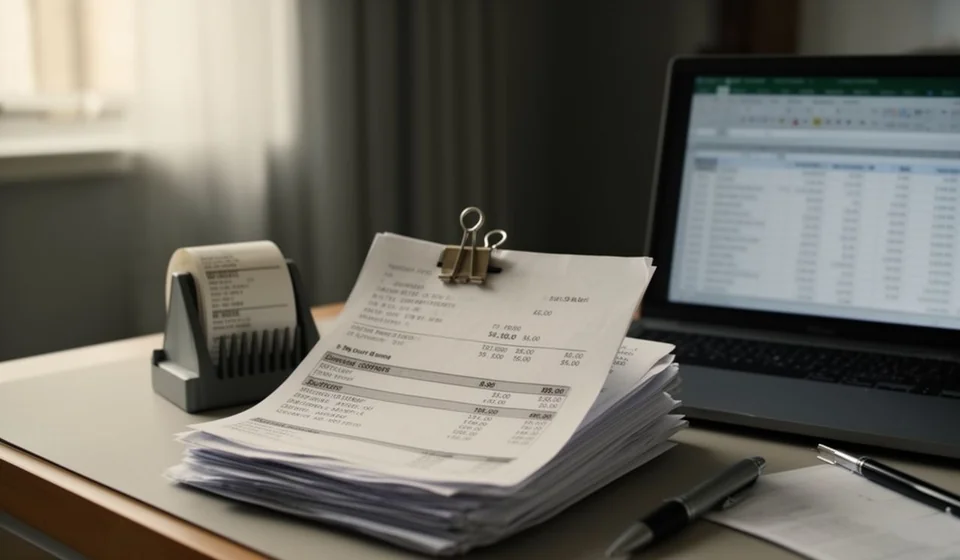
Purchase book template in Excel
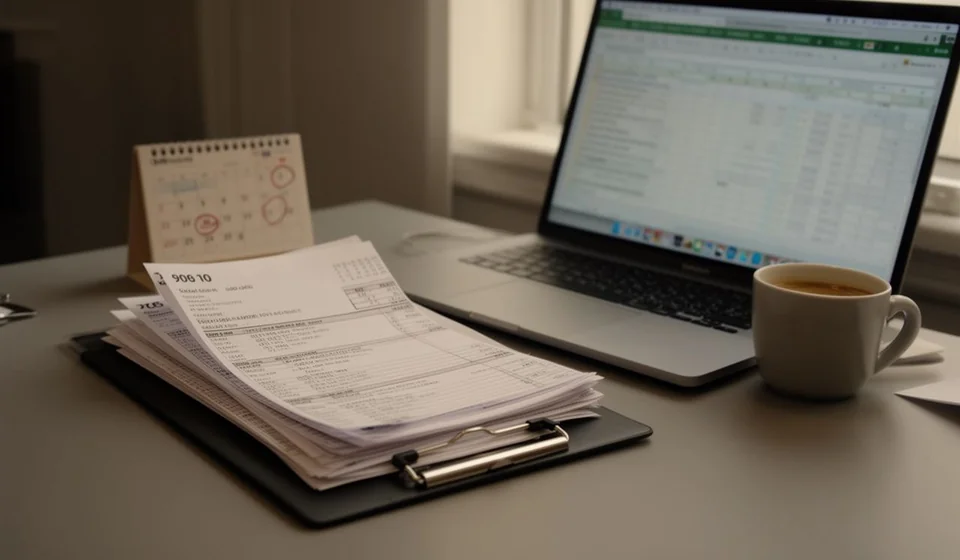
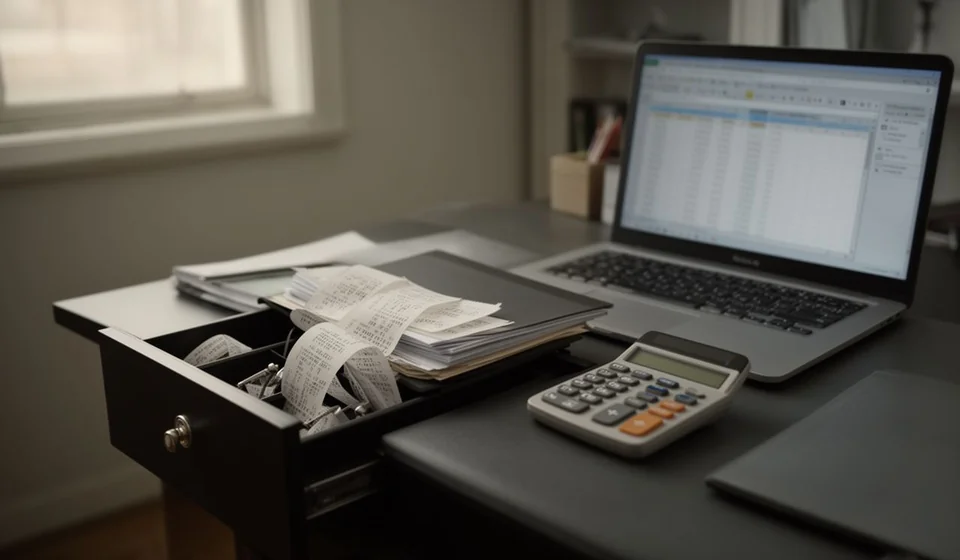
The end of the month arrives and the box of supplier invoices is still on the desk. Nobody has at hand how much was purchased, from whom, or with which document, and every question from the accountant turns into an afternoon of digging through paper. When the record lives in loose sheets, in an inbox or in the memory of whoever does the buying, the close takes longer and small purchases get lost. A purchase book solves exactly that: it puts every purchase of the month on one line, with its date, its supplier and its amount.
This purchase book template in Excel comes with two hundred rows ready to fill in, drop-down lists for the document type and the payment method, an automatic document total, totals for base, tax and withholding, and two summaries that show how the month's purchases were split. Download it, save one copy per month and start using it the same day.
⬇ Download the template (Excel .xlsx)What the purchase book is and who it is for
The purchase book is the ordered record of what the business bought during a period. Each line answers four questions: when it was bought, from whom, with which document, and for how much. It is not a financial statement and not a ledger: it is the list of supporting documents that later feeds the accounting records and that lets you answer, without opening a single folder, how much was purchased in the month, from which suppliers and with which paperwork. Its value is not in the final figure but in the fact that every amount is tied to a document you can show. Handled well, it turns a pile of paper into one table you can sort by date, by supplier or by amount, which is exactly what you need when a supplier calls to argue about a balance.
Who it is meant for
It is meant for small and mid-sized businesses that buy every day: shops, workshops, restaurants, hardware stores, pharmacies, distributors and independent professionals. It also helps the accountant or the assistant who receives the information at month end, because the detail arrives already ordered instead of in a bag of invoices. When several people do the buying, the book is the one place where everything comes together. And when a business is just starting, this record is the cheapest way to keep track of where the money is going.
How it differs from other records
Here the axis is the supplier's document, not the movement of money. A purchase on credit enters the book on the day the invoice arrives, even if it is paid three weeks later; a payment enters the cash book or the bank book, not this one. That separation is what makes reconciliation with the supplier possible: you compare what was purchased against what was paid and the difference appears, which is precisely the payable balance. Mixing purchases and payments on the same sheet makes the totals useless for reconciliation and the record loses its only real advantage.
What the template includes
The file comes with the structure ready and with no sample data, so you type your own purchases from the first row. This is what it contains:
| Item | What it is for |
|---|---|
| 200 entry rows | One line for each purchase document of the period |
| Document type list | Pick invoice, credit note, receipt or other, without typing |
| Payment method list | Mark whether the purchase was cash or credit |
| Automatic document total | Adds base and tax and subtracts withholding on each line |
| Column totals | Sums base, tax, withholding and total across all rows |
| Summary block | Counts the documents recorded and shows the period total |
| Mini table by document type | How many purchases and how much money per type |
| Mini table by payment method | How much was bought for cash and how much on credit |
| Notes column | For returns, pending items or an internal filing number |
Sheet columns
Twelve columns, in the order in which a purchase document is read. The list columns and the automatic column come already configured, so you only type where it belongs:
| Column | What to type |
|---|---|
| Date | The day shown on the supplier's document |
| Supplier | The name or business name exactly as it appears on the paperwork |
| Tax ID | The supplier's identification number |
| Document type (list) | Invoice, credit note, receipt or other |
| Document number | The exact number of the document, with no added zeros |
| Description | What was bought, in a few words |
| Base | The amount before tax shown on the document |
| Tax | The tax amount exactly as it appears on the document |
| Withholding | The amount withheld exactly as it appears on the document; zero if none applies |
| Document total (automatic) | Base plus tax minus withholding |
| Payment method (list) | Cash or credit |
| Notes | Control notes you want to leave in writing |
How the calculation works, with an example
The only column that calculates itself is the document total: it takes the base, adds the tax and subtracts the withholding. The tax and the withholding are typed exactly as they appear on the supplier's document, because the template does not calculate taxes, does not determine them and does not replace any official record: it only stores the figure you enter. Let us look at three entries from September:
| Date | Supplier | Document | Base | Tax | Withholding | Total |
|---|---|---|---|---|---|---|
| 09/03 | Supplier A | INV-1024 | 1,000,000 | 190,000 | 25,000 | 1,165,000 |
| 09/07 | Supplier B | INV-2087 | 500,000 | 95,000 | 0 | 595,000 |
| 09/12 | Supplier A | Credit note | 200,000 | 38,000 | 0 | 238,000 |
| Month totals | 1,700,000 | 323,000 | 25,000 | 1,998,000 |
On 09/03, Supplier A, invoice INV-1024 for goods: base 1,000,000, tax 190,000, withholding 25,000 and total 1,165,000. On 09/07, Supplier B, invoice INV-2087: base 500,000, tax 95,000, no withholding and total 595,000. On 09/12, a credit note from Supplier A for a return: base 200,000, tax 38,000 and total 238,000. The month totals come to base 1,700,000, tax 323,000, withholding 25,000 and total 1,998,000.
Notice the last row: the totals are not typed, they are summed. Notice the credit note too, which goes on its own line with its own number, so that the month total is net and matches what the supplier reports when you ask for a statement of account.
Step by step for the month
- Download the template and save a copy named after the month, for example purchases September.
- Type the date and the supplier of the first purchase, exactly as they appear on the paperwork.
- Pick the document type from the list and enter the exact number in the document column.
- Enter the base, the tax and the withholding exactly as they appear on the document; if there is no withholding, leave zero.
- Check that the document total column matches the amount printed on the paperwork.
- At month end, compare the sheet totals against the paperwork and reconcile with each supplier.
Tips and common mistakes
- Do not work out the tax from memory. It is typed exactly as it appears on the supplier's document.
- When there is no withholding, type a zero instead of leaving the cell blank, or the column total loses accuracy.
- Type the document number exactly as printed, with no zeros removed or added: it is the key to reconciling with the supplier.
- Record the credit note on its own line with its own number, so the month comes out net.
- Do not delete or insert rows: use the two hundred available, so the totals keep the whole range.
- Do not mix months in the same file. One copy per month makes reconciliation immediate. And remember that this sheet is an internal control tool, not an official document.
When to move to software
The template holds up well for a business that buys a few dozen times a month and where one person does the recording. The problem shows up when volume grows: two or three people buy, the file is opened on different computers, someone copies the same invoice twice and nobody knows which is the good version. At that point the purchase book still exists, but it is no longer reliable for decisions. The signal is clear: when you spend more time checking the sheet than buying, the record has stopped helping. Another sign is when the accounting close depends on one person's laptop, and nothing can move forward while that person is away.
Moving to inventory and purchasing software does not mean losing the control you already have: it means the record no longer depends on someone remembering to save the file. With Kardex Tauro a purchase is entered once and the cost, the product balance and the supplier history update at once, with no re-typing. The Excel sheet still works as a report and as a backup, and comparing its totals against the system is a good entry check during the first months.
If your operation no longer fits in a spreadsheet, Kardex Tauro is the natural next step; if it still fits, this template solves the month at no cost.
Download the template, try it on last month and compare the totals with the paperwork: if they agree, your purchase book is already working. If two or three lines do not match, you have found in half an hour the purchases that were about to go missing at closing time.
⬇ Download the template (Excel .xlsx)