Inventory dashboard template in Excel

Inventory dashboard template in Excel
Anyone who runs a storeroom knows that inventory does not fail for lack of data but for too much of it. There are hundreds of SKUs, each with its own purchase and sales history, and somewhere in that volume the question that actually matters gets buried: what to buy this week and what to leave alone. An inventory dashboard sorts that information into three readings —turnover, coverage and stockouts— and puts them on a single sheet, so the replenishment decision comes from a number instead of from whoever does the buying.
This template does that and nothing more. You download it, open it in Excel and fill in two values per product: how many units sold during the period and how many are in the warehouse today. From there the sheet calculates annualised turnover, coverage in days and a status that classifies each item as normal, reorder, excess or stockout. At the bottom, a four-indicator block sums up the whole period so you can compare it with the previous one.
Download the inventory dashboard template (Excel .xlsx)
The file comes from Kardex Tauro as a plain .xlsx with no macros and no passwords, built for small and mid-sized businesses that keep inventory on a spreadsheet and do not want to stand up a full system to answer three questions. If you already run a stock card or an item list, the data moves across in minutes: product, code, units sold and current stock are the only four inputs the dashboard needs in order to work on its own.
What an inventory dashboard is and what it solves
An inventory dashboard is not a stock list. A list tells you how much you have; a dashboard tells you what to do with it. The difference comes from crossing two figures that are almost always kept apart: the stock on hand and the speed at which that stock sells. Once they are crossed, every product lands in one of four situations, and each situation calls for a different response.
The first reading is turnover. It measures how many times the inventory sells in a year and makes items of very different size comparable: selling 900 reams is not the same as selling 60 ballpoint pens, yet both figures become comparable once they are expressed as times per year. The second is coverage, which turns current stock into days of sales and answers how long what you have will last. The third is the stockout, the extreme case where coverage drops to zero because not a single unit is left.
With those three readings the dashboard answers the operational question of the day: what to reorder now, what can wait, what is tying up cash and what ran out while there was demand. That last point is usually the most painful, because a stockout never shows up on the income statement: it shows up as a sale that did not happen, a customer who bought elsewhere and a gap nobody records.
What the «Indicators» sheet contains
The workbook has two sheets. The first, «Indicators», is where the work happens; the second, «Instructions», explains on a single page what each column measures, how it is calculated and which mistakes are most common. The working sheet is laid out in four blocks you read from top to bottom.
| Block | What it holds |
|---|---|
| Header | Company, period and days in the period. That last value is what feeds the annualisation of turnover. |
| Product table | One row per item, with units sold, current stock and the three columns the sheet calculates. |
| Totals row | The sum of units sold and of current stock across every populated row. |
| Indicator block | Number of products, products in stockout, average coverage and average turnover for the period. |
The sheet comes with five populated rows and several empty ones that already carry the formulas, so typing a new product makes the calculations appear on their own. There is no dragging formulas or copying cells downwards: the structure is ready to grow without anything breaking.
The columns and what each one means
Eight columns, four of which you type into and four of which the sheet calculates. It is worth keeping that boundary clear, because almost every usage error consists of typing by hand something the sheet was supposed to work out.
| Column | What it means |
|---|---|
| Product | The name the item is known by in the warehouse. It is the column you read at a glance. |
| Code | The internal reference. It reconciles the sheet with the stock card and with the invoicing system. |
| Units sold | Outflows for the period. This is the demand figure that feeds both indicators. |
| Days in the period | The length of the cut. It must match the header value, because daily sales come from it. |
| Annual turnover | Calculated. How many times the item's inventory is renewed in a year. |
| Current stock | Units available at the close of the cut, either counted or taken from the stock card. |
| Coverage | Calculated. How many days the current stock lasts at the period's daily sales rate. |
| Status | Calculated. Normal, reorder, excess or stockout, based on coverage and stock. |
The totals row adds up quantities, not averages: adding coverages or turnovers together would mean nothing. That is why the averages live in the block at the foot instead of the closing row.
How the three indicators are calculated
Annual turnover comes from dividing units sold by the days in the period and multiplying by 360. First you get average daily sales, then you stretch it to a full year. That annualisation is precisely what lets you compare a slow month with a strong quarter without the difference in length distorting the reading.
Coverage comes from dividing current stock by that same daily sales figure. The result is days: how long what you have will last if demand holds. Status then combines the two with two thresholds: if stock is zero the item is in stockout; if coverage is fifteen days or less it needs a reorder; if it goes past ninety days there is excess; anything else is normal.
A word of caution about those thresholds. They are not a universal truth: fifteen days is short for an imported item and may be generous for something you can buy around the corner. The template ships with those values because they are a reasonable starting point, and they sit in plain sight inside the formula so whoever uses the sheet can tune them to their own operation. What does not get tuned is the logic: status always comes from coverage, never from an impression.
The worked example that ships with the file
Five products from an office supplies store over a 90-day period. The full table lets you see all four dashboard situations on one screen.
| Product | Units sold | Annual turnover | Stock | Coverage | Status |
|---|---|---|---|---|---|
| Letter paper ream | 900 | 3,600 | 120 | 12 days | Reorder |
| Black toner | 450 | 1,800 | 300 | 60 days | Normal |
| Archive box | 180 | 720 | 240 | 120 days | Excess |
| Blue ballpoint pen | 60 | 240 | 0 | 0 days | Stockout |
| Metal stapler | 1,350 | 5,400 | 90 | 6 days | Reorder |
Read the ream and the stapler together: the ream sells 900 units, turns over 3,600 times a year and holds 120 in the warehouse, which is twelve days of coverage; the stapler sells 1,350, turns over 5,400 and holds only 90 units, six days. Both show up under reorder, but the stapler is the urgent one: if the supplier takes a week, it runs dry before the order lands. Toner, with 300 units and sixty days of coverage, can wait without drama. The archive box carries 240 units against a sale of two a day: a hundred and twenty days of coverage, four months of cash asleep on the shelf. And the ballpoint pen, 60 units sold with stock at zero, is the stockout of the period.
The indicator block sums up the whole picture: five products, one in stockout, average coverage of 39.6 days and average turnover of 2,352. Averages are there to track movement between periods; the per-product detail is what decides this week's purchase. A healthy average can hide a single stockout and a large excess at the same time, which is why both readings are needed.
How to use it, step by step
- Open the file and go to the «Indicators» sheet.
- Type the company name, the period and the days the cut covers: 90 if you are measuring a quarter.
- Replace the sample products with your own, one per row, leaving no blank rows in the middle of the table.
- Enter the units sold for the period exactly as they appear on the stock card or in the sales report.
- Enter current stock, counted at the close of the same day as the cut, so both figures describe the same moment.
- Check the status column and sort the table by coverage, lowest first, so the urgent items sit at the top.
- Write down the four indicators at the foot and compare the period with the previous one before placing the order.
If you order every month, keep a copy of the file per period instead of overwriting it. That turns the dashboard from a snapshot into a series, and the month-to-month comparison is where changes in demand show up that no single reading would reveal.
Common mistakes worth avoiding
- Comparing turnover across periods of different length without annualising first.
- Calculating coverage with stock still in transit, which has not reached the warehouse yet.
- Watching only stockouts and forgetting excess, which also costs money and space.
- Leaving the days column blank or with a value that differs from the header.
- Typing turnover or status by hand when both are calculated columns.
- Mixing units of measure: one row in boxes and another in single units breaks every comparison.
- Using the dashboard as a valued inventory: there are no costs or amounts here, only quantities and days.
Which program opens it
The file is a standard .xlsx and works in desktop Excel, Excel on the web, LibreOffice Calc and Google Sheets. The formulas it carries are basic spreadsheet functions, with no macros and no add-ins, so they behave the same in all three programs. If you upload it to Google Sheets, check the decimal separator and number format, which shift with the account's regional settings.
The screenshot of the sheet
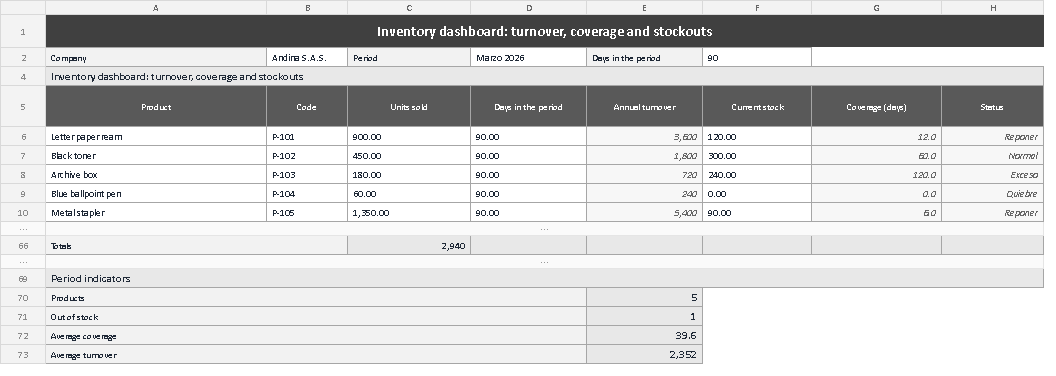
The image shows the sheet exactly as it downloads: the header with company, period and days, the five sample rows and, at the foot, the block with the four indicators. Look at the last column, where all four statuses sit side by side: reorder on two products, normal on one, excess on another and stockout on the ballpoint pen. That mixture is the summary of a real storeroom, and it is exactly what a stock list never shows.
Download the template and try it with your own numbers
The shortest way to find out whether the dashboard works for you is to load twenty of your products and look at the status column. Ten minutes later you will have an urgency-ordered list you did not have before, plus a fairly clear idea of how much of your inventory is sitting still. If the result is useful, the next step is to repeat the exercise every month with the same file and start comparing.