Supplier comparison template in Excel
Supplier comparison template in Excel
Getting three quotes is the easy half. Choosing between them is where small purchases fall apart. In a lot of companies the comparison happens in the corridor: someone says a certain supplier is the cheapest, everybody nods, and the order goes out on the strength of that sentence. Then the paper arrives late, or short, or the supplier wants cash on delivery in the week the bank account is thin, and the buyer is left feeling they chose badly without ever having anything to compare.
A supplier comparison sheet fixes that by forcing the offers side by side, under identical criteria, each with a declared weight. The template you can download here takes the unit price, the lead time and the payment terms of three suppliers, works out the total value of the purchase, turns price and lead time into comparable scores, and adds them into one number. The highest score shows up at the bottom of the sheet in a row labelled Best option, so nobody has to argue in a meeting.
Download the supplier comparison template
The file is in English, it is called supplier-comparison-template.xlsx and it holds two sheets: Comparison and Instructions. No macros, no password, no protected cells. It is built for one item per purchase and three offers: enough to see a real gap in price and delivery, few enough to stay readable. The supplier names, prices and weights in the example are invented and can be overwritten without breaking a single formula.
What it is and what it fixes
A comparison sheet is a table where each row is a supplier and each column is a buying criterion. The value is not in the table; it is in the rule that comes with it, which says how much each criterion counts. Write that rule down before the quotes arrive and the decision stops depending on who called first, and starts depending on arithmetic anyone in the company can repeat. The real shift: from opinion to criterion.
The template also solves something the eye cannot: treating price and lead time as if they were the same kind of number. A supplier who charges less but delivers in nine days and one who charges more and delivers in three cannot be ranked in one glance, because each is better on one count and worse on the other. Pushing both onto a common scale, zero to one, lets you add them with whatever weight the business chooses. Hence the surprise for anyone who only reads the price column: Suministros Sol wins with 0.9364 though its unit price of 13,200 is the highest.
One limit is worth stating up front: the sheet compares a single item per purchase process. It is not a basket comparison and not a multi-product one, and that is by design, because the price score is measured against the lowest price in the table itself. Put a ream of paper and a toner cartridge on the same sheet and the cheaper drags the other's score down. One item, one process, one sheet; to compare two products, copy the file instead of mixing rows.
What the Comparison sheet contains
Comparison is where you work; Instructions explains each field, walks through the worked example and lists the mistakes worth avoiding. The working sheet runs in three blocks, top to bottom: the process header with the weights, the supplier table, and the result block.
| Part | What it holds |
|---|---|
| Process header | The sheet title and, underneath, company, item and quantity required: Andina S.A.S., ream of letter paper, one hundred units. |
| Decision weights | Two editable cells: price weight 0.60 and lead time weight 0.40, the dials that move the answer without touching a formula. |
| Supplier table | Three rows with supplier, unit price, lead time, payment terms, total value and the three scores. Below them, spare rows already wired to the formulas. |
| Reference row | The sum of the total value column: 3,750,000 in the example, buying one hundred reams from each. |
| Best option block | Two rows at the foot: the top supplier and that score. A result, not a cell anyone types into. |
| Instructions sheet | What it solves, how to use it, how each column is calculated, the worked example and warnings about typical mistakes. |
The columns, one at a time
The first four columns are yours to type; the last four are calculated. Keeping that straight avoids the most common mistake of all, which is overwriting a score by hand and assuming the sheet will honour it: the number stays on screen and stops meaning anything.
| Column | What it means | How it is obtained |
|---|---|---|
| Supplier | Whoever quoted the item. | Free text, one row per offer. |
| Unit price | Price of one unit, compared on equal terms across the three. | Entered by the user. |
| Lead time (days) | Days from purchase order to delivery at the warehouse. | Typed by the user, in calendar days. |
| Payment terms | Cash, thirty or forty-five days: when the money leaves. | Entered by the user. Read when deciding, never scored. |
| Total value | What the whole purchase would cost. | Unit price times quantity required. |
| Price score | How much price contributes to that offer's final result. | Lowest price in the table divided by this price, times the price weight. |
| Lead time score | How much delivery speed contributes to the final result. | Shortest lead time divided by this lead time, times the lead time weight. |
| Total score | The number the offers are ranked by. One is the ceiling. | Price score plus lead time score. |
The logic is short: the best offer on each criterion collects the full weight, and the rest collect a fraction in proportion to how far behind they finished. The cheapest takes the whole price weight, the fastest takes the whole lead time weight, and only one supplier can take both.
The worked example inside the file
The workbook arrives filled in with a real purchase: one hundred reams of letter paper for a company called Andina S.A.S. Three suppliers quote, with weights set at 0.60 for price and 0.40 for lead time. The sheet returns three scores that sort themselves:
| Supplier | Unit price | Lead time (days) | Terms | Total value | Total score |
|---|---|---|---|---|---|
| Papelería Central S.A.S. | 12,500 | 5 | 30 days | 1,250,000 | 0.8064 |
| Distribuidora Andina Ltda. | 11,800 | 9 | Cash | 1,180,000 | 0.7333 |
| Suministros Sol | 13,200 | 3 | 45 days | 1,320,000 | 0.9364 |
The answer annoys anyone who has only bought on price: Suministros Sol wins with 0.9364, the dearest per unit and the one with the highest total value, 1,320,000 against 1,180,000 for the cheapest quote. Delivery explains the swing: three days against nine. At a weight of 0.40 that gap counts for more than the price gap. Distribuidora Andina, the cheapest, finishes last because its nine days punish it on the other criterion.
The sheet also shows what it refuses to score: Papelería Central gives thirty days to pay and Suministros Sol forty-five, while the cheapest wants cash. Terms sit outside the calculation, so the result row is a recommendation, not an order: if cash flow needs the delay, the same score can lead elsewhere.
Using it, step by step
- Open Comparison and fill in the company, the item and the quantity required. Quantity multiplies every price: get it wrong and all three total values are wrong.
- Set the weights before you look at the offers, using two numbers that add up to one. At 0.60 and 0.40 price leads but delivery still decides; at 0.80 and 0.20 delivery barely counts, and that has to be a choice, not a surprise.
- One row per supplier with name, price, lead time and payment terms. No blank rows in the middle: the calculation looks for the minimums across the whole range.
- Check the reference row before reading the scores. It is the total value with each supplier and it tells you how much money is at stake.
- Read the two scores separately, not just the total. Where each supplier wins tells you what to negotiate: ask the cheap one for a shorter lead time, ask the fast one for a better price.
- Check payment terms before signing. They score nothing, but forty-five days to pay can beat the price gap between two offers.
- When a new quote lands, overwrite the cell and confirm the weights still add up to one. The scores and the Best option row recalculate on their own.
Mistakes that keep coming back
Most problems start with using the sheet outside its scope. A badly fed comparison does not look broken: it looks perfect and decides wrong.
- Comparing different items on one sheet. The price score is measured against the lowest price in the table; mixing a ream of paper with a toner wrecks the scale.
- Using weights that do not add up to one. With 0.60 and 0.60 the total can exceed one and the ranking distorts. The weights split one pie, they are not two votes.
- Leaving quantity blank or at zero. Total value collapses and the reference row stops being useful.
- Deciding on unit price alone. That is exactly the mistake the template exists to prevent: the cheapest offer can finish last.
- Comparing prices with different scopes. One with tax and one without, one delivered and one plus freight. The table does not fix that for you.
- Typing a score by hand. Those columns are formulas; overwrite one and the sheet shows a believable number that answers to no calculation.
- Keeping no record of the rejected quotes. Saved with the process date, the sheet explains months later why the order went where it went.
What opens it
The file is xlsx and runs in Excel 2016 or later, in Microsoft 365, in LibreOffice Calc and in Google Sheets. The formulas are basic — minimum, sum, lookup and match — and all four read them without conversion, though decimal separators follow each machine's regional settings. In LibreOffice and Google Sheets, check that the price cells are stored as numbers and not as text: a price typed as text leaves the score blank. The template is part of the Kardex Tauro collection of free sheets for purchasing and internal control in small companies.
The sheet on screen
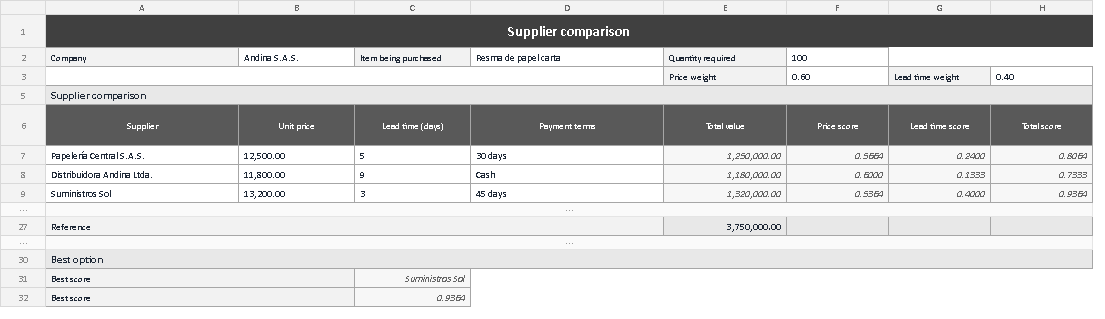
The screenshot shows the Comparison sheet as it opens. The title band sits on top, and under it the process header: company Andina S.A.S., item ream of letter paper, one hundred units and the two weights, 0.60 and 0.40, on one line. The middle table carries the three offers, each with unit price, lead time, terms, total value and the three scores; the rows beneath stay empty with the formulas in place. At the foot are the reference row at 3,750,000 and the Best option block naming Suministros Sol at 0.9364. It all fits one screen, no horizontal scrolling, deliberately: a comparison nobody takes in at a glance stops being used.
A criterion written before you buy
What makes such a sheet useful is not the arithmetic, which is trivial, but the order of the steps: weights first, offers second, result read with payment terms alongside. Keep that order and a purchase stops being a hunch and becomes a decision you can defend in two sentences a year later. Download the file, swap the example for your own purchase and save it under the process name: when someone asks why the order went to a supplier that was not the cheapest, the answer is already there.