Sales dashboard template for Excel

Sales dashboard template for Excel
January starts with a target written into an email, and by July nobody can say whether the year is on track. The sentence that turns up in every small company is “sales have been good”, which is not an answer: without the target beside it, “good” means nothing. The data is rarely the problem, because the invoices exist; the problem is that nobody lines them up against the goal.
What usually exists is a dated list of sales in one sheet and, in another file, a budget that was built once and never opened again. In December the two get added together and the result appears at the exact point where nothing can be fixed. A sales dashboard does not predict anything: it puts the year's running total in front of you every month, while there is still time to steer.
This template makes that join with eight columns and two sheets. You enter four things per month — month, target, actual sales and number of sales — and the file works out the average ticket, attainment, the gap and the cumulative figure. Underneath sits a six-line summary of what an owner looks at first: the year target, the year's sales, whether it was met, the best month, the weakest month and how many months reached target.
⬇ Download the template (Excel .xlsx)What the dashboard is and who it is for
It is a single-screen spreadsheet that compares, month by month, what the company set out to sell with what it actually sold. It is not an accounting report and not a profit and loss statement: there are no costs here, no margins and no taxes. It is the scoreboard, not the club's bookkeeping.
It is for the owner who needs an answer in thirty seconds before a meeting; for the administrator closing the month and having to explain why cash is not following sales; for the sales lead checking whether the team's effort is paying off; and for the accountant who receives the file and would rather not rebuild the numbers from scratch. It suits the one-person company too, which is where the comparison is forgotten most often: with nobody to report to, the target quietly dissolves.
The workbook rests on two tabs. The first, Dashboard, holds the twelve month rows, the total row and the indicator block. The second, Instructions, explains on a single page what it is, how to use it and how to read it, carries the worked example and lists the mistakes to avoid. That second sheet looks like decoration until the file changes hands and someone has to understand it without calling anyone.
What the template includes
| Block | What it holds | What it is for |
|---|---|---|
| Dashboard sheet | Twelve rows, one per month, plus the Year total row | See the whole year without switching tabs |
| Header | Company and year | Identify the period before printing or sharing |
| Input columns | Month, target, actual sales and number of sales | The only figures typed by hand |
| Calculated columns | Average ticket, attainment, gap and actual cumulative | They fill themselves and are left alone |
| Year indicators block | Year target, year sales, attainment, best month, weakest month and months on target | A six-line summary for the monthly meeting |
| Instructions sheet | What it is, how to use it, how to read it, the example and the mistakes to avoid | So the template explains itself |
The columns, one by one
Four columns are typed and four are calculated. The distinction matters: if someone enters a value into a calculated column, the formula disappears and the sheet stops updating itself. That is why the work should be split from the start: whoever loads the data leaves the grey columns alone, and whoever reviews the dashboard does not correct figures by hand.
| Column | What is typed | What is calculated |
|---|---|---|
| Month | The month name, January through December | Nothing: it is the row label |
| Target | What the company set out to sell that month | Nothing, but it feeds attainment and the gap |
| Actual sales | What was sold and invoiced in the month | Nothing: it is the fact being compared |
| No. of sales | How many transactions took place | Nothing, but without it there is no ticket |
| Average ticket | Not typed | Actual sales divided by the number of sales |
| Attainment | Not typed | Actual sales divided by the month's target |
| Gap | Not typed | Actual sales minus target: positive when ahead, negative when short |
| Actual cumulative | Not typed | Sum of actual sales from January down to that month's row |
The order is deliberate. First the period, then the commitment, then the fact, and finally the three readings: what each transaction is worth, how much of the target was met, how much is missing or extra, and how the year is going. Move the columns around and the formula references shift with them, and the dashboard starts lying quietly.
How the calculation works, with the sheet's example
The file ships with a closed year as its example: a target of 124,000,000 and sales of 125,200,000, across 652 transactions spread over the twelve months. Those four figures explain every calculated column.
| Item | Value | How it is obtained |
|---|---|---|
| Year target | 124,000,000 | Sum of the twelve monthly targets |
| Year sales | 125,200,000 | Sum of actual sales across the twelve months |
| No. of sales | 652 | Sum of the year's transactions |
| Average ticket | 192,024.54 | 125,200,000 divided by 652 |
| Attainment | 100.97 percent | 125,200,000 divided by 124,000,000 |
| Gap | 1,200,000 favourable | 125,200,000 minus 124,000,000 |
| Actual cumulative | 125,200,000 | Running sum of sales through December |
Attainment: 125,200,000 divided by 124,000,000 gives 1.0097, which the sheet shows as 100.97 percent. Above 1, the year did not just reach the target: it beat it. Gap: 125,200,000 minus 124,000,000 leaves 1,200,000 to the good. Had the result been negative, the same column would say how much was missing, without any change to the formula, which is why the gap is always read with its sign attached.
Average ticket: 125,200,000 divided by 652 transactions gives 192,024.54. It is the mean value of each sale, not the price of a product. It allows a reading few people make: if the ticket rises while the number of sales falls, revenue can hold with fewer transactions, and that is a different conversation from “sell more”. The other way round, a falling ticket at a steady transaction count is a warning that the company is selling cheaper or discounting harder.
Actual cumulative: the sum of the twelve months down to the row you are standing on. In January it is January alone; in June it is six months; in December it matches the year's sales. That is the column that answers “how are we doing”, while the gap answers “how did this month go”. Both are needed: one weak month inside a good year tells a different story from a weak year with one good month, and the dashboard shows the difference without argument.
Step by step
- Open the file and enter the company name and the year in the header. Those are two cells, and everything else rests on them.
- Type each month's target in the Target column. If the target is annual and split by season, respect the agreed split instead of dividing by twelve for convenience.
- Load the month's real figure in Actual sales, using the same basis every month: with whatever rate the current rules set, or without it, but always the same way. The comparison only holds if the basis does not move.
- Record the number of transactions in No. of sales. It is optional, but without it there is no average ticket and that column stays blank.
- Check the calculated columns. If a cell comes up empty, it is almost always a missing target or a missing transaction count for that month, not the formula.
- Read the year indicators block before the meeting: the year target and sales, overall attainment, the best month, the weakest one and how many months closed on target.
- Keep one copy per year and never mix periods in the same file. Comparing years inside a single sheet ends up breaking both the sums and the references.
Mistakes that happen every time
- Changing the target halfway through the year so attainment looks good. It is the fastest way to lose your reference point; if the target really changes, write the reason next to it and do not delete the original.
- Mixing bases: sales recorded with whatever rate the current rules set and targets without it, or the reverse. Attainment drifts and nobody notices until the accountant asks for a reconciliation.
- Leaving months blank. The cumulative and attainment still calculate, but the year stops being comparable and the gap becomes misleading.
- Typing over the calculated columns. Doing so kills the formula, and the following month no longer ties to the total.
- Confusing the average ticket with a price. It is the mean of every transaction in the month: one large sale moves it, and that does not mean the business improved.
- Adding up the cumulative outside the sheet. The column already does it; a second manual sum usually double counts months or leaves the last one out.
When to leave the sheet and move to software
The template holds up well for one year, one owner and one file. It starts to fall short in three specific situations: when several salespeople carry their own accounts and each transaction has to be attributed to a person; when more than one person edits the file and versions appear that nobody can rank; and when the detail per document is needed, not just the monthly total.
In those cases the sheet still works as a dashboard — nobody argues with twelve rows — but the figure has to come from a system where a sale is recorded once and inventory, receivables and reporting flow from it. Kardex Tauro covers that side: the dashboard is fed by recorded sales rather than a number someone copies by hand. If the company does not yet have that problem, the template is enough and there is no reason to complicate it.
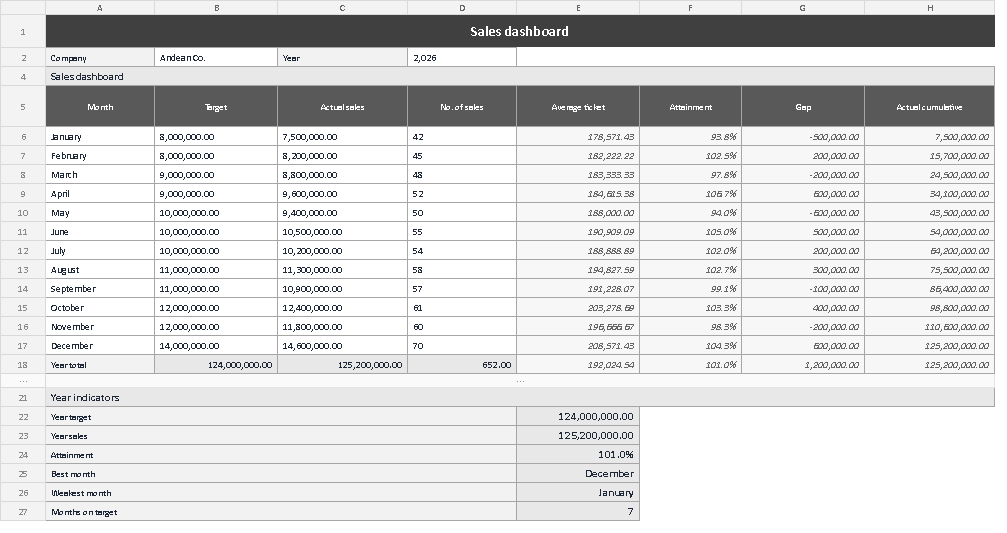
The screenshot shows the Dashboard sheet with the example loaded: the header with the company and the year, the twelve month rows with target, actual sales and transaction count, the Year total row and, below it, the year indicators block with the best and weakest month. The columns on the right are already calculated and are left alone. Two things are worth checking: that the total row closes both the year target and the year sales, and that the attainment in the block matches the one in that row. In the screenshot the percentage is rounded to one decimal; the exact figure in the example is 100.97 percent, and the difference is presentation only, not calculation.
A sales dashboard does not make anyone sell more. It does something more modest and more useful: it gives the question “how are we doing?” an answer in one line, in any month of the year, without opening three files or waiting for the accounting close. With twelve rows and four figures a month, the conversation moves from impressions to numbers, and that improvement lasts the whole year.
If the file is shared with the team, print the sheet once a month and take it into the meeting. A dashboard that only lives on one person's screen ends up as decoration.
⬇ Download the template (Excel .xlsx)