Withholding tax settlement template in Excel

Withholding tax settlement template in Excel
Month-end has a ritual almost nobody enjoys: the folder of supplier invoices. Someone sorts them by date, writes the amount of each in the margin and applies the same rate to all of them because it is the one they remember. The total lines up with the estimate the bookkeeper gave and nobody asks a question, until a supplier calls to say too much was taken off.
The problem is rarely the multiplication. It is that the number being multiplied lives in the head of whoever does the settlement: which category each payment belongs to, which amount goes in the base, which rate applies. When none of that sits in a column, there is no way to rebuild the figure three weeks later. And when the category is typed by hand, with variants like "services", "Service" and "serv.", the period summary splits into three pieces that no longer add up.
This template goes straight at that point: a single table where every payment takes one row, the category is picked from a closed list, the base sits in its own column, the rate is typed by the user and the withholding is produced by a formula. Below it, a summary that groups by category without anyone having to sort anything first.
⬇ Download the template (Excel .xlsx)
What it is and what it solves
It is an Excel workbook with two sheets. The first one, "Withholding", holds the header with company and period, the payment table, the totals row and the summary by category. The second one, "Instructions", walks through the procedure in four steps, keeps the worked example on the page and lists the three mistakes that come up most often.
It is meant for anyone settling supplier payments in a small business: the owner of a hardware store buying from five distributors, the manager of a bakery paying rent and utilities, the outside bookkeeper who receives the month's invoices in a cloth bag. It also suits the person who has done this in a notebook for years and wants to see, before buying software, which fields are actually needed to close a period.
Worth saying plainly: this is not an official tax or accounting document. It does not calculate taxes on its own and it does not replace the business's withholding ledger. It is an internal control tool, and the notice is written on the instructions sheet so nobody mistakes it for something else.
What the sheet contains
| Block | What it holds | What it is for |
|---|---|---|
| Header | Company name and period being settled | Fixes the cut-off so the file cannot be confused with last month's |
| Payment table | Eighty rows with date, vendor, tax ID, category, base, rate, withholding and notes | This is the settlement itself, one payment per row |
| Totals row | Sum of the taxable base and of the withholding | Period check at a glance |
| Summary by category | Six categories with base, withholding and payment count | See where the total comes from and which category weighs most |
| "Instructions" sheet | Procedure, example and usage notice | So someone else can close the period without calling you |
The eighty rows are working space, not a ceiling: if the period brings more payments, insert rows above the totals line and copy the formulas down; if it brings fewer, the spare ones stay empty and do not pollute the sum. The summary at the bottom is not typed in either — it fills itself, and a line at zero says nothing of that kind was paid, which is a different fact from having forgotten it.
The columns, one by one
| Column | What you type | What is calculated |
|---|---|---|
| Date | Date of the payment or of the invoice behind it | Nothing; it orders the period and helps you find the paperwork |
| Vendor | Name of the supplier or beneficiary | Nothing |
| Tax ID | The vendor's identification number | Nothing; it is the key that separates two similarly named suppliers |
| Category | Picked from a closed list of six options | Nothing; it decides which line of the summary the row lands on |
| Taxable base | Amount of the payment before withholding | Nothing |
| Rate | The fraction that applies, typed by hand | Nothing; the template imposes none |
| Withholding | Leave it alone | Base times rate, rounded to two decimals |
| Notes | Free text for exceptions | Nothing; it is what gets read when someone asks about a difference |
Two columns deserve a word of their own. The first is "Category". It is not free text: it is a closed list of six options, and the summary below looks for exactly those six words. A category typed by hand that does not match the list never shows up in the summary, even though the row still counts in the totals. That gap between "counts in the total" and "shows in the summary" is what you watch when the numbers refuse to tie out.
The second is "Rate". The cell stores a decimal, not a string: 0.025 for two and a half percent, 0.04 for four, 0.10 for ten. Type 2.5 or 25 there and the withholding comes out a hundred or a thousand times larger, and nothing warns you, because the result still looks like a plausible number. The instructions sheet puts it in one line: the rate goes in as a fraction of the whole.
And there is a third design decision, the most important of all: the template carries no rates. Those cells start empty so the person doing the settlement fills them in, because the rate for each category is a fact about the business and about the moment, not a constant baked into the file. An old file with rates frozen inside would keep calculating with the ones from its own year, and nobody would notice until a supplier complained.
How the calculation works, figure by figure
The example shipped with the sheet has four March payments, with sample names and tax IDs. It sits there so the formulas can be followed on screen without opening anything else.
| Category | Taxable base | Rate | Withholding |
|---|---|---|---|
| Purchases | 2,400,000 | 2.5 percent | 60,000 |
| Services | 1,200,000 | 4 percent | 48,000 |
| Professional fees | 800,000 | 10 percent | 80,000 |
| Lease | 1,500,000 | 3.5 percent | 52,500 |
| Period total | 5,900,000 | — | 240,500 |
The stationery purchase of 2,400,000 at 2.5 percent withholds 60,000; the services of 1,200,000 at 4 percent, 48,000; the professional fee of 800,000 at 10 percent, 80,000; and the rent of 1,500,000 at 3.5 percent, 52,500. Four rows, four categories, four different rates: exactly the scenario where the paper notebook falls apart.
The period base is 5,900,000 and the total withheld is 240,500. That pair of figures is the proof the sheet ties out: the summary by category has to add up to exactly the same thing as the totals row. Freight and other stay at zero because there were no payments of those two kinds, and seeing them at zero is information as well.
The withholding formula does two things at once. First it checks that the base is not empty; if it is, the cell stays blank instead of showing a zero, so a half-filled row cannot be read as a payment worth nothing. Then it multiplies base by rate and rounds to two decimals, which is what keeps cents from drifting when the summary is compared against the total. When the rate is blank, the function that turns the entry into a number returns zero, so the withholding also lands on zero without flashing an error.
Step by step
- Download the file and save a copy with the period in the filename. That way the original stays clean for next month.
- Fill in company and period in the header: those two fields are what later tell you which month the file belongs to.
- Add one row per payment: date, vendor, tax ID, category and taxable base. The tax ID separates two suppliers with similar names.
- Pick the category from the drop-down. If a payment fits none of the five named categories, use "Other": the summary does not pick up invented ones.
- Type the rate as a fraction: 0.025, not 2.5. It is the only figure typed by hand in the part of the sheet that gets calculated.
- Check the withholding column and the summary. A category sitting at zero that should have payments is almost always a spelling difference with the list.
- Compare the totals with the summary and write in "Notes" whatever payment ended up outside. That note is the first thing anyone reads when they ask about the gap.
Mistakes that keep coming back
- Applying the same rate to every category: a purchase and a professional fee are not settled the same way, and the sheet is split by category so the difference shows.
- Typing the rate as 25 instead of 0.25: the withholding comes out a hundred times larger and the number still looks reasonable.
- Adding to the base amounts that already had the withholding taken off: the base is the payment before withholding, not the net transferred.
- Typing the category by hand with a variant that is not on the list: the row counts in the total and vanishes from the summary.
- Leaving rows with a base and no rate: the withholding sits at zero and the payment looks exempt when it is only incomplete.
- Copying last month's sheet and typing over a few rows: the old ones are still there, still adding.
- Confusing the amount withheld with the amount paid: the gap between them is exactly the money that goes out to the vendor.
What opens it
The file is an .xlsx and opens without conversion in desktop Excel, Excel on the web, LibreOffice Calc and Google Sheets. The four formulas it uses — condition, number conversion, rounding and conditional sums — exist in all four applications and return the same result. In Google Sheets, check after importing that the rate column kept a number format and did not come in as text: if it lands as text the multiplication returns zero and the sheet looks broken.
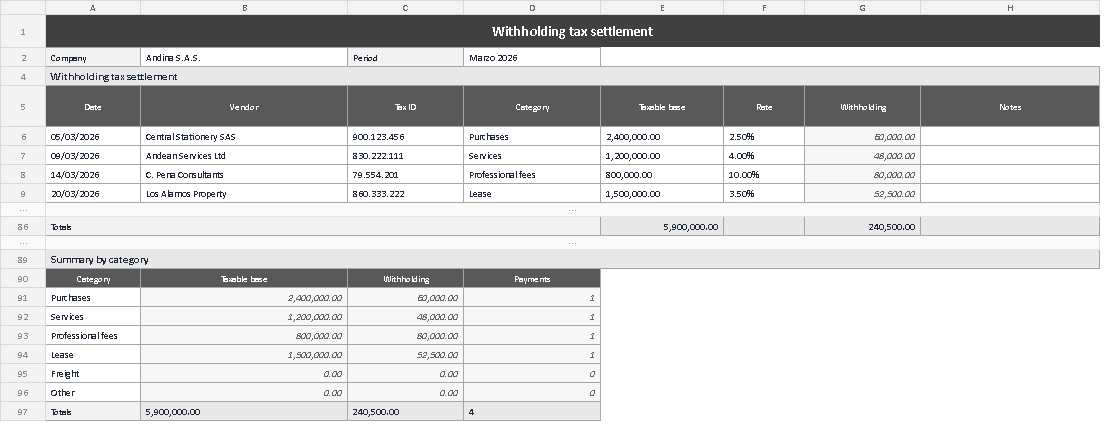
The capture shows the sheet as it looks with the example loaded: the header with company and period, the four March rows with their category and rate, the totals row at 5,900,000 of base and 240,500 withheld, and the summary by category with its six lines, two of them at zero because there were no freight or other payments. It is worth looking at the rate column: the figures read 2.50 percent, 4.00 percent and so on, because the cell is formatted as a percentage even though it stores the fraction underneath.
Before you save the file
One last check, thirty seconds long, prevents almost every problem: total base minus total withheld has to equal the money that left, the summary by category has to add up to the same figures as the totals row, and no line of the summary should sit at zero if the table has rows for that category.
It is worth keeping in mind what this template is and what it is not. It orders the calculation, leaves a trail behind every figure and lets someone else review it without asking whoever built it, but it does not replace the judgement of the person settling or the review of an accountant. That is exactly why the rates stay blank: deciding which percentage applies to each payment belongs to the business and its adviser, not to the file. Kardex Tauro publishes it as a free download, alongside the rest of its internal control templates.