Fixed expenses and utility bills template in Excel
Fixed expenses and utility bills template in Excel
Fixed costs are easy to ignore precisely because they never change. The rent leaves the account on the first of the month, electricity lands mid-month, water is on direct debit, internet is charged to a card, and the cleaner is paid every other week. Each one arrives on its own day, in its own format, and nobody adds them up. By the time the accountant asks, the owner knows exactly what the business sold and has no clear picture of what it cost to keep the doors open.
This template puts those payments on a single sheet and groups them by service. Every bill is logged with its date, its supplier, the period it covers, and the two amounts that matter: what the invoice says and what actually left the bank. Beside it, a summary per service compares what was paid against the budget you set yourself, showing the gap and the share of the budget already spent. The month electricity shows up twice, you see it on the same screen.
Download the template in Excel
The sheet does not calculate rates and does not impose limits: you write the budget, service by service, and you can change it whenever you like. What it does do is force you to look at the same number twice, once when you plan it and once when you pay it. That simple comparison is what exposes the double charge, the quiet increase, and the service that was contracted for far more than it is used.
What it is and what it solves
It is an Excel workbook with two sheets. The first, «Servicios», is the one you use every day: a header with the company name and the period, a payment log, and a summary by service. The second, «Instrucciones», explains in plain language what belongs in each column and the order worth following when filling the sheet. There are no macros, no passwords, and no hidden formulas: everything is visible and can be checked cell by cell.
The problem it solves is not an accounting one, it is a question of visibility. A fixed cost becomes invisible through repetition: it is paid the same way every month, so people stop looking at it. When a supplier raises the price, the invoice still arrives with the same layout, the same letterhead, and the same billing date, and the increase slips through. When two invoices show up for the same service, the second one gets paid because it looks like the first. The template breaks that habit by putting this month's amount next to the planned amount, on the same row and in plain sight.
What the sheet does not do, and it is worth saying from the start, is guess. It does not know whether an invoice was billed correctly, it does not read the meter, it does not check the contract, and it does not pay anything. It is a tool for recording and comparing: the decision to complain, switch suppliers, or cut the service is still yours.
The blocks on the «Servicios» sheet
| Block | What it holds |
|---|---|
| Header | Company name and the period the sheet belongs to. |
| Payment log | Six rows for the month's bills, with date, service, supplier, billed period, amounts, status, and notes. |
| Totals | The sum of what was billed and what was paid during the period. |
| Summary by service | Editable budget, paid amount, gap, and share of budget spent for each service. |
| Instructions | A separate sheet with the meaning of each column and the recommended order for filling it. |
The columns, one at a time
| Column | Where it appears | What it means |
|---|---|---|
| date | Log | The day the entry is made; it sorts the rows and places the payment inside the month. |
| service | Log and summary | Picked from a closed list; it is the key that links each row to its line in the summary. |
| supplier | Log | Who issued the invoice, so you can raise a complaint without hunting for the document. |
| billed period | Log | The month or range of days the consumption covers, kept apart from the payment date. |
| billed amount | Log and totals | What the document says, with no imagined discounts and no rounding. |
| paid amount | Log, totals and summary | What left the account; this is the figure used to measure how much of the budget is gone. |
| status | Log | Paid, pending, or under complaint: it says where the invoice stands, not what it is worth. |
| notes | Log | A short explanation for the odd case: the adjustment, the second invoice, the charge in dispute. |
| budget | Summary | What was planned for that service in the period; typed by hand and editable. |
| gap | Summary | Budget minus paid: negative means the service ran over, positive means there is room left. |
| share spent | Summary | How much of the budget is used, which is how you compare services of very different size. |
The four summary columns work together and in that order: the budget is the reference, the paid amount is what went out, the gap is the difference between the two, and the share spent says how much of the budget was used. The share reads better than the gap when you compare services of very different size: a small overrun weighs heavily on the water bill and hardly at all on the rent, even when the figure is identical.
The worked example in the file
| Service | Bills this month | Paid | Share spent |
|---|---|---|---|
| Rent | 1 | 1,200,000 | 100 percent |
| Electricity | 2 | 405,000 (210,000 + 195,000) | 90 percent |
| Water | 1 | 95,000 | 79.17 percent |
| Internet | 1 | 89,900 | 99.89 percent |
| Cleaning | 1 | 180,000 | 100 percent |
| Total | 6 | 1,969,900 | 96.56 percent |
The example holds six payments spread over five services, because electricity came twice: 210,000 and 195,000, which add up to 405,000. Total paid for the month is 1,969,900 against a budget of 2,100,000, which leaves a gap of 130,100 and a share spent of 96.56 percent. Service by service, rent and cleaning sit at 100 percent, electricity at 90, water at 79.17, and internet at 99.89.
That split is what teaches you to read the sheet. The total says the month closed under budget, but the detail shows the internet sitting right at the edge and the water still carrying some room. Looking only at the total would have hidden both facts, and those two are exactly what gives you a decision: review the internet plan and leave the water consumption alone.
How to use it, step by step
- Open the file and write the company name and the period in the header, October for instance. That pair of details looks trivial, but it is what lets you recognise the file months later without opening it and without guessing which month it belongs to.
- Decide whether the sheet will cover one month or a longer stretch. For a business with five or six services, one month per file works best: duplicate the sheet, change the period in the header, and clear the previous payments.
- Record each payment on its own row. If October's rent is paid in November, it still belongs on the October sheet: the billed period column holds that difference and keeps the expense from slipping between two months.
- Pick the service from the drop-down and never type it by hand. The list is closed and it is what links every row to its line in the summary; a different name, even a synonym, leaves the row outside the control.
- Copy the billed amount exactly as it appears on the document and the paid amount exactly as it left the account. When they match, repeat the number; when they do not, the gap stays visible and you explain it in the notes.
- Set the status of every row: paid, pending, or under complaint. The status does not change the totals, but it is the first thing anyone looks at when deciding what still has to go out before the month closes.
- Go to the summary and review the budget for each service. Adjust the figure if the contract changed, read the gap and the share spent, and use the notes to record why a service ran over or why it still has room.
Mistakes that wreck the control
- Typing the service by hand. This is the most common mistake and the quietest: the row is there, the money left, but the summary never sees it because it looks for the exact name on the list. The month does not add up and nobody knows why.
- Logging only one of two invoices. When a service arrives twice — electricity for two meters, water for two premises — both rows have to go in. Log only one and the service looks remarkably cheap, while the full expense shows up only when someone adds up the bank statement.
- Confusing billed with paid. An invoice received and not yet paid has a billed amount and a paid amount of zero. Copy the same figure into both columns and the summary treats as paid something that is still outstanding, so the share spent lies.
- Putting the payment date in the billed period. These are two separate things: one says when the money went out, the other says which consumption is being paid. Mix them and you can no longer compare two consecutive months, because the consumption slides from one file into the next.
- Making the budget match what was paid. If you rewrite the budget every month so it lines up with the invoice, the sheet will always say everything is fine and will be worth nothing. The budget changes when the contract changes, not when an awkward invoice arrives.
- Deleting rows to fix a mistake. A deleted row takes the trail of the error with it. Better to correct the amount and leave the note, or flag the row as under complaint: history is exactly what lets you argue with a supplier and ask for a credit note.
- Cramming several services into one row. A row reading "miscellaneous services" with the month's total cannot be compared with anything. Each service needs its own row and its own name from the list, even when a single transfer covered all of them.
Where it opens and what to expect
The file opens without conversion in Excel, LibreOffice Calc, and Google Sheets. In the first two it keeps the drop-down list and the currency format as delivered. If you upload it to the web version, check that the data validation travelled with the sheet and that the thousands separators look the way you expect: that is the only thing that usually changes from one program to another. No macros or add-ins are needed, and it behaves the same on desktop and in the browser.
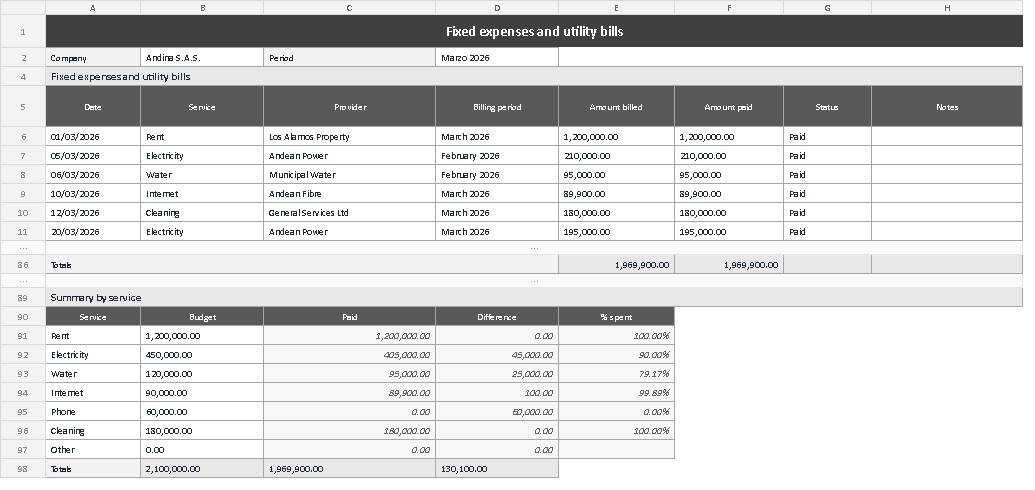
The screenshot shows the sheet as it looks with the example loaded: the header with the company and the period on top, the six payment rows in the middle — with electricity split in two — and the summary by service at the bottom, where you read the budget, the paid amount, the gap, and the share spent. It is worth a look before filling in your own sheet, because the column order is the same one described in the table above and it saves you the time of guessing where each figure goes.
At the end of the month the sheet answers three questions in under a minute: how much was paid, how much had been planned, and which service moved. It does not replace the accountant or the billing system; it feeds both with the detail neither of them usually has at hand. And since the file is yours, you can keep it, share it with whoever handles the cash, and hold on to it as support the day a charge has to be disputed. Kardex Tauro publishes this and other control templates so that tracking does not depend on one person's memory.