Tax book template in Excel: output and input

Tax book template in Excel: output and input
Every month the same job comes back: gathering the documents where sales tax was charged and the ones where it was paid, and checking that the figures match the invoices. When that control lives in a notebook or on loose sheets, the review slows down and there is always a doubt about a line that was left out.
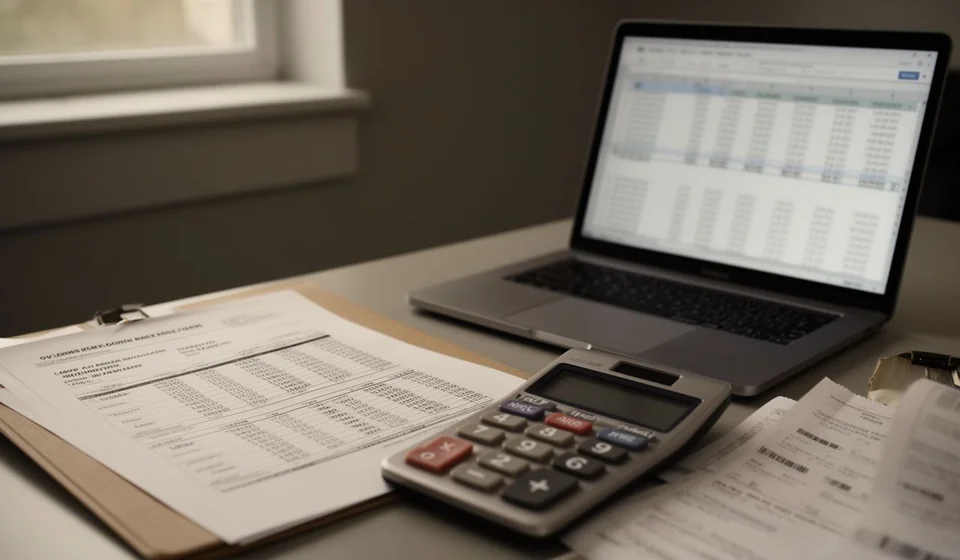
This VAT book template in Excel brings both sides of the tax into a single sheet: the output side from sales and the input side from purchases. It includes 200 ready lines, drop-down lists, automatic checking columns and a summary block for the period.
⬇ Download the template (Excel .xlsx)What it is and who it is for
The VAT book is the working record where you write down, document by document, the tax that was charged and the tax that was paid. It is not a paper filed with anyone: it is the business's own ordered memory, so that at any moment you know how much tax was generated in the month and how much can be offset. Keeping it apart from the general ledger, with one row per document and the date it was issued, is what makes it useful.
It works as well for a small business as for a company with several people in the accounting area. For the person who keeps control by hand it removes the manual adding; for the bookkeeper it provides the same sheet every month; and for the reviewer it shows the final figure without rebuilding the whole period. In the end it is a tool for order before it is a tool for calculation.
Filling it in relies on two twin columns. In the first you type the tax exactly as it appears on the document, without interpreting or rounding it. In the second, the sheet multiplies the base by a rate that you also type in. When the two numbers match, the document was captured correctly; when they do not, the difference stands out and is checked before the month is closed.
It is also worth thinking about which documents go in. As a rule they are sales invoices, purchase invoices and expenses that carry tax, together with the credit and debit notes that correct earlier transactions. Documents without tax have no reason to take up a line, and the ones that do carry tax but at an unusual rate are exactly the ones worth recording carefully, because they are what the cross-check puts to the test.
Output and input, kept apart
Output movements come from sales: there the tax was added to the amount charged. Input movements come from purchases and expenses: there the tax was added to the amount paid. The sheet has a type list to classify each line, and the summary adds each group separately before comparing them. Mixing the two groups is the mistake that produces the most imbalances, because the total stops making sense even when every single row is right.
What the template includes
The sheet comes ready to work with, so nothing has to be built from scratch. This is what it brings:
| Item | What it is for |
|---|---|
| 200 numbered lines | More than enough room for a normal month of documents. |
| Type list | Sorts each movement as output or input. |
| Document type list | Invoice, credit note, debit note and other supporting papers. |
| Base, Rate and Tax | The three columns filled in by hand from the document. |
| Calculated tax | Automatic: multiplies the base by the editable rate. |
| Difference | Automatic: compares the typed tax against the calculated one. |
| Totals row | Adds base and tax for every line in use. |
| Summary block | Base, output, input and difference for the period. |
| Two mini tables | One per document type, with its own base and tax. |
The columns of the sheet
The order of the columns follows the natural path of an invoice. From left to right:
| Column | What is typed or what it does |
|---|---|
| Date | The date on the document, not the date of the entry. |
| Type | Output or input, taken from the list. |
| Third party | The customer or the supplier, with the full name. |
| Identification | The tax number of that third party. |
| Document type | Invoice, credit note, debit note or another supporting paper. |
| Document no. | The number exactly as printed on the paper. |
| Base | The amount before tax. |
| Rate | Editable: you type the one on the document, it is not preloaded. |
| Tax | The tax you key in after reading it from the document. |
| Calculated tax | Automatic: base times rate. |
| Difference | Automatic: typed tax minus calculated. |
| Notes | Remarks to explain any imbalance. |
How the tax cross-check works
The heart of the template is the cross-check. The rate is deliberately not preloaded: the person entering data types it after reading it from the document, and the sheet does no more than multiply it by the base. That way the typed tax and the calculated tax compare themselves. If both match, the row is fine. If they do not, a difference appears that asks for an explanation before the month is treated as closed.
Making the rate editable has a practical reason: documents do not always carry the same one, and whoever captures the data should decide case by case instead of dragging a fixed value along. That small manual task is exactly what makes the error visible: with a preloaded rate, a document carrying a different one would pass unnoticed and the cross-check would never warn about it.
The period example makes it clear. On 03/09 a sale was made to customer A under invoice F-1045 with a base of 2,000,000 and a rate of nineteen percent: the tax on the document is 380,000 and the automatic column calculates 380,000, so the difference is zero. On 05/09 a purchase was made from supplier B under invoice C-2087 for 1,000,000, and the tax came to 190,000. On 09/09 customer C returned goods and a credit note was issued for 500,000, with a tax of 95,000.
| Date | Type | Document | Base | Tax | Calculated | Difference |
|---|---|---|---|---|---|---|
| 03/09 | Output | F-1045 | 2,000,000 | 380,000 | 380,000 | 0 |
| 05/09 | Input | C-2087 | 1,000,000 | 190,000 | 190,000 | 0 |
| 09/09 | Output | Credit note customer C | 500,000 | 95,000 | 95,000 | 0 |
| Totals | 3,500,000 | 665,000 | 665,000 | 0 |
How to read the period summary
With those three lines, the summary block reads as follows: base 3,500,000 and tax 665,000, with output at 475,000, input at 190,000 and a period difference of 285,000, the output side being the larger one. That last number is the most useful on the sheet, because it sums up in a single figure the relationship between what was charged and what was paid.
It is always worth looking at the two mini tables by document type, not only at the grand total. A total that balances can hide one invoice classified as a credit note, or the other way round, and those mixes are easier to spot when the information is split by type. The sheet decides nothing on its own: it simply leaves the numbers in place and in sight for someone to read with judgement.
Looked at coldly, the period result is asking a simple question: was more charged than paid? The answer decides nothing by itself, but it guides the next month's work and helps explain why the figure moved compared with the previous period.
Step by step
- Open the template and review the type list and the document type list before you start typing.
- Record each document on one line, with its date and the full name of the third party.
- Type the base, the rate shown on the document and the tax exactly as printed.
- Let the automatic column calculate the tax and watch the difference column.
- When the difference is not zero, review the line and note it under remarks until it is explained.
- When you finish, check totals and summary, and save the file with the month in its name.
Tips and common mistakes
- The rate is typed by hand: do not take it for granted and do not leave it blank.
- The tax is keyed in from the document; do not replace it with the calculated one, or the cross-check loses its point.
- Credit and debit notes get their own line, with the correct type.
- Do not mix the document date with the payment date: the sheet follows the first one.
- If a third party changes name, write it the same way on every row so it is not split in two.
- This template is for internal control: it does not replace any official record and does not stand in for a supporting paper.
When to move to accounting software
A sheet like this holds up well for one month, two, and even a year of documents. The problem appears when two things happen at once: the volume grows and several people need to touch the same information. That is when duplicate files, differently named versions and rows someone deleted without saying appear. That is the sign that it is time to move to a system.
Tools such as Kardex Tauro exist for that moment: when it is no longer only about adding documents, but about keeping the control ordered and consultable without depending on a loose sheet. Before that step, the template does its job well: it orders the month, leaves the cross-check in sight and shows clearly what information is needed to take the next step.
Close the period with the totals balanced, the cross-check reviewed and the summary understood. The rest of the work starts with the figure in the right place.
⬇ Download the template (Excel .xlsx)