Sales invoice template in Excel: free download

Sales invoice template in Excel: free download
If you run a shop, a workshop, a service business or any small company, issuing the invoice for every sale is one of those tasks that seems simple until you actually have to do it: type in the details, multiply quantities by prices, add everything up, double-check the numbers and keep a copy for your records. A sales invoice template in Excel brings that whole process into one file: you enter the details once, list the products sold and the sheet calculates the line subtotals and the total amount to pay automatically.
This template is designed for businesses that issue a small number of invoices every day and want to do it properly without paying for software: it is free, it downloads in seconds, it opens in Excel and it does not require advanced spreadsheet skills. The whole file is in English, it includes an instructions sheet with a usage guide and it is ready to print on a portrait A4 page. It is part of the free spreadsheet collection from Kardex Tauro, built to help you run your business without complications.
⬇ Download the sales invoice template in Excel for freeWhat the template includes
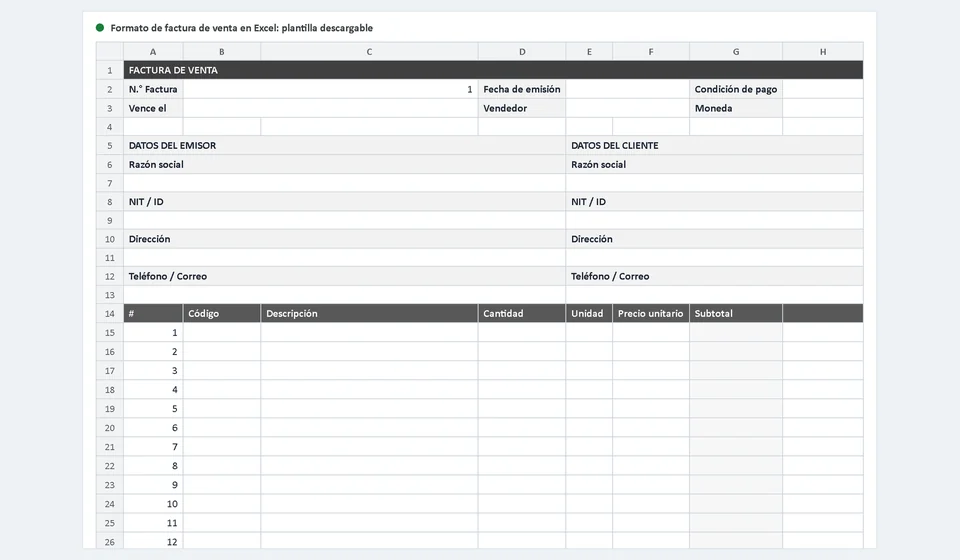
The downloadable file is an Excel workbook with two sheets: the main sheet, called Invoice, where the document is put together and printed, and a second instructions sheet in English that explains every field in the file. There are no macros or complicated formulas: just cells for you to type in, cells calculated by the sheet and a print setup that is ready to use. This is what you will find inside:
| Component | What it is for |
|---|---|
| Invoice sheet | This is the main sheet of the workbook: it shows the seller and customer details, the numbering, the dates and the product table, exactly as the finished document will be printed. |
| Instructions – Sales Invoice sheet | It contains the step-by-step guide in English for filling in the invoice the first time, and it works as a quick reference when you forget what goes in each field. |
| Seller details | Cells for the legal name and the tax ID of the business that sells: the information that must look the same on every invoice you issue. |
| Customer details | Cells for the legal name or the name of the buyer and their tax ID, as required for the record of a formal sale. |
| Document header | Invoice number, issue date, payment terms with a dropdown list, due date, seller and currency. |
| Line item table | Room for up to 20 lines of products or services, with number, code, description, quantity, unit, unit price and a subtotal calculated by formula. |
| Automatic totals | Bottom area with the subtotal, the tax row with an editable rate, leave it at zero if it does not apply, and the total amount to pay, all calculated by the sheet. |
| Signatures and notes | Spaces for the seller signature and the customer signature, plus a notes area for special conditions or clarifications about the sale. |
| Portrait A4 printing | The page is set up in portrait orientation so the complete invoice prints on a single sheet, with no manual print adjustments. |
How the invoice sheet is organized
The Invoice sheet follows the classic layout of a business document: at the top, the details of who sells and who buys; in the middle, the table with the products; at the bottom, the totals, the signatures and the notes. Every field has its own cell, which keeps data from getting mixed up and makes all of your invoices look clean and consistent. The header fields are the following:
| Field | What you enter |
|---|---|
| Seller legal name | The legal name of your business, exactly as it appears in your documents and with your customers. |
| Seller tax ID | The tax identification number or document of the seller. |
| Customer legal name | The name of the person or the company making the purchase. |
| Customer tax ID | The identification document of the buyer, which must be recorded on the invoice. |
| Invoice no. | The sequential number of the document; it is a good idea to keep track of the next number separately. |
| Date | The day the invoice is issued and the sale is completed. |
| Payment terms | Chosen from a dropdown list, for example cash or credit, with no need to type anything by hand. |
| Due date | The payment deadline when the sale is made on credit. |
| Seller | The name of the person who handled the sale, useful for commissions and for following up with the customer. |
| Currency | The currency used for the prices; every figure in the document uses that same currency. |
In the middle of the sheet is the line item table, ready to record up to 20 lines per invoice. Each column has a specific job:
| Column | What it is for |
|---|---|
| # | Order number of each line in the document, so products are easy to reference. |
| Code | Internal reference of the product, such as the code you use in your inventory or the supplier code. |
| Description | The details of the product or service sold, with its main features. |
| Quantity | How many units are sold on that line of the document. |
| Unit | The unit of measure used for the sale: unit, box, meter, hour or another one. |
| Unit price | The value of a single unit of the product, in the currency selected in the header. |
| Subtotal | Automatic result of multiplying the quantity by the unit price; it is not typed by hand. |
Example with numbers: a two-item invoice
So you can see what the finished document looks like, here is an example with two products from a store, using the currency you define in the Currency field. The figures in the example use the local number format: a comma for thousands and a period for decimals, so a price with cents would look like 25,000.50. Notice that the subtotal of each line and the totals are calculated by the sheet itself:
| # | Code | Description | Quantity | Unit | Unit price | Subtotal |
|---|---|---|---|---|---|---|
| 1 | LM-101 | LED desk lamp | 10 | unit | 25,000 | 250,000 |
| 2 | CA-240 | Universal wall charger | 3 | unit | 48,000 | 144,000 |
| Total | Example value |
|---|---|
| Subtotal | 394,000 |
| Tax row | Editable rate, leave it at zero if it does not apply; in the example it stays at 0.00 |
| Total amount to pay | 394,000 |
Check the math: 10 units at 25,000 give 250,000, and 3 units at 48,000 give 144,000; the subtotal adds up to 394,000. In the template you do not have to do any of those operations: the formula in the Subtotal column multiplies quantity by price, and the total updates by itself whenever you change a value. When the sale is not subject to a tax, the tax row is left at zero and the total amount to pay matches the subtotal.
How to use the template step by step
The first time will take you less than ten minutes. These are the stages, in order:
- Download the file with the button on this page and open it in Excel; if the protected view notice appears, enable editing so you can type in the cells.
- Review the Instructions – Sales Invoice sheet: it is a short guide in English that reminds you which data goes in each field, and you can check it whenever you need to.
- Enter your business details in the seller area: legal name and tax ID, because those are the details that identify you with the customer and in your sales records.
- Assign the invoice number: keep track of the sequence somewhere else, for example in a notebook or on the instructions sheet, so numbers are never repeated.
- Record the issue date, choose the payment terms from the dropdown list and, if you sell on credit, set the due date; also write the seller and the currency.
- Enter the customer details: legal name or name and their tax ID, exactly as they should appear printed on the document.
- Fill in the line item table row by row: code, description, quantity, unit and unit price; the subtotal of each line is calculated automatically.
- Check the totals area: confirm that the subtotal is what you expect and leave the tax row at zero if it does not apply; the total amount to pay updates automatically.
- Add any notes you need, if there are any, and save a copy of the file with a clear name, for example the invoice number and the customer name.
- Print in portrait A4 or export to PDF, sign the document together with your customer and keep your signed copy for your business records.
Tips and common mistakes
These tips will save you from the most frequent mistakes made by people who start invoicing in Excel:
- Never type the subtotals or the total by hand: those cells contain formulas and, if you replace them with a number, you lose the automatic calculation for that row forever.
- Do not erase the formulas when you prepare the template for a new invoice: clear only the data cells and leave the calculated ones untouched.
- Respect the number format of your region: thousands are separated with a comma (25,000) and decimals with a period (25,000.50), exactly as the file is configured.
- Leave the tax row at zero if it does not apply: do not delete it, because the total amount to pay is designed to always read that row.
- Keep track of the invoice number outside the sheet: repeating or skipping sequential numbers is the mistake that causes the most trouble when you close the period.
- Always set the payment terms with the dropdown list and record the due date on credit sales, so you know what you are owed and since when.
- Check the customer details before printing: a tax ID with a typo turns a valid invoice into an administrative headache.
- Save a copy of every invoice you issue, even if it is the same file under another name; your sales records and your accountant will thank you.
- Use the instructions sheet the first time: most mistakes disappear when you know what each cell expects.
Excel template or invoicing software?
A template like this one is the best way to start invoicing in an organized way: it is free, you can understand it in an afternoon and it does not depend on the internet or on contracts. Its natural limit is volume: when you issue many invoices a day, the work of writing each document, controlling the numbering, calculating and filing the copies starts to eat up time and to leave room for errors. At that point it is worth evaluating an invoicing software like Kardex Tauro, which does exactly the repetitive part of the process for you.
- With the template: you pay nothing, you can adapt it to your taste and use it offline; it is enough for a low volume of daily sales.
- With the template: every document is written, checked and filed by hand, and a typing error can be repeated across several invoices.
- With the software: the document is issued with automatic numbering, it is filed by itself and you stop depending on remembering to save every copy.
The decision does not have to be exclusive: many businesses start with the template, understand their sales process well and then move to software with that information already organized. What matters is that from today you can invoice with a professional and reliable document.
Frequently asked questions
What should a sales invoice include?
A consecutive number, seller and buyer details, a description of what was sold, quantities, amount, taxes and payment method.
Can the template be used as a legal invoice?
It works to control the sale and to give the customer a record. An invoice with tax effects is issued through the authorized system, not from a template.
Can it be printed and signed?
Yes: the file is laid out to print on a single sheet. If the customer signs on receipt, that paper becomes the proof of delivery.
Download the sales invoice template in Excel for free, fill it in with your business details and issue your next invoice in less than ten minutes. If any doubt comes up during the first use, the instructions sheet inside the file walks you through it step by step.
⬇ Download the sales invoice template in Excel for freeNote: this template is a generic support format and does not replace the invoicing requirements in force in your country; always verify its use with your accountant or tax advisor.