Vendor directory template in Excel: free download

Vendor directory template in Excel: free download
When a small business needs something, the most uncomfortable question is usually the same: who do we buy it from, and on what terms? Vendors end up scattered everywhere: some live in the owner's phone contacts, some in old invoices, some in last year's chat messages, and a few in the memory of whoever has been around the longest. When it is time to buy, you have to rebuild the details from memory: who sold the packaging, which number to call for technical service, what payment terms were agreed, whether that vendor is still active or no longer delivers. That reconstruction wastes time, invites mistakes and, above all, leaves purchasing depending on memory instead of on a record.
A vendor directory solves this with a simple tool: one single, organized, up-to-date list holding the contact details, category, payment terms and status of every vendor. With a well-kept directory, asking for a packaging quote takes a minute: filter by category, see who is active, and call the right contact, with no digging through chats or old invoices. The simple act of building the list also shows you at a glance where you depend on a single vendor and which purchases have no backup option.
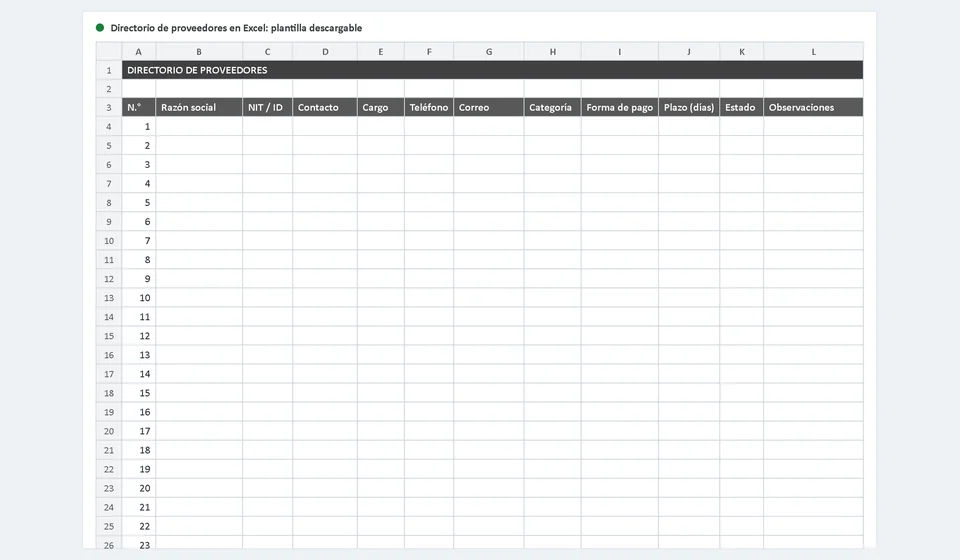
Here is a vendor directory template in Excel, free and ready to use: a file with one hundred numbered rows, drop-down lists for category, payment terms and status, and automatic filters in the header so you can find any vendor in seconds. It comes with an instructions sheet full of tips to keep the directory alive. In this article I explain what the template includes, which data really matters, and how to get the most out of it without letting it become another list abandoned halfway.
⬇ Download vendor directory template (Excel .xlsx)What the vendor directory template includes
The file is organized in two sheets. The first one, named "Vendors", is the directory itself: a title row and a table with twelve columns and one hundred rows ready to fill in, one per vendor. The second sheet, "Instructions – Vendors", sums up in four steps what the file is for and how to use it, and holds the most important tip: keep at least two vendors per category so you do not depend on a single one, and update the data at least once a year.
The table has automatic filters in the header: click the arrow on any column and you can sort, search and filter without moving or deleting data. The columns with drop-down lists prevent typing mistakes: instead of writing "packaging" five different ways, you pick the right option and the filters always return the same results. These are the columns of the register:
| Column | What it records |
|---|---|
| N.° | Consecutive number of the vendor in the list. It works as a quick reference to count how many vendors you have and to refer to one without ambiguity. |
| Business name | The legal, exact name of the vendor, exactly as it appears on its invoices or contract. Not the trade name: the business name is what validates documents. |
| Tax ID | The tax identification number or the equivalent document. You need it for valid invoices, for issuing purchase orders and for your accounting. |
| Contact | The name of the person you actually negotiate with: the one who handles quotes, confirms orders and solves issues. |
| Role | That contact's position, such as sales representative or account manager, so you know who you are dealing with when the person changes. |
| Phone | The contact's direct number and, if applicable, the vendor's main line, including the area or country code. |
| The address where quotes, invoices and confirmations arrive. Make sure it is the one the vendor uses for business, not a generic inbox nobody reads. | |
| Category | Drop-down list with eight options: Raw materials, Supplies, Packaging, Stationery, Services, Transport, Equipment and Other. It groups what you buy from the vendor. |
| Payment terms | Drop-down list with the agreed terms: Cash, Net 15, Net 30, Net 60 or Other. |
| Terms (days) | How many days the vendor gives you to pay. For cash it stays blank or zero; for credit, the number that matches the agreement. |
| Status | Drop-down list with three options: Active, Under review or Suspended. It tells you whether you can buy normally, are testing the vendor, or should not buy from it for now. |
| Notes | Free notes: minimum order, shipping days, transfer account, date of the last update or any detail only you need. |
Which vendor data really matters
Not all fields carry the same weight. In the directory there are three details that cost money when they are wrong, and each one is worth verifying one by one when you register a vendor. The first is the exact business name, exactly as it appears on the vendor's certificate or invoice: if your list says a different name than the invoice, the accounting team will have to correct or return documents, and a wrong business name can leave the expense without valid support. The second is the tax ID, which goes together with the business name on invoices and purchase orders; with the right number, every invoice is identified and booked without doubt. The third is the real contact: the email and phone of the person who quotes and ships, because reaching the wrong contact inside a large company can delay an order for days.
The remaining fields complete the picture for deciding and negotiating. This table summarizes what each piece of data gives you:
| Data | What it is for |
|---|---|
| Exact business name | So invoices, purchase orders and contracts match the real vendor and no document is returned because of a different name. |
| Tax ID | To identify the vendor in your accounting, issue valid purchase orders and match invoices without confusion. |
| Contact and role | To know who to negotiate with and who to turn to if the person changes; the role tells you whether your contact can approve prices and discounts. |
| Phone and email | So quotes, orders and invoices reach the right channel and answers do not sit in an inbox nobody checks. |
| Category | To answer in seconds questions like "who sells us packaging?" and to spot when you depend on a single vendor. |
| Payment terms and days | To plan your cash flow: you know what must be paid this week, what can wait, and you negotiate with facts in hand. |
| Status | To buy only from active vendors, follow up on the ones under review and never call a suspended one by mistake. |
| Notes | To keep agreements and particularities that do not fit in the columns and that time would erase, like minimums or delivery times. |
How to organize the directory: categories, statuses and filters
Category is the column that adds the most order, because it groups vendors by what you buy from them. The drop-down list has eight options designed for the daily operation of a business: Raw materials for what becomes your product, Supplies for what is consumed to make it, Packaging, Stationery, Services, Transport, Equipment and Other for everything that does not fit above. Choose one category per vendor, the main one; if a vendor sells you two kinds of things, assign it to the one with the largest volume and note it in the notes column. Consistency is what matters: always the same criteria, so the filter always returns the same group of names.
Status tells you who you can buy from today. Active is the vendor you work with normally; Under review is one you are testing with an order or two, watching its compliance and quality; Suspended is one that is out for now, due to poor performance, uncompetitive prices or an unresolved issue. The golden rule is to check the status before calling: if the directory is up to date, a glance at the column keeps you from accidentally ordering from a suspended vendor and supporting one that is not good for you.
Automatic filters turn the list into a decision tool. With two clicks you can see every transport vendor, sort by payment terms to find who gives you Net 60, or check how many vendors are under review. Use them also as a quality check of the register: filtering by category shows you, for example, whether there is only one packaging option, a sign that you should find a second one before an unexpected event leaves you without a vendor.
How to use the template step by step
The file downloads, opens in Excel and can be filled in right away, but following an order helps the directory stay complete and reliable from day one:
- Download the template and open it in Excel. Before writing anything, read the "Instructions – Vendors" sheet: it holds the purpose of the file, the four usage steps and the tip about keeping at least two vendors per category.
- Start with your regular vendors. List the ones that invoice you the most or that you buy from most often; registering them first gives you value from day one, and you can leave occasional ones for later.
- Write one vendor per row, with the business name and tax ID exactly as they appear on its invoice. Do not improvise or use the trade name: these two details are what validate documents.
- Fill in contact, role, phone and email with the details of the person who handles your account. If the vendor changes its representative, update the row that same day, before the old detail causes confusion.
- Choose category, payment terms and status from the drop-down lists, and write the terms in days. If you agreed on Net 30, the row must say so: that is the information you will use to plan payments.
- Add to the notes what does not fit in the columns: minimum order, shipping days, transfer account and the date you last updated the row.
- Use the filters to review the whole register: look for duplicates, see how many vendors you have per category and confirm every status is current. Schedule a full review at least once a year, as the instructions sheet itself suggests.
Common mistakes when building your vendor directory
A poorly kept directory is almost as bad as having none, because it gives a false sense of control. These are the mistakes we see most often in small businesses:
- Having a single vendor per category: if that vendor fails, raises prices, falls behind or closes, you have no one to compare with or turn to. The instructions sheet says it clearly: aim for at least two options per category, even if the second one is an alternative you have not used yet.
- Leaving data outdated: a phone number that changed, an email nobody reads anymore or a new business name, very common when a company rebrands or is acquired, turn the directory into a source of errors. Update the row the same day the detail changes and do a full review once a year.
- Mixing the trade name with the business name: calling the vendor "the blue packaging people" is fine in conversation, but the register must hold the legal name. If the invoice arrives with a name different from the directory, every purchase demands a manual match and documents may be rejected.
- Filling everything from memory in one afternoon: that is the fast track to invented data. Check every row against a recent invoice or a short call to the vendor; twenty verified vendors are better than one hundred doubtful rows.
Orderly purchasing with software
The template is the first level of order and works very well while the number of vendors is manageable: it is cheap, flexible and adapts to any business. Its limit appears when the directory starts living disconnected from the rest of the operation. Vendor data has to be typed again in every purchase order, the directory status does not warn anyone when a purchase order is raised against a suspended vendor, and accounts payable live in another sheet, unrelated to what was bought or from whom.
When that moment comes, it is worth moving to software that connects purchasing with payments. In Kardex Tauro, for example, every vendor has a profile with its contact details, payment terms and status, and that profile is linked to purchase orders and accounts payable: you create the order without typing the tax ID or the email again, the system respects the agreed terms, and you always know how much you owe each vendor and what is due first. The template serves you today to put the register in order and understand what you will need tomorrow.
Frequently asked questions
What data does a supplier directory hold?
Company name and tax ID, contact and phone, what they supply, payment terms and status (active or inactive). The status keeps you from ordering from someone who no longer serves you.
What is it for?
To buy quickly and to compare: when a supply runs out you know who to call and on what terms you bought before.
How do I keep it current?
With an owner and one rule: nobody buys from a supplier that is not in the directory. Plus a quarterly review to clean it up.
Download the vendor directory template in Excel for free and register your five most important vendors in it. In a single afternoon you will see how much time you save on the next quote and how many loose details were living in your memory. And when volume grows and you want every vendor to have its profile linked to purchase orders and accounts payable without typing twice, Kardex Tauro is the natural next step.
⬇ Download vendor directory template (Excel .xlsx)