Contract and expiry tracker template in Excel

Contract and expiry tracker template in Excel
Most contract failures are not legal failures. They are calendar failures. The lease that renewed at a higher rate because the notice window closed on a busy Friday. The policy that lapsed for eleven days and nobody noticed until the first claim. The software licence billed twice in one year because the person who owned that row was travelling. None of these looks like an accounting error, which is exactly why nobody ever traces it back. The invoice was correct, the payment was approved, the month closed clean. The cost was buried in a decision that never got made.
This contract and expiry tracker template in Excel puts those dates into a single table and does the subtraction for you. You type the end date and the value of each contract, and the sheet compares the end date against the cut-off date to return the days left. A negative number means the contract has already expired. A small number puts it inside the warning window. Anything else leaves it in force. The status column applies the same rule, so the two readings can never disagree with each other.
The file arrives with five contracts from a sample company, so you can watch the sheet work before you type a single line of your own. Clear the rows and start from an empty table, or keep the layout and swap in your own data. It behaves the same with five rows as it does with sixty.
What it is and what it solves
An expiry tracker is, at bottom, a list sorted around one question: what runs out first. The sheet answers that question three times in three different ways. The days-left column gives the exact number. The status column turns that number into a word. The summary block under the table counts how many contracts sit in each status and how much money they carry. All three readings come from the same cell, the end date.
What it solves is not contract management. It is contract memory. The full text lives in a folder, an inbox or the supplier portal, and that is the right place for it. What gets lost is the date. This sheet keeps only the end date, the value, the owner and a short note, and that is enough to decide whether you need to sit down and negotiate this month or whether there is room to wait another quarter.
It also works at the portfolio level. Add up the value column and you know how much money is committed to contracts. Read the summary and you know how much of that money sits in contracts expiring within the next few weeks. The second figure is the one you take into the budget meeting, because it is the one about to change price. The first only tells you how heavy the operation is.
What is inside the sheet
There is one block of data and two blocks that read it. That split explains why the summary updates itself the moment you touch a row.
| Block | Where it sits | What it holds |
|---|---|---|
| Header | Row 2 | Company, warning days and cut-off date: the three cells that drive the rest of the file. |
| Contract table | Rows 5 to 65 | Headings and sixty ready rows; the first five carry the worked example. |
| Totals row | Row 66 | Sum of the value column, whatever the table's length. |
| Summary by status | Rows 69 to 74 | Contract count and value for each status, plus a totals line that closes the block. |
| Instructions sheet | Second tab | What it controls, how to use it, how to read it, the example and the mistakes to avoid. |
The columns, one by one
Ten columns: eight you fill in and two the sheet calculates. The distinction matters. Write over a calculated column and the file stops warning you and turns into a plain list of text.
| Column | What you enter | How it behaves |
|---|---|---|
| Contract | The short name you would use in a conversation. | Typed. It is the label for the row. |
| Counterparty | The company or person you signed with. | Typed. The field you search when something needs chasing. |
| Type | Lease, services, supply, insurance, licence or other. | Chosen from a closed list of six options. |
| Start date | The day the contract started running. | Typed. It feeds no calculation. |
| End date | The day it ends or renews. | Typed. This is the cell everything else depends on. |
| Value | The amount the contract carries for the period it covers. | Typed. It feeds the totals row and the summary. |
| Owner | The person who holds that contract. | Typed. The column you read on the day something goes wrong. |
| Days left | Nothing, the formula is already there. | Calculated as end date minus cut-off date. |
| Status | Nothing, the formula is already there. | Calculated with two comparisons on the days left. |
| Notes | Notice period, auto-renewal, exit clause, who signs. | Typed. Free text that touches no calculation. |
Both calculated columns run down to row 65, so a new row inherits the formula without any dragging. Days left subtracts the cut-off date from the end date. Status asks two questions in order: if the result is negative, write expired; if it is less than or equal to the warning days, write due soon; otherwise write in force. The order of those questions is what stops an expired contract from ever showing up as due soon.
The worked example
The cut-off date in the example is 29 October 2026 and the warning window is 30 days. With those two values the table reads top to bottom with no further interpretation. Dates in the sheet are day, month, year, so 31/12/2026 is 31 December 2026.
| Contract | Counterparty | End date | Value | Days left | Status |
|---|---|---|---|---|---|
| Warehouse lease | Los Alamos Property | 31/12/2026 | 24,000,000 | 63 | In force |
| Security | Andean Security | 31/10/2026 | 6,000,000 | 2 | Due soon |
| Stationery | Central Stationery | 30/09/2026 | 3,500,000 | -29 | Expired |
| All-risk policy | Southern Insurance | 14/01/2027 | 4,800,000 | 77 | In force |
| Software licence | Andean System | 15/11/2026 | 2,400,000 | 17 | Due soon |
| Totals | 40,700,000 |
The reading is immediate. The stationery contract expired 29 days ago and is still sitting in the table because nobody closed it or renewed it, which is the classic case that justifies the whole file. The two inside the warning window are security at 2 days and the software licence at 17. The lease and the policy still have room, at 63 and 77 days, and those are the ones you can negotiate without rushing.
The summary splits the 40,700,000 into three buckets: 3,500,000 in the expired contract, 8,400,000 across the two due soon and 28,800,000 across the two in force. The summary totals line repeats the table figure, and that is the fastest check the file offers. If the two totals disagree, one row carries a value outside the sum range. Nothing else needs to reconcile for the sheet to be trustworthy.
How to use it, step by step
- Open the file and fill in the header: company, warning days and cut-off date. Those three cells drive everything downstream. The cut-off date is the one you change each time you open the sheet, and every row recalculates its days and status against it.
- Replace the five example rows with your own contracts, one per row. If you have more than sixty, insert rows above the totals row so the sum stretches by itself.
- Type the end date as a date, not as text. If the cell lines up on the left instead of the right, the program is reading it as text and the calculation will return an error.
- Pick the type from the dropdown. Leaving it blank still calculates status, but you give up the ability to group contracts by nature.
- Fill in the owner. It is the column you read on the day a question needs answering, and the one almost everybody leaves empty.
- Check the status whenever you open the sheet and sort by days left.
- When you renew, update the row: new end date, new value and a note with the signature date. If you want a history, copy the old row to another sheet before you overwrite it.
Mistakes that keep happening
- Keeping the signed PDF and not its end date. A PDF warns you about nothing, however tidy the folder is.
- Setting the warning to zero. With no lead time the status only flips once the problem has already happened, and the column never gets to say due soon.
- Typing the status by hand. The moment status stops being a formula, the cut-off date and the days left stop meaning anything.
- Pasting the end date in as text from an email or from a word processor table.
- Skipping the row update on renewal: the old contract stays expired forever and wrecks the monthly summary.
- Filling the notes column with the contract text. Notes are for the notice period, the auto-renewal clause and the name of the signatory.
- Changing the cut-off date without checking the totals. It is the quickest way to confirm the formula range is still whole after inserting rows.
What opens it
The file is a plain .xlsx and opens in Excel, LibreOffice Calc and Google Sheets with no conversion and no add-ins. It uses three formulas, all of which exist in all three programs: date subtraction, a nested conditional and a conditional sum. The dropdown in the type column survives in all three as well.
If the file lives in a shared folder, one editor and everyone else reading is the sane setup: two edits on the same day overwrite each other with no warning. The file has no macros, asks for no password and needs no connection.
The screenshot
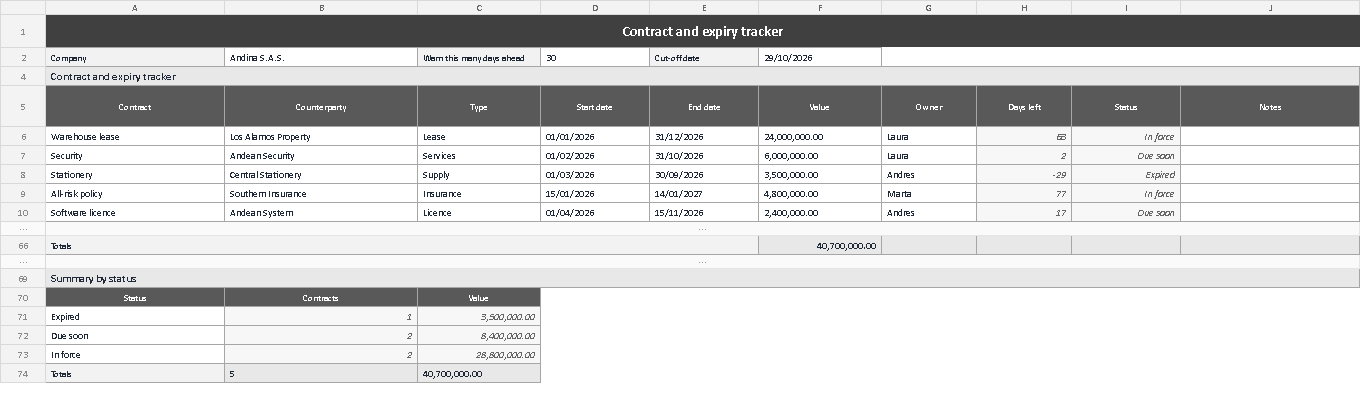
The image shows the sheet as it arrives with the example loaded. The dark title bar sits at the top; under it, the header row with the company, the 30-day warning and the cut-off date. In the middle are the five contracts with the days-left column in plain view, where you can pick out the 63 on the lease, the 2 on security and the -29 on stationery. Below, the summary block counts one expired contract at 3,500,000, two due soon at 8,400,000 and two in force at 28,800,000, with the totals line closing at 40,700,000. It is the same view you get when you open the file, with nothing to configure.
Closing
An expiry tracker does not stop a contract from ending. It stops a contract from ending without anyone having decided it should. The gap between those two things is the gap between a surprise cost and a planned one, and for most companies it pays for itself in the first month.
Download the file, swap the cut-off date for today's and see how many rows change status. That is the outstanding work in your company, and it now fits on one screen. The template is published by Kardex Tauro alongside the rest of its internal control formats.