Quotation template in Excel: free download

Quotation template in Excel: free download
If you sell products or services, at some point a customer will ask you for a quotation. Some people call it a quote or an estimate: it is the business document in which you formally offer what you will deliver, in what quantities, at what price and under what conditions. It is not an invoice and it does not pretend to be one. The quotation is sent before the sale, so the customer can compare, approve and decide; the invoice is issued afterwards, when the work is done, the goods have been delivered or the service has been performed. Mixing them up is one of the most common mistakes in small businesses, and also one of the most expensive, because each document plays a different role with the customer and before the law.
A quotation is not a contract by itself either. It is an offer: it describes what you would do and for how much, and it records the conditions you offered on a specific date. When the customer accepts it, that acceptance usually becomes the starting point of the commercial relationship. That is why every quotation should be written down, numbered, dated, with a validity period and clear conditions. Doing it by hand, in a loose email or from memory works until a claim or a disagreement shows up; keeping an organized format protects you and makes your business look professional.
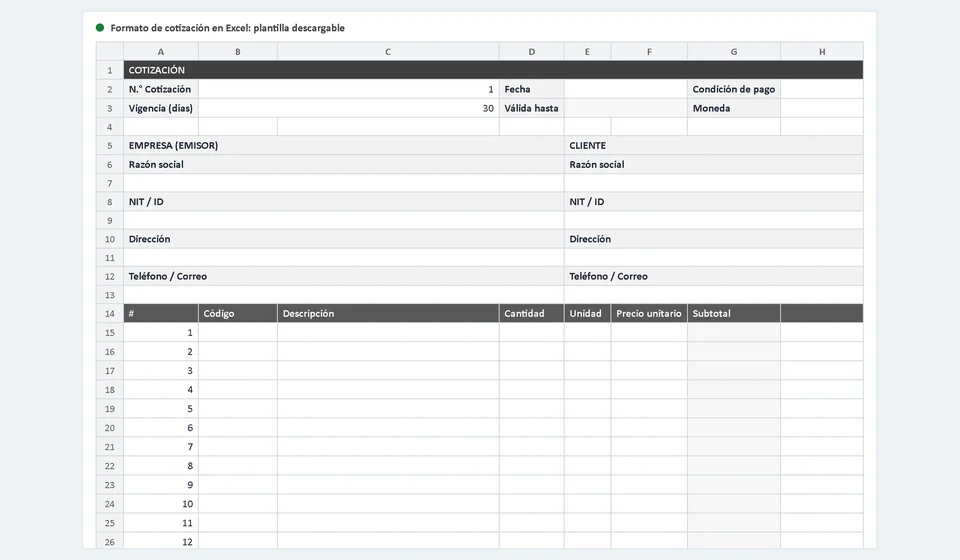
This quotation template in Excel is ready to download for free and use the same day. The file comes with a main sheet called Quotation and a second Instructions sheet that tells you what to type in each cell. You only fill in the data, the items table and the conditions; the line subtotals, the total and the valid-until date calculate themselves. Download it, open it and check the example it includes:
⬇ Download quotation template in Excel (.xlsx)What the quotation template includes
The template is designed so any business can use it without advanced Excel skills. The whole structure lives on a single sheet, organized in clear blocks, and the only cells you need to type in are the blank ones or the ones the instructions sheet points out. Here is what you will find inside:
| Block | What it contains | What it is for |
|---|---|---|
| Header | Quotation number, date, validity in days and valid-until date | Identifying the offer and knowing how long the prices stand |
| Your company details | Business name, tax ID, address, phone and email | Making clear who issues the quotation and how to reach them |
| Customer details | Business name or full name, tax ID, address and contact | Personalizing the offer and supporting the later invoice |
| Payment condition and currency | Dropdown list for payment condition and a currency cell | Defining whether it is cash, deposit or credit terms and in which currency you quote |
| Items table | Code, description, quantity, unit, unit price and automatic subtotal | Listing products or services with the value of each line |
| Totals | Subtotal, configurable tax cell and total | Showing the value of the offer; the tax comes set to zero and adjusts to your country |
| Terms and notes | Text areas for commercial terms and remarks | Adding delivery times, warranties, scope or any clarification |
| Customer acceptance | Name, tax ID, date and signature | Recording in writing when the customer accepts the offer |
On top of that, the sheet is set up to print on A4 paper: with the print preview you can produce a clean PDF or a neat paper copy to hand over or send.
Why validity and payment conditions matter
The validity period is the date until which the prices and conditions in your quotation remain valid. Without it, the customer could claim a price that no longer works for you weeks or months later, arguing that you offered it. With a clear validity period, the document becomes a serious, bounded offer: if the customer does not accept it in time, you are free to adjust rates, renegotiate or simply close the matter. In the template you type the validity in days into a dedicated cell, and the valid-until date is calculated automatically from the issue date, so you never subtract dates by hand or risk getting it wrong.
The payment condition is the other thing customers read first. Saying whether you expect cash on delivery, a deposit with the balance on completion, or credit terms of thirty or sixty days avoids awkward misunderstandings after the work is done. In the template this condition is chosen from a dropdown list, so it is always written down and consistent. Together with the currency, these two cells turn a list of prices into a complete commercial proposal. And because the commercial terms and the notes have their own area, you can explain what the price includes, what it does not include, how long delivery takes or what warranty you offer, without breaking the layout of the document.
An example with numbers
To show you how the math works, imagine a technical services business quoting preventive maintenance, monthly support and training. In the items table you type the code, description, quantity, unit and unit price; the subtotal of each line and the general subtotal are calculated with formulas:
| Code | Description | Quantity | Unit | Unit price | Subtotal |
|---|---|---|---|---|---|
| MNT-001 | Preventive equipment maintenance | 4 | Service | 12,500.00 | 50,000.00 |
| SUP-002 | Monthly technical support | 2 | Month | 25,000.00 | 50,000.00 |
| TRN-003 | Staff training session | 1 | Session | 30,000.00 | 30,000.00 |
| Subtotal | 130,000.00 | ||||
| Total | 130,000.00 | ||||
Notice two details. First, the total matches the subtotal because the tax cell comes set to zero by default: you only adjust it if your country requires a tax, and the calculation stays automatic. Second, the numbers use the local format, with commas for thousands and a period for decimals, as written in English; if your currency uses another convention, you change it once in the cell formatting.
How to use the template step by step
The first time takes a few minutes; after that, every quotation is a matter of copying, adjusting and sending. This is the recommended order:
- Download the file and save it under a name that identifies the quotation, for example Quotation-001.xlsx, so you do not mix it with other versions.
- Read the Instructions sheet once to learn each cell; then work on the Quotation sheet.
- Fill in your company block: business name, tax ID, address, phone and email. That way the customer knows exactly who is quoting.
- Assign the next number in your quotation sequence and type the issue date.
- Fill in the validity cell in days, for example 15 or 30. The valid-until date will calculate itself with the template formula.
- Choose the payment condition from the dropdown list and type the currency you will charge in.
- Complete the customer details: business name or full name, tax ID, address and contact.
- Add each product or service in the items table with its code, description, quantity, unit and unit price; the line subtotal is calculated automatically.
- If a tax applies in your country, type the rate in the cell provided for it; otherwise leave it at zero.
- Write in the commercial terms and notes areas what the customer should know: delivery times, warranty, scope of the service or any observation.
- Check the A4 print preview, fix anything that needs fixing and send the quotation to the customer by email or courier.
- When the customer accepts, ask them to sign the acceptance block with name, tax ID and date, and keep a copy of the signed original together with the editable file; that document backs up the invoice you will issue afterwards.
Common mistakes when quoting
Even with a good template, some failures repeat in almost every small business. Knowing them saves you from claims and lost sales:
- Quoting without a validity date. If the offer does not say how long it stands, the customer can demand that price whenever they want. Always define the validity in days and respect the valid-until date the template calculates; when it expires, issue a new quotation if the customer is still interested.
- Messing up the sequence numbers. Skipping numbers, duplicating them or quoting from loose untracked files makes it impossible to know how many offers you have sent, which ones were accepted and which are still pending. Keep the numbering in order, record the status of each quotation and use the same number as a reference when you invoice.
- Sending the editable file without reviewing it. A broken formula, a mistyped price or a wrong name looks worse than not quoting at all. Before sending, review the whole sheet, check the print preview and confirm subtotals and totals; if the customer only needs to see the offer, send a PDF copy or protect the cells with formulas so they cannot be altered.
There is one more mistake behind all of these: quoting without written conditions. The price matters, but delivery time, warranty and scope of the service are what prevent arguments later.
From paper to quotation software: an honest look at Kardex Tauro
The Excel template is ideal to start with: it is free, works offline, anyone can understand it and it is more than enough when you quote a few times a month. If that is your situation, you do not need anything else. The limit appears when volume grows: every quotation has to be copied, followed up, and when the customer accepts, everything has to be typed again to issue the invoice, with the risk of mistakes made in a hurry.
For that moment there is Kardex Tauro, management software for small businesses that turns an accepted quotation into an invoice without re-typing the data: the same items, the same customer and the same conditions move into the sales document in a couple of clicks, and everything stays linked in one place. To be honest: if you are just starting to formalize your sales, stick with the template and master it first; when you notice you are wasting time copying information or losing track of quotations, that is the moment to try a tool like this one.
In the end, quoting well is not about tools but about order: date, validity, conditions, sequence numbers and a signed file when the customer accepts. With the downloadable template you have that order starting today, and when your business grows, the software will be waiting for you at the next step.
Frequently asked questions
What should a quote include?
Number and date, customer details, description of what is offered, quantities, unit prices, total, how long the offer stands and payment and delivery terms.
How long should it be valid?
It depends on the product and how volatile the cost is. Fifteen to thirty days is usual; if prices move fast, keep it short.
Is it signed?
The person quoting signs it. If the customer accepts, have them sign or confirm in writing: that turns the quote into an order.
Final note: a quotation is not a collection document or a contract by itself; do not invoice it or record it as a sale. Before adopting a format, check the requirements of your country for quotations, estimates and equivalent documents, and talk to an advisor if your activity has special rules.
⬇ Download quotation template in Excel (.xlsx)