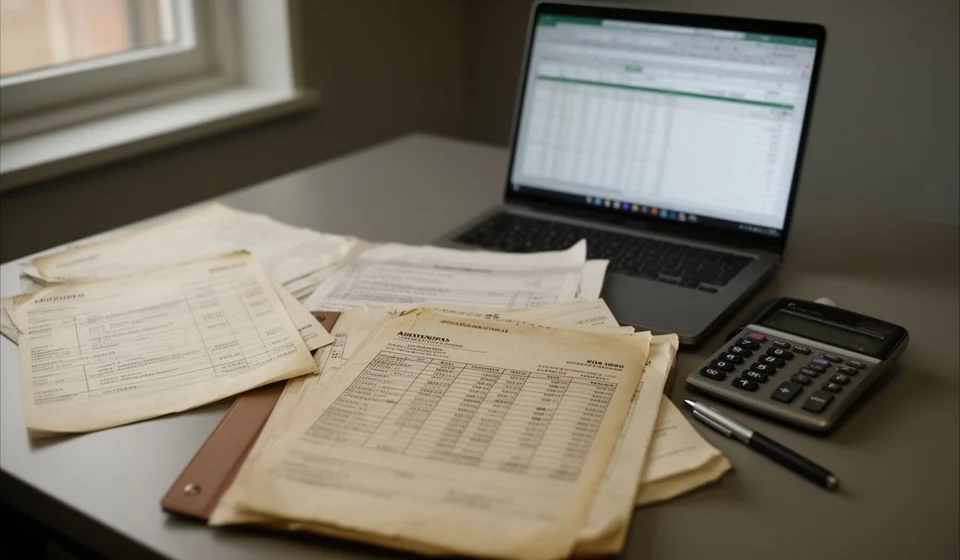
Aged receivables template in Excel

Aged receivables template in Excel
A receivables list can look calm when only the total is on the table and still hide the most expensive problem in the business: invoices that went past due months ago and that nobody is chasing anymore. Adding everything into one figure says nothing about the age of the debt, and age is exactly what changes the collection conversation. Calling someone who owes from three days ago is not the same as calling someone who owes from three months ago.
This Excel file brings two hundred lines with customer, document, issue date, due date, amount and payments received. The balance, the days overdue and the ageing range are calculated on their own, together with the totals row and a summary sheet with the five ageing buckets and the share of each one over the total receivables. It has no macros and no add-ins: it opens, it is saved under the business name and it is ready to fill in.
⬇ Download the template (Excel .xlsx)What an aged receivables list is and who it is for
An aged receivables list, also called an ageing of balances, is the list of what customers owe, sorted not by invoice date but by how long each document has been past due. Instead of a single receivables figure it shows several groups: what is still current, what went past due a few days ago, what is past one month, what is past two and what is already past three. Each group is read differently, collected differently and assessed differently.
It serves any business that sells on credit: shops, distributors, workshops, hardware stores, bakeries and professional offices. It also serves businesses that sell almost always for cash, because one customer with a credit line is enough for an old invoice nobody is watching to show up. The sheet works the same with twenty documents a month as with two hundred: what changes is the time spent filling it in, not the structure.
Before filling anything in, the cut-off date has to be understood. Days overdue and the range are not typed in: the sheet calculates them with today's date, comparing the due date of each document against the day the file is opened. That is why the same list gives one result today and another one a month from now, and why every receivables report must state the date it refers to. The template is meant for a daily, weekly or monthly cut-off, but the cut-off is always a specific date.
Settled lines do not enter the ranges
A document that has already been paid in full, or that ended with a zero or even negative balance because the payment received was larger than the amount invoiced, does not appear in any ageing column. There is no point in asking how many days overdue something is when it is no longer owed. Those rows stay visible on the sheet, with their balance at zero, but they stay out of the summary and out of the total receivables. When a customer has already paid and their line keeps showing up inside a range, there is almost always a payment typed wrong or written in the wrong row, and that is one of the fastest checks to make.
The range is what changes the conversation
Two customers with the same debt are not the same case. A customer with one million past due three days ago is usually inside a normal payment rhythm; that same million past due three months ago is a different matter, because it forces a decision on whether to insist, to negotiate a payment agreement or to assess a provision. The range turns a flat figure into a list of priorities and keeps a business from spending the same energy collecting what is recent and what is old.
What the file includes
Everything arrives in a single Excel workbook, with no macros and no add-ins, ready to be saved under the business name and the cut-off date. This is the content:
| Component | What it is for |
|---|---|
| Two hundred document lines | Customer, document, issue date, due date, amount and payments received for every balance to be followed. |
| Automatic balance | Subtracts payments received from the amount and leaves in sight what is really still owed on each line. |
| Automatic days overdue | Counts the days between the due date and the cut-off date; it leaves them at zero when the document is not due yet. |
| Automatic range | Classifies each line as current, 1 to 30, 31 to 60, 61 to 90 or over 90 days. |
| Totals row | Adds amount, payments received and balance of the whole list, leaving out the lines that are already settled. |
| Summary sheet | The five ranges with their balance and their share of total receivables, plus the overall total for the cut-off. |
The columns of the sheet
The main sheet has ten columns. Six are typed in and four are calculated on their own; the recommendation is never to touch the automatic ones, because they are what holds the whole list together.
| Column | Type | What is typed in |
|---|---|---|
| Customer | Manual | Customer name exactly as it should appear on the list. |
| Document | Manual | Number of the invoice or document that created the balance. |
| Issue date | Manual | Date the document was issued. |
| Due date | Manual | Date payment was supposed to be made under the agreed terms. |
| Amount | Manual | Total amount of the document, before later discounts. |
| Payments received | Manual | Everything the customer has already paid against that document. |
| Balance | Automatic | Amount minus payments received. |
| Days overdue | Automatic | Days elapsed from the due date to the cut-off. |
| Range | Automatic | Ageing label that comes out of the days overdue. |
| Notes | Manual | Collection notes, agreements and payment commitments. |
How the calculation works: an example as of September 25
The balance comes from subtracting payments received from the document amount. Days overdue are calculated by comparing the due date with the cut-off date: if the document is not due yet they stay at zero, and if it is already past due they are the days elapsed. The range is built from those days and splits each line into five groups: current, 1 to 30, 31 to 60, 61 to 90 and over 90 days.
With a cut-off as of September 25, a list of five documents looks like this:
| Customer | Document | Amount | Due date | Days overdue as of 09/25 | Range |
|---|---|---|---|---|---|
| Customer A | F-1045 | 1,000,000 | 09/05 | 20 | 1 to 30 |
| Customer B | F-1052 | 800,000 | 09/10 | 15 | 1 to 30 |
| Customer C | F-0987 | 600,000 | 07/01 | 86 | 61 to 90 |
| Customer D | F-1103 | 400,000 | 10/20 | Not due yet | Current |
| Customer E | F-0912 | 300,000 | 05/01 | 147 | Over 90 days |
Total receivables are 3,100,000. Grouped by range, the summary looks like this:
| Range | Balance |
|---|---|
| Current | 400,000 |
| 1 to 30 days | 1,800,000 |
| 31 to 60 days | 0 |
| 61 to 90 days | 600,000 |
| Over 90 days | 300,000 |
Reading that summary is what goes into the collection meeting. Out of every hundred in receivables, close to fifty-eight sit in the 1 to 30 day range, about nineteen in the 61 to 90 range and close to ten in the over 90 range; the 31 to 60 range holds no document at all, and the current balance is a little more than one tenth of the total. Put another way: what is current and what has just gone past due are most of the receivables, but there are 300,000 that are more than three months old and 600,000 that are past two months, and those two groups are the ones that demand a decision.
Step by step to fill it in
- Save the file under the business name and the cut-off date in the file name, for example the month and year of the report.
- Type the customer name and the document in the first two columns; keep the same name for the same customer on every one of their lines.
- Record the issue date and, above all, the due date: it is the date the whole ageing calculation depends on.
- Enter the document amount and, if the customer has already paid something, type that payment in its column, in the same row as the document.
- Let the balance, the days overdue and the range calculate on their own, and use the notes column for agreements, calls and payment promises.
- Open the summary sheet, compare total receivables with the balance in your system and order collection from the oldest to the newest.
Tips and common mistakes
- Fix the cut-off and write it down. Because days overdue are calculated with today's date, the same file changes its result every day; without the cut-off date the report cannot be compared with last month's.
- Do not type the range by hand. If the range is typed, it stops matching the days overdue and the summary stops agreeing with the list.
- Check the settled lines. A zero or negative balance must not appear in any range; if it does, there is a payment in the wrong place.
- A payment in the wrong row. It is the most common mistake: the payment is applied to another invoice from the same customer and both ages end up wrong.
- Watch the due date you type. A wrong year or a wrong day sends the document to the wrong range and distorts the whole summary.
- Do not mix currencies or terms. If there are documents in two currencies or with very different terms, keep them in separate files so the total makes sense.
When to move to software
While receivables fit in two hundred lines and are updated once a month, this sheet is enough and is even faster than any program. The problem starts when dozens of invoices arrive every week, when payments come through several channels and have to be matched by hand, or when several people on the team need to look at the same receivables at the same time. At that point the shared file fills up with copies, each person works on their own version and the range being calculated stops being reliable.
That is where Kardex Tauro changes the work: receivables stay in one place, payments are recorded against their document and the ageing list is generated for any cut-off date without typing anything again. The Excel sheet remains useful as a control format, for review or as a starting point; what software adds is that the figure stops depending on someone remembering to update it. Before making the move, it is worth keeping the template up to date for a couple of months: it serves as a baseline to know what is being improved.
In short
An aged receivables list is not a month-end decoration: it is the list that says who to call first. With the cut-off written down, the settled lines out of the ranges and the range left to what the sheet calculates, the same list that today is just a sum becomes a collection plan.
⬇ Download the template (Excel .xlsx)