Free inventory template for Google Sheets

Free inventory template for Google Sheets
Keeping control of your inventory should not depend on loose notebooks, on the warehouse manager's memory or on homemade spreadsheets that only their creator understands. When you know exactly how many units you have of each product, where they are and what needs to be reordered, almost every decision in the business becomes simpler: what to buy, when to buy it, what is selling best and what has been sitting on the shelf. This free inventory template for Google Sheets helps you organize that record in a clean spreadsheet, with formulas that calculate the balance for you and without installing a single program on your computer.
We chose Google Sheets because it is the most accessible option for a small business: the tool is free, it lives in the cloud and it opens in any browser, with no licenses to pay and no versions to update. Because it lives in the cloud, the information saves itself and you can check it from the office, the warehouse or your phone at any time. It is also collaborative: you can share the same sheet with several people so that each one records their own movements, while everyone looks at the same number, without sending files by email or asking who has the latest version.
This template is an internal control tool: it exists so that you and your team always know what is in stock, what came in and what went out. It does not replace invoicing, accounting documents or the legal obligations of your business, but it is exactly what you need to stop relying on memory and start recording every movement in an orderly way.
⬇ Download free inventory template for Google SheetsHow this template works
The file you download is an Excel workbook in xlsx format, very lightweight and designed to be imported into Google Sheets in less than a minute. It contains no macros and no code of any kind, so you will not see security warnings or have to enable anything unusual: just numbers, text and formulas. The formulas it uses are among the most basic and compatible that exist, mainly SUM and IF, which behave the same way in Excel and in Google Sheets. When you import the file, the formulas are kept and keep calculating the balance automatically, row by row, without you ever writing a single result by hand.
The file is not tied to any currency or to a fixed unit of measure. Quantities are entered as plain numbers, so the same sheet works with dollars, euros, reais, pesos or any currency, and also with pieces, boxes, kilos or liters: you decide what each unit represents. That is why it is just as useful for a neighborhood store as for a small workshop, an online-selling venture or a distribution business that is starting to organize its warehouse.
How to import it into Google Sheets in three steps
Bringing the template into Google Sheets is a three-step process that requires no technical skills. Everything happens inside your Google account, with no additional programs:
- Open Google Drive with your Google account, click the New button and choose File upload. A window will open so you can look for the file on your computer.
- Select the xlsx file you downloaded, the inventory template for Google Sheets, and wait for the upload to finish. You will see the file appear in the list of your Drive.
- Double-click the uploaded file and Google Sheets will open it automatically, with the formulas working. If for any reason it opens as a read-only document, right-click the file in Drive, choose Open with and then Google Sheets.
From that moment on you work directly in the cloud: every change saves itself. And if you ever want to take the sheet back to Excel, you can download it again in xlsx format from the Google Sheets menu, with your data and formulas intact.
What columns the file includes
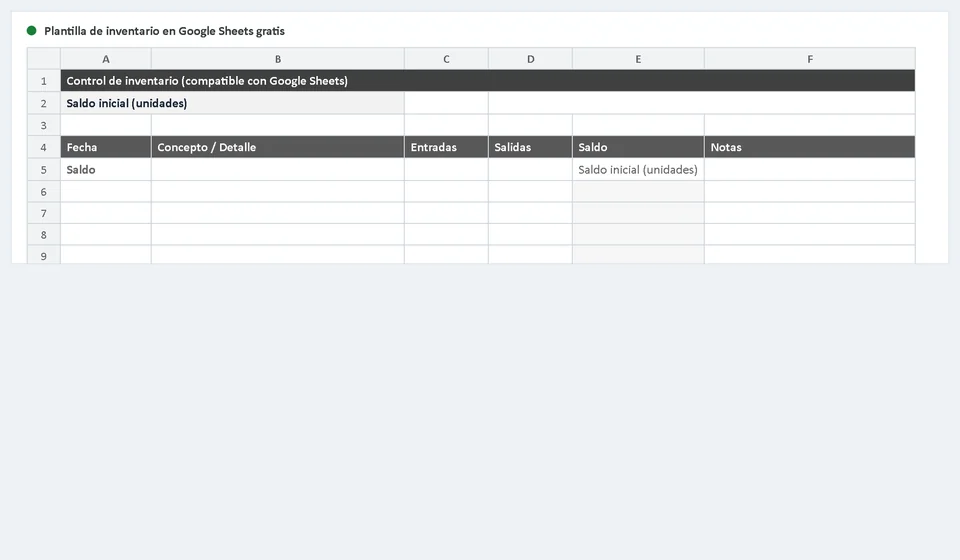
The sheet is designed as a movement ledger, similar to the notebook you would keep by hand, but with the balance calculated by the sheet itself. These are its columns:
| Column | What it is for |
|---|---|
| Date | The day the movement happened. With the date recorded you can sort the sheet, filter by period and know exactly when each unit came in or went out. |
| Concept | A short description of the movement: purchase from a supplier, sale to a customer, exit due to damage, adjustment, return or transfer, for example. |
| Entries | The units that come into the inventory. If the movement is an exit, this cell is left blank or set to zero. |
| Exits | The units that leave the inventory. If the movement is an entry, this cell is left blank or set to zero. |
| Automatic balance | The result of a formula that takes the balance from the previous row, adds the entries and subtracts the exits of the current row. It is never typed by hand: the sheet calculates it. |
| Notes | An optional space to record the invoice or order reference, the supplier's name or any observation that helps trace the movement later. |
The golden rule is to write entries and exits in the row that matches the movement and to let the remaining columns tell the story of that movement: what it was, when it happened and why. That way the automatic balance always reflects the reality of your stock.
A worked example
To see how simple it is, imagine that you start the period with ten units of a product on your shelf, then you buy five more units and afterwards you sell four. This is how the sheet would look with its first three movements:
| Detail | Entries | Exits | Balance |
|---|---|---|---|
| Opening balance for the period | 10 | ||
| Entry: purchase from a supplier | 5 | 15 | |
| Exit: sale to a customer | 4 | 11 |
Look at the balance column: it starts at ten, the entry of five raises it to fifteen and the exit of four leaves it at eleven. Each new row takes the previous balance and applies its own movement, which is why the bottom of the sheet always shows your current balance without you doing any math. In the real file, each of these rows also carries its date and concept in the corresponding columns.
This example works with any currency or unit because the logic is always the same: what comes in adds up and what goes out subtracts. It is worth doing a physical count every now and then and comparing it with the balance on the sheet; if the numbers match, your record is healthy, and if they do not, the notes and dates help you find the movement that was recorded wrong.
Tips for keeping a good record
The template organizes the information, but the habit of recording makes the difference. These tips help you keep the sheet useful as the months go by:
- Record one movement per row, on the same day it happens. If you write several entries or exits together in a single row, the balance loses detail and errors become very hard to find later.
- Take advantage of the fact that the sheet lives in the cloud to keep versions without effort: Google Sheets keeps the change history automatically, and you can also download an xlsx copy from time to time as an extra backup.
- Share the sheet with your team and define who can edit: give editing permission only to the people who record movements and leave the rest with read-only or comment access.
- Check the balance against a physical count at least once a month and fix differences with an adjustment row explained in the notes column.
When it is time to move to inventory software
The Google Sheets template is an honest and very effective solution while the business handles a volume that one person can record without getting overwhelmed: a few hundred products, a handful of movements a day and a single physical place where the merchandise lives. In that scenario, a well-kept sheet can give you more control than an expensive system that nobody ends up using.
But there are signs that the sheet has run out of room: when several people need to record at the same time and start stepping on each other's data, when the inventory grows to thousands of items, when you sell from more than one warehouse or store and need to know the stock of each one, or when you want the inventory to be deducted automatically at the moment of invoicing. At that point, keeping control by hand starts to cost more than it saves, and it is worth looking at a specialized inventory system, like the one offered by Kardex Tauro, which automates the stock ledgers, connects entries and exits with your sales and delivers reports without anyone having to type row by row.
Frequently asked questions
How do you use the template in Google Sheets?
Upload it to Drive and open it with Sheets; changes stay in the same sheet and are shared with whoever needs to edit.
Does it work the same as in Excel?
Basic formulas do. Macros and some advanced functions do not: if the file uses them, they must be rebuilt.
Is it good for several people?
Yes, that is its advantage. Keep one person responsible for the adjustments so the balance does not drift.
The important thing is not to skip the stage: first organize your operation with a simple tool like this one and, when volume demands it, make the jump to software. The template is not wasted: it works as a backup, as a working format for your team or as a bridge to load your opening stock into the new system. Download the file, import it into Google Sheets and record your first movement today: the control of your inventory starts with a single well-typed row.
⬇ Download free inventory template for Google Sheets