Project schedule with Gantt chart template for Excel

Project schedule with Gantt chart template for Excel
A stocktake project rarely falls apart because someone did a task badly. It falls apart because nobody noticed that the task before it had slipped three days. In a small business the plan usually lives in three places that never talk to each other: a to-do list in the team chat, an email with the dates in the subject line, and the coordinator's memory, which is the only record that the physical count cannot start while product loading is still half done. When a date moves, it moves in one of those three places, and the other two go on insisting on the old version.
The first fix everyone tries is drawing the chart by hand. Build a grid, leave one box per week, colour in the strip for each task. It works for exactly one week. The moment a date changes you have to wipe the colour and paint again, and that is the day the file gets abandoned. This is not a discipline problem: a schedule that takes twenty minutes to update does not get updated, and one that is not updated ends up as decoration pinned to a meeting-room wall.
This template reverses the work. You type dates and the sheet paints the bars. The grid is already built, every column on the right carries a real date in its header, and a formatting rule decides on its own whether that week turns grey or stays blank, by comparing the column's date with the task's start and finish. Move the finish and the bar gets shorter; move the start and the bar slides a week across. The only thing typed by hand, besides the dates and the names, is progress. No macros to enable, and no security prompt when the file opens.
⬇ Download the template (Excel .xlsx)What it is and who it is for
It is a two-tab workbook. The first tab, "Schedule", holds one row per task with owner, start, finish, duration and progress, and on the right twelve columns standing for twelve consecutive weeks counted from the schedule start date. The second tab, "Instructions", fits on a page and explains what the sheet does, how to use it, how to read it and which mistakes to avoid. If the file changes hands halfway through a project, that tab is what stops the new owner from quietly breaking it.
It is for projects that fit into one meeting and one person: setting up a warehouse stock ledger, opening a shop, switching systems, getting ready for an audit, putting the paper archive in order before a move. It is not for running twenty projects with the same crew, nor for dependencies with tight lags; that is discussed further down, plainly. It is, however, for the most common and worst-documented case: a four to eight week project with six or fifteen tasks that today exists only in the head of whoever asked for it.
What the sheet contains
| Block | What is in it |
|---|---|
| Header | Project name, owner and schedule start date. That date is the anchor: the twelve weeks are counted from it. |
| Task table | Seven columns: number, task, owner, start, finish, duration and progress. Thirty rows available, from row 7 to row 36. |
| Twelve week columns | S1 to S12. Each header holds a real date: the first equals the start date and each one after it adds seven days. |
| Bars | Conditional formatting across the twelve columns. No arrows and no shapes: the cell fills when it should and stays clean when it should. |
| Total duration | A footer row that takes the latest finish date, subtracts the earliest start date and adds one day. |
| Notice | Footer note: internal control tool, not a tax or accounting document. |
The instructions tab is not padding. It is written so that somebody opening the file six months later understands in two minutes why the bars moved on their own when a colleague changed the start date.
The columns, one by one
| Column | What you type | What gets calculated |
|---|---|---|
| No. | The order of the task. | Nothing. |
| Task | Verb and object: "Initial physical count", not "count". | Nothing. |
| Owner | A person, not a department. If it says "warehouse", nobody answers. | Nothing. |
| Start | A real date. If the number sits on the left of the cell, it is text and the bar will not appear. | Nothing. |
| Finish | A real date for the last working day, not the day after. | Nothing. |
| Duration (days) | Left empty. | Finish minus start plus one, with the formula shown below. |
| % complete | Your figure, as a fraction: one is finished and zero is not started. The cell is formatted as a percentage and shows it as one. | Nothing, but the progress bars read it. |
| S1 to S12 | Left empty. | Each holds the date of its week, and the conditional formatting fills it when that week falls inside the task's range. |
The duration formula, exactly as it sits in the template, is =IF(OR($D7="",$E7=""),"",$E7-$D7+1). In plain words: if the start or the finish is missing, show nothing; if both are there, subtract and add one day, because the start day counts as a working day. The footer version is =IF(COUNTA($D$7:$D$36)=0,"",MAX($E$7:$E$36)-MIN($D$7:$D$36)+1): it takes the latest finish in the whole table, subtracts the earliest start and adds one. Neither formula needs touching; copy them down and you are done.
How the bars get painted: the example, number by number
The template arrives with six tasks already filled in, running from 2 March to 3 April, for a project called "Kardex rollout" with Laura as owner. Those six rows are worth reading before you delete them, because they are the only explanation the file carries about how the bars behave.
| No. | Task | Owner | Start | Finish | Duration (days) | Weeks with a bar |
|---|---|---|---|---|---|---|
| 1 | Inventory assessment | Laura | 2 March | 6 March | 5 | S1 |
| 2 | Warehouses and locations | Laura | 5 March | 11 March | 7 | S1 and S2 |
| 3 | Loading products into the system | Andres | 9 March | 20 March | 12 | S2 and S3 |
| 4 | Initial physical count | Marta | 18 March | 25 March | 8 | S3 and S4 |
| 5 | Team training | Andres | 23 March | 27 March | 5 | S4 |
| 6 | Go live | Laura | 30 March | 3 April | 5 | S5 |
The durations come out of that subtraction, one at a time. From 2 to 6 March there are 5 days because both ends count. From 5 to 11 there are 7: the task opens on a Thursday and closes on the Wednesday of the following week, and the Sunday in between still adds, because duration here is counted in calendar days. From 9 to 20 there are 12. From 18 to 25 there are 8. From 23 to 27 there are 5. And from 30 March to 3 April there are 5, because the task crosses the month change and does not pause for it.
Now the bars. The first task falls entirely inside week S1, so its bar takes a single cell. The second starts on 5 March, inside S1, and is still running in S2, so it paints two cells and begins in the same column as the first one: that is an overlap, and it looks like two grey bars stacked in the same week. The third takes S2 and S3; the fourth, S3 and S4; the fifth only S4; the sixth, S5. The practical consequence is the part that matters: column S3 carries two bars at once — product loading and the physical count, 18 to 20 March — and that is the column where the project jams if Marta and Andres are not talking.
Overlapping bars are not a defect in the sheet: they are tasks running in parallel, and an overlap is a decision, not an accident. This example has four crossings adding up to 11 shared days: assessment and warehouses on 5 and 6 March; warehouses and loading on 9, 10 and 11; loading and the count on 18, 19 and 20; the count and training on 23, 24 and 25. Add the six durations and you get 42 days of work; take away the 11 days that are shared and 31 days are left with at least one task running; add the two days with nothing scheduled, 28 and 29 March, and you land on the 33 days announced in the footer, from 2 March to 3 April. Had the count waited for loading to finish, the close would have slipped and nobody would have known why.
Progress is stored as a fraction and the cell displays it as a percentage: the first two tasks sit at one, product loading at 0.8, the count at 0.4, and the last two at zero. Type eighty into that cell and the sheet reads eight thousand percent, and the progress bar overflows; that is why the instructions tab warns about it in so many words.
Step by step
- Type the project name, the owner and the schedule start date into the header. The whole calendar hangs off that date: change it and the twelve weeks shift and the bars move, while the dates typed task by task stay exactly where they were.
- Replace the six sample rows with your own tasks, one per row, in the order they happen. Start with the ones that already have a date promised to somebody outside the company.
- Type start and finish as dates, with day, month and year. Check that the number sits on the right of the cell; if it sits on the left, the sheet is reading it as text.
- Watch the duration column without typing anything into it. Empty means one of the two dates is missing; negative means the finish landed before the start and the bar will not be drawn.
- Decide the overlaps before you enter them: if two tasks share an owner and share dates, either there are two people or the delay was scheduled from day one.
- Record progress on the day of the meeting, not at the end of the project. A schedule with stale progress lies more convincingly than one with none.
- Save a copy with the cut-off date in the file name. That way the version discussed on Monday cannot be confused with the one from Friday.
Mistakes that wreck a schedule
- Setting the finish before the start. Duration comes out negative and the bar disappears; the mistake is visible, but people look for it in the wrong place.
- Typing dates as text, pasted out of an email or a chat. The sheet displays them just as nicely and calculates nothing at all.
- Entering progress as a whole number in a cell that expects a fraction. Eighty turns into eight thousand percent.
- Changing the schedule start date without reviewing the tasks. Every bar shifts and every typed date stays put: the picture and the table start telling different stories.
- Umbrella tasks the size of the project, the "implement the system" kind. They cannot be measured, they cannot overlap, and they warn you about nothing.
- Mistaking a deliberate overlap for a typing error and "fixing" it by moving a date. The parallel run was the plan; the fix undoes it.
- Updating progress only when somebody asks about the project. By then the schedule no longer helps anyone decide, it only explains.
When to move to project software
There is a point where the sheet runs out of road, and it is worth saying so before someone discovers it the hard way. The template stops working when several projects share the same people and load has to be levelled across them; when tasks depend on each other with tight lags and moving one date moves five; when a baseline has to be saved and measured against; when three people edit at once and need a change history. At that point a spreadsheet becomes an exercise in patience and project software appears, with its own learning cost attached.
Before that point, the sheet wins for unglamorous reasons: everyone can open it, there are no licences to renew, there is no learning curve, and the file travels attached to an email without asking anyone's permission. And when the project ends with a working stock system, the schedule is only half the story: the other half is the stock ledger that stays alive afterwards, and that is where Kardex Tauro does the job the sheet never claimed to do. The template does not replace project software, and no software replaces the habit of reviewing the schedule every Monday.
The sheet as it looks
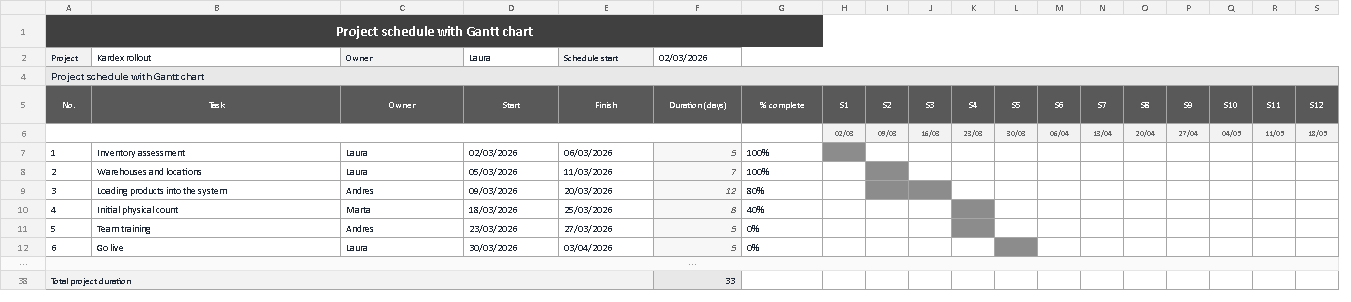
The screenshot shows the whole sheet, with nothing left to explain from memory. At the top, the header with the project, the owner and the start date. In the middle, the six tasks with their dates and the duration column already calculated. On the right, the block of twelve weeks with the grey bars: the first task takes one cell, the second takes two, and column S3 shows the crossing between product loading and the physical count, which is exactly the overlap worth watching. At the bottom, the total duration row with the project's 33 days. Two things are worth checking before you replace the data: that every bar begins and ends in the week the table claims, and that no row has a finish earlier than its start.
A schedule like this will not impress anyone in a presentation. It does the one thing that matters: the following Monday, when somebody asks whether the count can start yet, the answer sits in a sheet that takes two minutes to update, not in one person's memory. Download it, delete the sample and type your own dates; the bars take care of the rest.
⬇ Download the template (Excel .xlsx)